
Every failed order says what went wrong and what to do, and links to the place where you make the fix. Once the cause is fixed, you post the order again.
Steps:
- Go to Sales > Orders and click the Errors tab. Each order's Status says what kind of problem it has: Needs fix (something in your setup stopped it before it was sent), Error (QuickBooks Online refused it) or Held by rule (a workflow rule holds it). To see one kind, choose it in the All statuses filter. You can also start from the Inbox, where each sales channel with failed orders has a row. See Understanding and Using the Inbox in Webgility i.
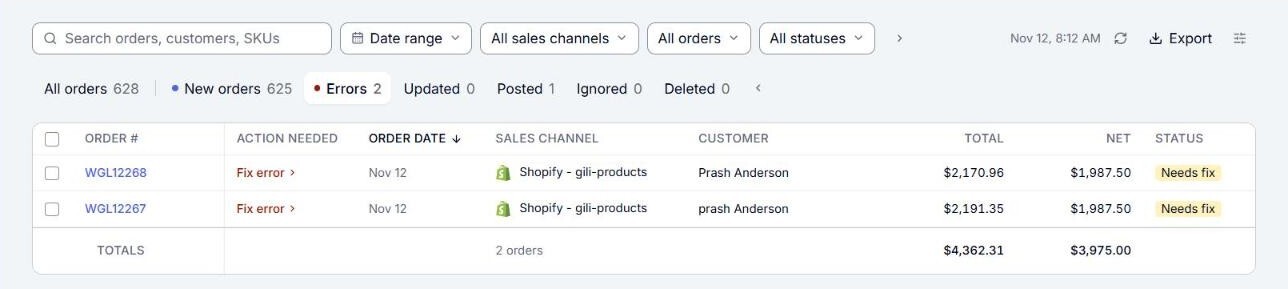
- Point to Fix error or Map product in the Action needed column to read the one-line reason and what to do.
- Click Fix error in the Action needed column, or click the order. The order opens on its Order tab, with a red box at the top that names the problem, explains the fix and links to where you make it. If a product on the order is not mapped, the panel has no red box. Click Map product at the bottom of the panel instead.
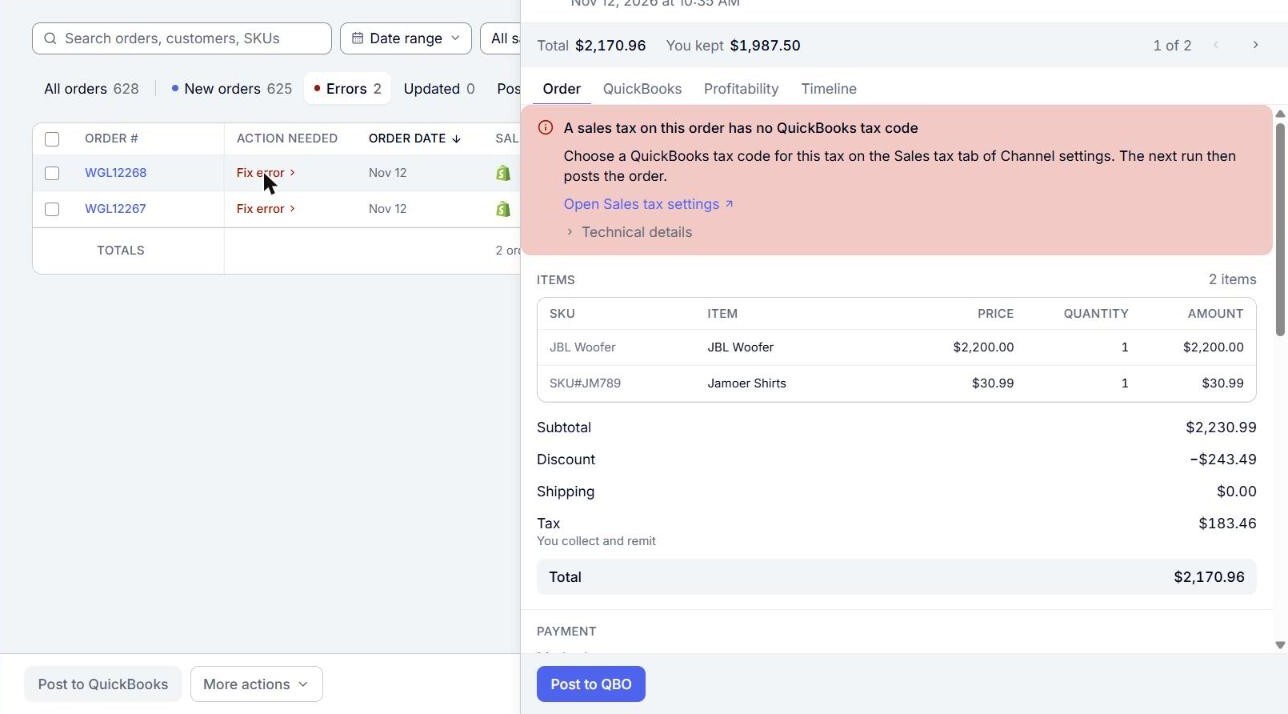
- Make the fix. Use the links in the error box, for example Open Channel settings, Open rules or Open QuickBooks settings. A fix you make inside QuickBooks Online is described below with the QuickBooks article that shows how.
- Go back to the Errors tab, tick the order and click Post to QuickBooks, or click Post to QBO on the order's panel. See How to Post Orders to QuickBooks. If automatic posting is on for the sales channel, many orders also post on their own once the cause is fixed.
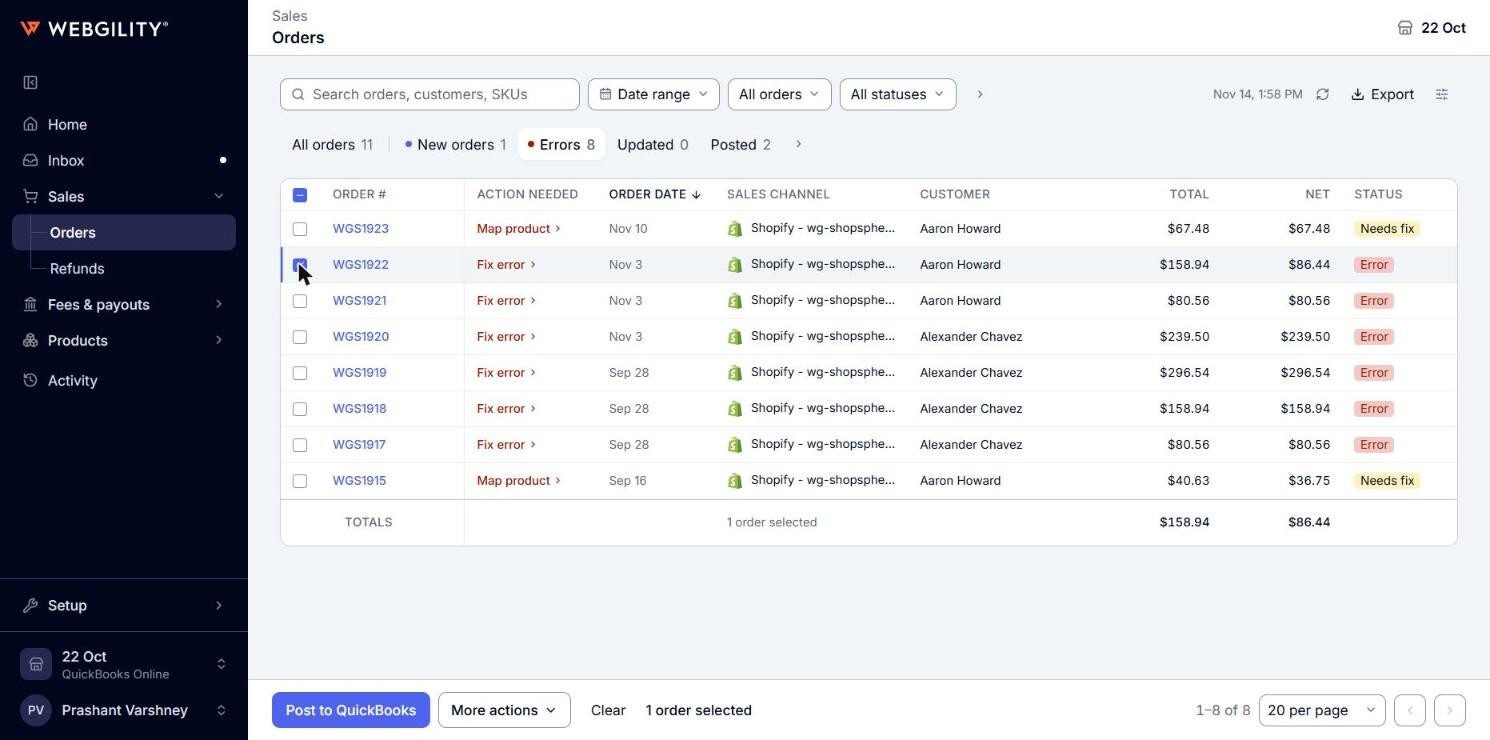
Note: If an order's Action needed column shows Map product, click it. A panel opens over the Orders page with the product to map. Map it to a QuickBooks item, then post the order with Post to QBO on its panel or Post to QuickBooks on the Errors tab.
Note: Support may ask for the exact error text. Open the order and click Technical details in the error box to see it.
Map or create several products of one order at once
When an order stopped on more than one product that has no QuickBooks product, Map product opens one panel for all of them. Its title names the order and the count, for example Order WGL12338 stopped on 2 products.
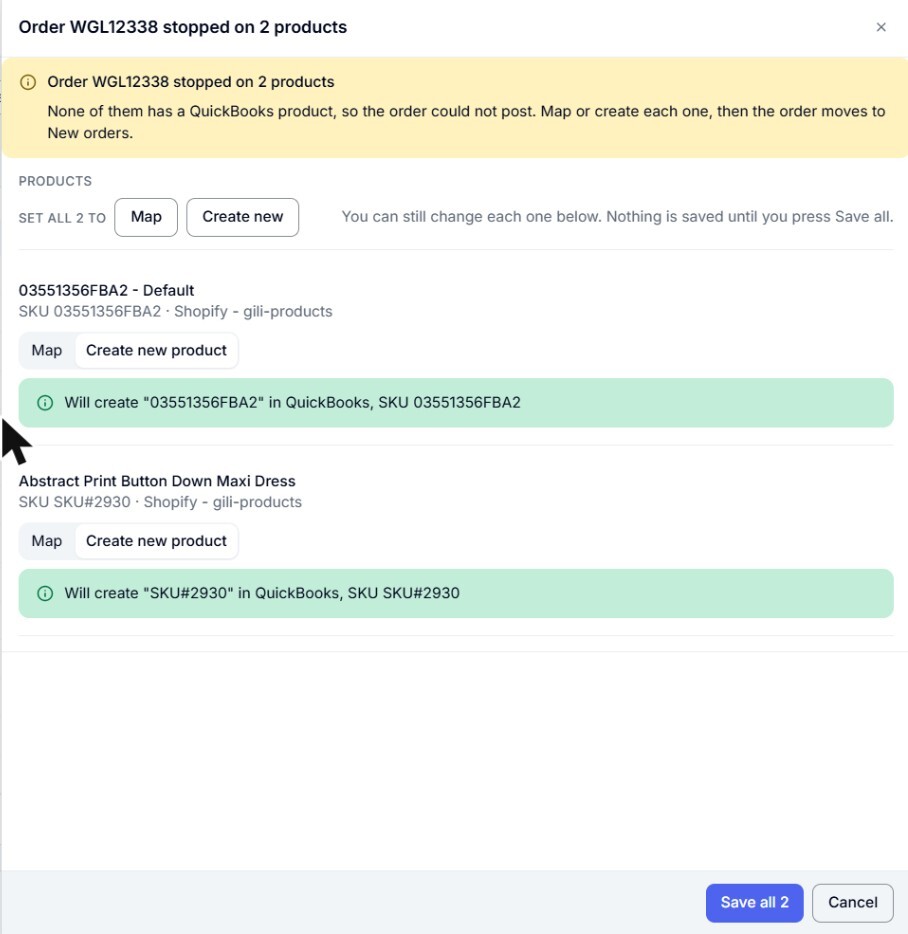
- Read the yellow box. It says that none of the products has a QuickBooks product, and that the order moves to New orders once each one is mapped or created.
- Choose what to do for each product. Each row shows the product's name, SKU and sales channel, with two choices:
- Map: pick an existing QuickBooks product in the Search by SKU or name box. If Webgility i finds an obvious match, the row starts on Map with that product already picked.
- Create new product: Webgility i creates a QuickBooks product for it. The green line says what it creates, for example Will create "SKU#2930" in QuickBooks, SKU SKU#2930. If Webgility i cannot create the product, the row says why instead.
To choose the same for every product, click Map or Create new next to Set all 2 to. You can still change each row afterwards. Nothing is saved until you click Save all.
Note: If a product is also listed on another sales channel or store, its row shows Also linked to 1 other listing. Click Change to see those listings. They are mapped or created with this one, unless you clear their boxes.
Note: A product that already has a QuickBooks product shows Mapped to and the product's name, with an Unmap button. Leave it as it is, or click Unmap to choose another product for it.
- Click Save all (the button shows the count, for example Save all 2). A row left on Map with no product picked shows Pick a QuickBooks product, or switch to Create new., and nothing is saved until you fix it.
- Read the result:
- 2 products fixed and mapped.: every product has a QuickBooks product. Click Close. The order leaves the Errors tab and moves to New orders, ready to post.
- 1 of 2 products fixed and mapped. Check the rest below.: the products listed below were not saved, each with the reason. Fix them and open Map product again.
- Nothing was saved. Check the reasons below and try again.: none of the products was saved.
Note: If every product of the order already has a QuickBooks product when you click Map product, the panel says All 2 products already have a QuickBooks item. You can post the order now. Click Change mapping to change one of them.
Errors about products and items
In the messages below, “Blue T-shirt” stands for the name of your product.
- "“Blue T-shirt” is not linked to a QuickBooks item" (or "3 products are not linked to QuickBooks items"): a product on the order is not mapped to a QuickBooks Online item, and Webgility i could not create one. Click Map product and map it to an existing item. If the message says the sales channel is set not to create missing items, either map the product or turn on Create missing item in Channel settings. If the message says the sales channel lets you match new products yourself, map the product.
- "The QuickBooks item for “Blue T-shirt” belongs to another product": the item is already mapped to another product. Map this product to a different item, or unmap the item from the other product first.
- "“Blue T-shirt” needs its match confirmed": Webgility i found more than one possible match, or a match it is not sure of. Click Review the match and confirm the right product on the Needs review tab.
- "A QuickBooks bundle cannot be posted yet": the product is mapped to a bundle in QuickBooks Online. Map it to a single item instead.
- "The QuickBooks item for “Blue T-shirt” is inactive": make the item active in QuickBooks Online, or map the product to another item. Channel settings can also let Webgility i make such items active itself. See How to Make an Inactive Item Active in QuickBooks Online.
- "A QuickBooks item picked in settings is inactive": an item chosen in Channel settings or a workflow rule is inactive. Make it active in QuickBooks Online, or choose another item.
- "Waiting for “Blue T-shirt” to arrive from" followed by your store's name: the product has not been downloaded from the sales channel yet. Nothing to do. Webgility i tries again on its own.
- "Webgility is still reading your QuickBooks items": the order waits until Webgility i has read the items it uses from QuickBooks Online. Webgility i tries again on its own. Contact support if it waits for more than a day.
- "The QuickBooks item for “Blue T-shirt” is not ready yet": Webgility i could not finish creating the item. Webgility i tries again on its own. Contact support if the order stays here.
- "QuickBooks did not create the item for “Blue T-shirt”": QuickBooks Online refused the new item. The error box shows what QuickBooks Online said. Fix what it names, then post the order again.
Errors about your settings
- "No standard item is chosen for this Channel": choose the standard item on the Products tab of Channel settings, or map the product.
- "No item is chosen for coupons and other charges": the order has a coupon or charge that is not a product. Choose the item in the order workflow rule.
- "No income account is chosen for new items": choose the income account on the Products tab of Channel settings.
- "An account this order needs is not chosen": choose the account in Channel settings.
- "A sales tax on this order has no QuickBooks tax code": choose a QuickBooks tax code for the tax on the Sales tax tab of Channel settings.
- "The setup of this Channel is not finished": the error box says what is missing. Finish it in Channel settings.
- "No QuickBooks customer for this order": check the customer setting on the Customers tab of Channel settings.
- "This is a $0 order, and this Channel does not post $0 orders": the Channel setting "Do not post orders with value of $0?" is on. To post the order, turn that setting off, then post the order again.
Errors you fix in QuickBooks Online
- "Multicurrency is off in QuickBooks": the order is in a currency other than your QuickBooks Online home currency. Turn on Multicurrency in QuickBooks Online under Settings > Advanced > Currency. QuickBooks Online cannot turn Multicurrency off again, so decide carefully. See How to Turn On Multicurrency in QuickBooks Online.
- "The books are closed for the date of this order": QuickBooks Online takes no document dated on or before its closing date. Change the closing date under Settings > Advanced, then post the order again. See How to Change the Closing Date in QuickBooks Online.
- "The QuickBooks customer for this order is inactive": make the customer active in QuickBooks Online, or let the sales channel switch inactive customers back on, on the Customers tab of Channel settings. See How to Make an Inactive Customer Active in QuickBooks Online.
- "QuickBooks already has a document with this number": document numbers must be unique in QuickBooks Online. Change or remove the other document in QuickBooks Online, then post the order again. See How to Find a Transaction by Its Number in QuickBooks Online.
- "A name on this order is already used in QuickBooks": QuickBooks Online needs unique names across customers, vendors and employees. Rename the other record, then post the order again. See How to Rename a Customer, Vendor or Employee in QuickBooks Online.
- "A record this order uses is missing in QuickBooks", or "A tax code this order uses is missing in QuickBooks" (or an item, account, customer, class, location, payment method, payment term or vendor): it was deleted or made inactive in QuickBooks Online. Make it active again, or choose another one in Channel settings, then post the order again.
- "QuickBooks could not calculate tax for this order": check the tax codes on the Sales tax tab of Channel settings, then post the order again.
- "Your QuickBooks subscription refused this": check your QuickBooks Online subscription, then post the order again.
- "QuickBooks did not accept the email of the buyer": the email on the order is not a valid address. Correct it at the sales channel, then post the order again.
- "QuickBooks did not accept this order": QuickBooks Online refused the order for another reason. The error box shows what QuickBooks Online said, after "QuickBooks says:". Fix what it names, then post the order again. Contact support if you are not sure what to change. For example, if QuickBooks says "Transaction date is prior to start date for inventory item", the order is dated before the inventory start date of one of its products: in QuickBooks Online, edit that product and set its Inventory start date on or before the order date. If it says "The name '…' is already used by a QuickBooks vendor", rename the vendor in QuickBooks Online, as for "A name on this order is already used in QuickBooks" above.
Note: If QuickBooks Online says "Select a product or service", the order most likely has a shipping charge and Shipping is turned off in your QuickBooks Online company. Turn on Shipping in QuickBooks Online under Account and settings > Sales. See How to Turn On Shipping in QuickBooks Online. Then tick the order and click Post to QuickBooks to post it again.
Errors about the connection
- "QuickBooks is disconnected": Webgility i can no longer sign in to your QuickBooks Online company. Click Reconnect QuickBooks and connect it again in Business settings. See How to Connect Your QuickBooks Online Account to Webgility i.
- "QuickBooks did not answer this time": this is usually temporary. Post the order again in a few minutes. Contact support if it keeps failing.
- "QuickBooks was busy with another change": something else was changing inventory in QuickBooks Online at the same moment. Post the order again in a few minutes.
- "Something went wrong while posting": an unexpected problem in Webgility i or QuickBooks Online. Post the order again in a few minutes. Contact support if it keeps failing.
Errors that need a closer look
- "Webgility could not tell whether the order posted": QuickBooks Online did not answer, so the document may be there already. Look for it in QuickBooks Online before you post again, so the order is not posted twice. Contact support if you need help.
- "QuickBooks may hold this order twice": contact support to release the order once one copy is removed.
- "The day's earlier document may already be in QuickBooks": on a sales channel that posts one document per day, QuickBooks Online did not say whether the day's earlier document, which holds this order and others, posted. Look for it in QuickBooks Online before you post again, so no order is posted twice. Contact support to settle it.
- "The posted document could not be updated": the order changed after it posted, and QuickBooks Online would not take the change, because the document is voided, was changed there, or is part of a deposit. Check the document in QuickBooks Online.
- "The edited order waits for its payment": the sales channel shows the payment of the edited order as pending. The order posts once the sales channel marks it paid. Nothing to do.
- "This order has no date", "This order has no lines to post" or "QuickBooks cannot take the currency of this order": the sales channel sent an order Webgility i cannot post. Contact support, or ignore the order if you do not need it in QuickBooks Online. See How to Ignore and Restore Orders.
- "This order could not post to QuickBooks": Webgility i has no specific words for this error. Read Technical details, and contact support if you are not sure what to change.
Orders held by a rule
An order whose Status reads Held by rule did not fail: a workflow rule says not to post it. Click View rules to see the rule on the Workflows page. Change the rule if the order should post, or leave it held. You can also ignore the order. See How to Ignore and Restore Orders.