
It also explains how to take a posted order back out of QuickBooks Online with Unpost. Orders you post by hand go through the same checks as orders Webgility i posts on its own, and post in the way your workflow for that sales channel sets.
Note: If automatic posting is on for a sales channel, Webgility i posts its new orders on its own, and you only need this article to post an order sooner or to post an order again after a fix. How a sales channel posts, one document per order or one document per day, week or month, is set by its posting grain. See Understanding Posting Grain and How It Affects Automation.
Steps:
- Go to Sales > Orders and click the New orders tab. To post an order again after a fix, click the Errors tab instead.
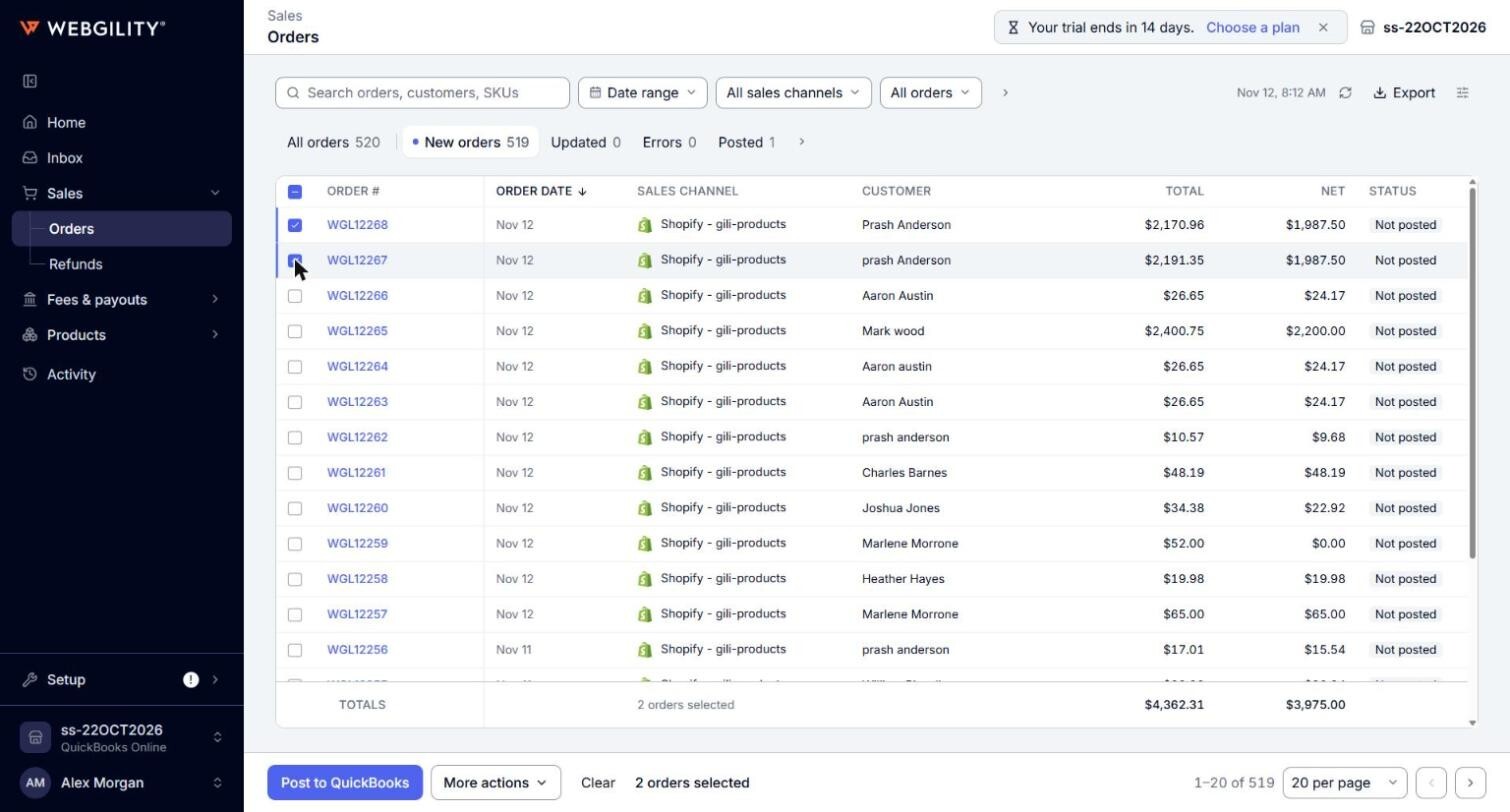
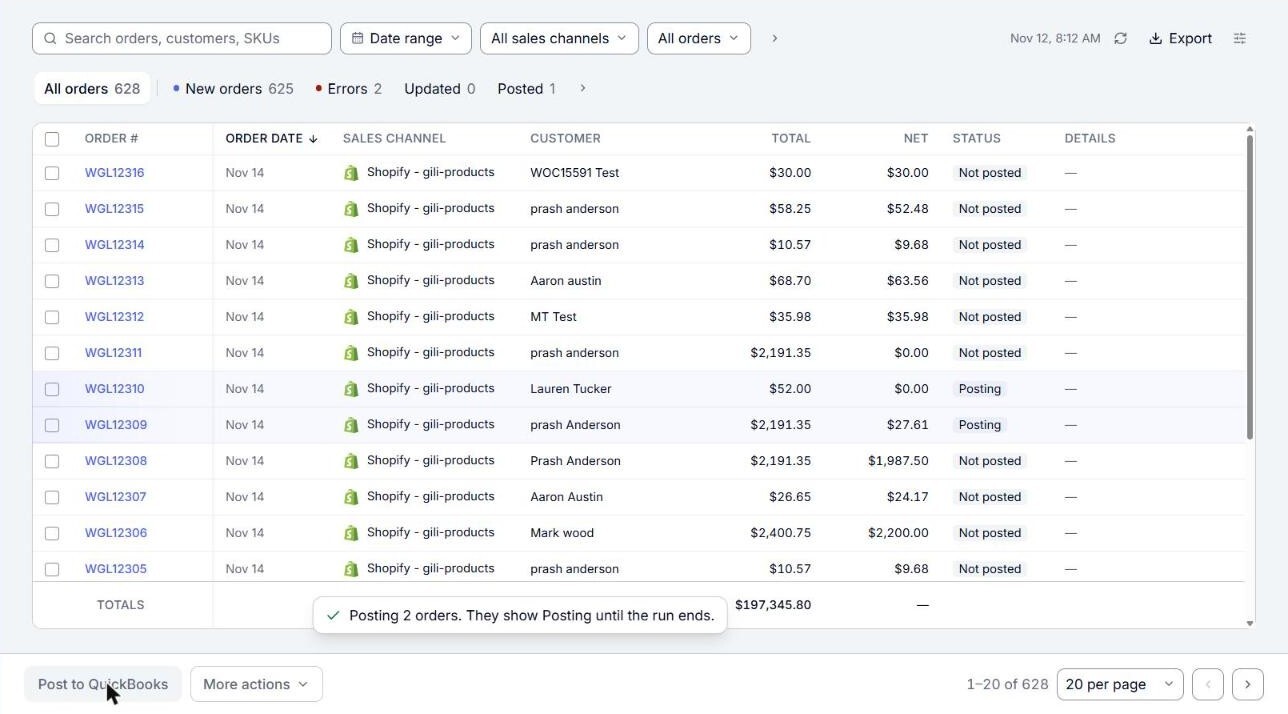
- Tick the box next to each order you want to post. To post one order, tick only that order. You can also post a failed order from its own panel with Post to QBO. The bottom of the page shows how many orders you ticked, and the totals row adds up their Total and Net.
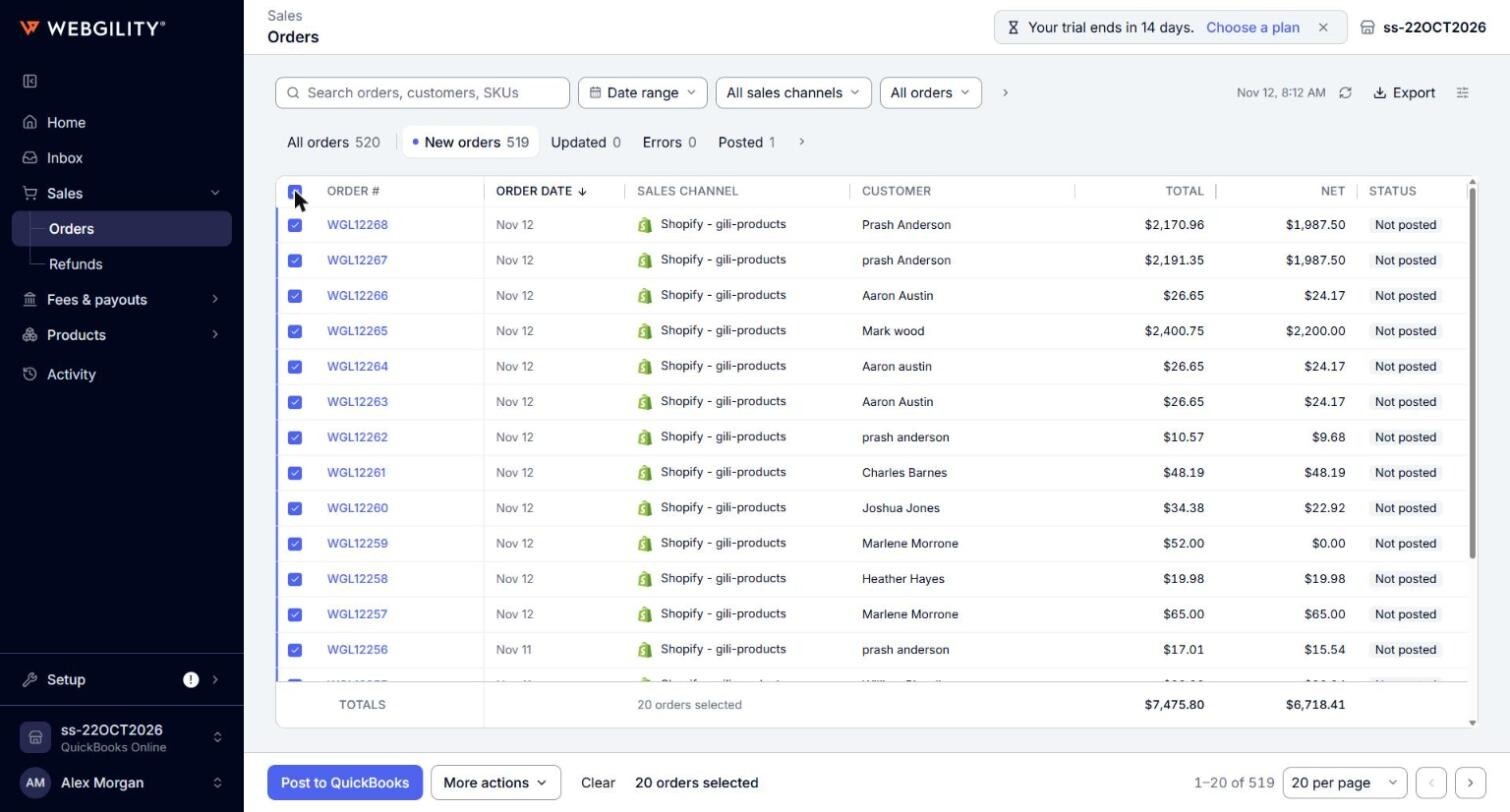
- To tick every order on the page, tick the box in the column header (Select the orders in view). To fit more orders on one page, choose a larger number of rows per page at the bottom of the page first, up to 300. Your ticks stay when you move to another page, so you can tick orders on several pages and post them together. Changing the tab or a filter clears your ticks.
- Click Post to QuickBooks at the bottom of the page.

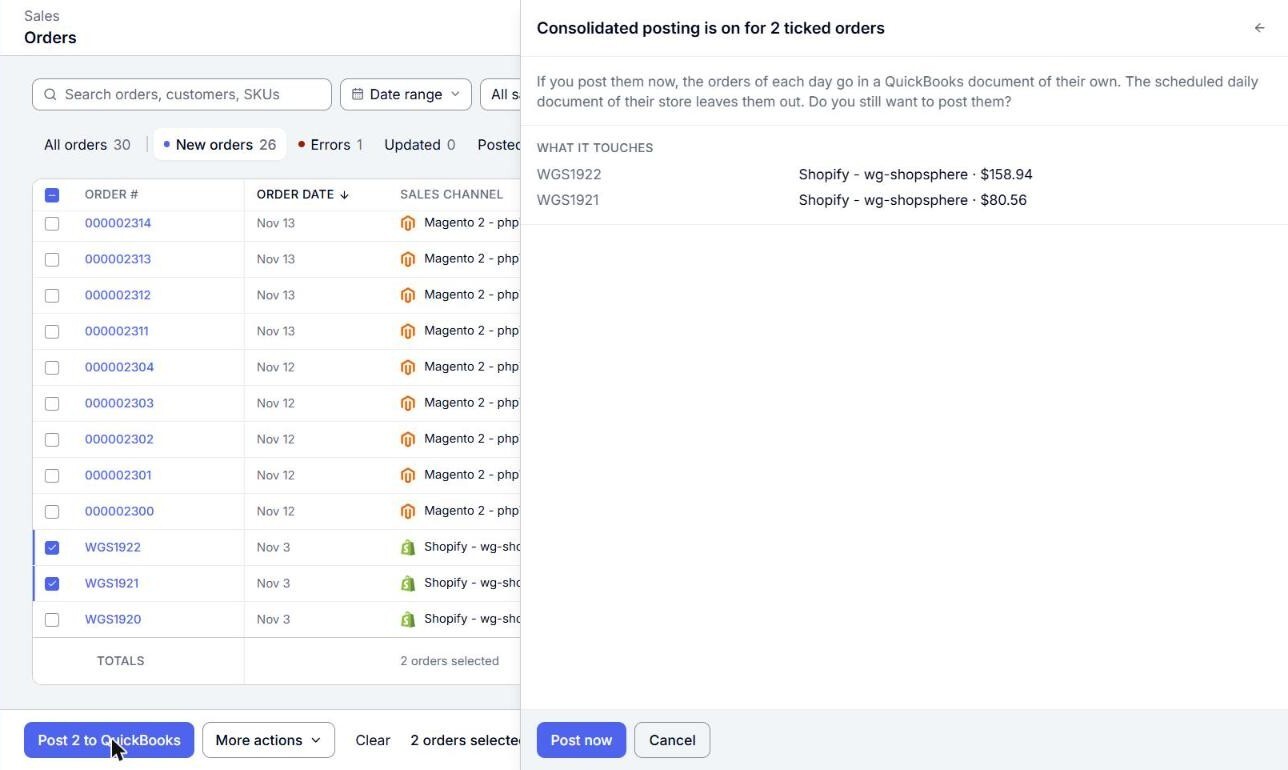
- If a ticked order's sales channel posts one document per day, Webgility i asks first, for example "Consolidated posting is on for 2 ticked orders". The orders of each day then go in a QuickBooks Online document of their own, and the scheduled daily document of their store leaves them out. Click Post now to go ahead.
- A message says, for example, "Posting 2 orders. They show Posting until the run ends." Each posted order shows Posting in the Status column while it is sent. When QuickBooks Online answers, usually within a minute, the order shows Posted, and its Details column names the document, such as Sales receipt or Invoice. Click the document name to open it in QuickBooks Online.
- If an order shows Needs fix or Error instead, it could not post, and it moves to the Errors tab. Click Fix error or Map product in its row there to see why and what to do. If the post stopped on a product that is not mapped, a warning message at the top of the page says so, for example 1 order has a product to map. or 3 orders have a product to map. Click Map product in the order's row to map or create its products. An order that stopped on several products opens them all in one panel. See How to Find and Fix Errored Orders.
Orders a post leaves out
Webgility i sends only the ticked orders it can post, and a message at the top of the page names the rest. For example:
- "Only SH-1 and SH-2 will be posted.": the other ticked orders could not be posted.
- "SH-3 is already posted.": the order is in QuickBooks Online already. If the sales channel changed it, apply the change from the Updated tab instead.
- "SH-4 is already posting.": a post of the order is running now.
- "SH-5 is ignored or deleted.": restore the order first. See How to Ignore and Restore Orders.
- "None of the 3 orders you ticked can be posted.": nothing was sent.
- A sales channel that posts one document per week or month: its ticked orders are not posted one by one, and nothing is sent for that store. Webgility i posts each week's or month's orders together on its schedule.
Note: You can post at most 150 orders of one sales channel at a time, and at most 1,000 orders in one post. If you tick more than 150 orders of one store, nothing is sent for that store, and its orders stay ticked so you can untick some and post again.
How to unpost an order
Unpost takes a posted order back out of QuickBooks Online, so it can be posted again. Use it, for example, after you change a setting and want the order posted with the new setting.
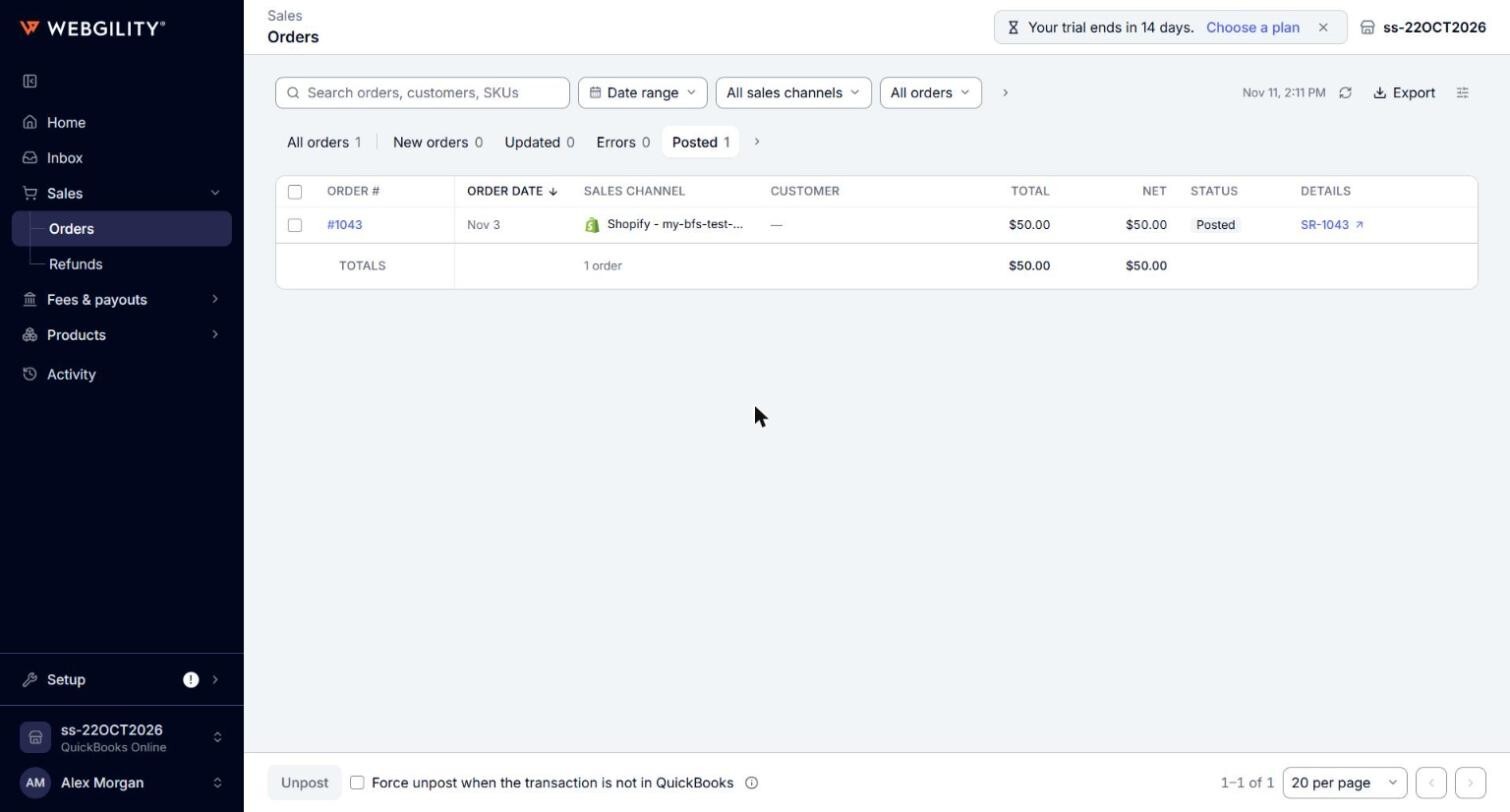
- Go to Sales > Orders and click the Posted tab.
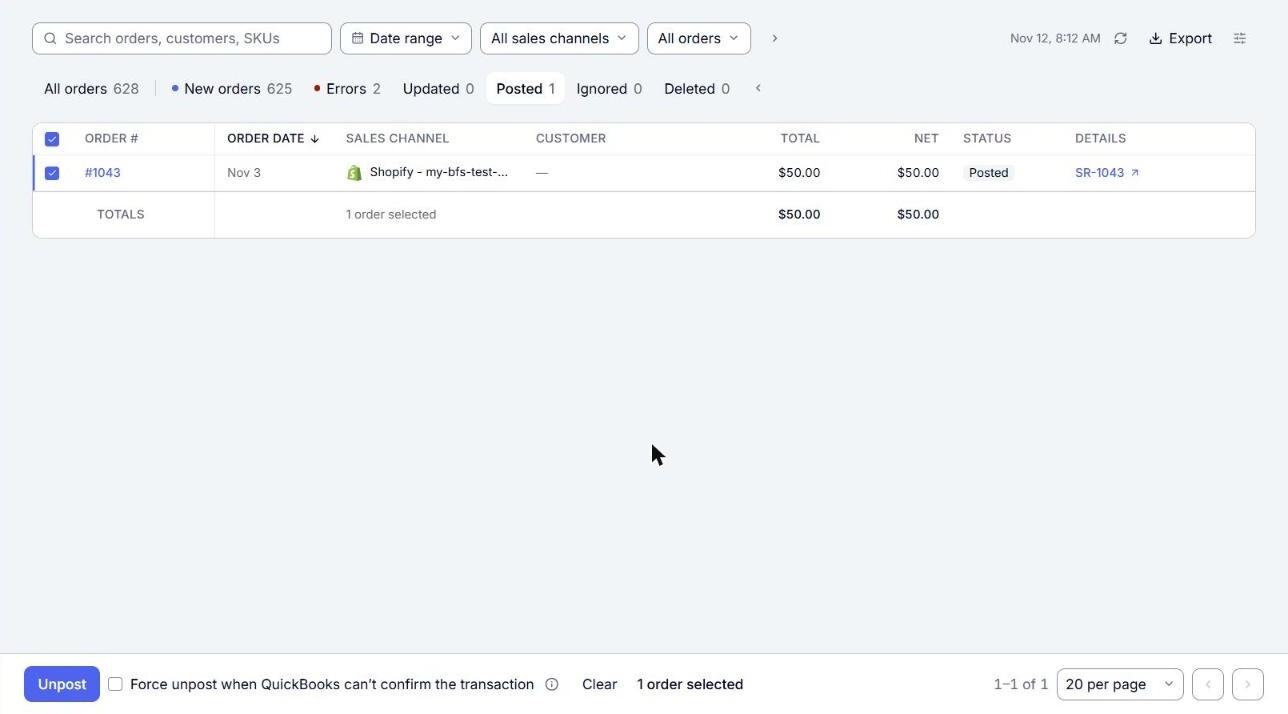
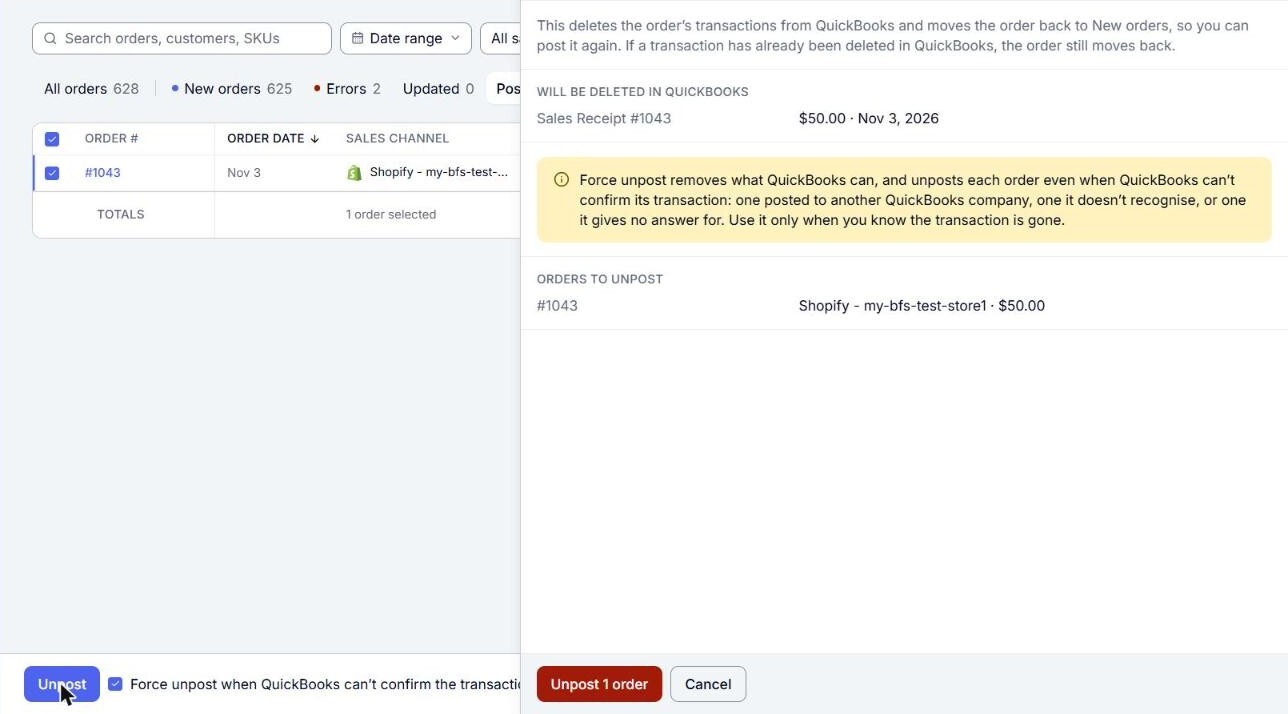
- Tick the orders you want to take out of QuickBooks Online, then click Unpost.
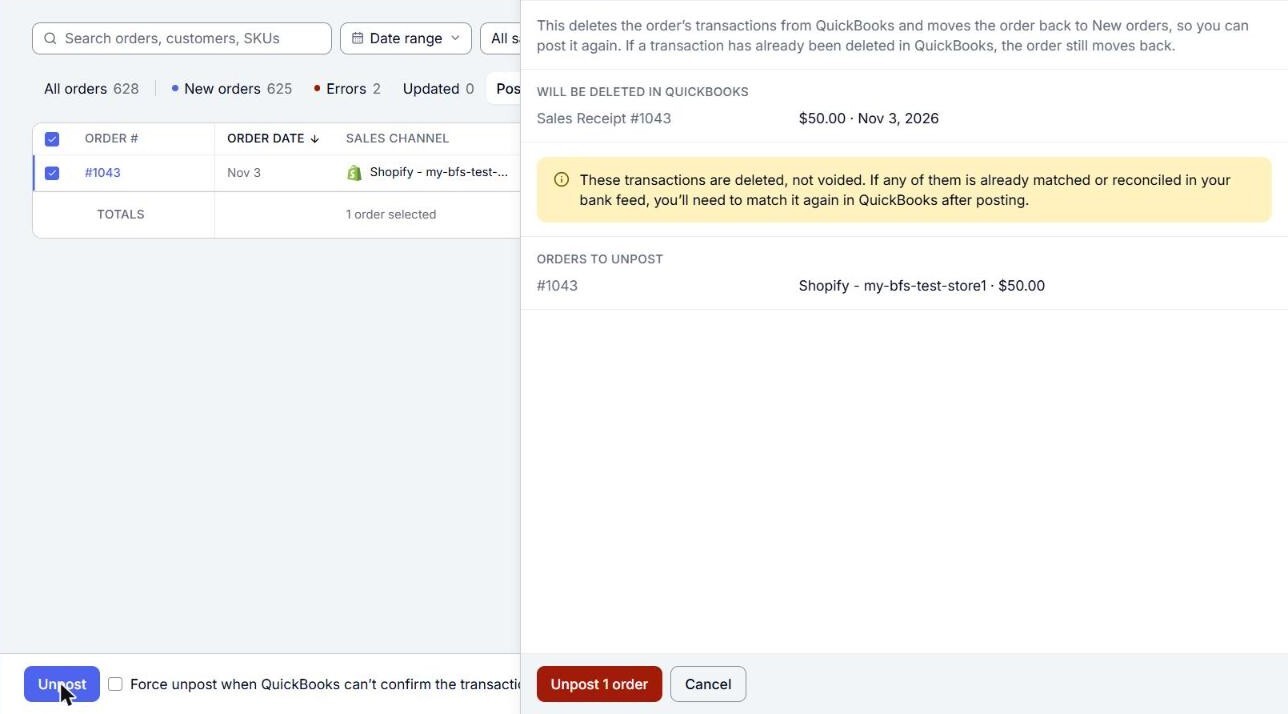
- Read the confirm, for example "Unpost 2 orders". It lists the QuickBooks Online transactions it will delete under Will be deleted in QuickBooks, and the orders under Orders to unpost. It warns: "These transactions are deleted, not voided. If any of them is already matched or reconciled in your bank feed, you’ll need to match it again in QuickBooks after posting." Click Unpost 2 orders to go ahead.
- The confirm stays open while the orders are removed, then says, for example, "2 orders unposted." The orders move back to the New orders tab, and you can post them again.
Note: If an order cannot be unposted, the confirm says why, for example "Order #1042 won’t be unposted: it shares one QuickBooks transaction with other orders. Tick #1043 too, and unpost them together." Orders whose document is still waiting for QuickBooks Online, or whose change waits on the Updated tab, are unposted once that is done.
If QuickBooks Online cannot confirm the transaction
You do not need anything extra when the transaction was already deleted in QuickBooks Online: Unpost still moves the order back to New orders.
If the order was posted to another QuickBooks Online company, or QuickBooks Online does not recognize its transaction or does not answer, tick Force unpost when QuickBooks can’t confirm the transaction before you click Unpost. The confirm then warns: "Force unpost removes what QuickBooks can, and unposts each order even when QuickBooks can’t confirm its transaction: one posted to another QuickBooks company, one it doesn’t recognise, or one it gives no answer for. Use it only when you know the transaction is gone."
If a post does not start
- "Another run of this store is waiting or running, so nothing was queued.": wait a few minutes until it finishes, then post the orders again.
- "Stopped. This business has no QuickBooks company connected, so nothing was posted.": connect QuickBooks Online again. See How to Connect Your QuickBooks Online Account to Webgility i.
- "Stopped. QuickBooks refused this business's connection, so nothing more was sent to it.": connect QuickBooks Online again, then post the orders again.