
When you close the books, QuickBooks Online takes no transaction dated on or before the closing date. Webgility i then cannot post an order of that date and shows "The books are closed for the date of this order".
Note: The closing date protects periods your accountant has already reviewed or filed. Talk to your accountant before you move it. If the order belongs in a closed period, you can also ignore it in Webgility i and record it another way.
Steps:
- Sign in to QuickBooks Online as an admin of the company that is connected to Webgility i.
- Click the Settings (gear) icon, then select Account and settings.
- Select Advanced in the left menu. In the Accounting section, click Edit.
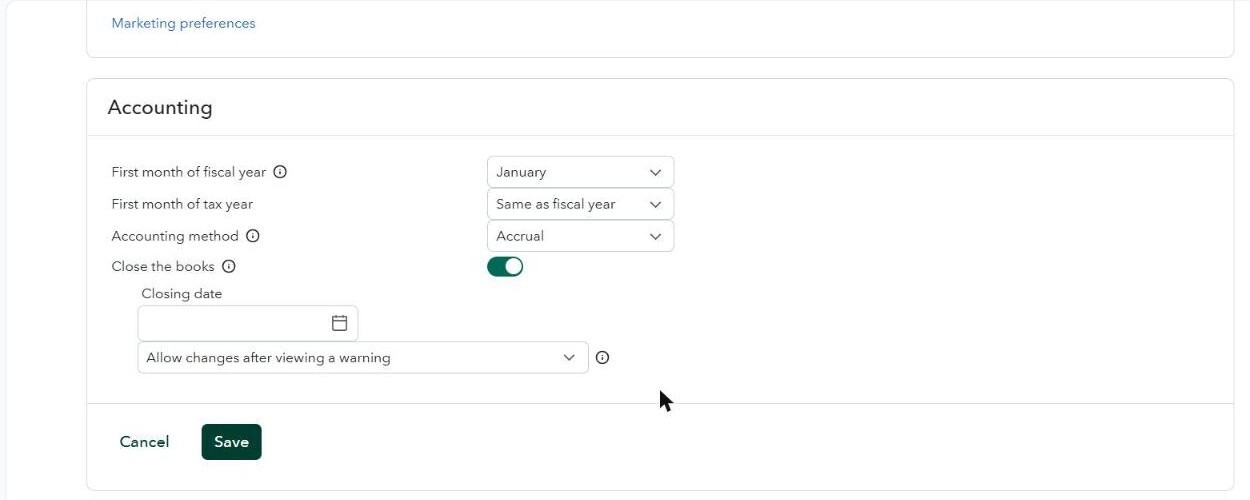
- Under Close the books, set Closing date to a date before the date of the order. To stop closing the books, turn off Close the books instead.
Note: The list under the closing date sets what happens to a change in a closed period, for example Allow changes after viewing a warning. Webgility i never sees that warning, so move the date rather than relying on this choice.
- Click Save, then click Done.
- Go to Orders > Errors in Webgility i, tick the order and click Post to QuickBooks. If automatic posting is on for the sales channel, the order can also post on its own.
- If you moved the closing date only to post this order, open Account and settings > Advanced again and set the closing date back.
Before you change the date
- Find the order date on the order's panel in Webgility i. The closing date must be earlier than that date.
- Posting into an earlier period changes the totals of that period. Tell your accountant which orders you posted.
Note: These steps describe QuickBooks Online, which is an Intuit product. Intuit can change its screens and labels. If what you see is different, search for "close the books" in QuickBooks Online Help.