
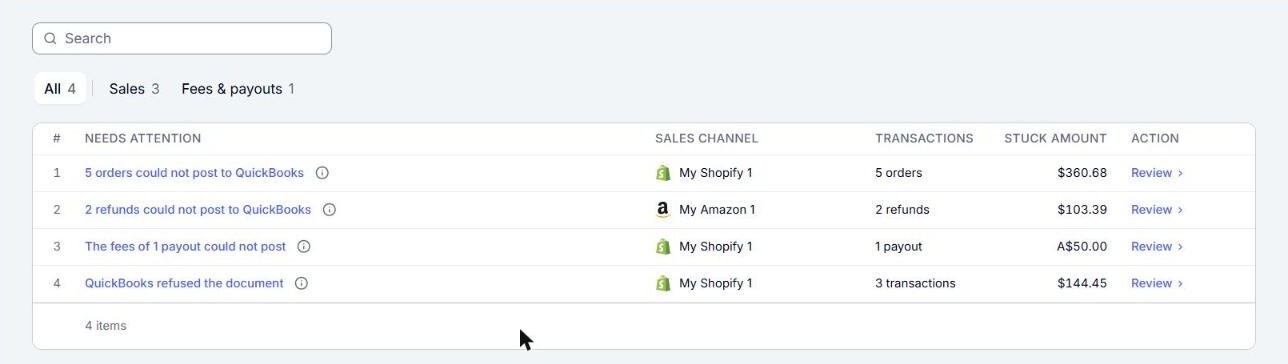
The Inbox gathers everything in your business that needs a person, such as orders that could not post to QuickBooks Online, orders the sales channel changed after they posted, and refunds, fees and payouts that could not post. Each item tells you what happened, how many transactions it holds and how much money is waiting on the fix.
What appears in the Inbox
The Inbox has one row for each kind of problem in each sales channel. The kinds are:
- Orders that could not post: the row reads, for example, "3 orders could not post to QuickBooks". QuickBooks Online refused these orders, or they could not be sent to it, and none of them is in QuickBooks Online yet. Most orders that cannot post are in a flag instead (see Flags below), so you see this row only for orders no flag covers.
- Orders changed after posting: the row reads, for example, "2 orders changed on the channel after posting". The sales channel changed these orders after they posted, and Webgility i holds each change until you apply it or keep the posted document as it is.
- Refunds that could not post: the row reads, for example, "1 refund could not post to QuickBooks".
- Shipping fees that could not post: the row reads, for example, "2 shipping fees could not post as Bills".
- Fees and deposits of payouts that could not post: the row reads, for example, "The fees of 1 payout could not post" or "The deposits of 2 payouts could not post".
- Held payouts: the row reads, for example, "2 payouts are held for you". Webgility i holds these payouts until you decide what to do with them.
- Flags: one row for each thing you need to fix, such as "A product isn't mapped to a QuickBooks item" or "The sales channel needs to be re-authorized". A flag can cover orders and refunds from more than one sales channel, in which case its sales channel reads All channels. See Understanding Inbox Flags in Webgility i.
For each row the Inbox shows these columns:
- Needs attention: what happened, and under it more detail or what to do.
- Sales channel: the store the transactions come from.
- Transactions: how many orders, refunds or payouts the row holds. A flag about a sales channel's sign-in holds no transactions: its Transactions column shows a dash.
- Stuck amount: what those transactions add up to. A row of changed orders shows a dash, because those orders are already posted. A row of payouts in more than one currency shows Mixed currencies.
- Action: a link to the page that lists the transactions.
Under the last row, a totals row shows how many items are listed and their stuck amount added up.
How items are ranked
The Inbox lists items in this order:
- Items about orders, refunds and shipping fees come first, then items about fees and payouts.
- Within each kind, the sales channel with the most transactions comes first. Sales channels with the same number are listed by name, A to Z.
- Flags come after those items. A flag about a sales channel itself, such as one that needs to be re-authorized, comes first among the flags. The other flags follow, the one with the most transactions first.
Note: An order or refund that sits in a flag is counted in the flag's row only, not also in the row of orders or refunds that could not post. Nothing is counted twice in the total.
Steps:
- Go to Inbox in the left menu.
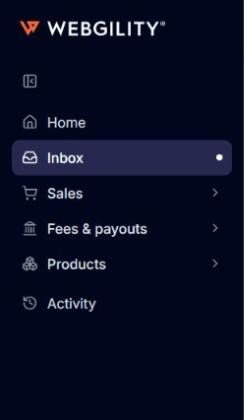
- Choose a tab to narrow the list. All shows every item, Sales shows orders, refunds, shipping fees and flags, and Fees & payouts shows fees, deposits and held payouts. Each tab shows how many items it holds.

- To find an item, type in the Search box above the tabs and press Enter. The search matches the item's title and its sales channel name. If nothing matches, the Inbox says, for example, "Nothing matches. 3 items are in the queue with the filter cleared." Click Reset to clear the search.
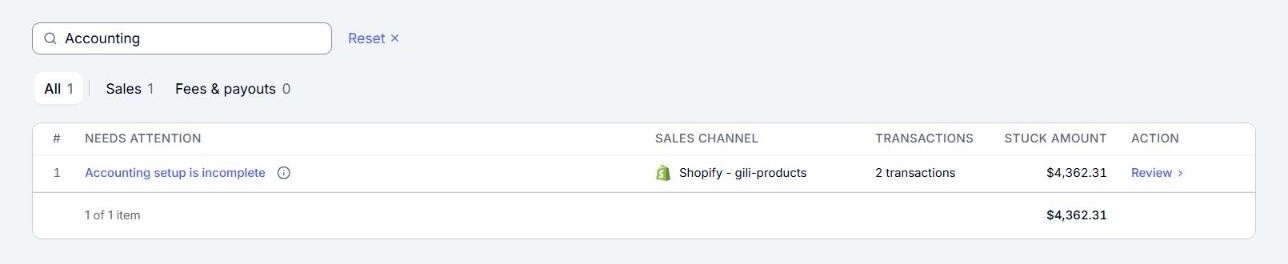
- Click the title of an item to open its panel. Most items are flags. A flag's panel shows the Issue (what happened and what to do) and the Detail (when it was found and the sales channel), with a fix button such as Open settings and the Retry button at the bottom. See "How to resolve an item" below.
Note: A row of orders or refunds that could not post, which appears only for a transaction no flag covers, lists up to 10 of the newest ones in its panel, each with the reason it did not post. Click an order or refund number to open it. If the row holds more, click the link that reads, for example, "and 5 more in this row". When the row holds only one order or refund, the panel's main button is Open order or Open refund.
- Click Review in the Action column to go to the list that holds the transactions. For a flag about orders, it opens the Errors tab of Sales > Orders, narrowed to that sales channel and to orders that need a fix or have an error.
- Fix the cause and post the transactions again. See How to Find and Fix Errored Orders for each reason an order can fail and how to fix it.
How to resolve an item
An item leaves the Inbox on its own once none of its transactions needs you any more. You do not close items by hand. Depending on the item:
- Orders or refunds that could not post: fix the cause, then post them again from the Errors tab. Once they post, they leave the row. You can also ignore an order you do not want in QuickBooks Online. See How to Ignore and Restore Orders.
- Orders changed after posting: on the Updated tab of the Orders page, apply each change or reject it.
- Flags: fix what the flag names. For flags you fix yourself, such as a missing setting or an inactive item, Webgility i checks the flag's orders again once a day, and again when you save a change on the Workflows page for that sales channel. To send them back sooner, open the flag and click Retry. The Inbox then shows a message such as "3 transactions go back to QuickBooks on the next run."
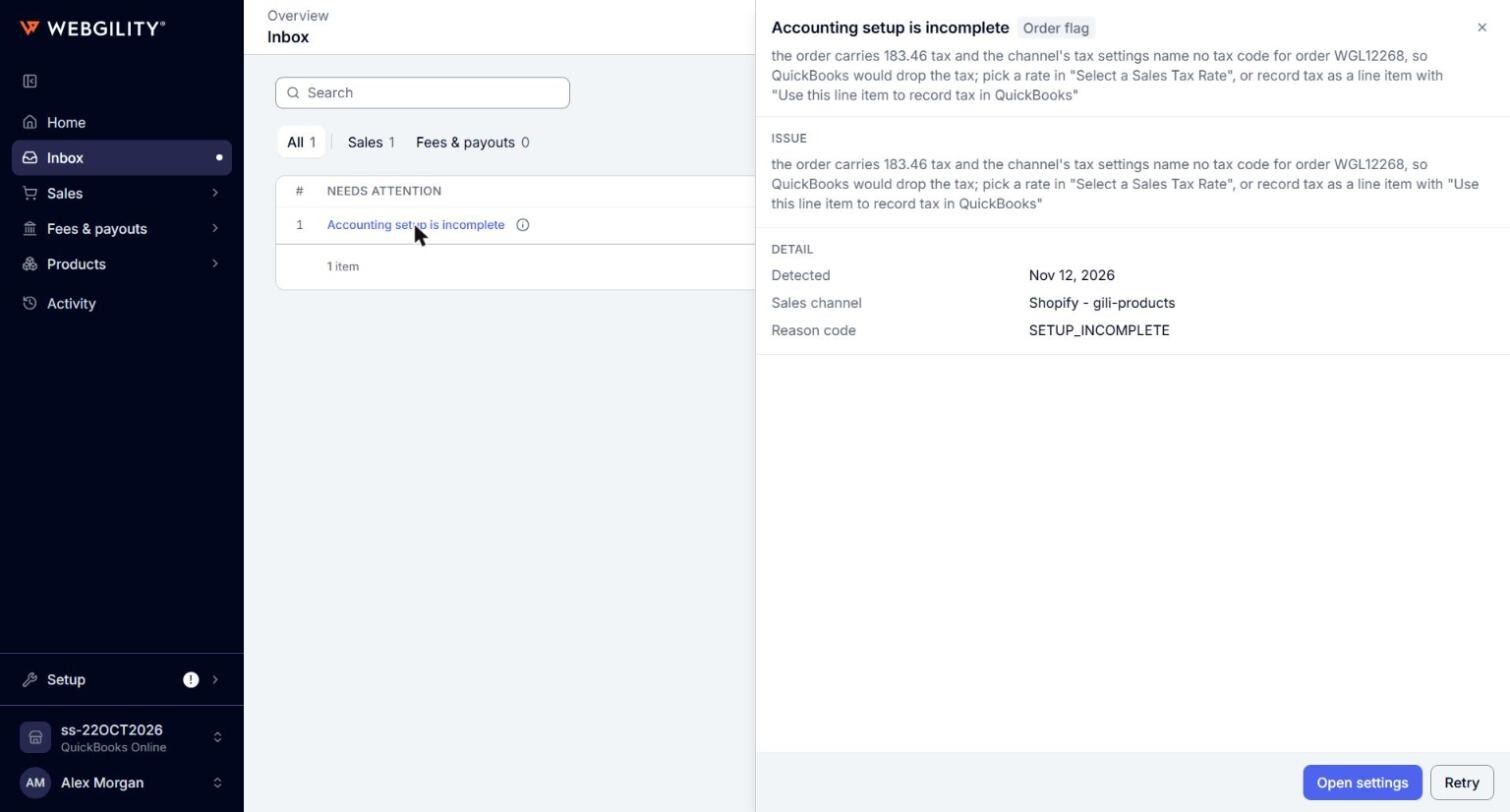
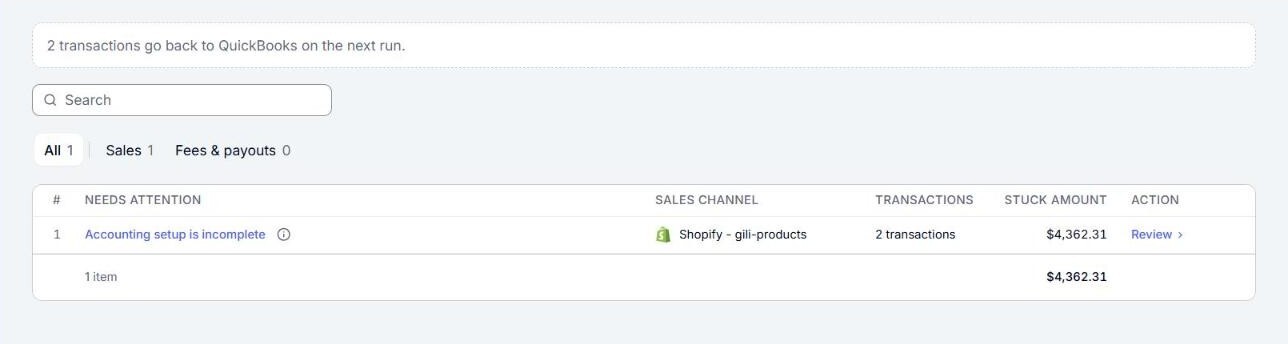
Note: Click Retry only after you have fixed the cause. If the cause is still there, the orders fail again and stay in the Inbox.
Note: Retry sends the orders back the next time Webgility i posts that sales channel's orders automatically. If automatic posting is off for the sales channel, post the orders yourself from the Errors tab instead. See How to Post Orders to QuickBooks.
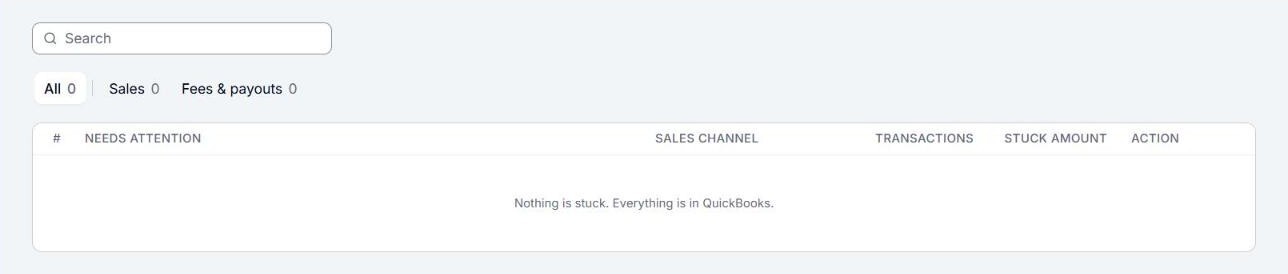
When nothing needs you, the Inbox shows "Nothing is stuck. Everything is in QuickBooks."
How the Inbox relates to errored orders
The Inbox and the Orders page show the same orders in two ways:
- Every order that could not post is on the Errors tab of the Orders page, whether or not it sits in a flag. Its Status reads Needs fix when something in your setup stopped it before it was sent, or Error when QuickBooks Online refused it.
- In the Inbox, an order that sits in a flag is counted in that flag's row. Any other order that could not post is counted in the row "could not post to QuickBooks" for its sales channel.
- The Errors tab also lists orders a workflow rule holds (Held by rule). The Inbox does not count them, because they wait on your rule, not on a fix.
If the Inbox cannot load, it shows "Could not load the Inbox". Click Try again.