
An ignored order stays in Webgility i but is never posted, by hand or automatically, until you restore it. You can also delete an order from Webgility i, which works the same way but moves the order to the Deleted tab.
What ignoring does
- The order moves to the Ignored tab of the Orders page, and its status reads Ignored.
- Webgility i does not post it, by hand or automatically.
- The order leaves the Errors tab and the Inbox at once, so it no longer counts as needing attention.
- Nothing changes at the sales channel or in QuickBooks Online.
- The order's Timeline records "Order marked as Ignored."
You can ignore orders that are not posted: orders on the New orders and Errors tabs, including orders a rule holds. You cannot ignore an order that is posted, or one that is on its way to QuickBooks Online or being posted right now.
Steps:
- Go to Sales > Orders and click the tab that holds the order, for example Errors.
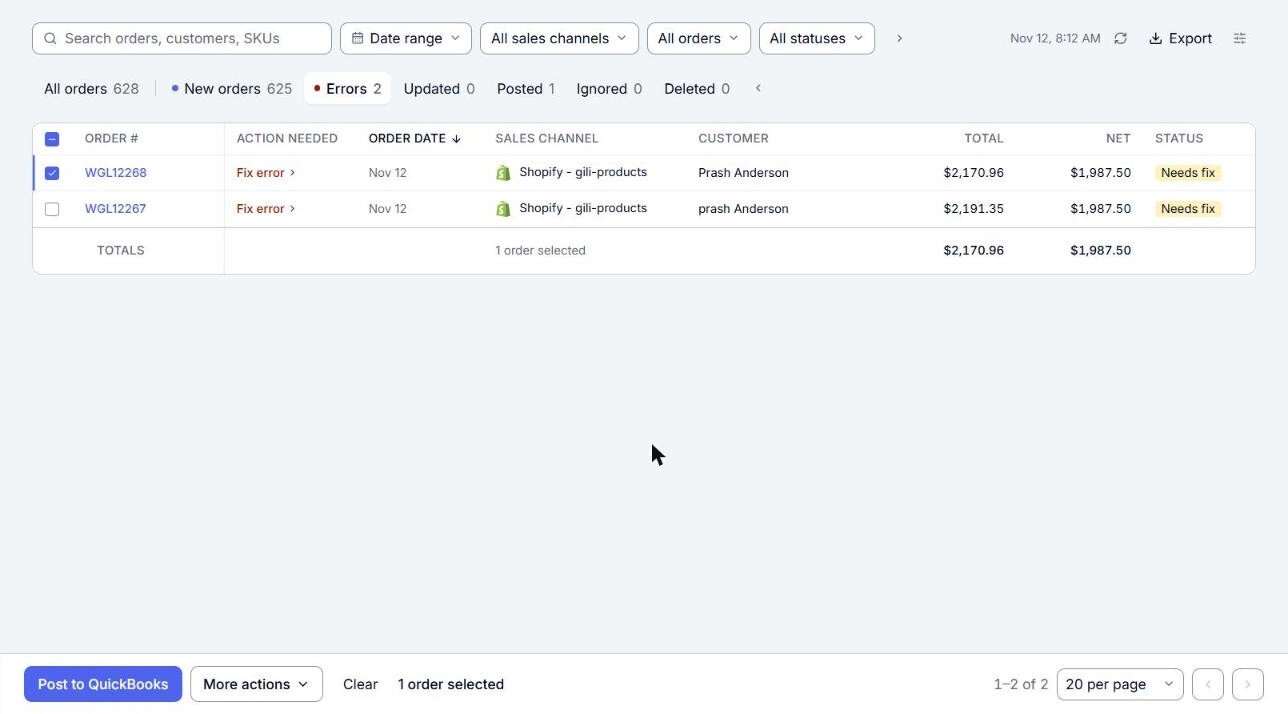
- Tick the orders you want to ignore.
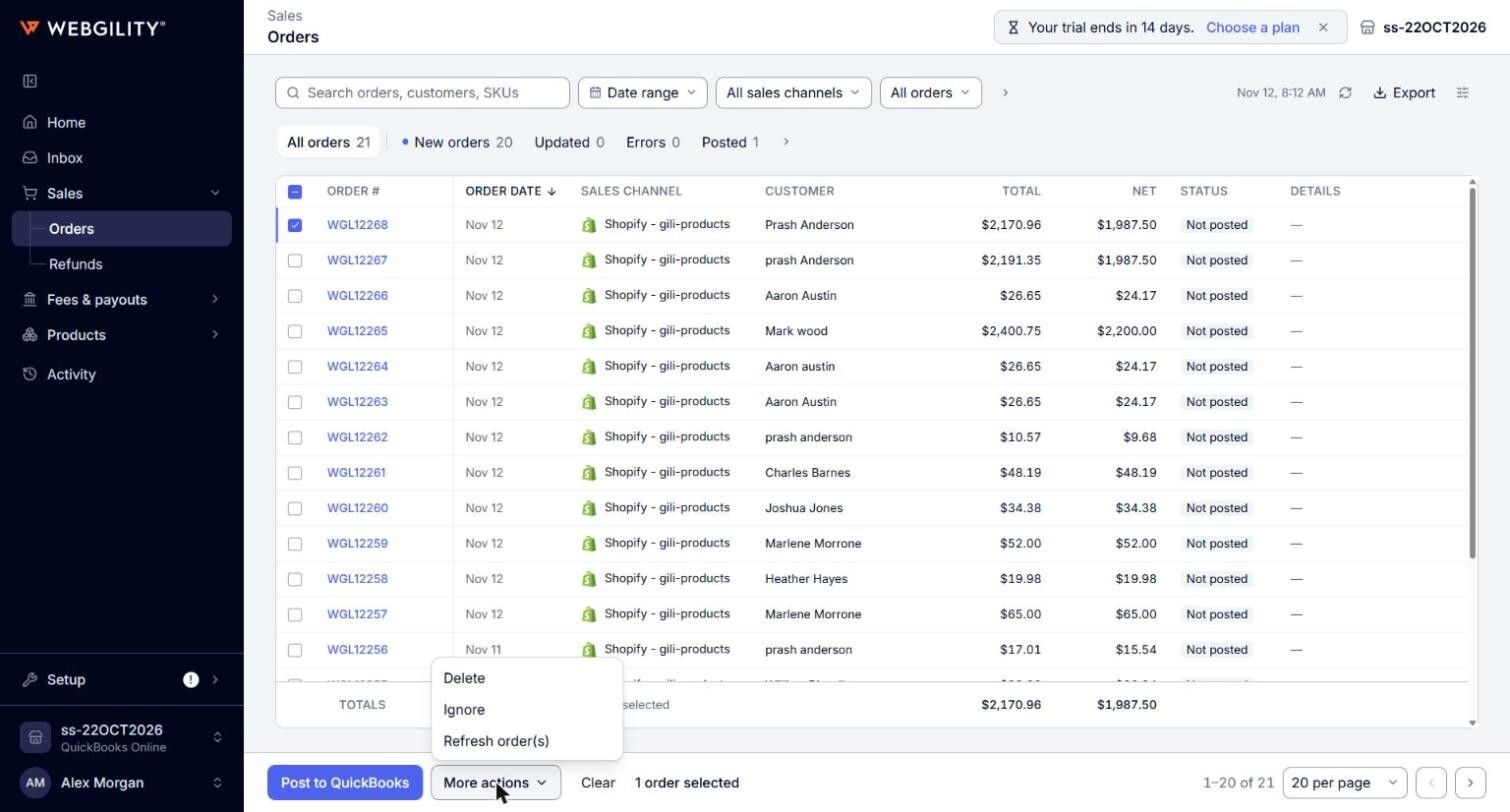
- Click More actions at the bottom of the page, then click Ignore.
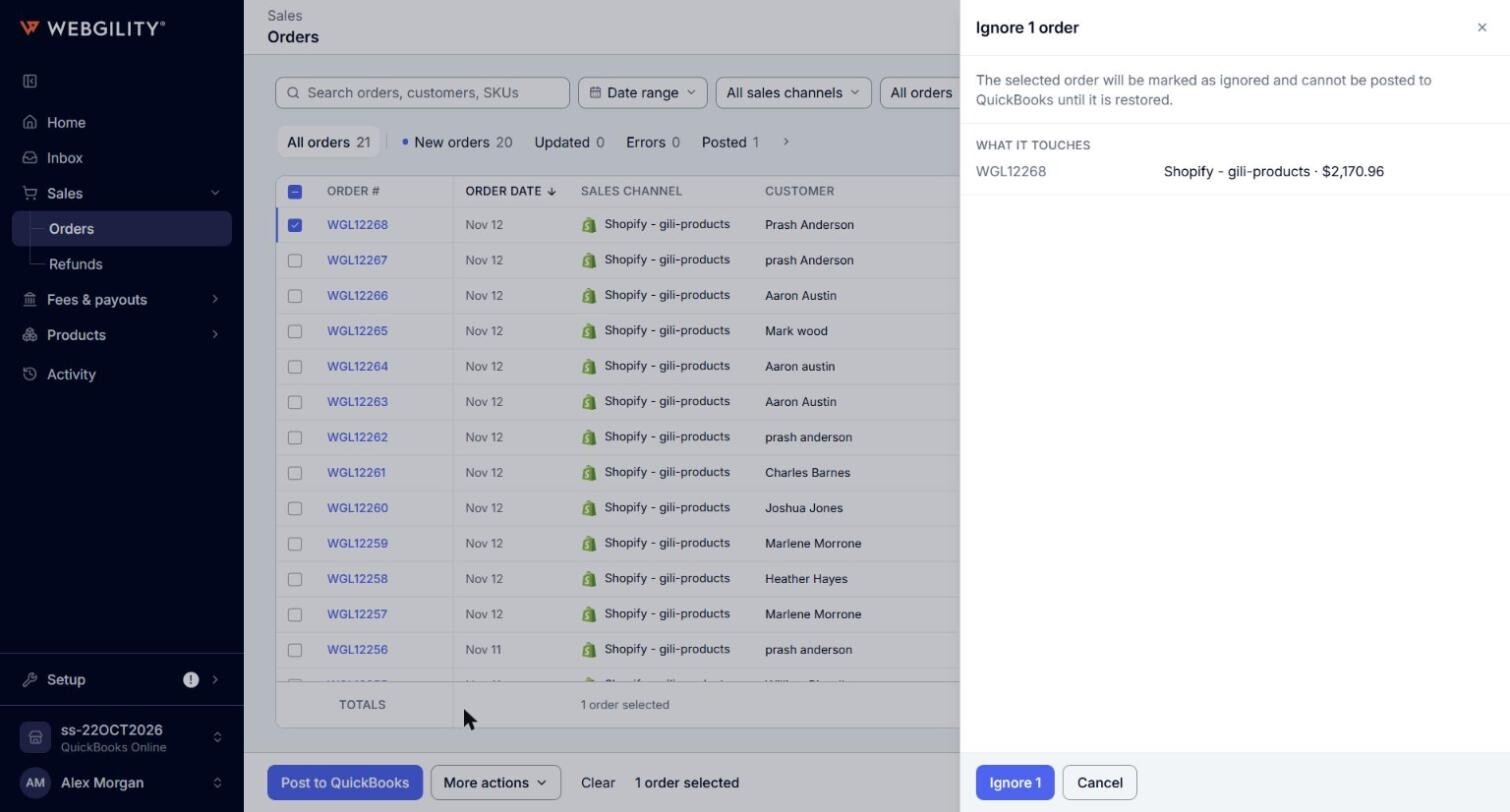
- Read the confirm, for example "Ignore 2 orders". It says: "The selected orders will be marked as ignored and cannot be posted to QuickBooks until they are restored." The orders it touches are listed under What it touches. Click Ignore 2.
- The confirm says, for example, "2 orders moved to Ignored." and the list loads again.
Note: If some of the ticked orders cannot be ignored, the confirm says so under its title, for example "1 posted order is left out." and ignores only the others. If none of them can be ignored, Ignore is not available, and pointing to it says why, for example "Posted orders can't be ignored or deleted. Unpost them first." To unpost an order, see How to Post Orders to QuickBooks.
How to restore an ignored order
- Go to Sales > Orders and click the arrow at the end of the tabs (Show ignored and deleted orders). Then click the Ignored tab.
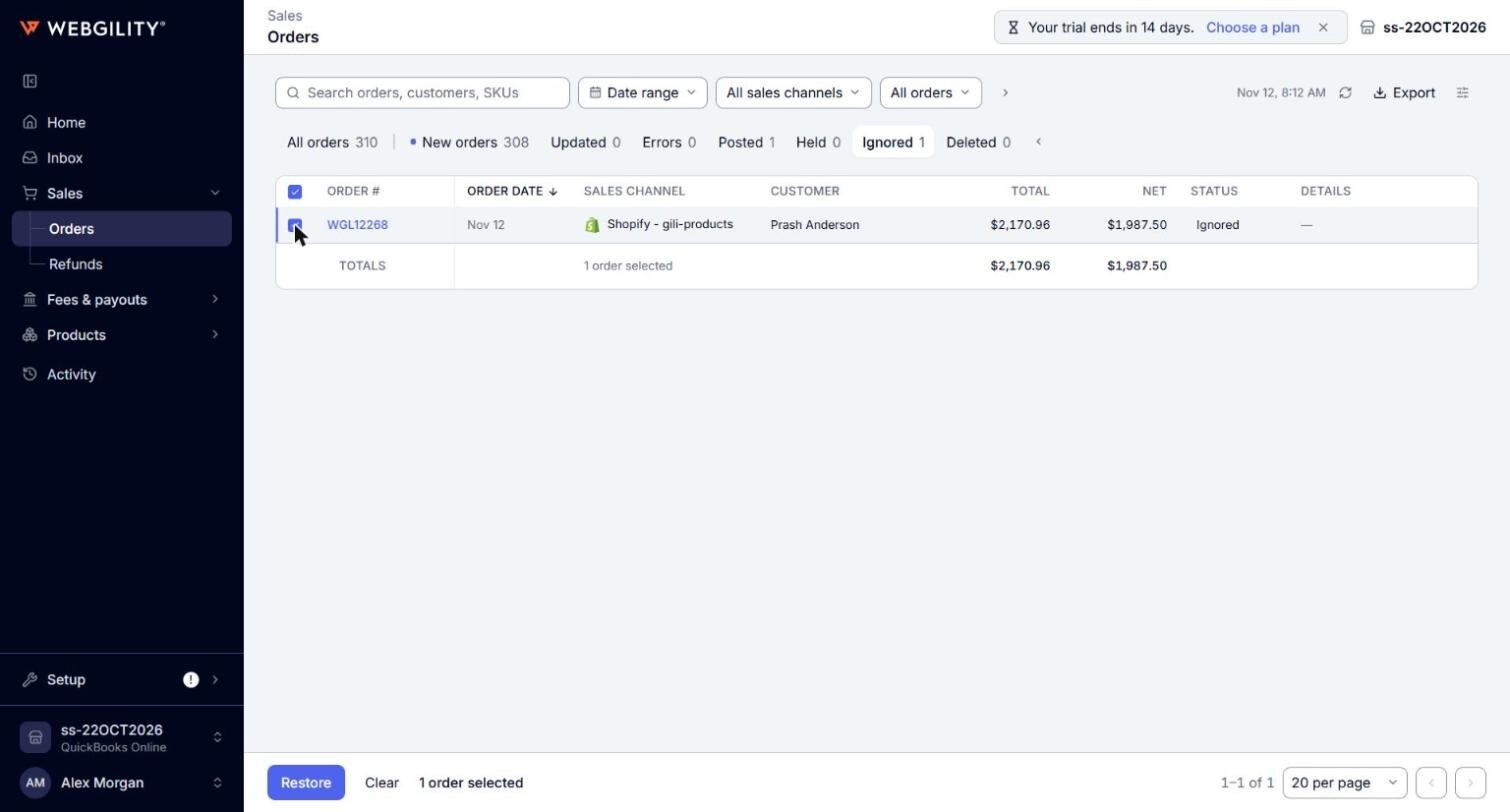
- Tick the orders you want to restore and click Restore.
- The orders go back to the tab they belong to, such as New orders, and can be posted again. Their Timeline records "Order Restored."
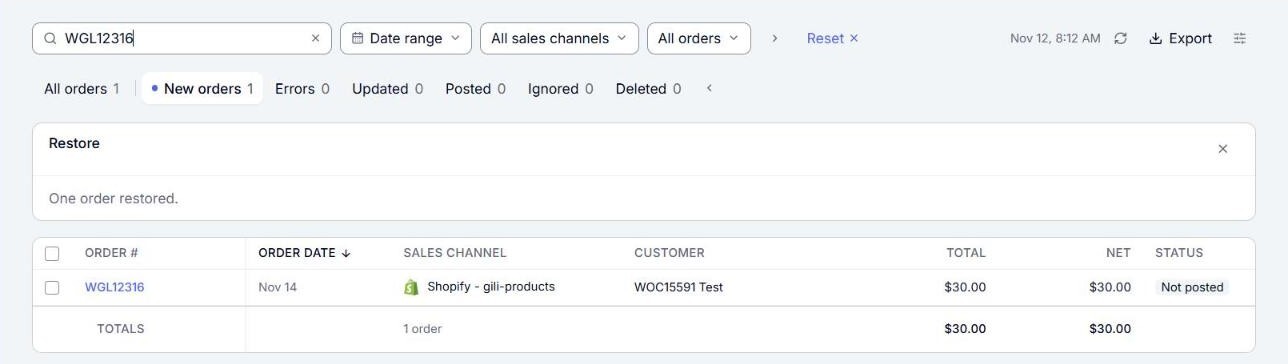
Note: A restored order that is waiting to post is posted the next time Webgility i posts automatically, if automatic posting is on for its sales channel. To post it now, tick it and click Post to QuickBooks.
Ignore or delete
- Ignore: use it for an order you want to keep in Webgility i but never post, for example a test order.
- Delete: click More actions > Delete. The confirm says "Removes this order from Webgility. It moves to Deleted, where it can be restored." and "Nothing is deleted at the sales channel." Deleted orders are on the Deleted tab, and you restore them the same way, with Restore on that tab.
Note: If you restore several deleted copies of the same order number together, only the newest copy comes back.
Ignoring refunds
Refunds are ignored and restored on the Refunds page, with More actions > Ignore and Restore. See How to Download, Review and Post Refunds.