
QuickBooks Online takes transactions only in its home currency until Multicurrency is on. While it is off, Webgility i cannot post an order in another currency and shows "Multicurrency is off in QuickBooks".
Note: Once Multicurrency is on, QuickBooks Online cannot turn it off again, and the home currency can no longer be changed. Talk to your accountant before you turn it on.
Steps: Turn on Multicurrency
- Sign in to QuickBooks Online as an admin of the company that is connected to Webgility i.
- Click the Settings (gear) icon, then select Account and settings.
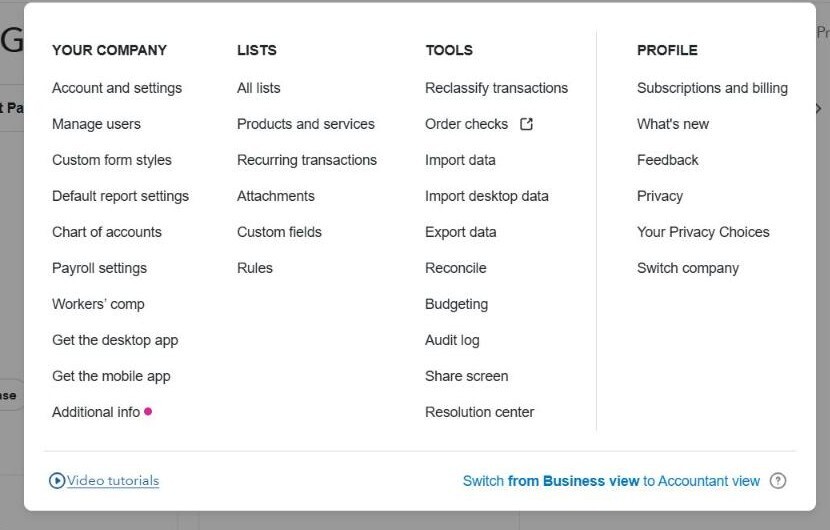
- Select Advanced in the left menu. In the Currency section, click Edit.
- Check that Home Currency is the currency of your books. Then turn on Multicurrency.
- QuickBooks Online lists what changes once Multicurrency is on. Select I understand I can't undo Multicurrency. Save stays greyed out until you do.
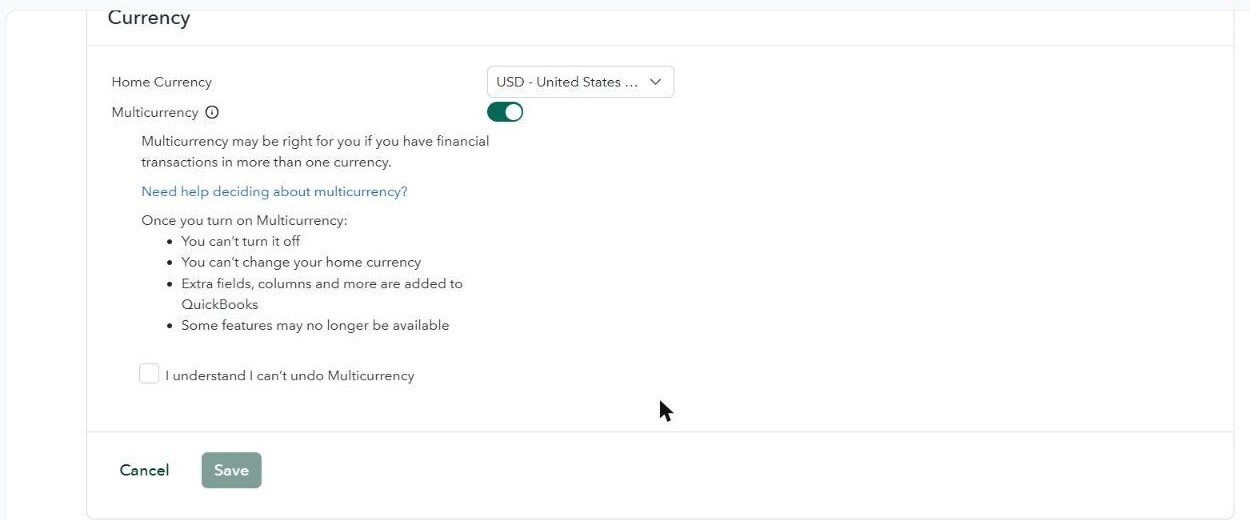
- Click Save, then click Done.
Steps: Add the currencies of your orders
- Click the Settings (gear) icon and select Currencies under Lists. It shows there once Multicurrency is on. If you do not see it, select All lists, then Currencies.
- Click Add currency, select the currency of your orders, for example Canadian Dollar, and click Add.
- Repeat for each currency your sales channels sell in.
What to expect after turning on Multicurrency
- New orders in another currency post to QuickBooks Online in that currency.
- Orders that did not post while Multicurrency was off can now be posted. Go to Orders > Errors in Webgility i, tick the order and click Post to QuickBooks. If automatic posting is on for the sales channel, the order can also post on its own.
- In QuickBooks Online, a customer has one currency, set when the customer is created. An order in a different currency needs a customer in that currency. To post each currency to its own standard customer, turn on Use different customer based on currency in Channel settings. See How to Configure Your Channel Settings.
- To give each currency its own clearing account, turn on Multiple currencies in Channel settings. See How to Configure Your Channel Settings.
Note: These steps describe QuickBooks Online, which is an Intuit product. Intuit can change its screens and labels. If what you see is different, search for "multicurrency" in QuickBooks Online Help.