
Once the company is connected, Webgility i can post the orders from your sales channels to QuickBooks Online. Connecting does not post anything by itself: nothing is posted to QuickBooks Online until you start syncing.
Note: Webgility i connects QuickBooks Online companies in the United States, Canada, the United Kingdom and Australia.
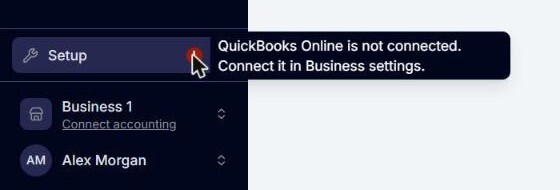
Note: Until a QuickBooks Online company is connected, the left menu shows a Connect accounting link under the business name, and Setup shows a red !. Point to the ! to read "QuickBooks Online is not connected. Connect it in Business settings." Clicking Connect accounting opens Business settings.
Steps:
- Sign in to Webgility i. On the Welcome to Webgility page, go to step 2, Connect your accounting.
Note: The Welcome to Webgility page opens its steps in order, so step 2 opens once step 1, Connect your sales channel, is complete. See How to Connect Your Sales Channel to Webgility i. You can still connect QuickBooks Online first: use Setup > Business settings as described below, and the page then shows step 2 as connected.
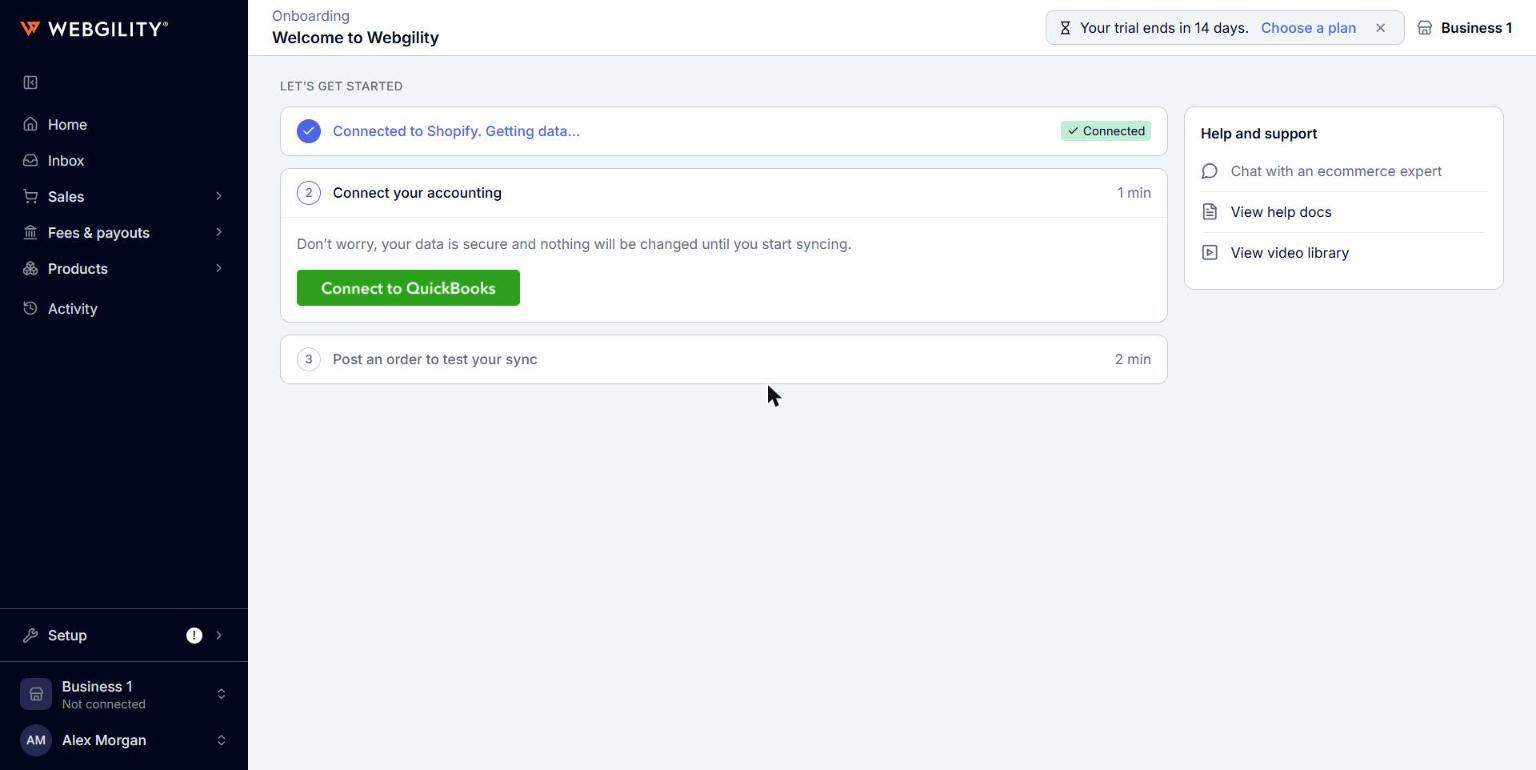
- Click Connect to QuickBooks. The Connect QuickBooks Online panel opens on the right.
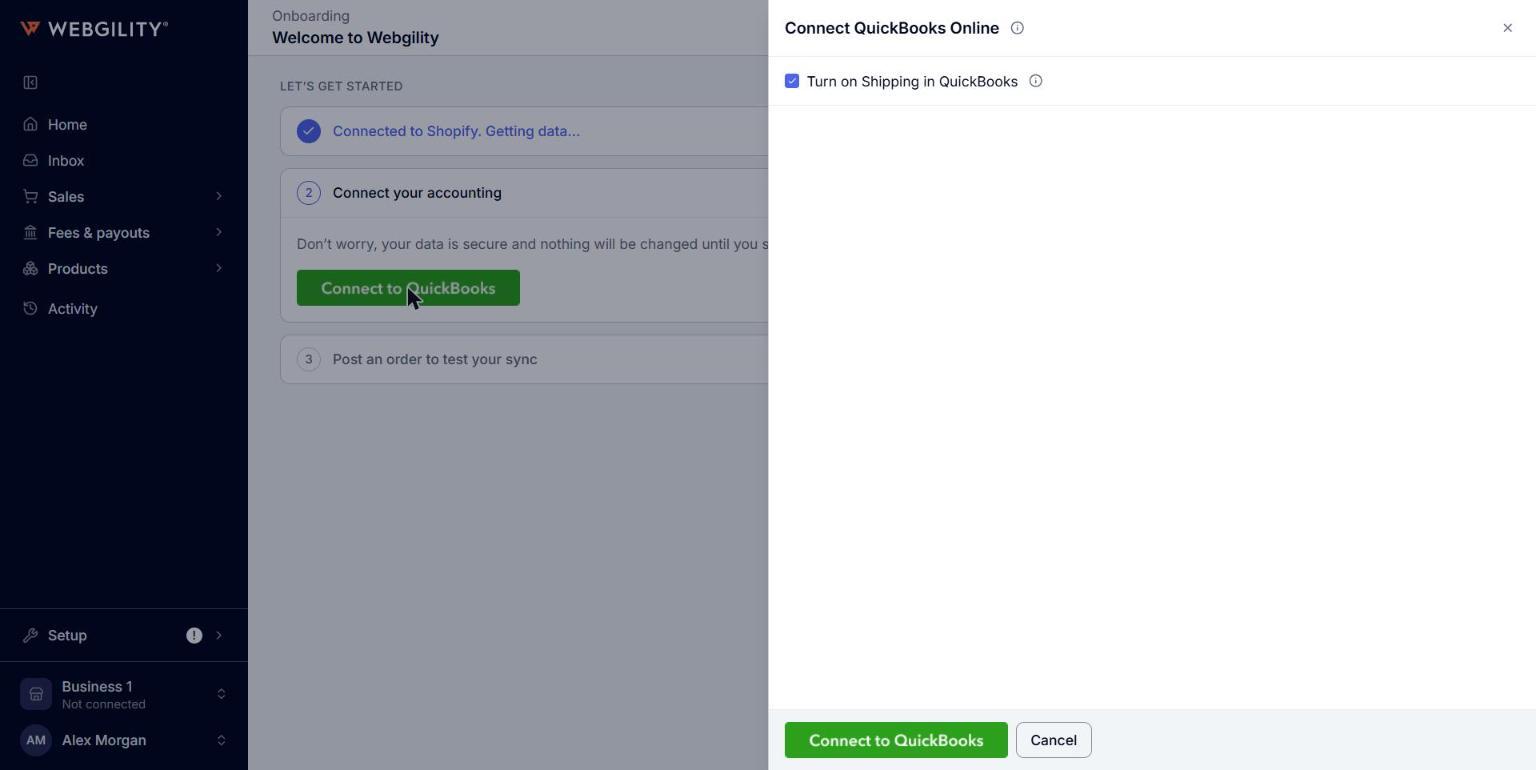
- Leave Turn on Shipping in QuickBooks selected, so the shipping charge of an order posts on the shipping line in QuickBooks Online. Clear the box only if you want to leave your QuickBooks Online settings as they are.
Note: If you clear the box, turn on Shipping yourself. See How to Turn On Shipping in QuickBooks Online.
- Click Connect to QuickBooks in the panel. A sign-in window from Intuit opens.
- Sign in to your Intuit account. If your Intuit account has more than one QuickBooks Online company, Intuit shows a list of them: select the company you want to connect, and approve access for Webgility.
Note: If your Intuit account has only one company, or Intuit remembers the company you chose last time, Intuit skips the list and connects that company right away. To connect a different company, sign in to Intuit with the account that holds it, or click Disconnect in Business settings afterwards and then Connect a different company. See How to Configure Your Business Settings.
- Wait while the window closes and the panel shows Connecting QuickBooks Online…. This can take up to half a minute. Do not click the button again.
- When the connection is complete, step 2 shows Connected to QuickBooks. Getting data… with a Connected tag.
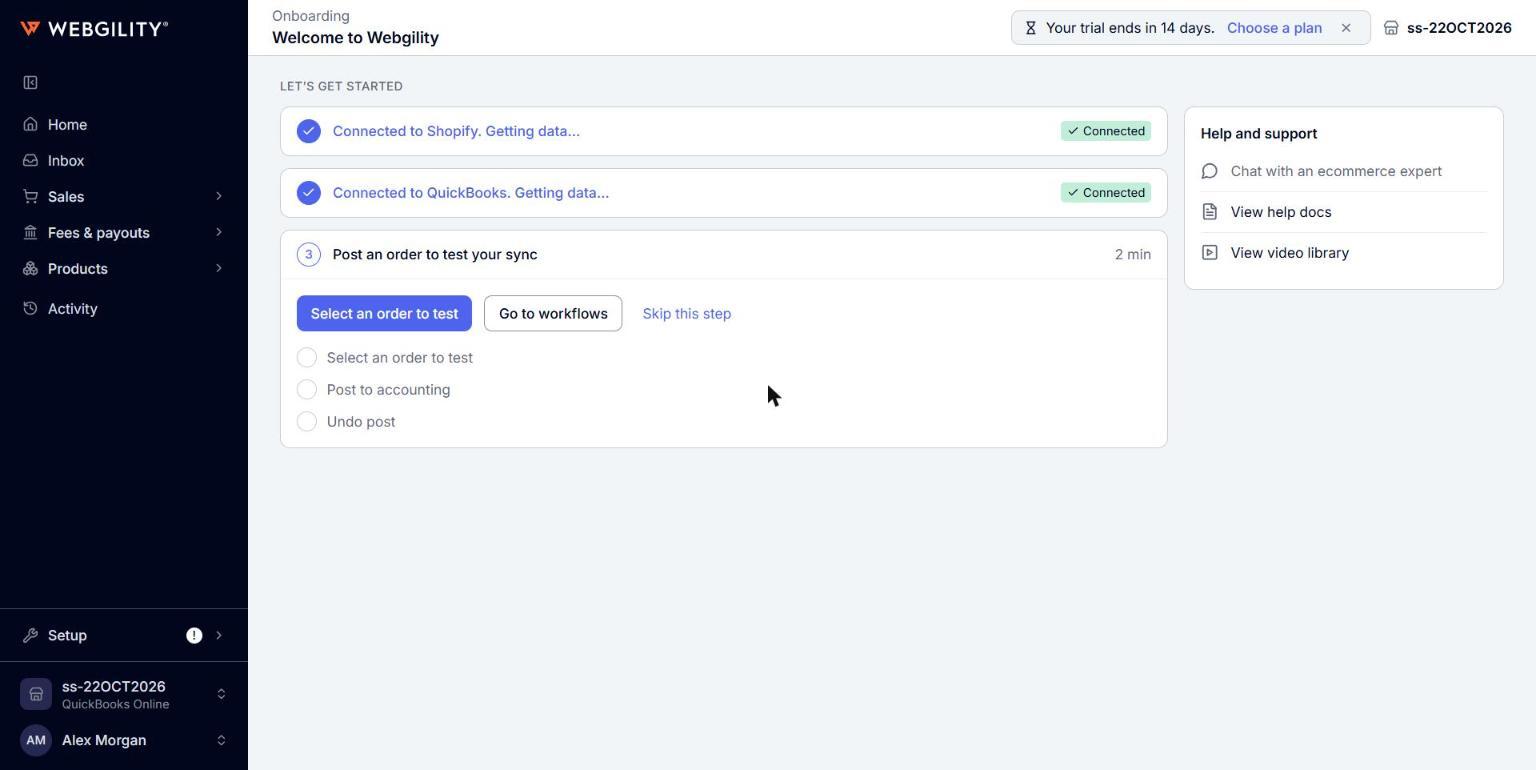
Note: You can also connect from the left menu. Go to Setup > Business settings and click Connect to QuickBooks. The same panel opens, and once the company is connected the page shows the message "QuickBooks Online is connected to this business."
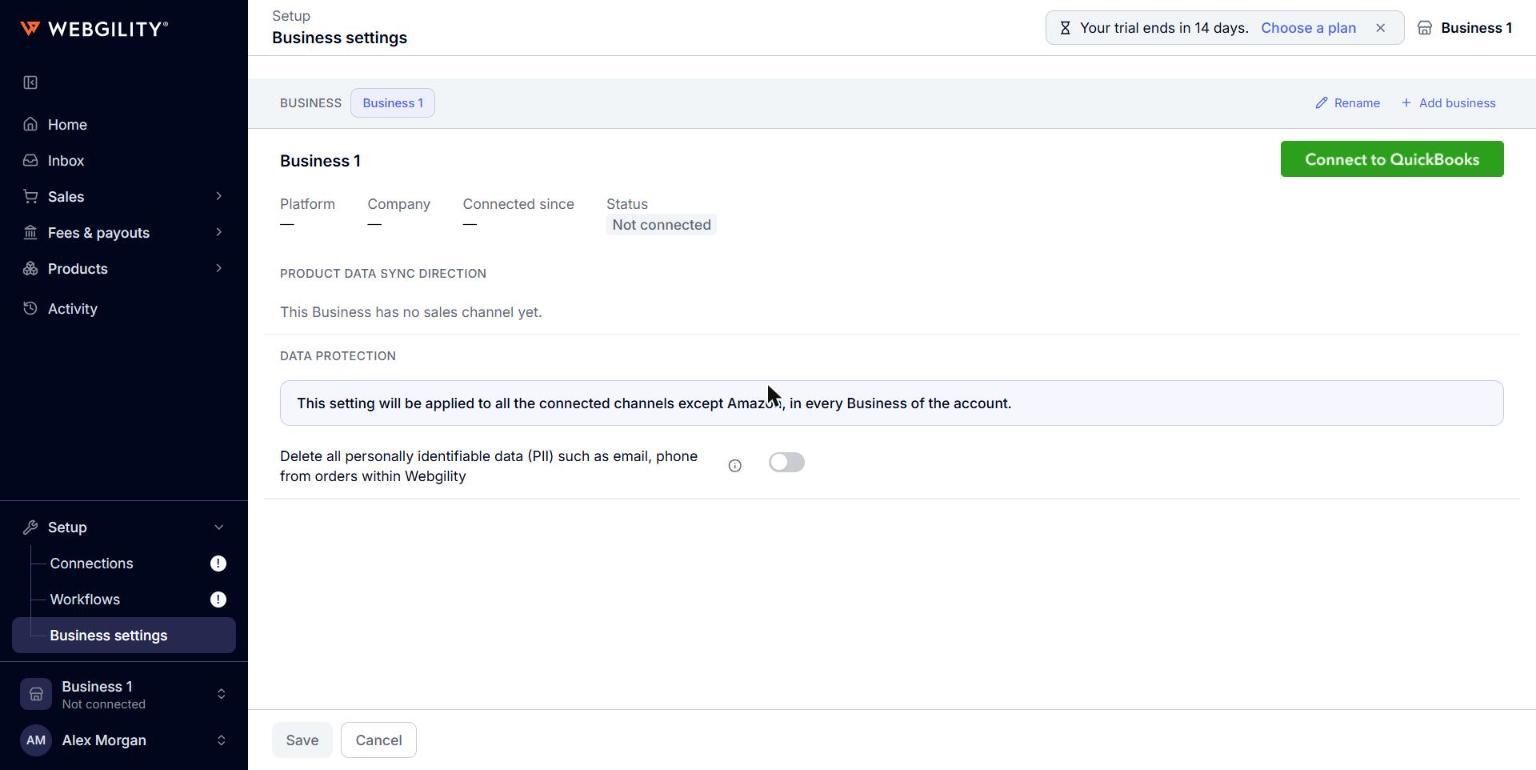
What to expect after connecting
- Your business in Webgility i takes the name of the QuickBooks Online company, in place of Business 1.
- At the bottom of the left menu, the business shows QuickBooks Online under its name instead of Connect accounting, and the red ! on Setup goes away.
- On Setup > Business settings, the business shows QuickBooks Online as its platform, the company name, the date it was connected and the status Connected.
- If Webgility i turned on Shipping in your QuickBooks Online company, a message confirms it. If it could not, the message says Shipping is off. In that case, turn it on in QuickBooks Online under Account and settings > Sales. See How to Turn On Shipping in QuickBooks Online. Otherwise an order with a shipping charge does not post, unless its store records shipping as a line item.
- One business uses one QuickBooks Online company. To post to another QuickBooks Online company, add it as a new business. This needs an IES plan; see https://www.webgility.com/pricing. See How to Add and Switch Between Multiple Businesses.
If the connection does not complete
- "QuickBooks Online is not connected": nothing changed. Click Connect to QuickBooks and try again.
- A message that Webgility connects companies in the United States, Canada, the United Kingdom and Australia: the company you selected is in another country. Select a different company at Intuit.
- "Another business already uses this QuickBooks company": select a different company at Intuit.
- "Stores outside this business also use this QuickBooks company": select a different company at Intuit, or contact Webgility support.
- "Still connecting QuickBooks Online": the connection is taking longer than usual. Click Check again after a minute.
- A message with a reference number that asks you not to try again: contact Webgility support and share the reference.
Next steps
Continue with step 3 on the Welcome to Webgility page, Post an order to test your sync, which posts one order to QuickBooks Online and then takes it back out. See How to Post a Test Order and Finish Setting Up Webgility i. After that, review your Business settings. See How to Configure Your Business Settings.