
QuickBooks Online needs every display name to be unique across customers, vendors and employees, including inactive ones. When an order's customer has the same name as a vendor or an employee, Webgility i cannot create the customer and shows "A name on this order is already used in QuickBooks".
Steps: Find the record that uses the name
- Sign in to QuickBooks Online.
- Click the search box at the top of the page and type the name from the order. QuickBooks Online shows the customers, vendors and employees with that name.
- If nothing shows, the record may be inactive. Look in the customer, vendor and employee lists with inactive records included.
Steps: Rename a vendor
- Go to Expenses & Bills > Vendors and click the name of the vendor.
- Click Edit. In Vendor display name, type a new name, for example add "(Vendor)" after it.
- Click Save.
Steps: Rename an employee
- Go to Payroll > Employees and click the name of the employee. In some companies the menu reads Team or Workers.
- Edit the employee's personal details and change Display name as.
- Click Save or Done.
Steps: Rename a customer
- Go to Customer Hub > Customers & leads and click the name of the customer.
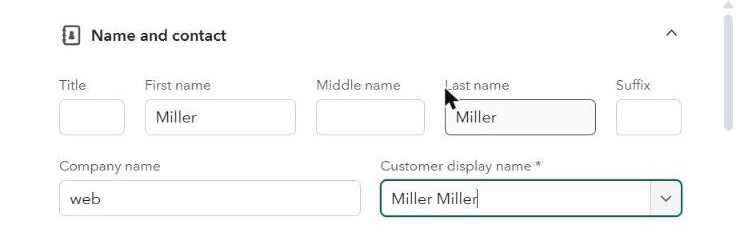
- Click Edit. In Customer display name, type a new name, for example add "(Customer)" after it.
- Click Save.
Note: Rename the vendor or employee rather than the customer when you can. Webgility i looks for the order's customer by the name from the sales channel.
After renaming
Go to Orders > Errors in Webgility i, tick the order and click Post to QuickBooks. If automatic posting is on for the sales channel, the order can also post on its own. Webgility i creates the customer with the name from the order.
Note: These steps describe QuickBooks Online, which is an Intuit product. Intuit can change its screens and labels. If what you see is different, search for "display name" in QuickBooks Online Help.