
QuickBooks Online does not use an inactive customer on a new transaction. When an order posts to an inactive customer, Webgility i does not post it and shows "The QuickBooks customer for this order is inactive".
Note: You can also let Webgility i make such customers active for you. In Channel settings, on the Customers tab, turn on Set inactive customers to "Active" when they appear on a new order. See How to Configure Your Channel Settings.
Steps:
- Sign in to QuickBooks Online.
- Go to Customer Hub > Customers & leads, and open the Customers tab. In some companies the menu reads Sales > Customers.
- Inactive customers are hidden. Above the list, click the Settings (gear) icon of the table and, under Other, select Include inactive.
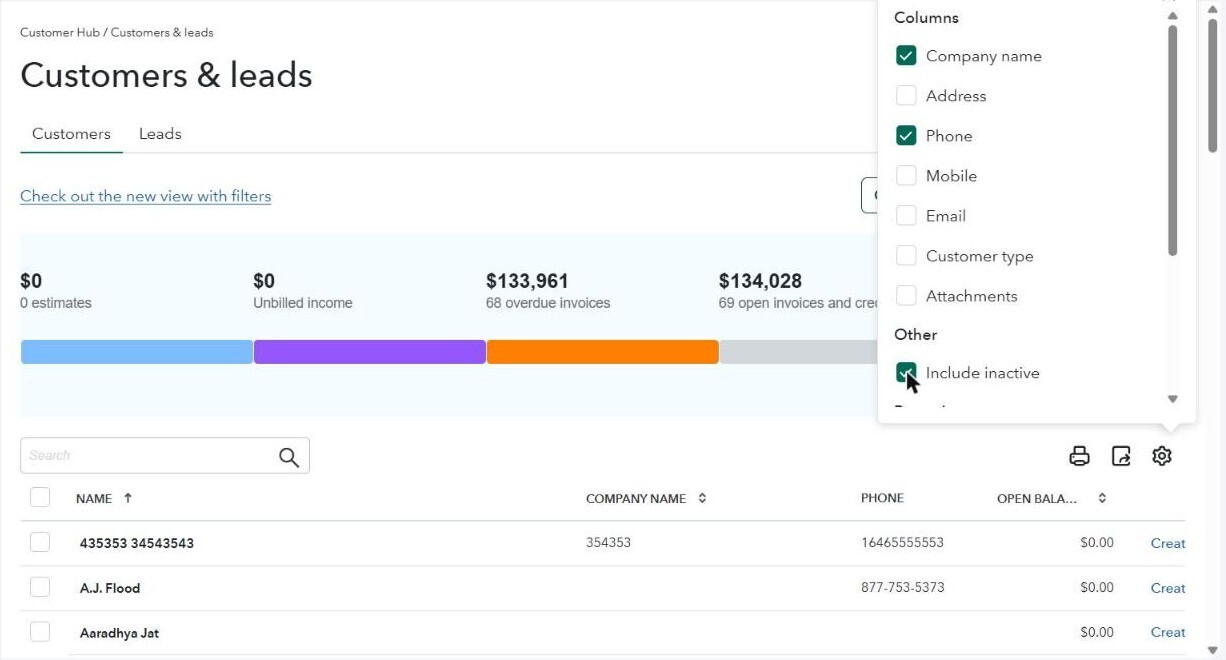
- Find the customer of the order. You can type the name, company or email in the search box.
- In the ACTION column of the customer, click the arrow next to the action, then click Make active.
- Go to Orders > Errors in Webgility i, tick the order and click Post to QuickBooks. If automatic posting is on for the sales channel, the order can also post on its own.
Note: These steps describe QuickBooks Online, which is an Intuit product. Intuit can change its screens and labels. If what you see is different, search for "make a customer active" in QuickBooks Online Help.