
When QuickBooks Online already has a document with the number of an order, it refuses the order as a duplicate, and Webgility i shows "QuickBooks refused a duplicate document number".
Steps: Find the transaction
- Sign in to QuickBooks Online.
- Click the search box at the top of the page.
- Type the document number from Webgility i, for example the order number. QuickBooks Online lists the transactions that match.
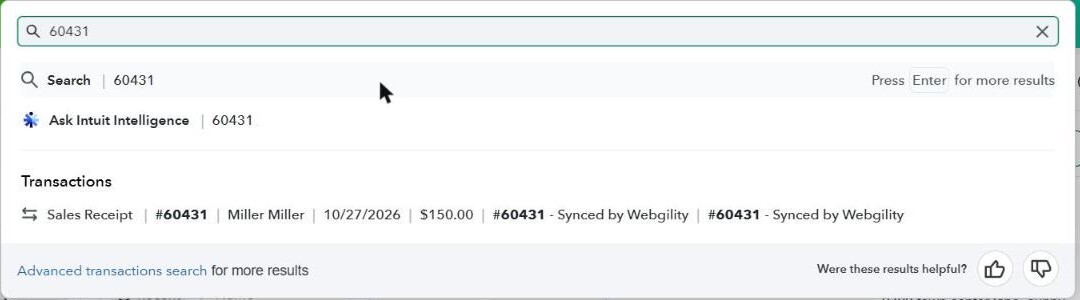
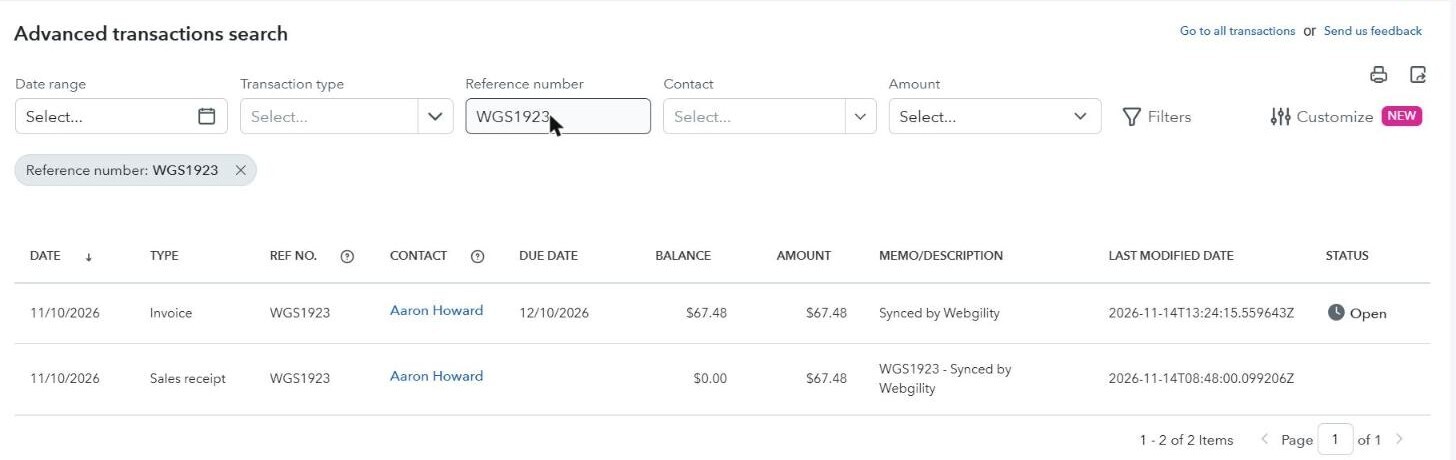
- To see every transaction with the number, click Advanced transactions search at the bottom of the results. Type the number in Reference number and press Enter. You can also pick a Transaction type. The list shows each match with its type, contact and amount.
- Click the transaction to open it.
Steps: Clear the duplicate
Look at the transaction you found, and do one of these:
- It is the same order, posted before: the order is already in QuickBooks Online. Ignore the order in Webgility i so it does not post twice. See How to Ignore and Restore Orders.
- It is a different transaction that uses the same number: change the number of that transaction in QuickBooks Online and click Save and close. Then go to Orders > Errors in Webgility i, tick the order and click Post to QuickBooks.
- It was created by mistake: void or delete it in QuickBooks Online, using More at the bottom of the transaction. Then post the order again from Webgility i.
Note: Voiding or deleting a transaction changes your books. Talk to your accountant if the transaction is in a period that is already reviewed.
Note: These steps describe QuickBooks Online, which is an Intuit product. Intuit can change its screens and labels. If what you see is different, search for "advanced search" in QuickBooks Online Help.