
WEBGILITY or UNIFY, Username sa, Password Webgility2011. On the login screen, choose SQL Server Authentication and use those exact values before trying anything else.Which error are you seeing?
- Login failed for user 'sa' → go to Section A.
- The target principal name is incorrect. Cannot generate SSPI context. → go to Section B.
- We found an existing account for you but we could not locate your Webgility database (add-on machine) → go to Section C.
- Database 'UnifyDB' already exists. Choose a different database name. or Store procedure does not exist: SP_GET_ORDER_COUNT → go to Section D.
- Login fails on a hosted environment (RightWorks, Apps4Rent, Summit Hosting) with no clear error → go to Section E.
- A network-related or instance-specific error occurred while establishing a connection to SQL Server. The server was not found or was not accessible. → go to Section F.
This appears when Webgility can reach the SQL instance but the SQL Authentication credentials are wrong or missing.
- Try restarting the SQL services first — many "Login failed for user 'sa'" cases clear on a service restart. Full walkthrough: Restart SQL Services.
 Open Windows Services (
services.msc), then right-click SQL Server (WEBGILITY) and SQL Server Browser and choose Restart. Source: Restart SQL Services. - Confirm the SQL instance name Webgility expects. Go to the computer where the SQL database is installed, or to a computer where Webgility is already working, and open
C:\Webgility\UnifyEnterprise\XML\ApiConfig.xmlin Notepad. Note the source name in the first line. Do not change any values in this file — close it without saving. - On the Webgility Desktop login screen of the computer where you are facing the issue, choose SQL Server Authentication from the Authentication dropdown, re-enter Username
saand PasswordWebgility2011, and click Login. - If login still fails, contact Webgility Support. The Support team needs to verify the
sapermissions in SQL Server Management Studio (SSMS) and confirm the credentials that were set during the original setup. It is also possible the SQL computer is running under Windows Authentication while the add-on machine needs SQL Authentication with the correct credentials — Support will validate this before making any change.
SSPI errors come from Windows Authentication (Kerberos) failing to reach SQL Server. It is a services or firewall problem, not a Webgility credentials problem.
- Restart the SQL Server services. Follow Restart SQL Services — in Windows Services, right-click SQL Server (WEBGILITY) → Restart, then do the same for SQL Server Browser.
Same restart procedure — used at multiple points in this article. Source: Restart SQL Services.
- Enable Named Pipes. Open SQL Server Configuration Manager → SQL Server Network Configuration > Protocols for WEBGILITY → right-click Named Pipes → Enable. Restart the SQL Server services again (Step 1).
- Add the required firewall exceptions. Run
C:\Webgility\UnifyEnterprise\WgFirewall.exeas administrator — it automatically adds every port and program exception Webgility needs. No manual port entry is required.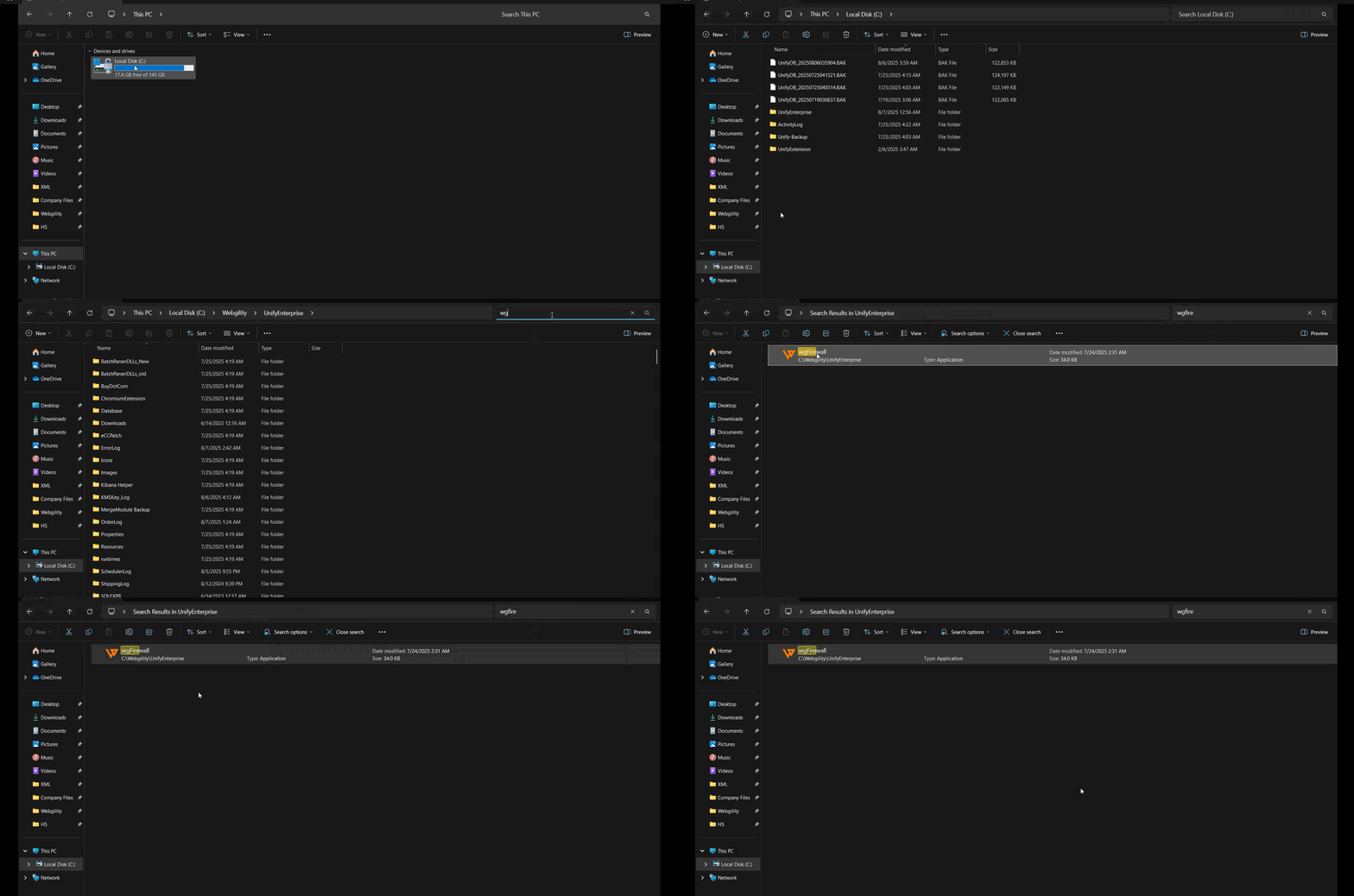 Locate and run WgFirewall.exe as administrator from
 C:\Webgility\UnifyEnterprise. Source: Unable to Connect Add-On Computer with SQL Database. - On the login screen, select SQL Server Authentication with
sa/Webgility2011and log in.
This appears when Webgility Desktop is installed on a second computer and cannot reach the SQL instance on the main machine. The full flow with WgFirewall screenshots is in Unable to Connect Add-On Computer with SQL Database.
- On the main machine, put SQL Server and SQL Server Browser on the network so add-on machines can reach them. Full walkthrough: How To Put SQL Services On Network. Both services must run as Network Service and then be restarted.
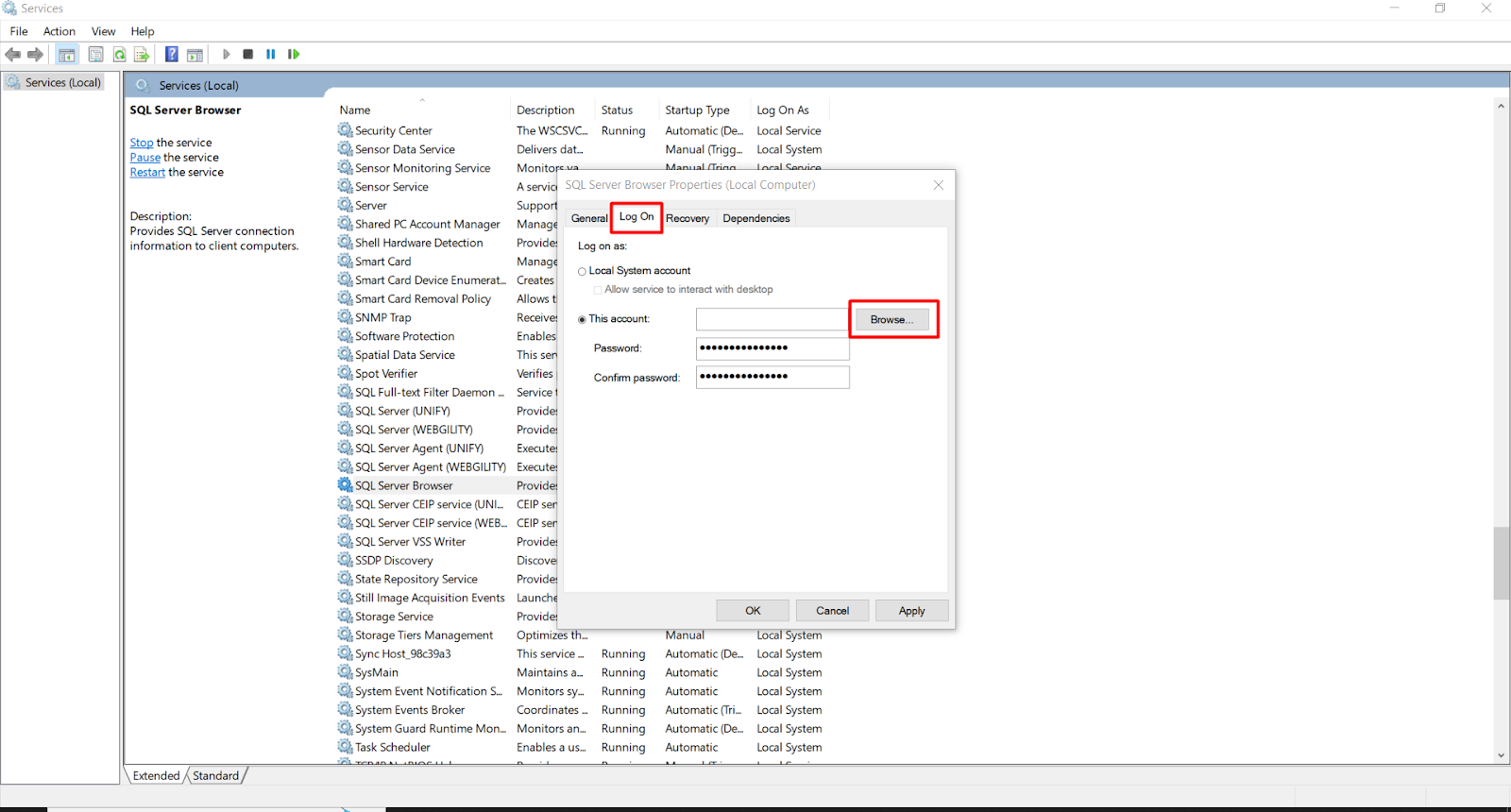 Open SQL Server in Windows Services → Properties → Log On tab → click Browse.
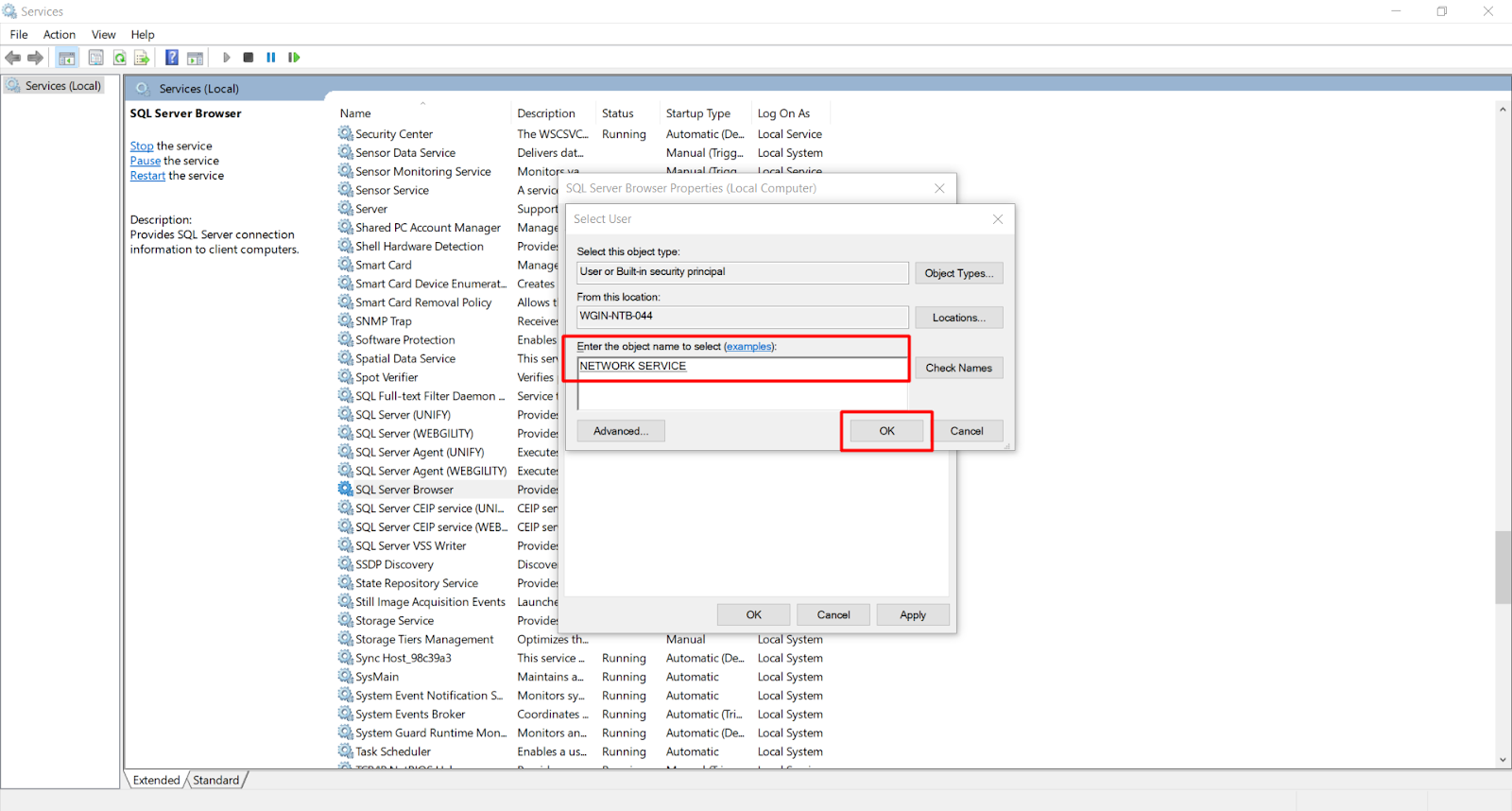 Type Network Service, pick it, and click OK. Then repeat for SQL Server Browser and restart both services. Source: How To Put SQL Services On Network.
 - Run
C:\Webgility\UnifyEnterprise\WgFirewall.exeas administrator on both the main machine and the add-on machine. WgFirewall creates every Webgility firewall entry automatically — no manual port configuration.Run WgFirewall from C:\Webgility\UnifyEnterpriseon both computers.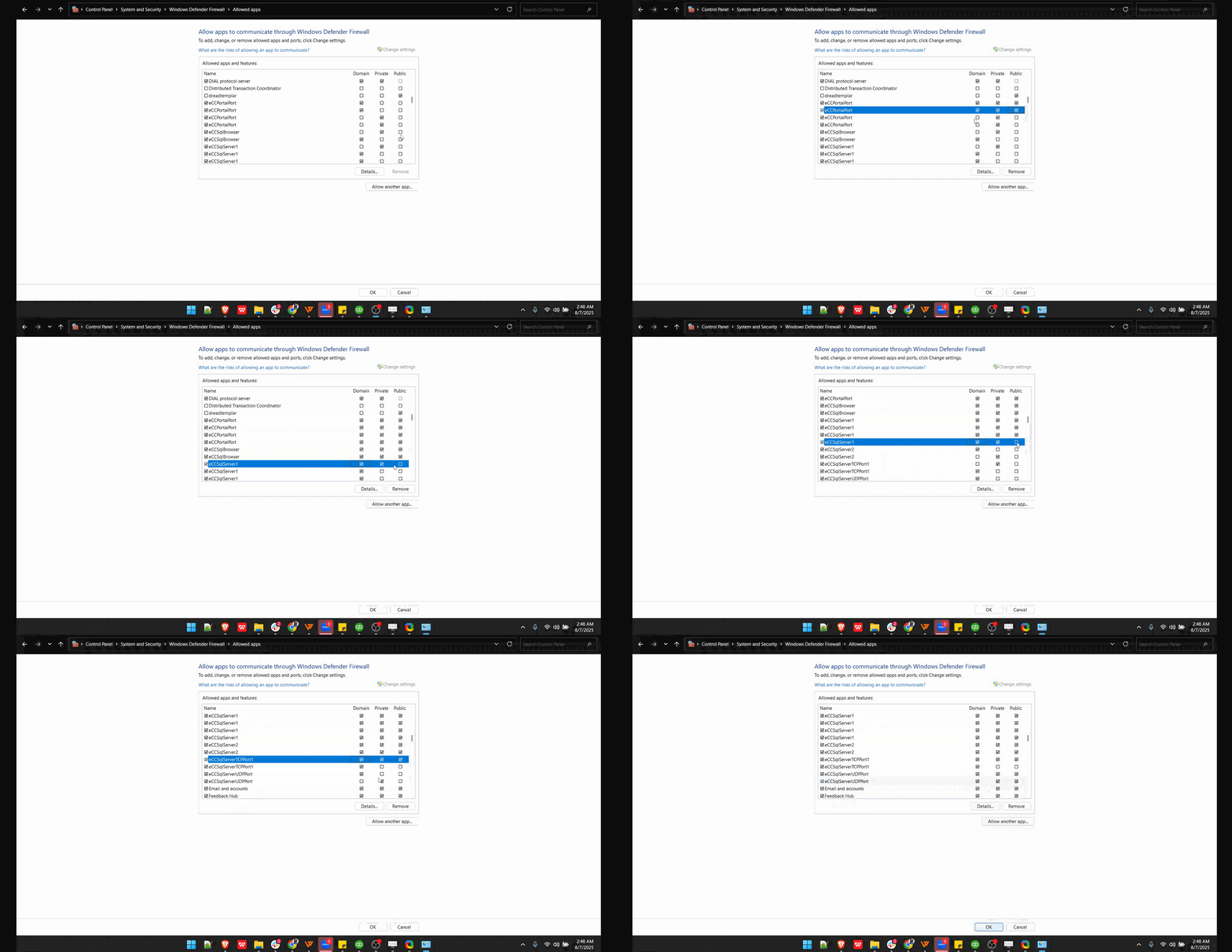 After WgFirewall runs, confirm the Public, Private, and Domain checkboxes are all ticked for the Webgility ECC entries. Source: Unable to Connect Add-On Computer with SQL Database.
 - Enable Named Pipes on the main machine (see Section B step 2).
- On the add-on machine, open Webgility Desktop's Add-on setup. Choose Connect to an existing SQL Server and enter
MainComputerName\WEBGILITY. Choose SQL Server Authentication and enter Usernamesa, PasswordWebgility2011.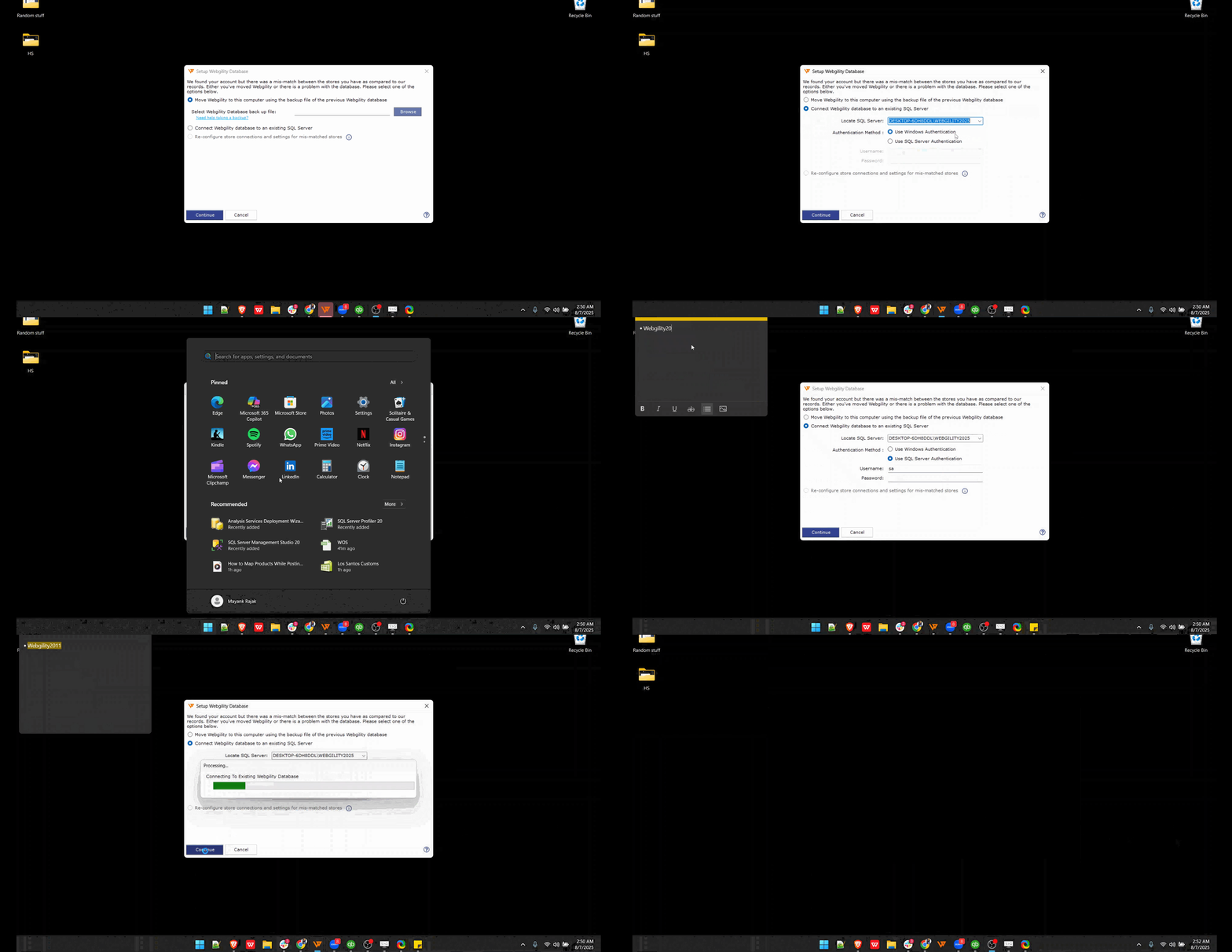 Add-on connection dialog — select Connect to an existing SQL Server, enter
 MainComputerName\WEBGILITY, SQL Server Authentication,sa/Webgility2011. Source: Unable to Connect Add-On Computer with SQL Database.
If the add-on machine still cannot see the SQL instance after these steps, the reference article Unable to Connect Add-On Computer with SQL Database has the full escalation flow. Also enable shipping on the add-on machine only after the SQL connection succeeds — see Enable Shipping on an Add-On Machine.
Section D: Database corruption or existing-database conflictErrors like "Store procedure does not exist" or "Database 'UnifyDB' already exists" mean the underlying SQL database is damaged or blocked. Do not attempt in-place SQL repairs on your own.
- Before escalating, run UnifyDBUpgrade and then UnifyDBUtility from
C:\Webgility\UnifyEnterprise\, then restart the SQL Server service (see Section B step 1). This clears many transient DB errors. Detailed procedure: Unhandled exception has occurred in your application. - If the error persists, create a fresh database backup. Follow How to Create a Database Backup.
- Contact Webgility Support with (a) the backup, (b) the exact error text and a screenshot, and (c) whether any antivirus (Bitdefender, Norton, McAfee) is managing your firewall.
Support's Technical Team will validate the backup, correct it if repairable, and restore it on your system.
Section E: Login fails on a hosted environmentIf Webgility runs on RightWorks, Apps4Rent, Summit Hosting, or a similar hosted environment, the SQL instance is not on your local machine — it is on the hosting provider's server.
- Log off the hosted environment completely. Wait two to three minutes.
- Log back in. Launch QuickBooks Desktop first, then Webgility Desktop.
- If login still fails, contact your hosting provider (not Webgility) and ask them to restart the SQL Server services on your account. Reference the exact error you see on the login screen.
- If the hosting provider cannot resolve the issue within one business day, contact Webgility Support and mention that your hosting provider has already escalated internally.
Related: Troubleshoot a Hosted Environment Not Syncing Automatically, Session Has Expired.
Section F: "A network-related or instance-specific error occurred... The server was not found"This error means Webgility Desktop cannot reach the SQL Server instance at all — usually a wrong instance name, a stopped service, or a firewall block.
- Confirm the instance name. On the computer where SQL is installed, open Windows Services and note the exact service name listed as SQL Server (Unify) or SQL Server (Webgility).
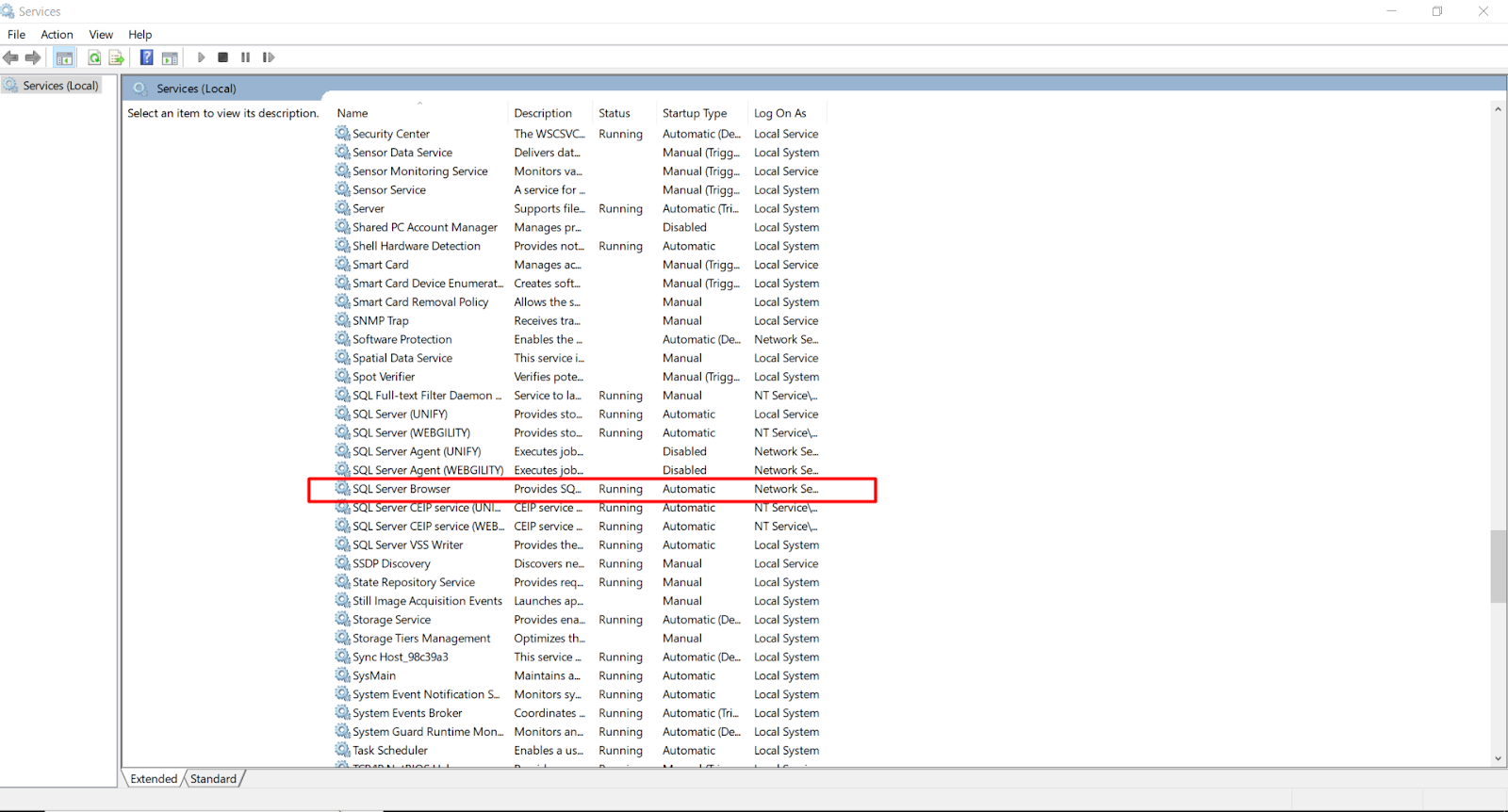 Windows Services showing the SQL Server row and its context menu.
 - Put SQL Server and SQL Browser on the network and restart them. Follow How To Put SQL Services On Network. For the service restart itself: Restart SQL Services.
- Open SQL Server Configuration Manager — search SQLServerManager from
C:\Windows\SysWOW64— then expand SQL Server Network Configuration > Protocols for [instance name] and enable Shared Memory, Named Pipes, and TCP/IP. - Run
C:\Webgility\UnifyEnterprise\WgFirewall.exeas administrator. WgFirewall adds every port and program exception Webgility needs — no manual firewall entry required.Run WgFirewall.exe as administrator.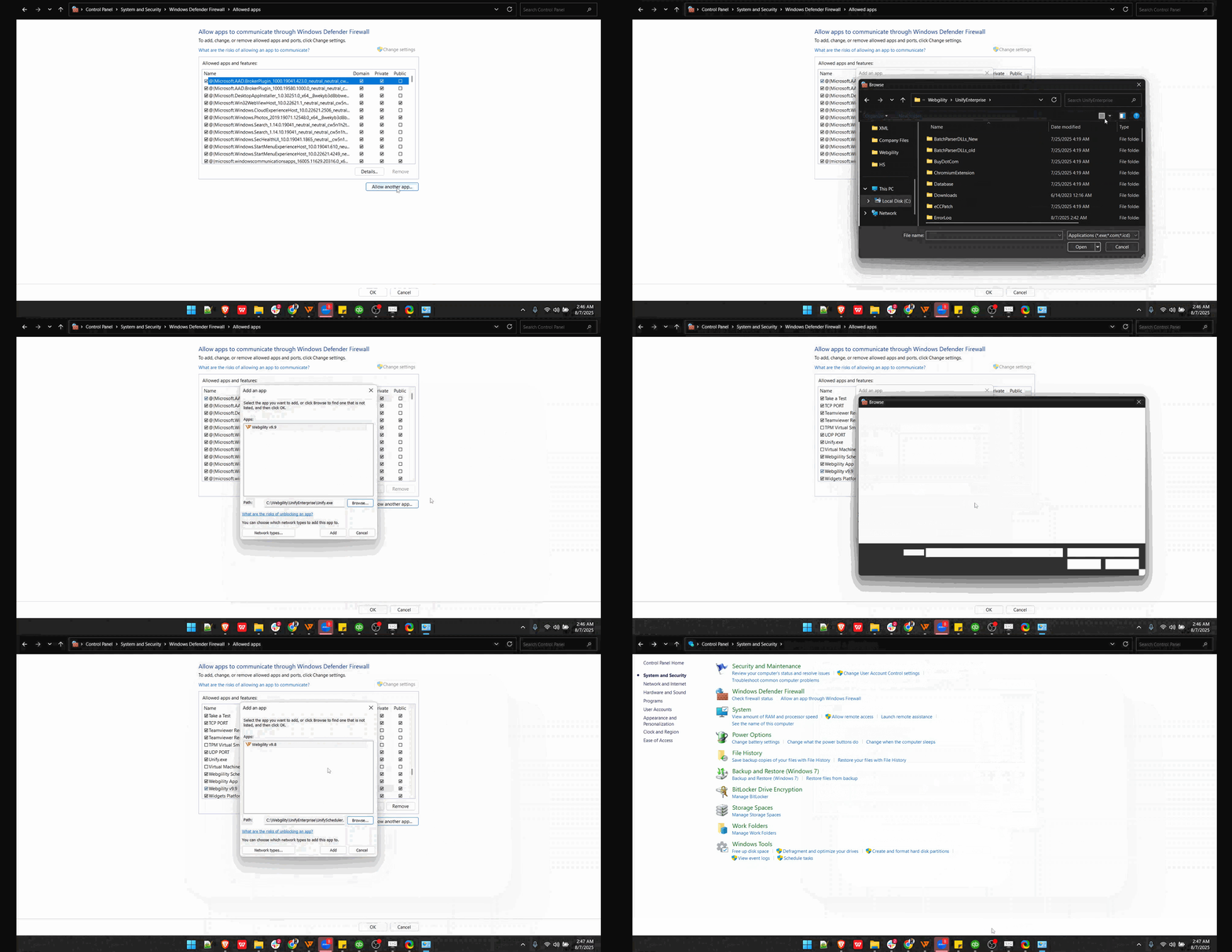 WgFirewall adds
 Unify.exeand the Unify Scheduler as firewall exceptions.Confirm the Public, Private, and Domain checkboxes are all ticked for every Webgility ECC entry. - Temporarily disable Windows Firewall and any antivirus software, then try logging in. If it succeeds, re-enable them and confirm
sqlservr.exeandUnify.exeare in the antivirus exception list. - On the Webgility Desktop login screen, select the correct database, choose SQL Server Authentication, and enter Username
saand PasswordWebgility2011. - Confirm the account has permission to connect to SQL Server, then restart the SQL Server computer and test the connection again.
Note: If an add-on machine shows this error, perform these same steps on the main computer hosting the SQL database, not on the add-on machine.
Related: Event ID 7024: SQL Server service terminated, OleDb 0x80004005 — General network error, Unable to execute Unify.exe.