
When you sign up, Webgility asks whether you want to start with the new Webgility, which is in beta, or with the current version. The new Webgility is Webgility i. You make this choice once, when you sign up.
Steps:
- Fill in the Start Your Free Trial form. When you choose QuickBooks Online and, under How do you want your sales recorded in your accounting system?, Individual transactions, per order or per day, the Start with the new Webgility, now in beta window opens over the form.
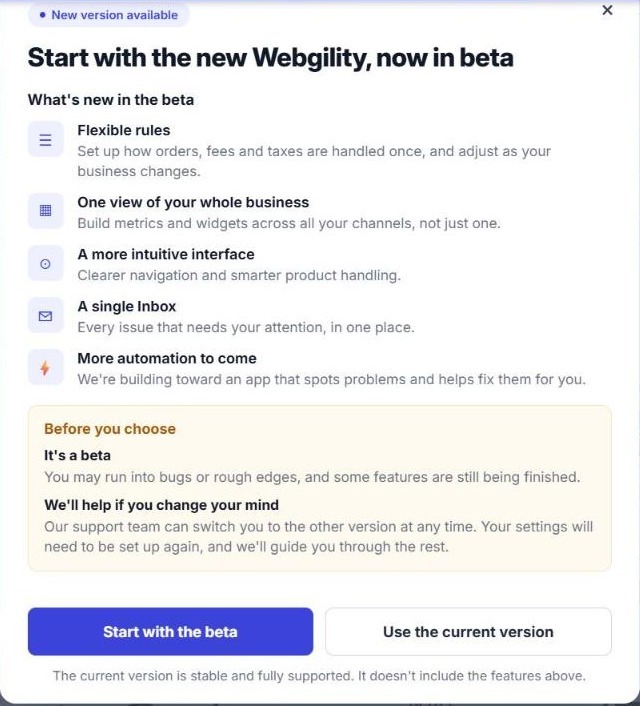
- Read What's new in the beta. The new Webgility adds:
- Flexible rules: set up how orders, fees and taxes are handled once, and adjust the rules as your business changes. See How to Configure Workflows in Webgility i.
- One view of your whole business: build metrics and widgets across all your sales channels, not just one. See How to Use and Customize Your Home Page Widgets.
- A more intuitive interface: clearer navigation and smarter product handling. See Understanding the QuickBooks Catalog in Webgility i.
- A single Inbox: every issue that needs your attention, in one place. See Understanding and Using the Inbox in Webgility i.
- More automation to come: Webgility is building toward an app that spots problems and helps fix them for you.
- Read Before you choose:
- It's a beta: you may run into bugs or rough edges, and some features are still being finished.
- We'll help if you change your mind: the Webgility support team can switch you to the other version at any time. Your settings do not move with you: they need to be set up again, and the support team guides you through it.
- Choose a version:
- Click Start with the beta to start with the new Webgility.
- Click Use the current version to start with the current Webgility. The current version is stable and fully supported. It does not include the features listed in the window.
- Finish the form and click Start a 15 day free trial. Webgility shows Thanks for signing up while it sets up your account. With the beta, you then land on the Welcome to Webgility page, where you connect your sales channel and QuickBooks Online. See How to Connect Your Sales Channel to Webgility i.
Switch to the other version later
You cannot switch versions yourself. Contact the Webgility support team and ask to be switched. Your settings are not carried over to the other version: you set them up again, and the support team guides you through it.