
A workflow turns one kind of sales activity, such as orders or refunds, into postings in QuickBooks Online. The Workflows page shows each workflow, the sales channels it runs on, the rules you added to it and its Default, and it is where you open a rule or a Default to change how your sales post.
Note: Webgility i sets up the workflows for each sales channel based on how that channel posts. You cannot add or remove a workflow yourself. You configure a workflow by changing its Default and by adding rules to it.
Steps:
- Go to Setup > Workflows. The page shows one card for each workflow.
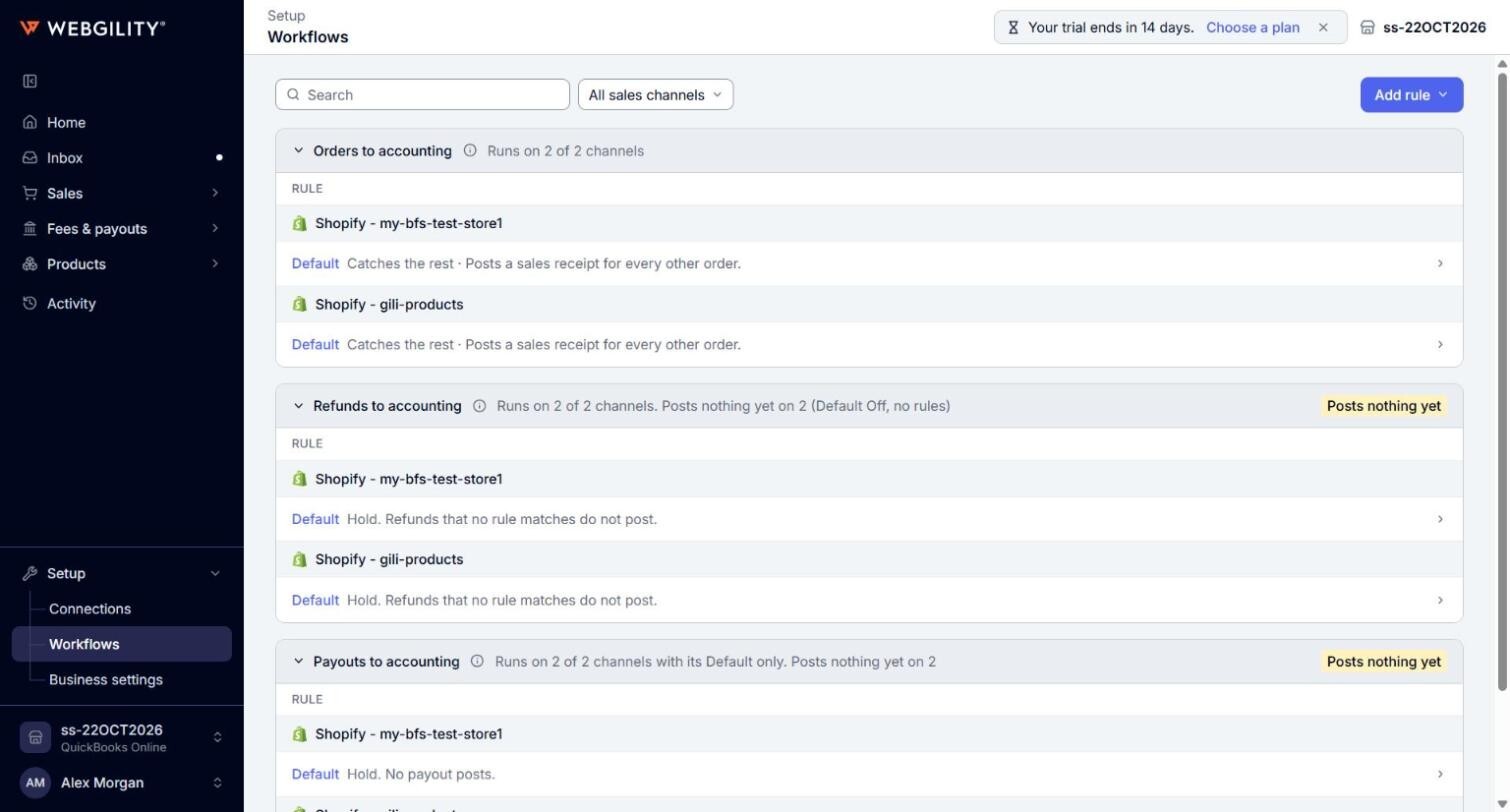
- Read the card of a workflow. The top of the card shows the workflow's name and a line that says where it runs, for example Runs on 2 of 3 channels. Point to the info icon next to the name to read what the workflow does and the order in which its rules run.
- Under the card's name, each sales channel the workflow covers has its own heading. Under each heading are the rules of that sales channel, in the order they are checked, and then its Default.

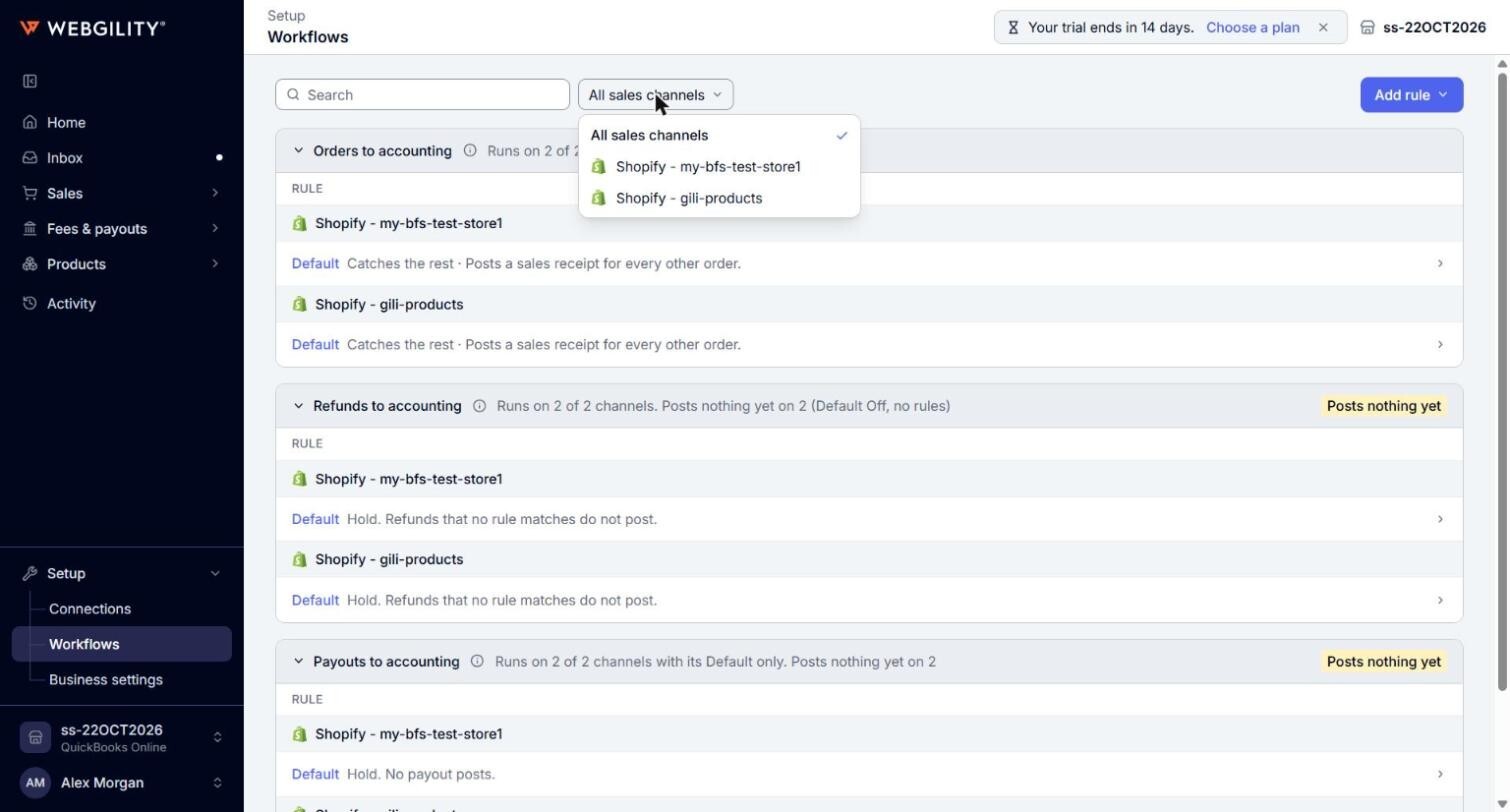
- To see one sales channel only, click All sales channels and select the sales channel. For a store with sub stores, such as an Amazon store with several marketplaces, select the marketplace under the store's name.
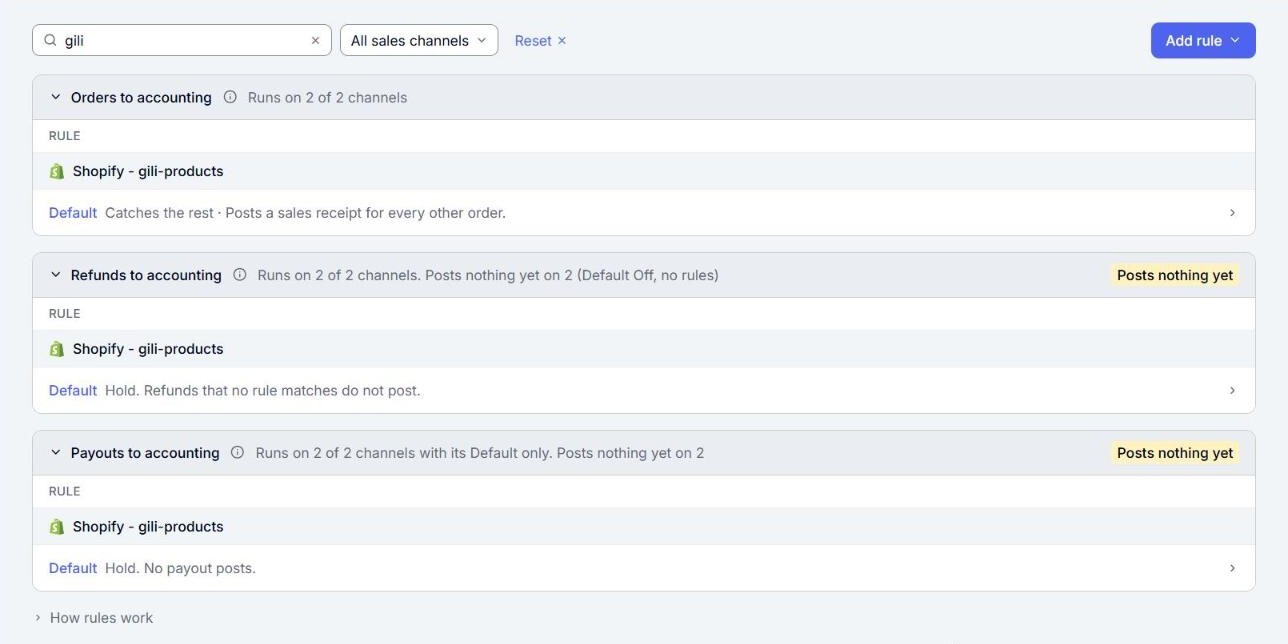
- To find a rule, type in the Search box. The page shows the rules whose name or summary contains your words, and every rule and Default of a sales channel whose name contains them. Click Reset to clear the search and the sales channel filter.
- To configure a rule or a Default, click its row. Its screen opens in place of the list. Click Back to Workflows to return to the list.
- To read a short explanation of channels, workflows, rules and the Default, click How rules work at the bottom of the page.
Workflows you may see
- Orders to accounting: posts one document for each order, on a sales channel that posts Transactional.
- Consolidated orders to accounting: posts the orders of one period as one document, on a sales channel that posts Consolidated.
- Refunds to accounting: posts your refunds, on a sales channel that posts Transactional.
- Consolidated refunds to accounting: posts the refunds of a sales channel that posts Consolidated.
- Payouts to accounting: posts payout details. It has a Default only and takes no rules, so its card says it runs with its Default only.
Note: The page does not show the card of a workflow that runs on none of your sales channels and has no saved rule or Default.
What the rows and labels mean
- Rank: the position of a rule among the rules of its sales channel. It shows when you point to the rule. See How to Change the Priority (Rank) of Your Rules.
- Settings count: the number at the right of a rule row, for example 12 settings, is how many settings the rule sets.
- On hold: the rule is set to Hold, so the orders it matches are not posted. They wait on the Orders page until you change or delete the rule.
- Heads-up: the order of your rules affects this rule, for example a rule above it takes some of the same orders. Point to the label to read the details.
- Default: the settings for everything no rule matches. See Understanding the Default Rule and How Your Rules Work on Top of It.
- Does not run: the workflow does not run on this sales channel. The text next to it says why, for example because of how the channel posts.
- Not running, Posts nothing yet or Off: a label on a card that says the workflow runs on none of the sales channels in view, that it runs but nothing can post yet, or that it was turned off.
What you configure elsewhere
How a sales channel posts, Transactional or Consolidated, decides which workflows run on it. You set it in the channel settings, not on the Workflows page. Go to Setup > Connections and click the Settings button of the channel card. Every rule and Default on that sales channel uses the channel settings, and no rule can change them.
Note: If you connect your business to a different QuickBooks Online company, Webgility i turns off the workflows it posted with. The Workflows page then shows a message above the cards with a button to turn each workflow on again. Webgility i checks the settings first and lists any setting you need to fix.