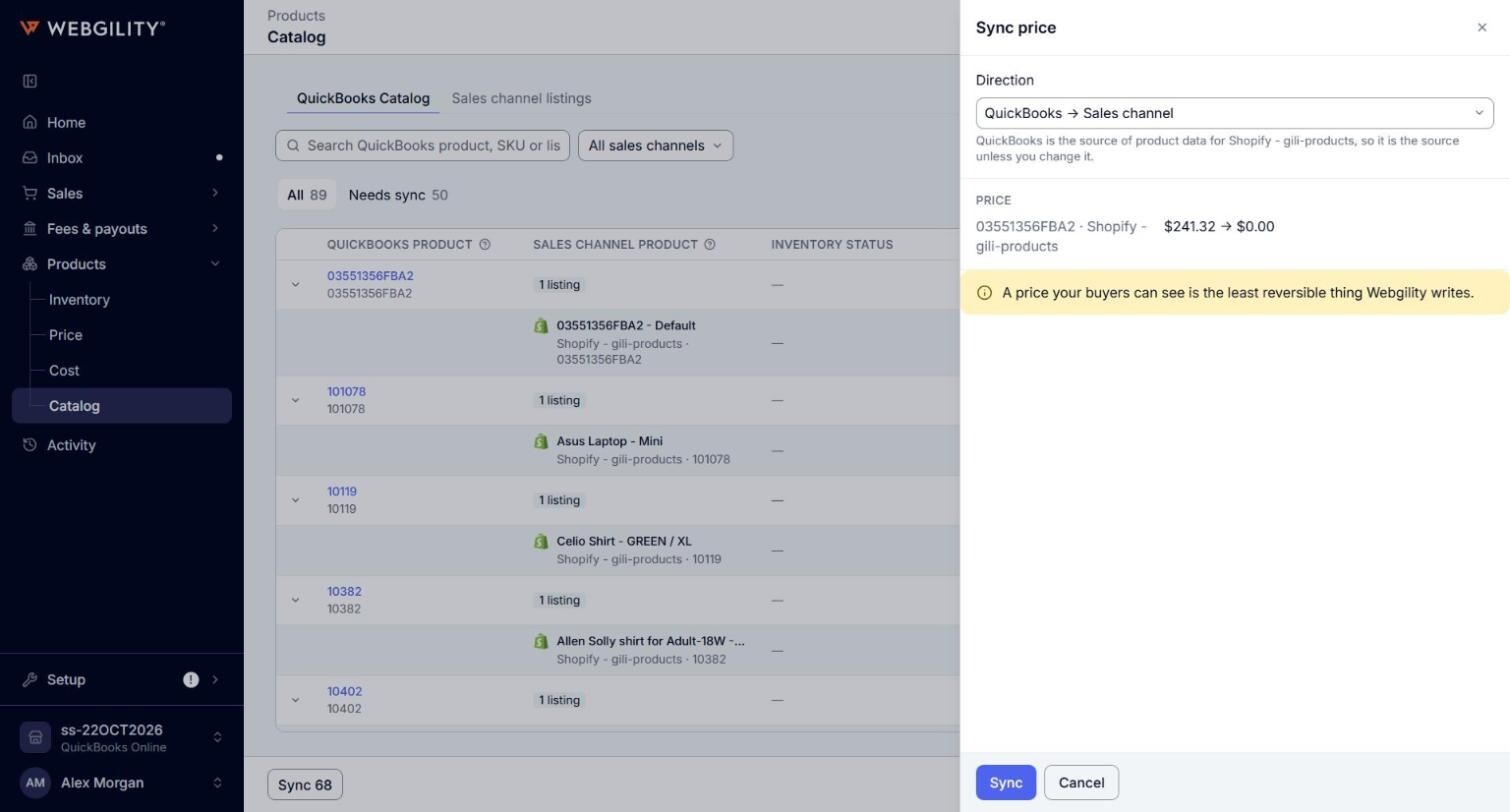
The tab lists the products of your connected QuickBooks Online company in one place. For each QuickBooks product, it shows the sales channel listings that post to it and whether their inventory, price and cost match QuickBooks Online.
Note: The QuickBooks Catalog shows your products once your QuickBooks Online company is connected and Webgility i has finished loading its products. Until then, the tab shows "No QuickBooks products yet. They show here once your QuickBooks company has loaded."
Steps:
- Go to Products > Catalog. The page opens on the QuickBooks Catalog tab.
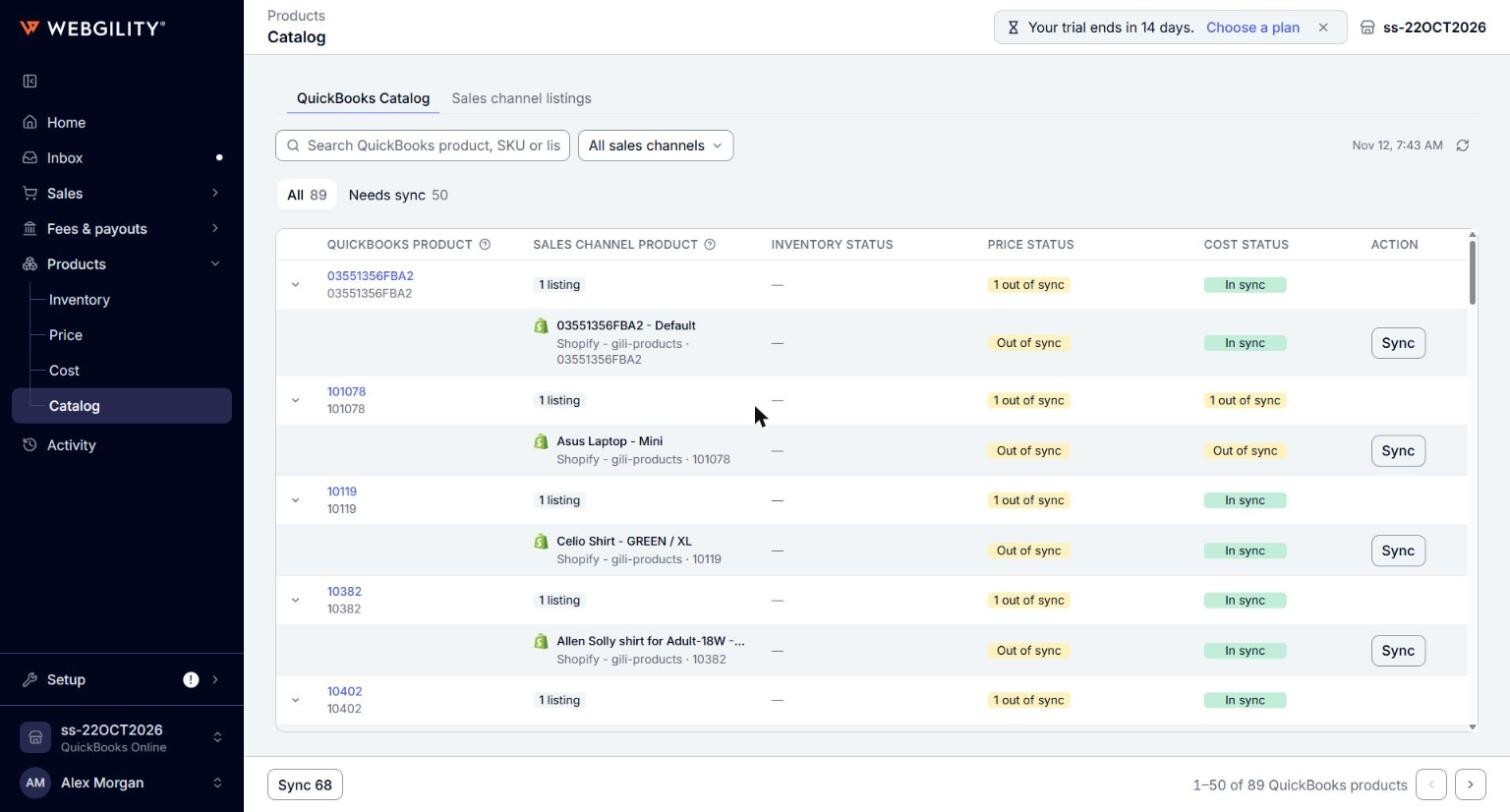
- Use the All and Needs sync tabs to choose which QuickBooks products to see. Each tab shows how many products it holds.
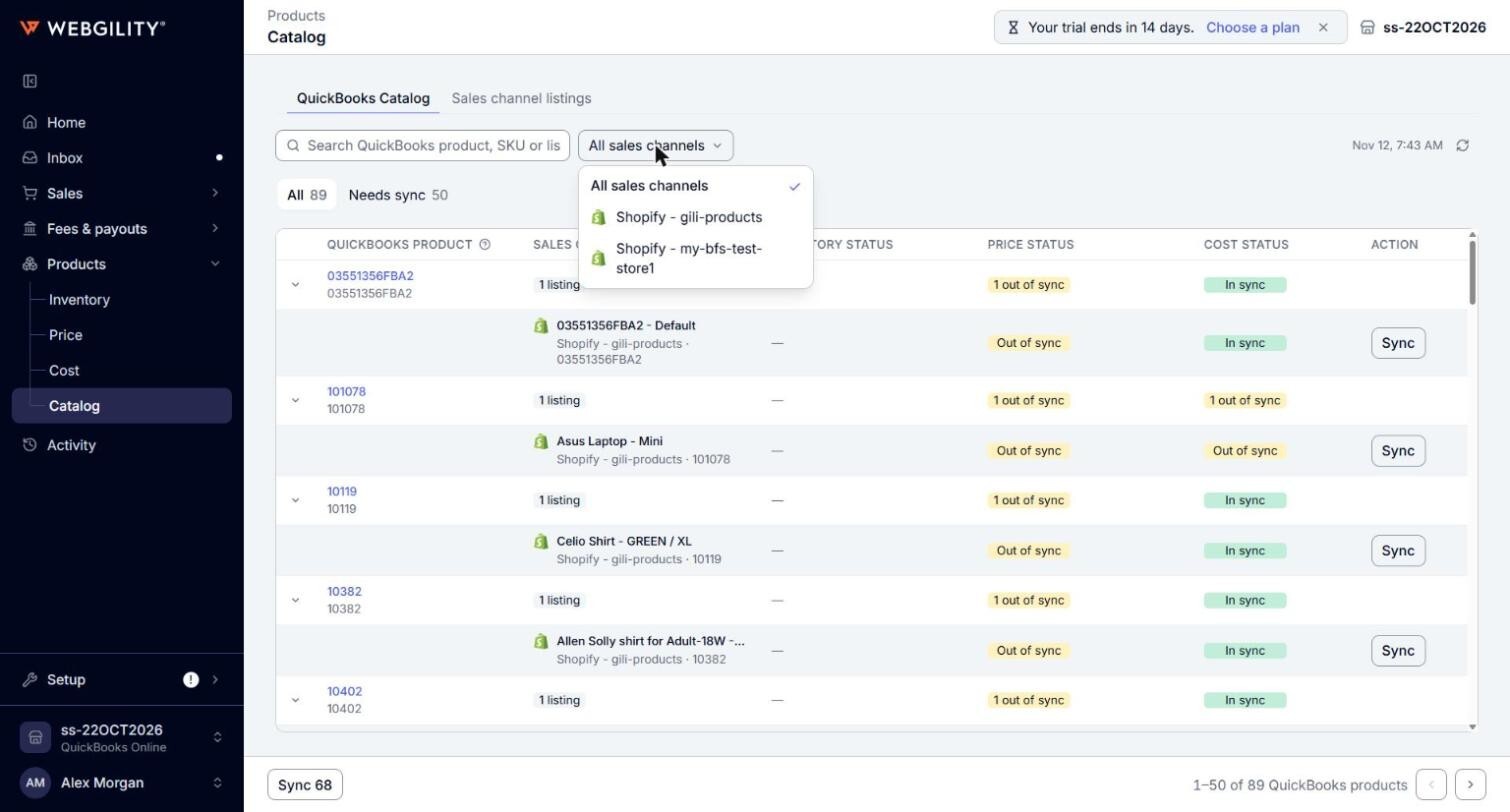
- To find a product, type in the search box. You can search by the QuickBooks product name or SKU, or by the title or SKU of a listing that posts to it. To see one sales channel only, open the All sales channels filter and select the channel.
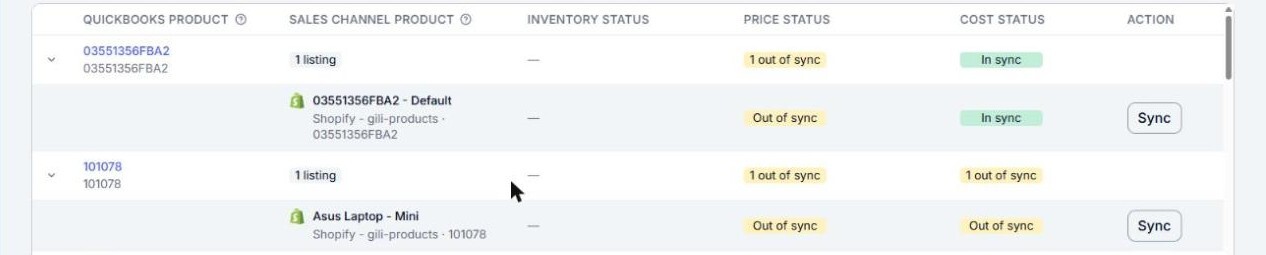
- To see the listings that post to a QuickBooks product, click the arrow at the start of its row. A row with a listing that is out of sync or in error opens on its own.
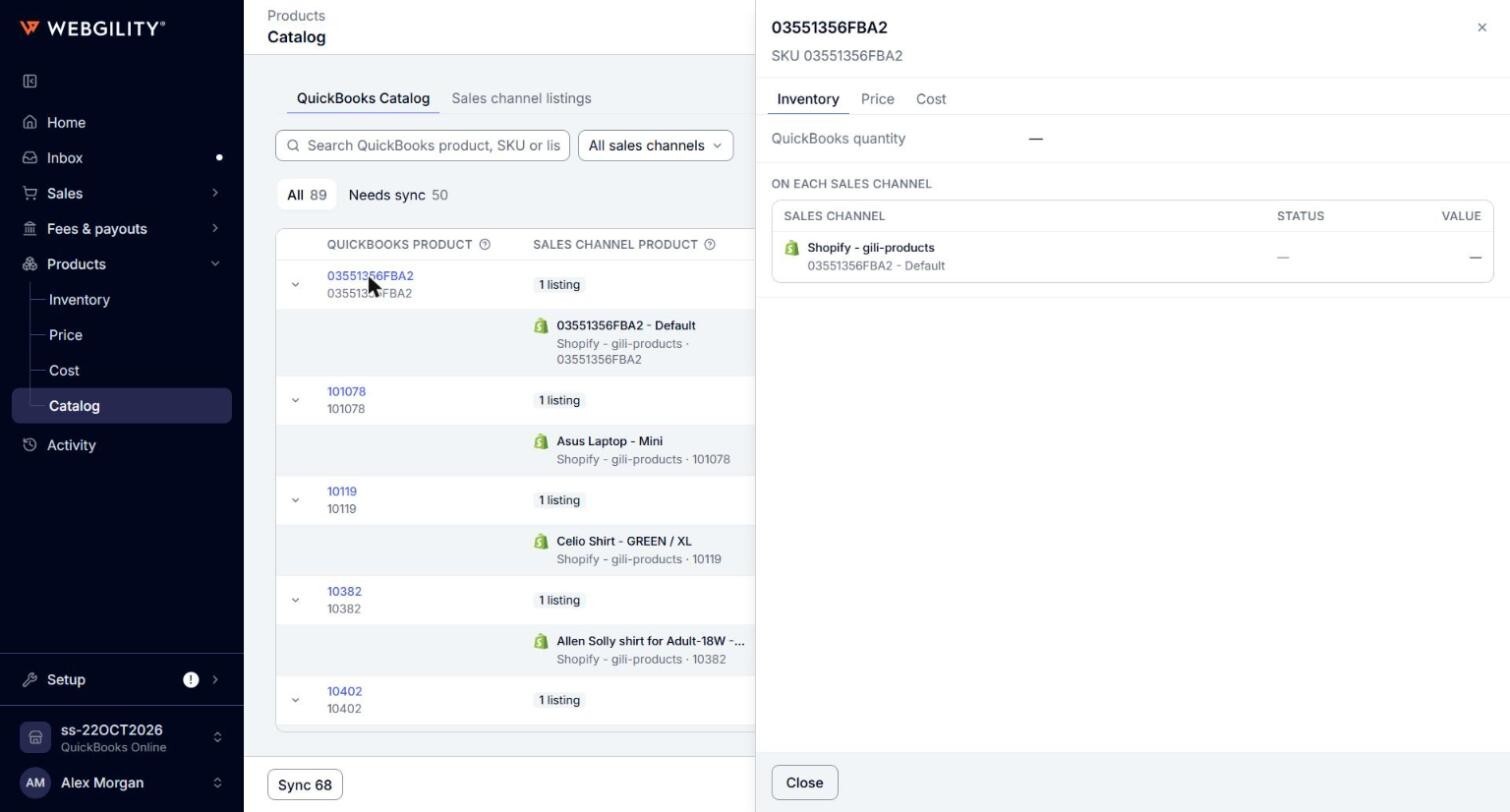
- To see a QuickBooks product's values side by side with each sales channel, click the product's name. A panel opens on the right with the Inventory, Price and Cost tabs. Each tab shows the value in QuickBooks Online, then each sales channel listing with its status and value. Click Close to close the panel.
- To download the list, click Export.
Which QuickBooks products are listed
- Active products only: the tab lists the active products of the QuickBooks Online company connected to the business. A product that is inactive, deleted or replaced in QuickBooks Online is not listed.
- Products with no listing: a QuickBooks product that no sales channel listing posts to is still listed, with 0 listings.
- Pages: the tab shows 50 QuickBooks products per page. Use the arrows at the bottom of the page to move between pages.
Which listings show under a QuickBooks product
A listing shows under a QuickBooks product only when it is mapped to it, that is, when its status on the Sales channel listings tab is Auto-mapped or Manually mapped. Listings that are Unmapped, Needs review or Ignored do not show here. To work with those, use the Sales channel listings tab. See How to Map a Sales Channel Listing to a QuickBooks Product and How to Use the Needs Review Tab in Sales Channel Listings.
When you select one sales channel in the filter, each QuickBooks product shows only the listings of that channel.
What the columns show
- QuickBooks product: the product's name in QuickBooks Online, with its SKU underneath.
- Sales channel product: how many sales channel listings post to the QuickBooks product. Open the row to see each listing's title, with its store and SKU underneath.
- Inventory status, Price status and Cost status: whether the listings' quantity, price and cost match the QuickBooks product. On the product's row, the status reads, for example, 2 out of sync when listings differ, or the status all its listings share. On a listing line, it is that listing's own status.
- Action: what you can do for a listing line. See Syncing values from the QuickBooks Catalog below.
What the sync statuses mean
- In sync: the sales channel's value matches QuickBooks Online.
- Out of sync: the sales channel's value differs from QuickBooks Online.
- Error: the sales channel refused the last update Webgility i sent. Point to the status to read the reason.
- Pushing: an update was sent and is waiting for the sales channel, or QuickBooks Online, to confirm it.
- Not known: the sales channel or QuickBooks Online has not reported its value yet.
- Held: Webgility i is holding this value back and does not send it. Point to the status to read why.
- —: the value is not compared for this listing, for example the quantity of a QuickBooks product that does not track quantity.
The Needs sync tab lists the QuickBooks products that have at least one listing that is Out of sync or in Error.
Syncing values from the QuickBooks Catalog
- Sync on a listing line: opens a panel that shows the value that will change. Choose the Direction, QuickBooks → Sales channel or Sales channel → QuickBooks, and click Sync. Sales channel → QuickBooks is not available for some values.
- Review on a listing line: opens the Inventory, Price or Cost page on its Held tab at that listing, where you can see why the value is held.
- A listing line with more than one action: the button opens Choose what to sync, where you select the values to sync now.
- Sync at the bottom of the page: shows how many values it can send across all pages of the current search and filter, for example Sync 12. It opens a panel that lists the QuickBooks Online values it will send to the sales channels. Check them, then confirm. It is unavailable when there is nothing to send.
Note: A manual Sync sends the price QuickBooks Online has, even when it is $0.00. Before you sync prices with QuickBooks → Sales channel, check each price in the panel, and correct any $0.00 price in QuickBooks Online first. A price your buyers can see is the hardest change to undo.