
Home adds up the current month for the business you are viewing: what your stores sold, what came off it, what is in QuickBooks Online, and what needs you. Two widgets are always on, and you can add or remove the other three.
Note: Until you finish setting up, Home opens the Welcome to Webgility page instead. See How to Post a Test Order and Finish Setting Up Webgility i.
Steps:
- Go to Home.
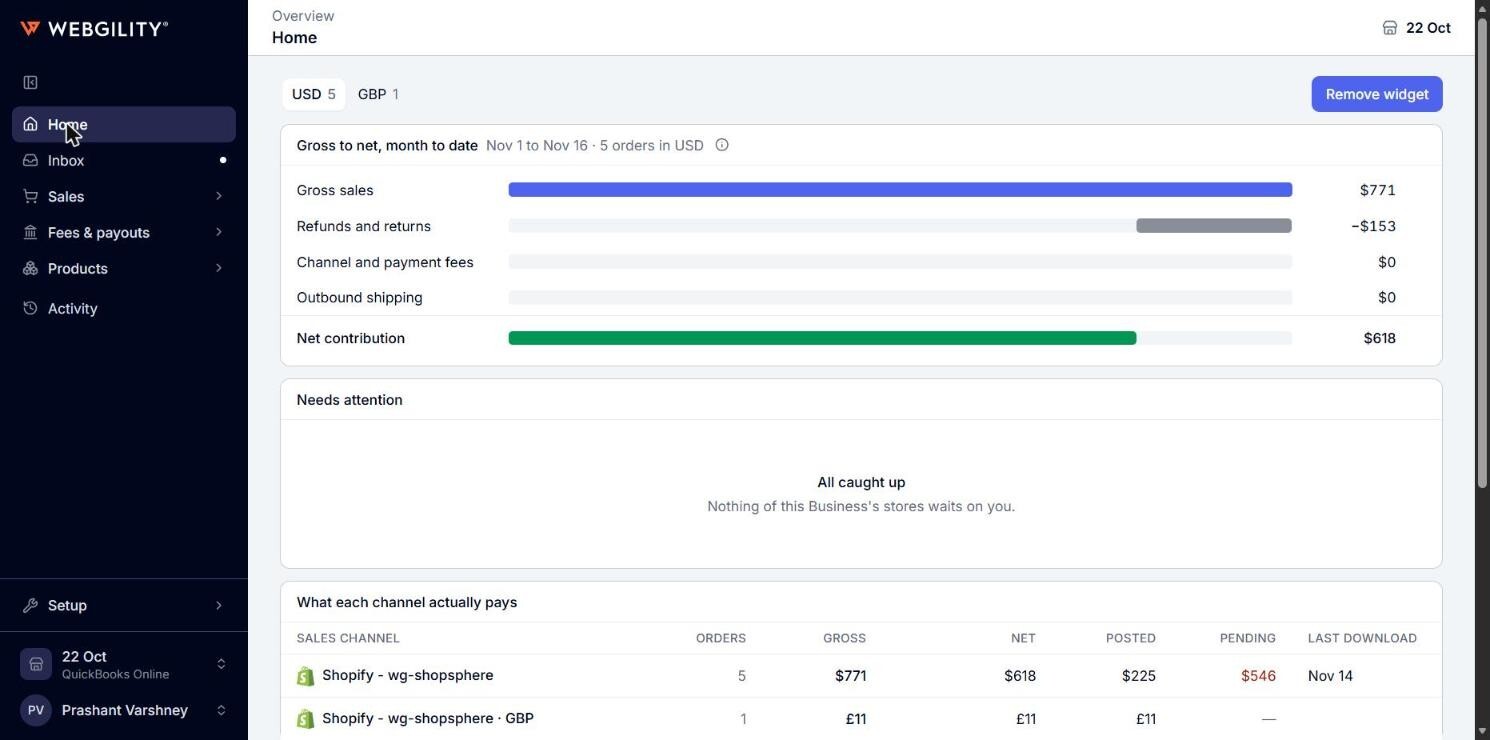
- Click Remove widget at the top right of the page. When a widget is already hidden, the button reads Add widget.
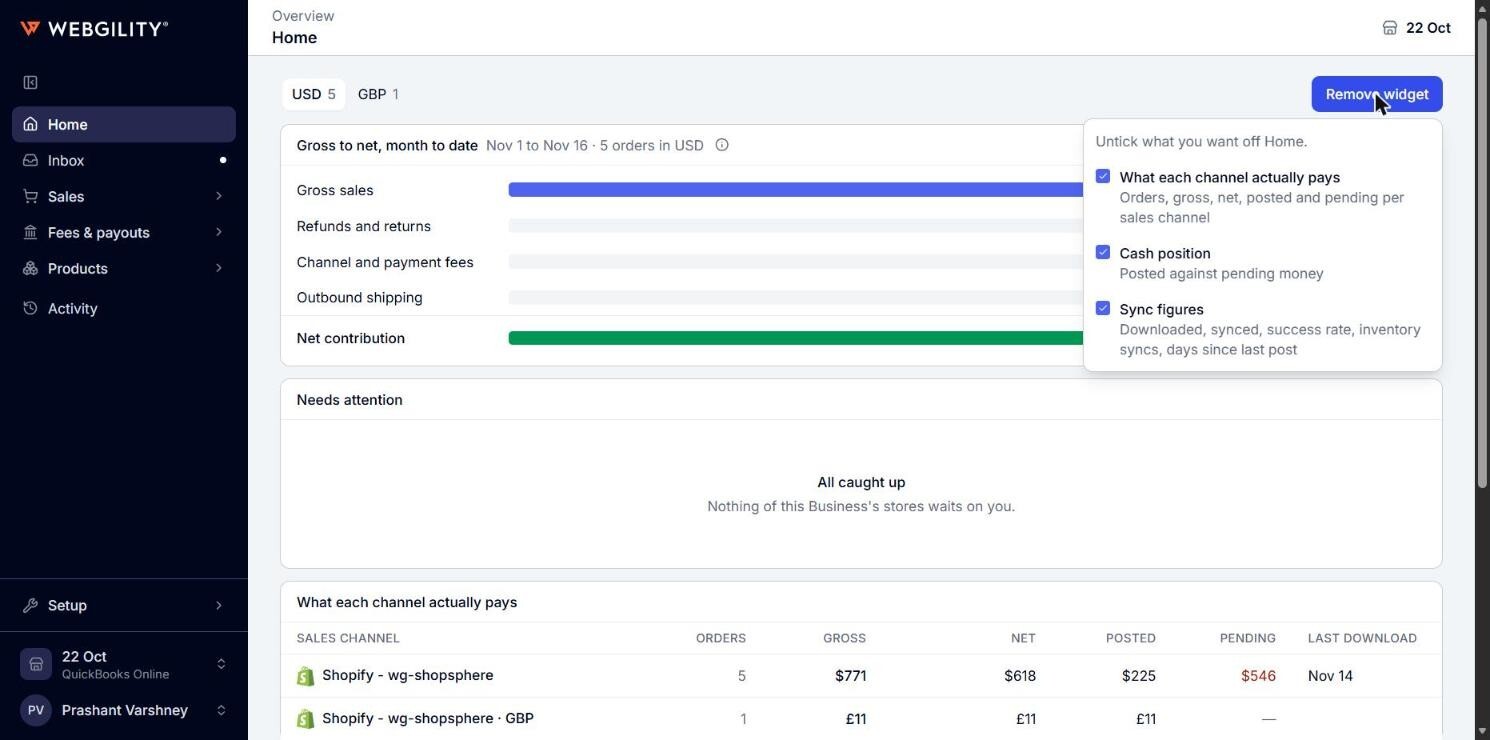
- Clear the box of each widget you want to take off Home, or select the box of each widget you want to show. The page changes as soon as you click.
- To take one widget off quickly, click the × at the top right of that widget.
Note: Webgility i keeps your widget choice in this browser only. If you sign in from another browser or computer, or clear your browser data, Home shows every widget again.
Widgets that are always on
- Gross to net, month to date: how this month's sales become your net contribution. It cannot be removed.
- Needs attention: what your stores hold that needs you. It cannot be removed, so you always see a store that has stopped downloading.
Widgets you can add or remove
- What each channel actually pays: orders, gross, net, posted and pending amounts for each sales channel.
- Cash position: the month's sales posted to QuickBooks Online against the sales still pending.
- Sync figures: shown on Home as the Sync widget, with downloaded and synced orders, the sync success rate, inventory syncs and the days since the last post.
How Gross to net, month to date is calculated
The widget counts the orders placed from the first of this month to today, by order date, in your stores' time zone. It leaves out ignored and deleted orders. The line under the title shows the dates and the number of orders.
- Gross sales: each order's total before tax, with shipping and other charges in it, after discounts and any gift card or store credit used.
- Refunds and returns: the refunds issued this month, on any order, before tax. A refund counts in the month it was issued, even when its order is from an earlier month.
- Channel and payment fees: the marketplace and payment processor fees on file for this month's orders.
- Outbound shipping: the postage on your shipping apps' labels for this month's orders, not what buyers paid for shipping.
- Net contribution: gross sales less refunds, fees and outbound shipping. It does not take off the cost of the goods.
Click a row to open the page that lists what it adds up, on this month's dates: Gross sales opens Orders, Refunds and returns opens Refunds, Channel and payment fees opens the All tab of Fees, and Outbound shipping opens Shipping fees. Amounts are rounded to whole units.
Note: The Fees page lists the fees of each payout by payout date, while this widget counts the fees of the orders placed this month. Their totals can differ.
How Needs attention is populated
The widget lists the stores whose connection has stopped first, each with Reconnect or Open connections. Below them it lists the first items of your Inbox, up to four rows in all, each with a button that opens the page where you can fix it. These can be orders, refunds, shipping fees, payout fees, payout deposits or held payouts that need you.
The line under the title shows how many Inbox items there are and, when every amount is in US dollars, how much of it is not in QuickBooks Online. Click the See all link at the bottom, for example See all 6 in Inbox, to see every item. When nothing needs you, the widget shows All caught up.
How What each channel actually pays is calculated
The widget has one row for each store of the business, from the same orders and refunds as Gross to net, month to date.
- Orders: the store's orders placed this month.
- Gross: the gross sales of those orders.
- Net: gross less refunds, fees and outbound shipping, before the cost of the goods.
- Posted: the gross of the orders that are posted to QuickBooks Online.
- Pending: the gross of the orders that are not posted yet, in red. A dash means nothing is pending.
- Last download: how long ago the store last downloaded, such as "12 minutes ago" or "Yesterday", or the date when it was longer ago, such as Nov 14. It reads Never for a store that has not downloaded, and Stopped with a date, in red, for a store whose connection has stopped.
A store with no order this month still has a row, with zeros. A store that sells in more than one currency has one row for each currency.
How Cash position is calculated
- Posted to QuickBooks: the gross sales of this month's orders that are posted to QuickBooks Online.
- Pending: the gross sales of this month's orders that are not posted yet, in red when there is any.
The bar under the figures shows both parts, and the line under it says what share of the month's gross is posted.
How the Sync widget is calculated
- Downloaded orders: the orders Webgility i downloaded this month, across every channel.
- Synced orders: the orders downloaded this month that are in QuickBooks Online now. The line under it says how many are held back.
- Sync success rate: synced orders as a share of downloaded orders.
- Inventory syncs: the quantities Webgility i sent to your channels in the last 24 hours. If a channel refused any, the line under it says how many, in red.
- Days since last post: the days since any channel last posted an order, in red when it is not today. The line under it names the channels that have not posted today.
Click a figure to see it day by day for the last 30 days and for each sales channel. The Sync success rate chart marks each day as Healthy (≥95%), Degraded (90–94%) or Critical (<90%).
If your stores sell in more than one currency
When this month's orders are in more than one currency, Home shows a currency switch at the top left, with the number of orders in each currency. The money widgets show one currency at a time, starting with the currency that has the most orders. Webgility i never converts or adds amounts in different currencies.
If a widget shows no figures
- Nothing this month yet: no order of your stores is dated this month. The figures start with the first one.
- No sales channel yet: connect a sales channel, and its month shows here.
- Could not read the month's figures or Could not read the sync figures: Webgility i could not load the figures in time. Click Try again.