
Both pages sit under Fees & payouts in the left menu, and both list the same payouts. The Fees page shows what the channel took out of each payout, and the Payouts page shows what each payout deposited in your bank.
What a payout is
A sales channel does not pay you order by order. It collects the money from your sales, takes its fees out, and pays the rest into your bank in batches. Each batch comes with a report from the channel that lists the sales, refunds, fees and other amounts it covers. Webgility i downloads these reports and lists each one as a payout.
Each channel names its report differently. Webgility i calls all of them payouts:
- Shopify: a Shopify Payments payout.
- eBay: a payout.
- Amazon: a settlement, from Amazon's settlement report. Each Amazon marketplace has its own settlements.
- Walmart: a payout.
- TikTok Shop: a payout.
- Square: a payout.
Note: Only the channels in this list have payouts in Webgility i. A payout appears on the pages once Webgility i has downloaded it with all of its transactions, so a payout the channel has just paid can take a while to show.
Where fees come from
The fees on the Fees page come from the payout itself: they are the amounts the channel took out of the payout before the money reached your bank, as the channel's report states them. Each row of the Fees page is one payout, and its fees are added up into one amount. That is why the Fee type column reads Payout fees on every row.
When a channel gives some fees back in the same payout, for example a refunded commission, Webgility i takes those credits off the fees before it posts them. The Payout fees column shows the fees before the credits. Open the payout to see both amounts: its details show Fees before credits and Credits taken off the fees.
How the Fees and Payouts pages differ
Go to Fees & payouts > Fees or Fees & payouts > Payouts. The two pages work the same way: the same status tabs (All, Not posted, Errors, Posted and Ignored), the same search on the payout ID, and the same panel that opens when you click a payout. They differ in which part of the payout they show:
- Fees: the Payout fees of each payout, and the QuickBooks Online document they became, a Bill or an Expense. A Bill can be followed by the Bill payment that pays it. The page also has a Date range filter on the payout date.
- Payouts: the Net deposit of each payout, the amount the channel reports it paid to your bank, and the QuickBooks Online Transfer that records it.
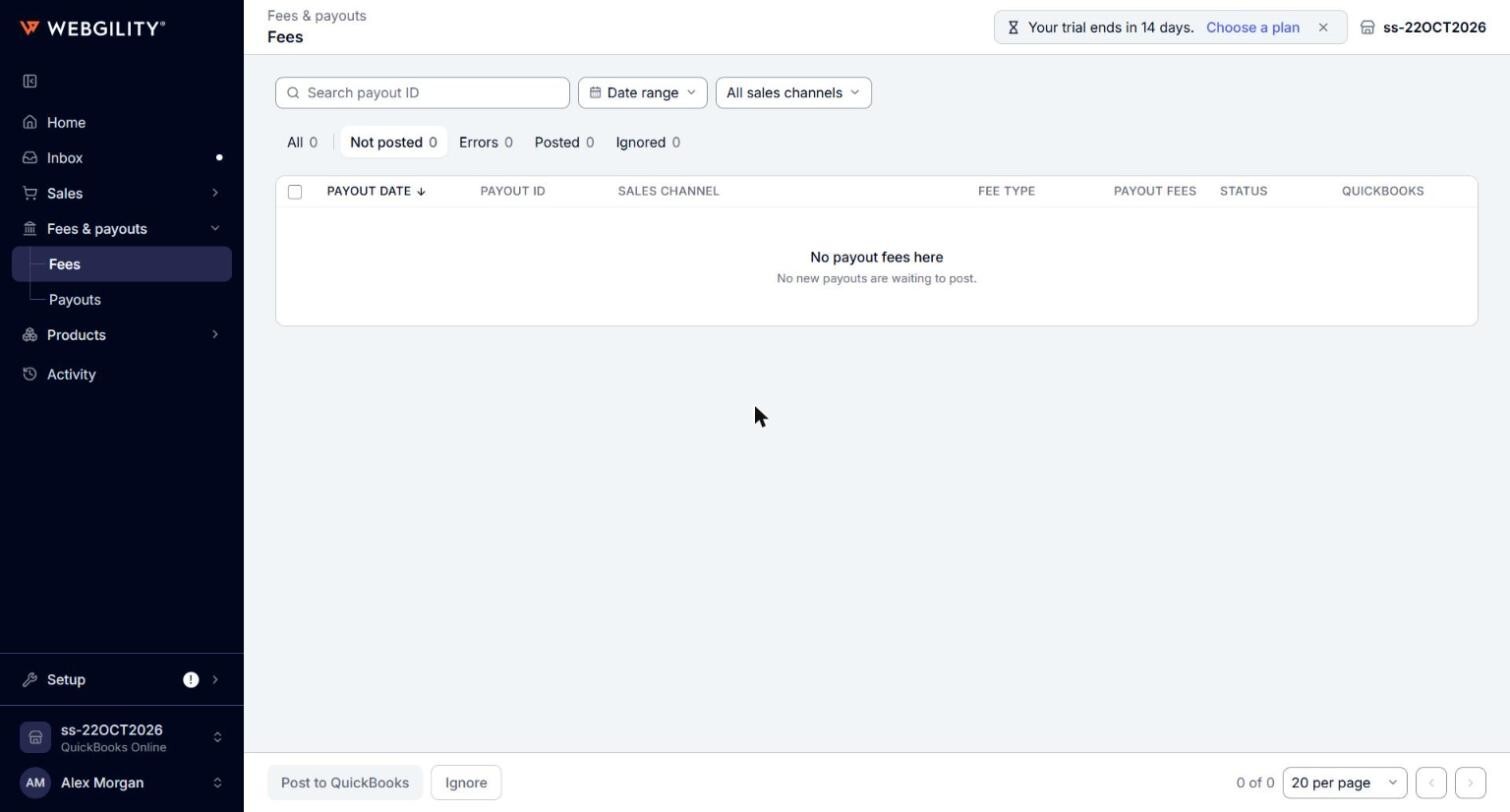
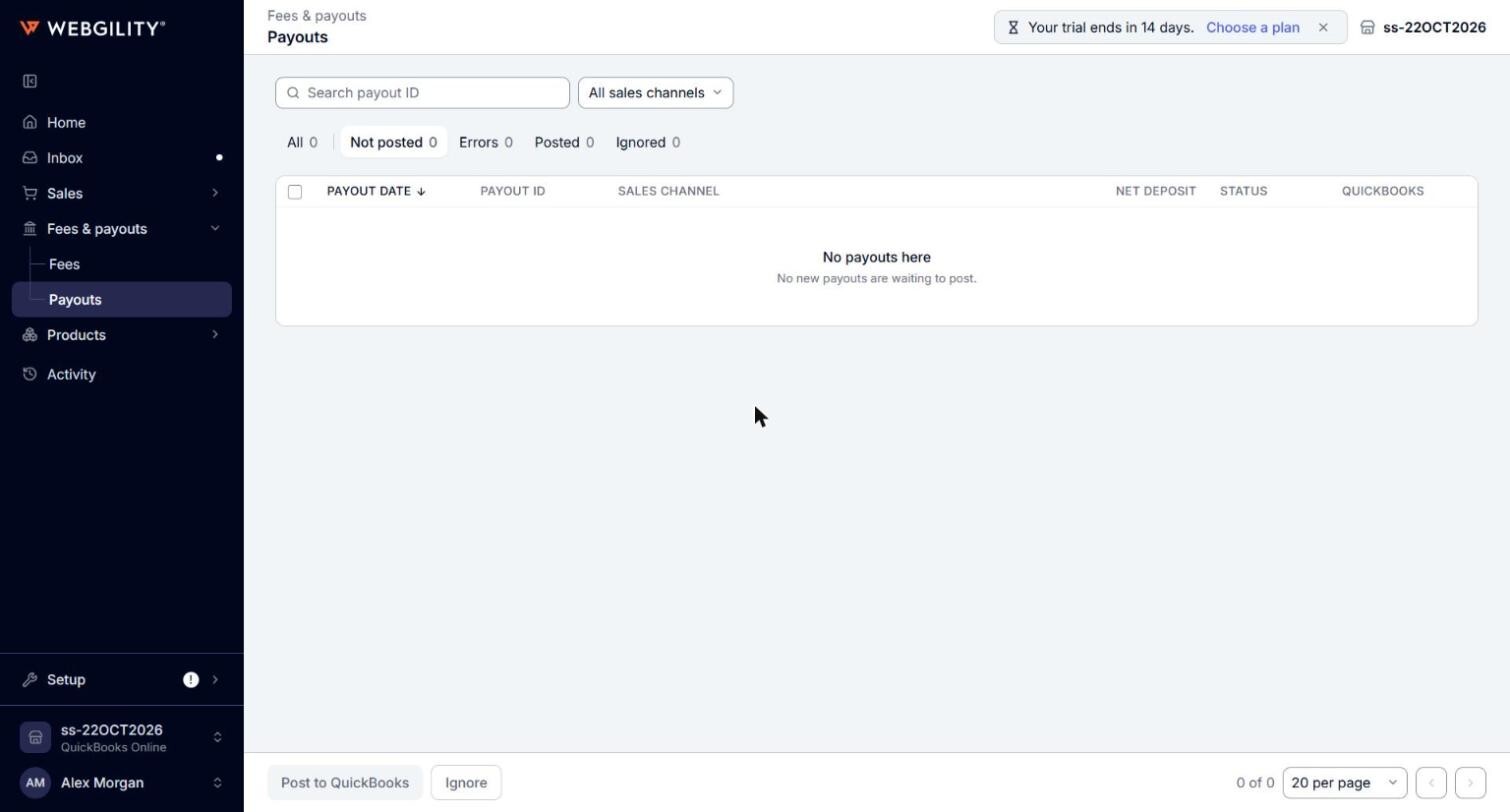
Because each page shows its own part, a payout can have a different status on each page. For example, its fees can be Posted on the Fees page while its deposit is still Not posted on the Payouts page.
Note: Each page posts only its own part of a payout. Post to QuickBooks on the Fees page posts the fees, and on the Payouts page it posts the net deposit. Until you post the other part from its own page, it shows Held: your call there. If that part's automation switch is on, Webgility i posts it by itself. Unpost and Ignore also act only on the part the page shows. For eBay, Walmart, TikTok Shop and Square, Ignore and Restore always move the whole payout, fees and deposit together, from either page.
What Webgility i creates in QuickBooks Online
- Fees: one fee document per payout, posted as the type you choose in Post the payout fees as: a Bill or an Expense. Webgility i posts fees only while Post the payout fees to QuickBooks is on. If the payout has tax on its fees, Webgility i can also post a Journal Entry for the tax.
- Deposit: a Transfer of the net deposit, from the account in Transfer from to the account in Transfer to. Webgility i posts it only while Download and process the net deposit? is on.
While one of these switches is off, the payouts it covers show Posting off on the Fees or Payouts page and cannot be posted from it. A notice at the top of the page links to the Default where you turn the switch on.
You choose these settings on the Default of the Payouts to accounting workflow, under Setup > Workflows. See How to Configure Workflows in Webgility i.
Before your payouts can post
- The channel posts Transactional (one document per order). Payouts do not post on a channel that posts Consolidated. See Understanding Posting Grain and How It Affects Automation.
- The Payouts to accounting workflow's Default for the channel is set to Post. While it is on Hold, no payout of that channel posts, and Post to QuickBooks does not take it.
- For Webgility i to post payouts by itself, turn on the payout switches on the Automation tab of the channel's settings. See How to Set Up Automation in Webgility i.