
The posting grain is how much sales activity one QuickBooks Online document covers: one order, or all the orders of one period. You set it for each channel in How this Channel posts. It decides which workflows run on the channel, when Webgility i posts by itself, and whether the channel's payouts post.
Steps:
- Go to Setup > Connections, and click Settings on the card of the sales channel. The channel's settings open on the Posting and sync tab.
- Find How this Channel posts, at the top of the tab.
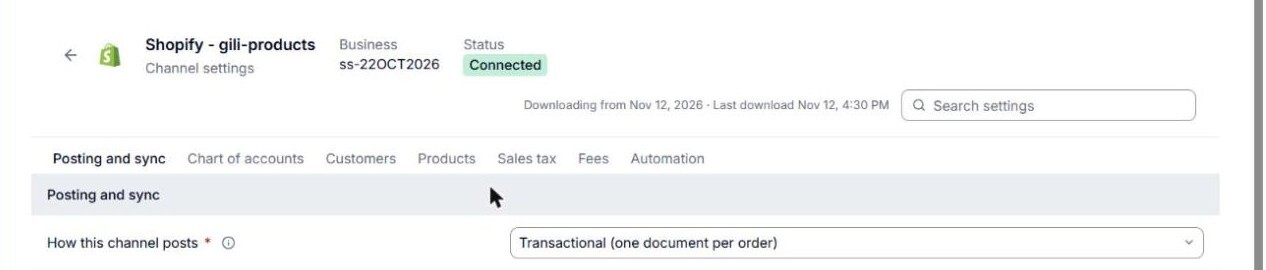
- Choose the posting grain. If you choose Consolidated, also check Period of each consolidated document and Start date of consolidated posting.
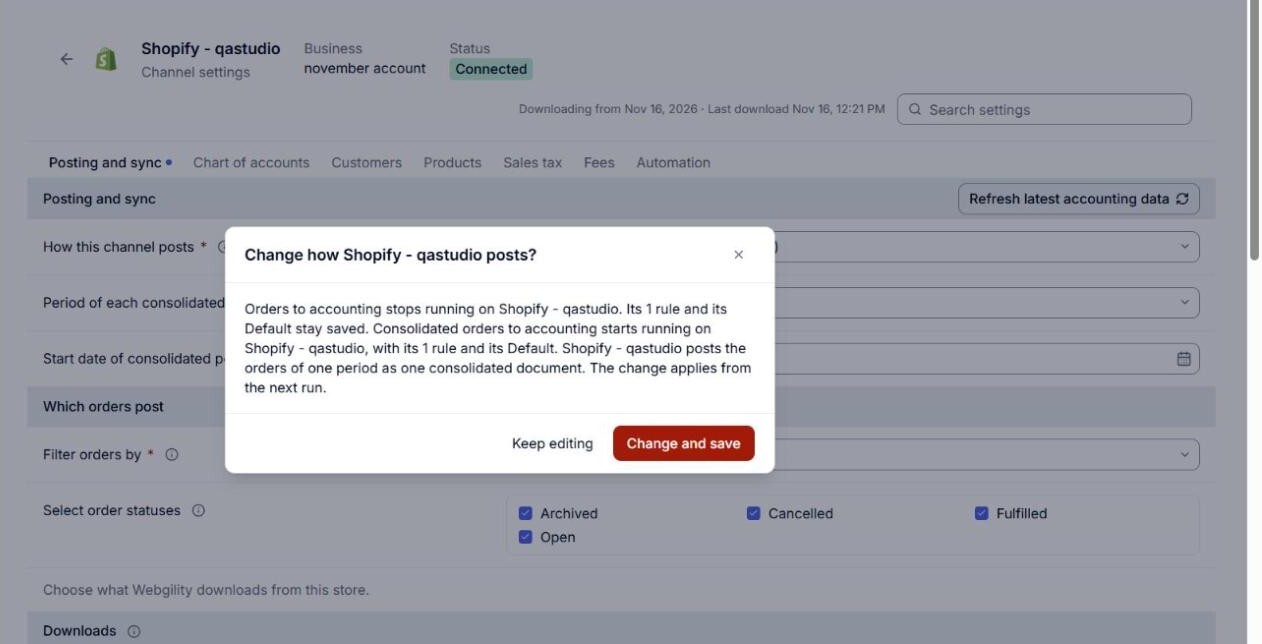
- Click Save. When the grain changes, Webgility i asks you to confirm in a Change how … posts? window, which explains what stops and starts on the channel. Click Change and save to save, or Keep editing to go back.
- How this Channel posts now shows the grain you chose.
Note: A change of posting grain applies from the channel's next run, not to documents already posted.
The posting grain options
- Transactional (one document per order): Webgility i posts each order as its own document in QuickBooks Online, and each refund as its own document. This is the grain of a new channel.
- Consolidated (one document per period): Webgility i posts all the orders of one period as one document, and the refunds of the period as one document. Day is the only period you can choose now. If Consolidated is not in the list, click Set up automation settings on the Posting and sync tab, then choose again.
How the posting grain affects automation
You do not choose how often Webgility i posts. The posting grain decides it.
- On a Transactional channel: Webgility i posts new orders and refunds shortly after it downloads them. Once a day, at 3:00 a.m. in the channel's time zone, it also runs a check that posts anything still waiting, including orders whose earlier attempt did not go through. The Sync orders automatically? and Sync returns/refunds automatically? switches on the Automation tab work on their own.
- On a Consolidated channel: Webgility i posts once a day, at 2:00 a.m. in the channel's time zone. That run posts one document for the previous day's orders, from midnight to midnight, and then the day's refunds. It never posts an order on its own as it arrives. On the Automation tab, Sync returns/refunds automatically? works only while Sync orders automatically? is on, and Sync orders automatically? turns on the Default of the Consolidated orders to accounting workflow.
How the posting grain affects workflows
Each grain has its own workflows on the Workflows page, and only the workflows of the channel's grain run on it:
- Transactional: Orders to accounting, Refunds to accounting and Payouts to accounting.
- Consolidated: Consolidated orders to accounting and Consolidated refunds to accounting.
When you change the grain, the workflow of the old grain stops running on the channel, and its rules and Default stay saved for when you switch back. The workflow of the new grain starts with its own rules and Default. If you switch to Consolidated and the Default of Consolidated orders to accounting is not set to Post, nothing posts until you set it up and set it to Post on the Workflows page.
Note: When you switch a channel back to Transactional, Webgility i posts every order that is waiting to post, one document per order, including orders dated before today.
How the posting grain affects payouts
Payouts post only on a channel that posts Transactional: one payout at a time: its fees from the Fees page and its Transfer from the Payouts page, or both by themselves when their automation switches are on. On a channel that posts Consolidated, Webgility i does not post payouts, either by itself or when you click Post to QuickBooks on the Fees or Payouts page. The payouts wait on the Not posted tab.