
The net deposit is the amount the channel reports it paid to your bank for a payout, after its fees and refunds. Webgility i records it in QuickBooks Online as a Transfer. To learn what a payout is and how the Payouts page differs from the Fees page, see Understanding Fees and Payouts in Webgility i.
Note: Before you post, make sure the channel posts Transactional and the Default of the Payouts to accounting workflow for the channel is set to Post. Webgility i posts the deposit only while Download and process the net deposit? is on in that Default. While it is off, the channel's payouts show Posting off on this page and cannot be posted.
Steps:
- Go to Fees & payouts > Payouts. The page opens on the Not posted tab, which lists the payouts whose deposit is not in QuickBooks Online yet.
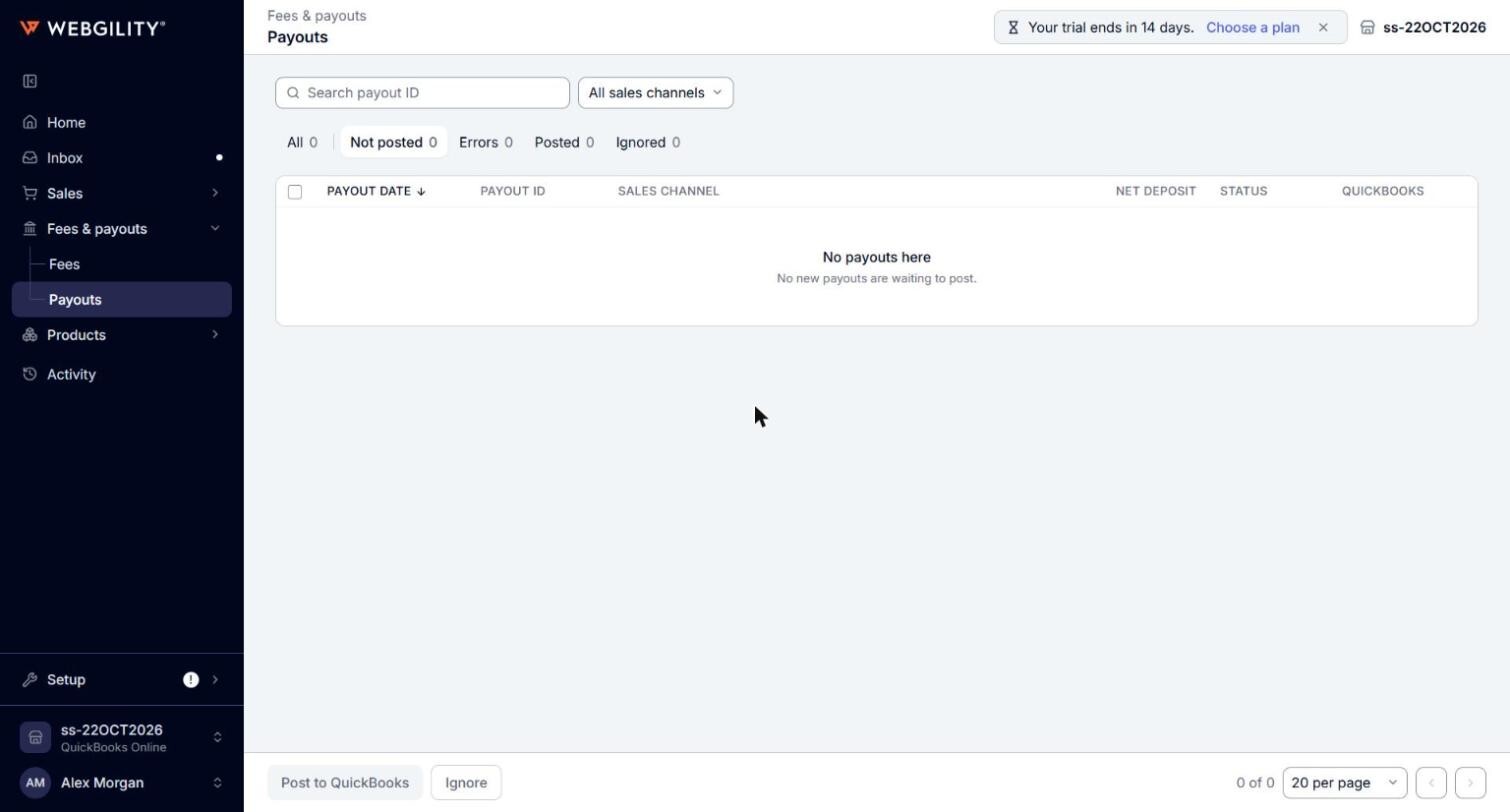
- Narrow the list if you need to. Type a payout ID in Search payout ID or, when the business has more than one store, choose a store in the All sales channels filter. On the Not posted tab, the Held filter shows only the payouts Webgility i is holding back.
- Review the payouts in the list. Each row shows the Payout date, the Payout ID, the Sales channel, the Net deposit, the Status and, once posted, the QuickBooks Transfer. Point to a status to see why the payout is where it is.
- To check a payout against your channel, click its Payout ID. For Shopify, Amazon, TikTok Shop and Walmart, the ID opens the channel's own payouts page in a new tab.
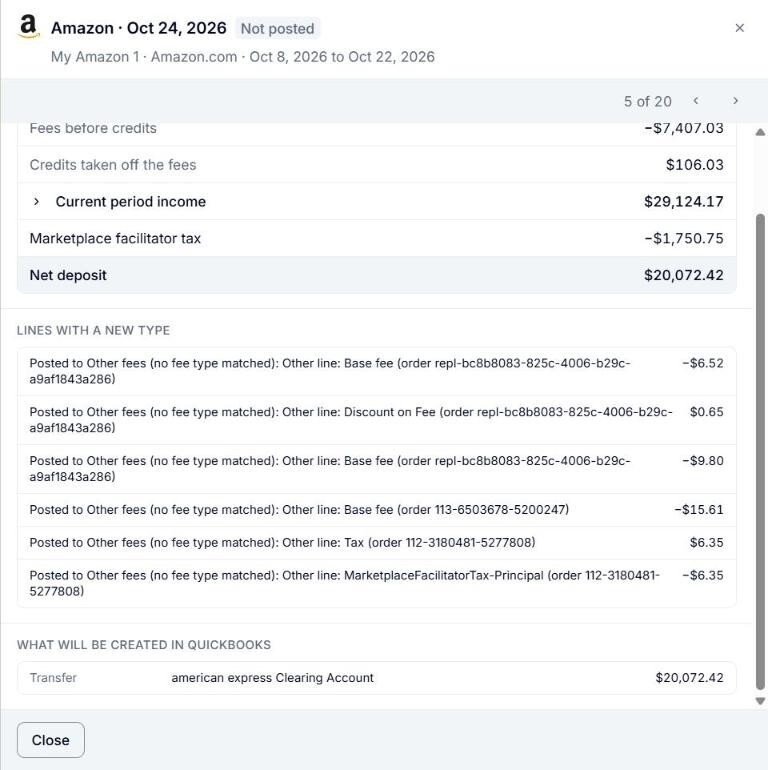
- Click the payout's row, anywhere but its Payout ID, to open its details on the right. Under What the period came to, check that the Net deposit matches the amount your bank received. What will be created in QuickBooks shows the Transfer Webgility i will create. If the payout cannot post, the panel shows Errors, Why it is held or Why Post is off.
- Select the boxes of the payouts you want to post. The footer shows how many payouts you selected and their total net deposit.
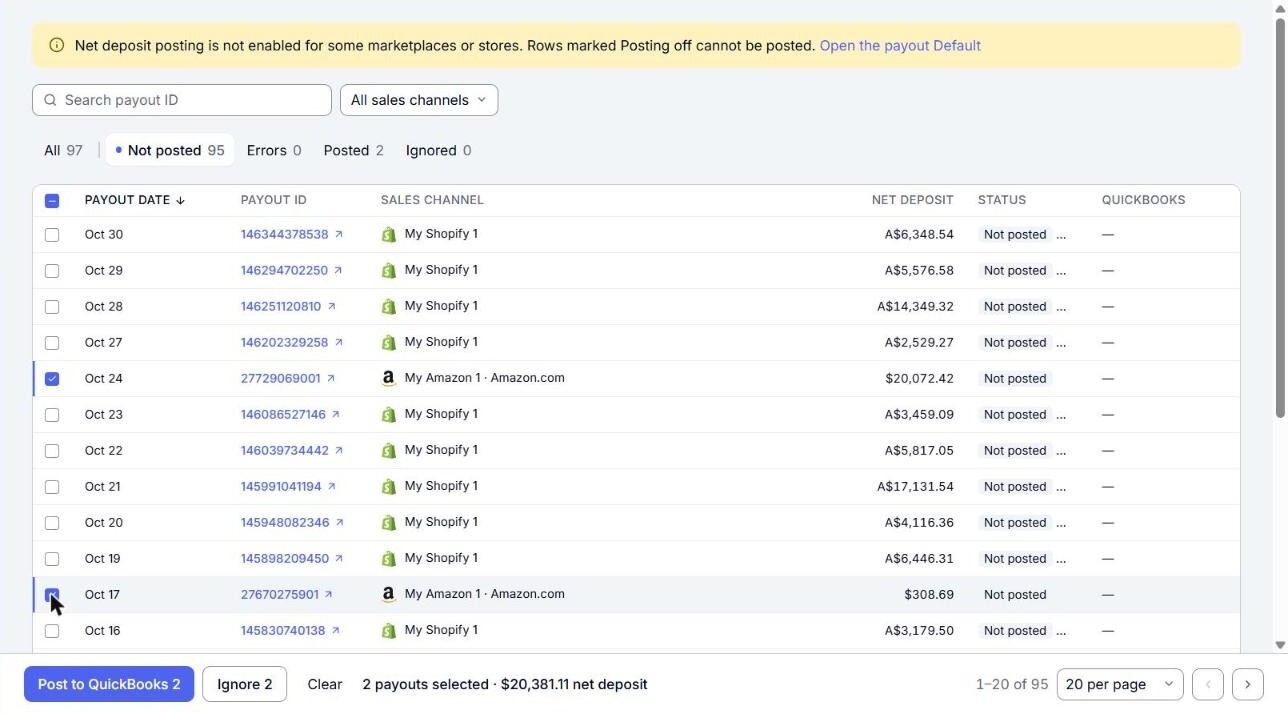
- Click Post to QuickBooks in the footer. The status of each payout you selected changes to Posting.
- Wait while Webgility i posts. When posting finishes, each payout moves to its new status. A message at the top of the page tells you about anything that was not posted.
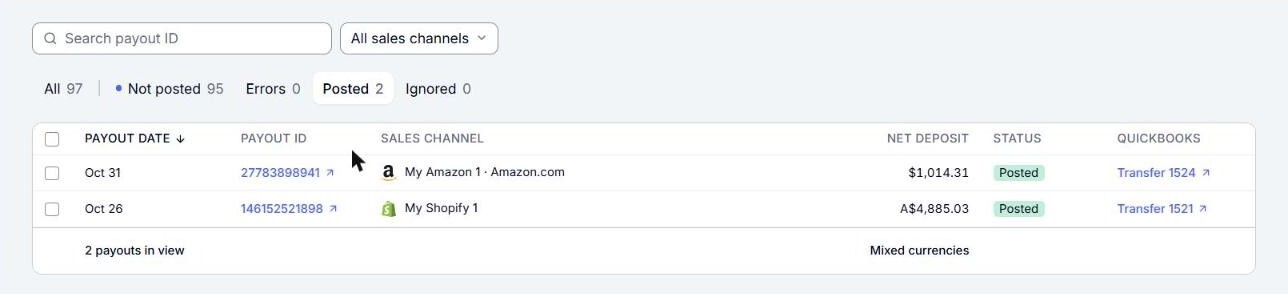
- Open the Posted tab. Each posted payout shows its Transfer in the QuickBooks column. Click it to open the Transfer in QuickBooks Online.
Note: Post to QuickBooks on this page posts only the payout's net deposit. Post the fees from the Fees page. Until then, the payout shows Held: your call there, unless Sync payout fees automatically? is on, in which case Webgility i posts them by itself. If a payout has nothing to deposit, its QuickBooks column shows the fee document followed by "(fees only, no deposit)".
What each status means
- Not posted: the deposit is not in QuickBooks Online yet. A red Not posted status, on the Errors tab, means the last attempt failed or Webgility i is holding the payout until you fix a setting. Point to it to see the reason.
- Posted: the Transfer is in QuickBooks Online.
- Waiting: Webgility i is waiting for something from the channel, such as the rest of the payout's lines, and posts it when that arrives.
- Held: your call: Webgility i is waiting for you. Point to the status to see why. For example, the payout's fees were posted from the Fees page and its deposit waits for you to post it. Post it, ignore it, or change the setting the reason names.
- Needs support: nothing you change clears this hold. Post to check again, and if it is held again, contact Webgility support with the payout ID.
- Changed after posting: the payout changed after a document was posted. Unpost it, and it posts again after the unpost.
- Ignored: someone ignored the deposit of this payout, and Webgility i does not post it.
- No deposit: the payout has nothing to deposit, so there is nothing to post.
Ignore, restore or unpost a deposit
- Ignore: select payouts on the All, Not posted or Errors tab and click Ignore, then confirm. Webgility i leaves their deposit out of QuickBooks Online and skips it in every posting run until you restore it.
- Restore: on the Ignored tab, select payouts and click Restore, then confirm. Their deposit moves back to Not posted, where it can post again.
- Unpost: on the Posted tab, select payouts and click Unpost. Webgility i removes their Transfer from QuickBooks Online. There is no confirmation step. The payout's fees stay posted.
Note: For eBay, Walmart, TikTok Shop and Square, Ignore and Restore move the whole payout, fees and deposit together.