
The Default holds the settings Webgility i uses to post every order that no rule matches to QuickBooks Online. Rules let you post some orders differently, and the Default covers the rest.
What the Default is
- One Default per sales channel: each workflow has one Default on each sales channel where it runs. A store with sub stores has one Default for each marketplace.
- It always matches and runs last: its When section reads "Default: any order not matched by another rule". Webgility i checks your rules first, from Rank 1 down, and uses the Default only for an order that none of them matches.
- It cannot be deleted: the Default is always there, even when the workflow has no rules.
- It is where a new rule starts: a new rule starts with a copy of the settings of the Default of its sales channel.
- Some settings belong to the Default only: a setting marked Default only is one that only the Default sets. A rule cannot change it.
How your rules work on top of the Default
- An order comes in from a sales channel.
- Webgility i checks the rules of the workflow on that sales channel, from Rank 1 down.
- The first rule whose condition matches the order decides. The order posts with that rule's settings, or does not post if the rule is set to Hold.
- If no rule matches, the order posts with the settings of the Default, or waits if the Default is set to Hold.
Note: When you add a rule, it copies the settings the Default has at that moment. If you change the Default later, rules you already saved keep their own settings. To change a setting for every order, change it in the Default and in each rule that should follow it.
Note: On a sales channel that posts Consolidated, each rule collects the orders it matches into its own document for each period, and the Default collects every order that no rule matches into one more document.
Steps:
- Go to Setup > Workflows.
- On the card of the workflow, find the sales channel and click its Default row. The Default's screen opens.
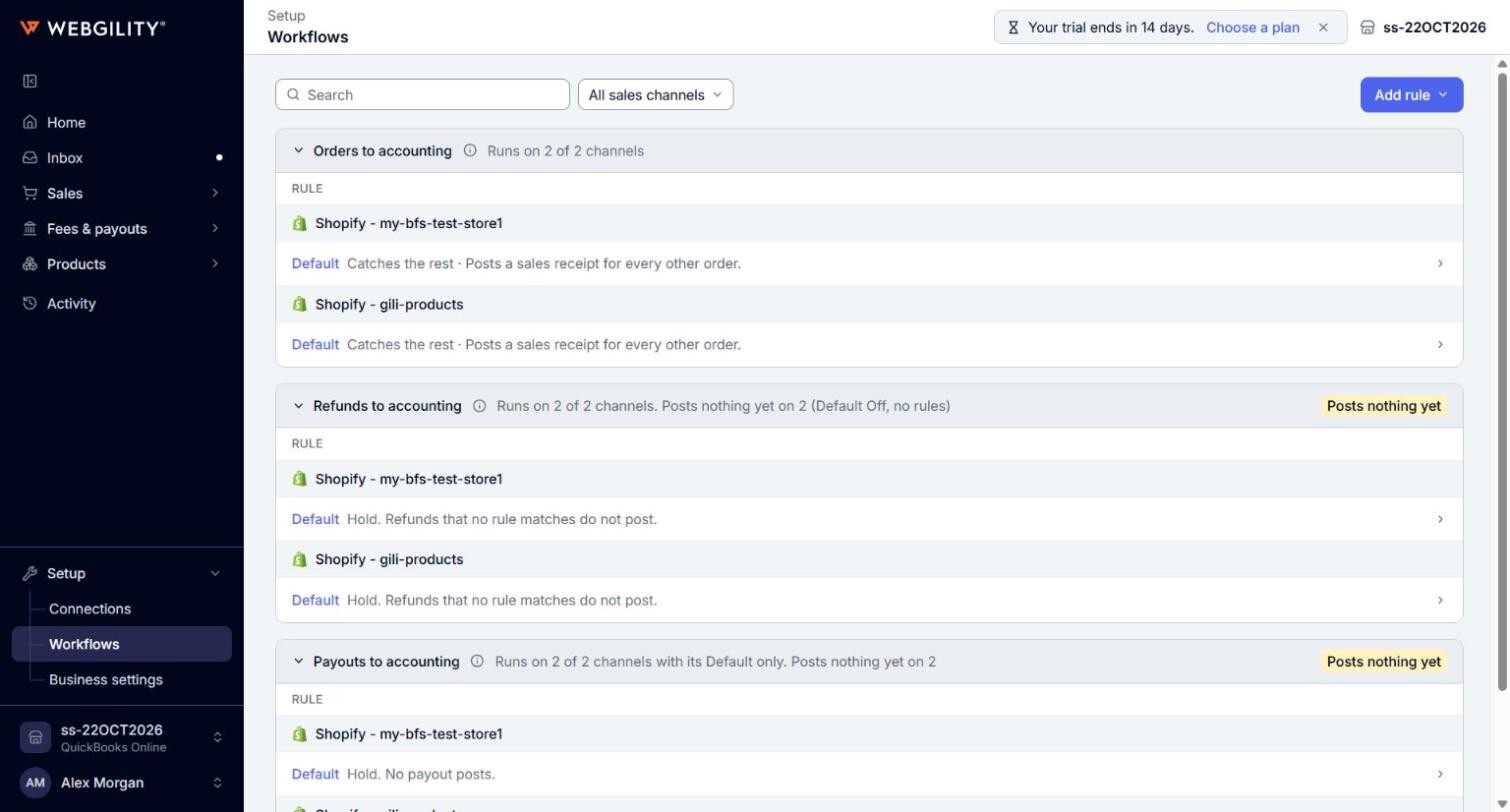
- Under Then, click Post order or hold for review? to open it, then select Post or Hold. Post posts the orders no rule matches. Hold does not post them: they wait on the Errors tab of the Orders page with the status Held by rule, and post on the next run after you set the Default back to Post.
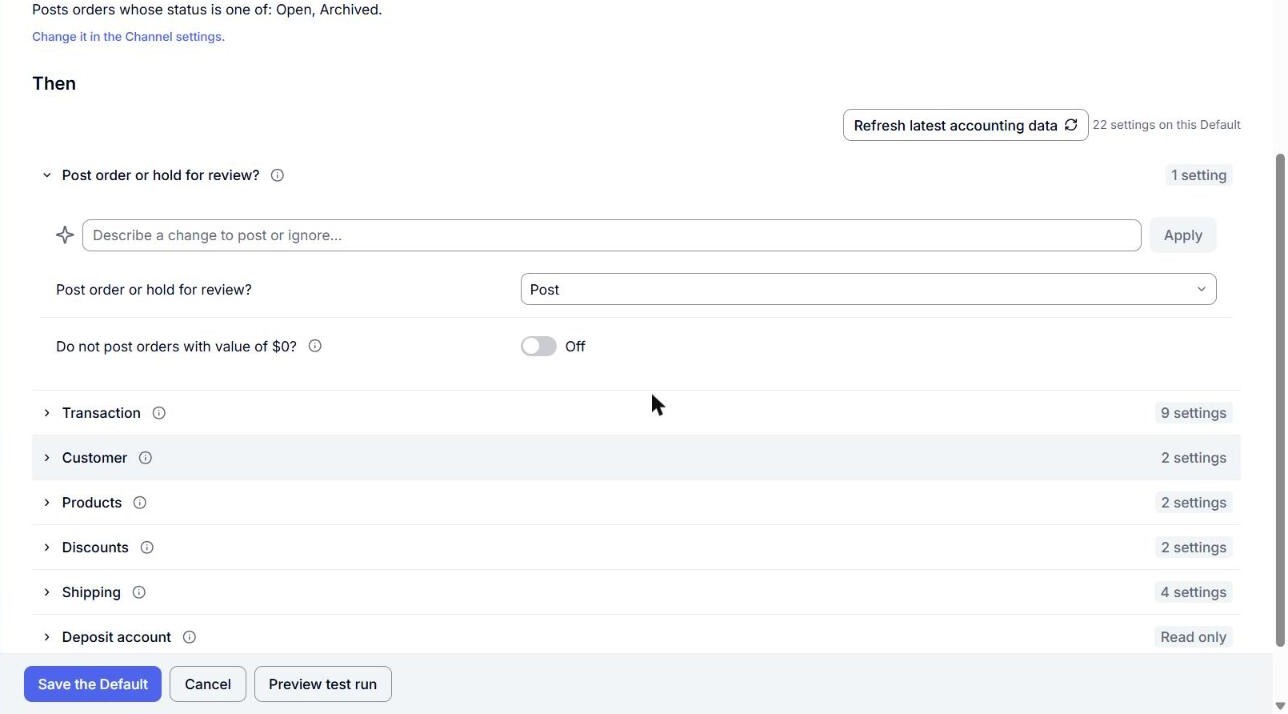
- If the Default posts, click a section, such as Transaction, Customer or Payments, to open it, and change the settings you need.
- Click Save the Default. A message confirms that the Default of the sales channel was saved.
Note: While the Default is set to Hold, its settings are hidden but kept. They apply again when you choose Post.
Note: On a store with sub stores, the Marketplaces note at the top of the Default's screen says which marketplace you are editing. Click Open with a marketplace's name to edit the Default of another marketplace.
Settings the Default does not hold
Some settings belong to the sales channel itself, for example what Webgility i does with a product that has no QuickBooks Online item. These are the channel settings. Every rule and Default on the sales channel uses them, and no rule can change them. To change them, go to Setup > Connections and click the Settings button of the channel card.
The Default of Payouts to accounting
Payouts to accounting has a Default only and takes no rules. Every payout of the sales channel posts with the values of its Default, and while the Default is set to Hold, no payout posts.