The rank of a rule decides which rule wins when an order matches more than one rule, so changing it changes how that order posts to QuickBooks Online.
What rank means
- Rank 1 is checked first: for each order, Webgility i checks the rules of the workflow on that sales channel from Rank 1 down.
- The first rule that matches decides: the order posts with that rule's settings, and the rules below it are not used for that order.
- The Default runs last: an order that no rule matches posts with the Default.
- Ranks are per sales channel: each sales channel has its own ranks, starting at 1. Moving a rule never changes the order of another sales channel's rules. On a store with sub stores, the ranks count the rules of all its marketplaces, but a rule is only ever checked against the rules of its own marketplace, so the first rule of a marketplace may show a rank higher than 1.
Note: Put a narrow rule above a broad one. For example, a rule for wholesale orders over 500 goes above a rule for all wholesale orders. Otherwise the broad rule takes those orders first.
You can change a rank from the Workflows page or from the rule's own screen.
Steps:
- Go to Setup > Workflows.
- Point to the rule. Its rank, for example Rank 2, shows with an up arrow and a down arrow.
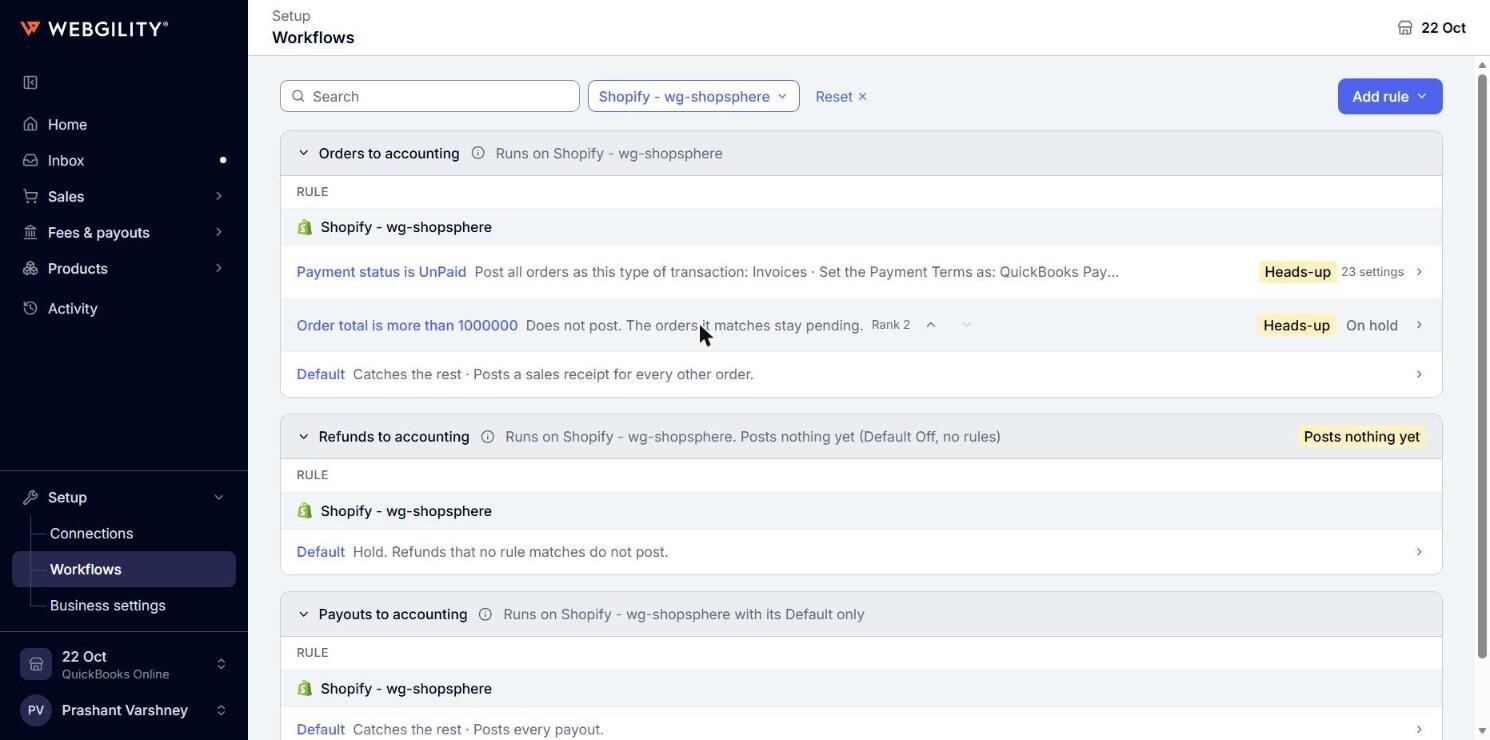
- Click the up arrow to move the rule one place up, or the down arrow to move it one place down. The rule trades places with the rule next to it, and the new order is saved at once. On a store with sub stores, the arrows move a rule among the rules of its own marketplace.
Note: The arrows do not show while a search is on. Click Reset to clear the search first. The up arrow of the first rule and the down arrow of the last rule are greyed out. A rule that is the only rule of its sales channel, or of its marketplace, shows no arrows.
Change the rank from the rule's screen
- Go to Setup > Workflows and click the rule.
- In the Rank dropdown at the top right, select the new rank, for example Rank 1.
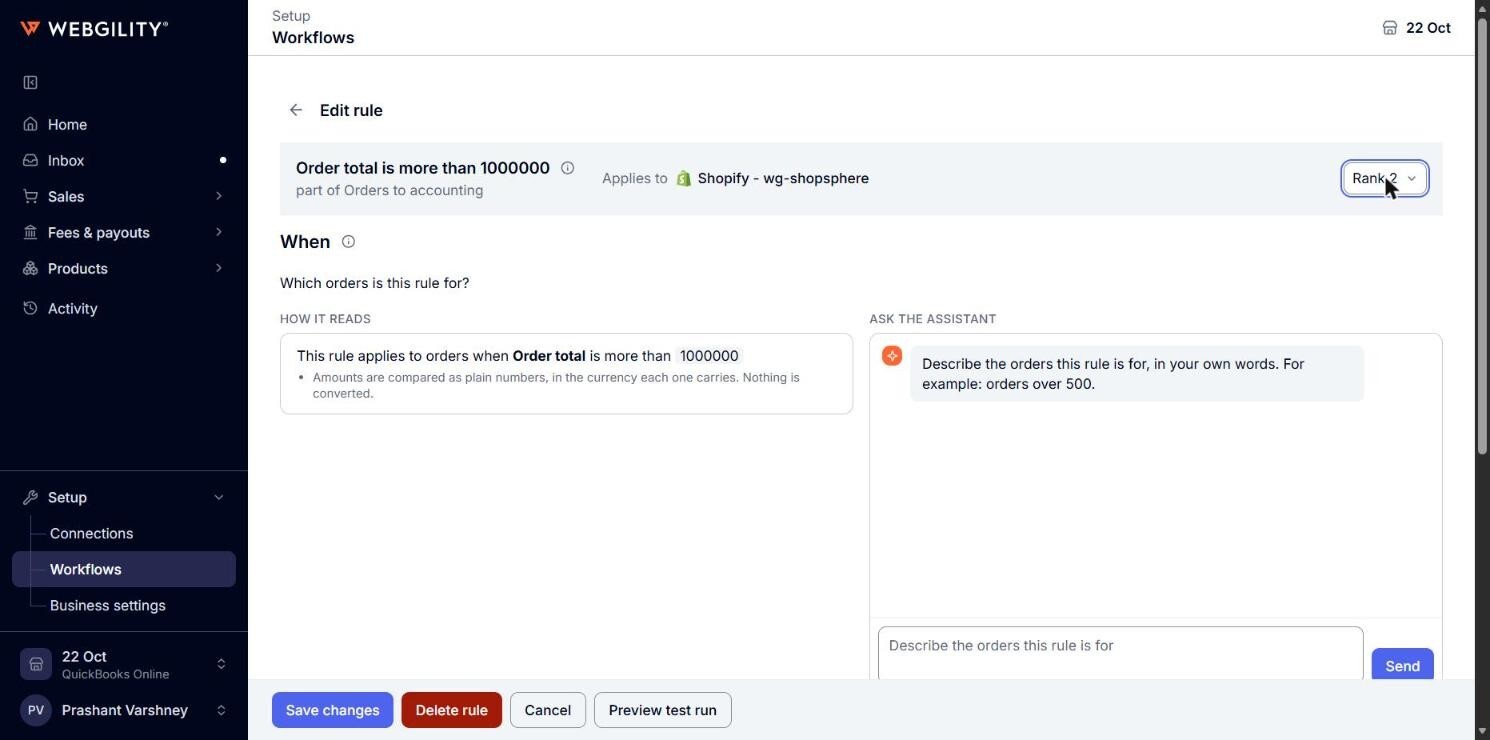
- Click Save changes. The rule moves to the rank you selected, and the other rules of the sales channel move up or down one place to make room.
Heads-up about the order of your rules
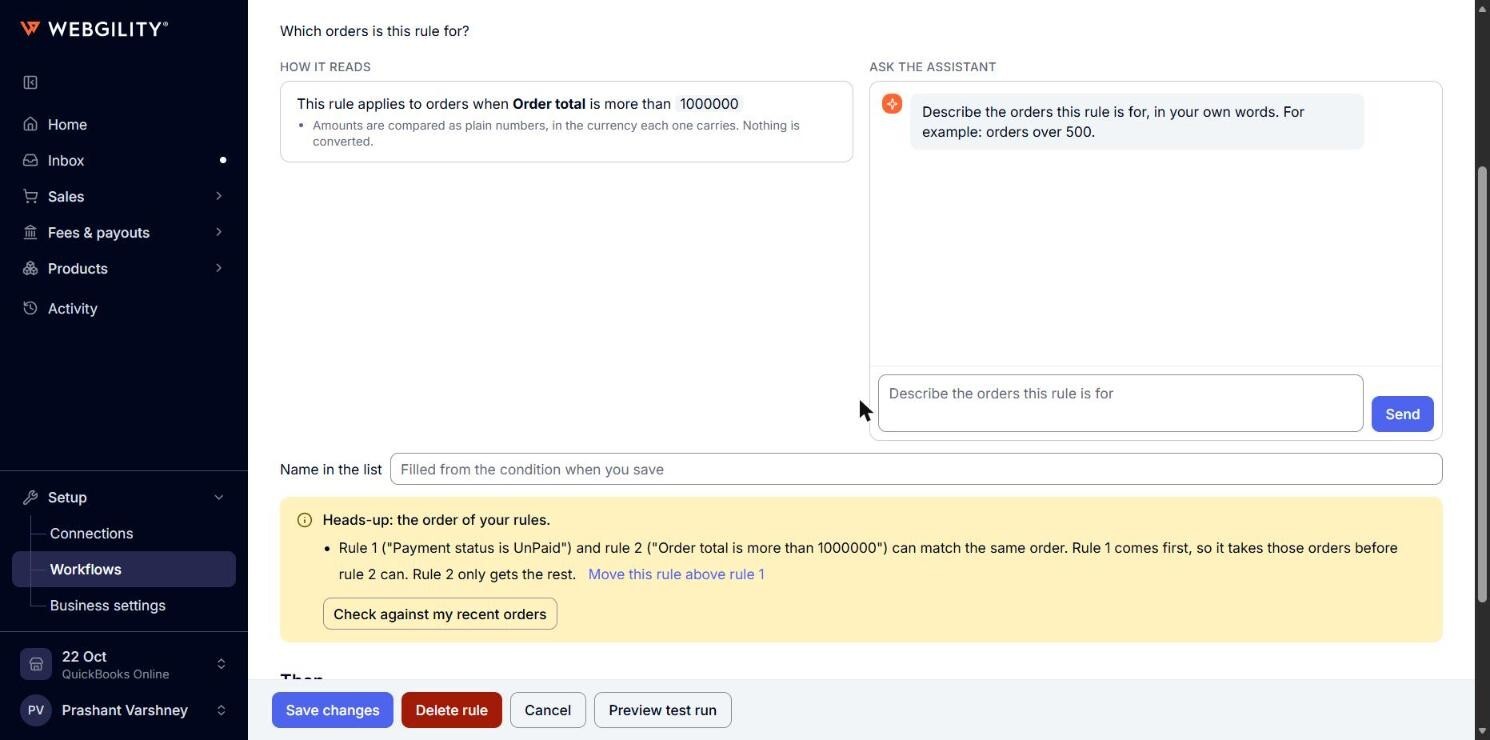
When the order of your rules affects a rule, its row on the Workflows page shows Heads-up, and its screen shows Heads-up: the order of your rules. under When. The note says which rule comes first and which orders it takes.
- Move this rule above rule 1 (or below, with the other rule's rank): puts this rule at the other rule's place. Click Save changes to keep it. This button does not show when moving the rule would not help. The note then says what to change instead.
- Create a rule for the orders both match: offered when two rules overlap.
- Check against my recent orders: counts how many of your recent orders the two rules both match.
A heads-up never blocks Save. Two rules that match the same order is how you write an exception above a general rule.