
Overview
When an order containing a Group Item fails to post from Webgility Desktop to QuickBooks Desktop, the issue may be caused by an incorrect or multiple mapping for the Group Item or an associated item.
An incorrect mapping can cause Webgility to send an item to QuickBooks that does not match the item type expected for the order line.
This article explains how to identify the affected item, verify its mapping, correct an incorrect or multiple mapping, and retry the order posting.
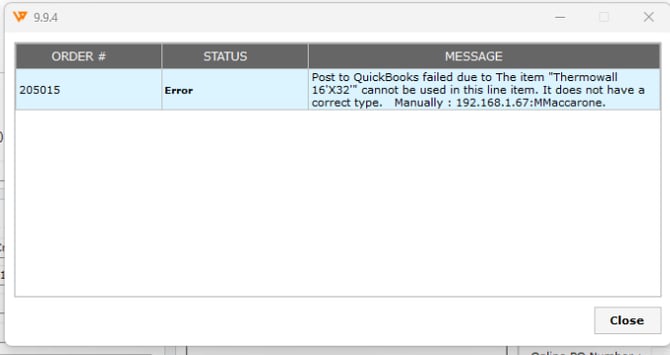
Error MessageYou may receive an error similar to:
Post to QuickBooks failed because the item "[Item Name]" cannot be used in this line item. It does not have a correct type.
Cause
This error can occur when the Group Item or an item associated with the order has an incorrect, outdated, or multiple mapping in Webgility Desktop.
When Webgility attempts to post the order, the incorrect mapping may cause the wrong QuickBooks item to be used for the order line. QuickBooks may then reject the transaction because the mapped item does not have the appropriate type.
Steps to Resolve
Step 1: Make Sure Webgility Desktop Is Up to Date
Before troubleshooting the item mapping, make sure Webgility Desktop is running the latest available version. Keeping Webgility updated ensures that you are working with the latest fixes and improvements.
To check for the latest version:
- Open Webgility Desktop.
- Go to Help.
- Select Check for Updates.
- If an update is available, follow the on-screen instructions to install the latest version.
For detailed instructions, see:
Update Webgility Desktop Using the Check for Updates Option
Step 2: Download the Latest Item List from QuickBooks
After confirming that Webgility Desktop is up to date, download the latest item list from QuickBooks Desktop/Enterprise.
Refreshing the accounting data ensures that Webgility has the most current QuickBooks item information before you review or correct the mapping for the affected Group Item.
To download the latest item list:
- Open Webgility Desktop.
- Navigate to the option for downloading or refreshing accounting data.
- Select the option to download the latest accounting data from QuickBooks.
- Allow the download process to complete before proceeding.
- Once the data has been refreshed, continue to the product mapping step.
For detailed instructions, see:
How to Download the Latest Accounting Data from Scratch – Webgility Desktop
Important: Complete the accounting data download before reviewing or updating the Group Item mapping so that Webgility is using the latest item information from QuickBooks.
Step 3: Identify the Affected Order and Item
Locate the order that failed to post.
- Open the Orders in Webgility Desktop.
- Review the order details.
- Identify the Group Item or item referenced in the QuickBooks posting error.
For example, the error may identify a specific item such as "Thermowall 16x32".
Step 4: Review the Product Mapping
Review the mapping for the affected Group Item or product.
In Webgility Desktop:
- Go to Products.
- Open the product mapping area.
- Search for the affected item.
- Review the existing QuickBooks mapping.
- Check whether the item has an incorrect or multiple mapping.
If the item has an incorrect or duplicate mapping, it must be corrected before the order is posted again.
Unmap and Re-Map the Item
For detailed instructions on correctly removing an existing mapping and creating a new mapping, follow this Webgility Help Center article:
How to Unmap and Re-Map Inventory Items Correctly in Webgility Desktop
This article covers the complete process to:
- Unmap the affected item.
- Refresh product data.
- Locate the item again.
- Map it to the correct QuickBooks item.
- Verify that the item is correctly mapped.
- Test the mapping by syncing or posting an order.
The article also recommends ensuring that the same inventory item is not mapped to multiple products, as this can cause posting errors.
Important: Use the unmap and re-map procedure above rather than creating duplicate mapping steps in this article.
Step 5: Verify the Correct Mapping
After completing the unmap and re-map process:
- Confirm that the affected product is mapped to the correct QuickBooks item.
- Verify that the incorrect or duplicate mapping has been removed.
- Confirm that the product appears under the appropriate mapped products.
- Make sure the QuickBooks item selected for the mapping is the correct item for the product.
Webgility's product mapping documentation also explains how to review mapped products and identify invalid mappings. Mapped products can be reviewed from Products > All Products by applying the Mapped filter.
For additional information about product mapping, see:
How to Map Products or Inventory in Webgility Desktop
Step 6: Retry Posting the Order
Once the mapping has been corrected:
- Return to the affected order.
- Select the order.
- Retry posting the order to QuickBooks.
- Wait for the posting process to complete.
- Verify that the previous item-type error no longer appears.
Step 7: Verify the Order in QuickBooks
After the order posts successfully:
- Open QuickBooks Desktop/Enterprise.
- Locate the posted transaction.
- Verify that the order was created successfully.
- Confirm that the correct item appears on the transaction.
- Verify the quantity and other order details.
Resolution
The issue is resolved once the incorrect or multiple mapping has been removed, the affected item has been mapped to the correct QuickBooks item, and the order posts successfully to QuickBooks.
In the documented scenario, the affected Group Item had an incorrect/multiple mapping. After the incorrect mappings were removed and the item was mapped correctly, the affected order posted successfully to QuickBooks.
The corrected mapping is retained for future orders containing the same product.