
Overview
Webgility Desktop sends an order to the Errors tab (Errors View in Webgility Desktop) whenever QuickBooks refuses the order on save. This error occurred because the same tax item was selected for both taxable and non-taxable orders in the Webgility Desktop Sales Tax Setup.
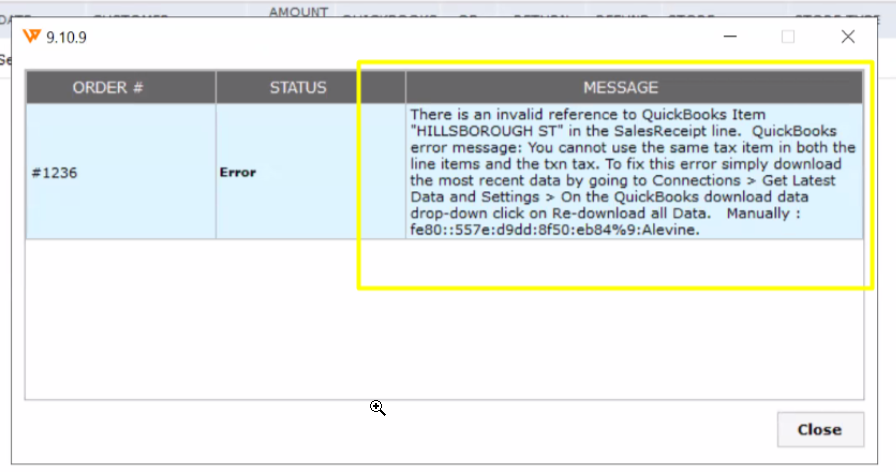
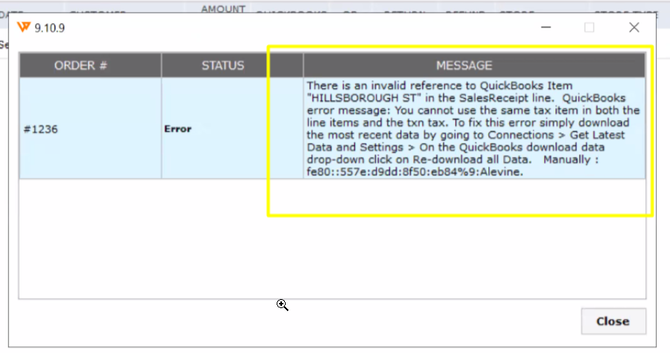
Error: There is an invalid reference to QuickBooks Item "HILLSBOROUGH ST" in the SalesReceipt line. QuickBooks error message: You cannot use the same tax item in both the line items and the transaction tax.
To fix this error, simply download the most recent data by going to Connections > Get Latest Data and Settings > On the QuickBooks download data drop-down, click on Re-download all Data.
When This Applies
Use these steps when a taxable order is sitting in the Errors tab, no obvious error message points to a connection failure, and new orders from the same customer or product keep landing in the same place.
Why This Happens
This error occurs when the same QuickBooks tax item is configured for both taxable and non-taxable orders in Webgility Desktop’s Sales Tax Setup. As a result, QuickBooks detects a conflict because the same tax item is being applied to both the sales receipt line items and the transaction tax, preventing the order from being posted successfully.
Steps to Clear the Error
-
Open the Errors tab in Webgility Desktop and click the affected order to see which product name the error points to.
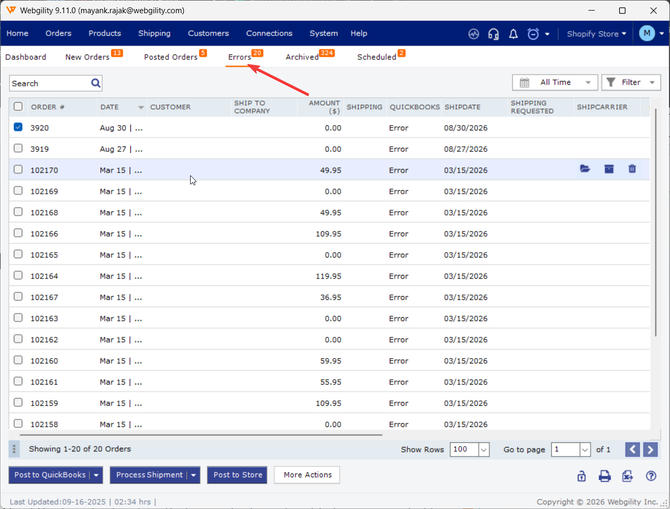
- Select the order and click on Post to QuickBooks the error prompt will display the Item name or SKU#. (Attached screenshot below related to a tax item selected in the sync settings >> Sales tax)
-
Open the Products module, search for the product named in the error, and map it to the correct QuickBooks item (step-by-step mapping in How to Map Products While Posting Orders; the full product catalog view is in How to Map Products or Inventory in Webgility Desktop).
-
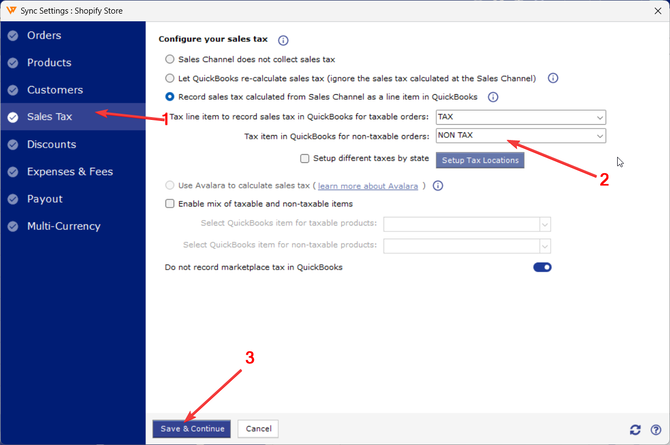
Go to Connections > Accounting/POS/ERP > Sync Settings and Sales Tax Settings.
-
Scroll to the Non-Taxable Sales Tax Item setting and change it to a QuickBooks sales tax item that is marked non-taxable (recommended tax configuration in Recommended Settings for Sales Tax for Webgility Desktop & QuickBooks Online).
-
Save the Sync Settings, return to the Errors tab, select the affected order, and click Post to send it to QuickBooks.
Important Note
If the error moves to a different product name after you re-post, repeat Step 2 for that product too. Each unmapped item on a multi-line order will surface one at a time until every line is mapped.
Key Recommendation
Review your Non-Taxable Sales Tax Item once after any QuickBooks sales tax cleanup — it is a common setting to leave pointing at a deleted or renamed item, and it stops every taxable order from posting until it is corrected.
Feel free to reach out to support@webgility.com.