
Overview
When you run Multi Sync across more than one sales channel in Webgility Desktop, your item list can grow past the item count in QuickBooks because new downloads add records instead of matching existing ones. Confirming which profile Webgility treats as your Multi Sync master, saving its Automation Rules, and running a full redownload from the Get latest data window realigns the catalog so later downloads match again.
When This AppliesFollow this when your Webgility item list has grown far past the item count in QuickBooks Desktop. It also applies when the same SKU appears more than once across your channels inside Webgility. A common setup is Multi Sync across two or more sales channels (for example several eBay stores) where new downloads keep adding items instead of matching existing ones. For the broader best-practices overview of how multi-channel product sync works across QuickBooks and your sales channels, see Best Practices for Multi-Channel Product Sync in Webgility Desktop; for the related troubleshooting checklist on Multi Sync behavior, see Webgility Desktop Multi-Sync not Working.
Why This HappensIn Automation Rules > Store Settings, the first store ticked under SYNC THIS STORE? is your Multi Sync master profile. Webgility Desktop downloads QuickBooks data only for that profile, and Multi Sync uses its item list as the reference to match SKUs across the other ticked stores. When the master profile's Automation Rules are out of step with your current QuickBooks items, follow-on downloads from the other profiles append fresh records for SKUs Webgility cannot match, so the item list inflates with duplicates. Saving the master profile's Automation Rules and then running a full redownload rebuilds the reference Multi Sync reads from.
Important Note: "Only the first ticked store in SYNC THIS STORE? drives the QuickBooks download.
Steps to Realign the Catalog
Step 1: Take a Webgility database backup before you change anything (see How to Create a Database Backup and Restore It) so you have a safety copy of your current item list.
Step 2: Pause the Scheduler so automatic downloads do not add more duplicates while you work.
Step 3: Go to Products > Settings > Automation rules and open the Store Settings tab. Under Select which stores to sync with Webgility, confirm the profile you want as your Multi Sync master is the first ticked row under SYNC THIS STORE?. That first ticked row is the profile Webgility downloads QuickBooks data for, and the one Multi Sync reads from to match SKUs across the others.
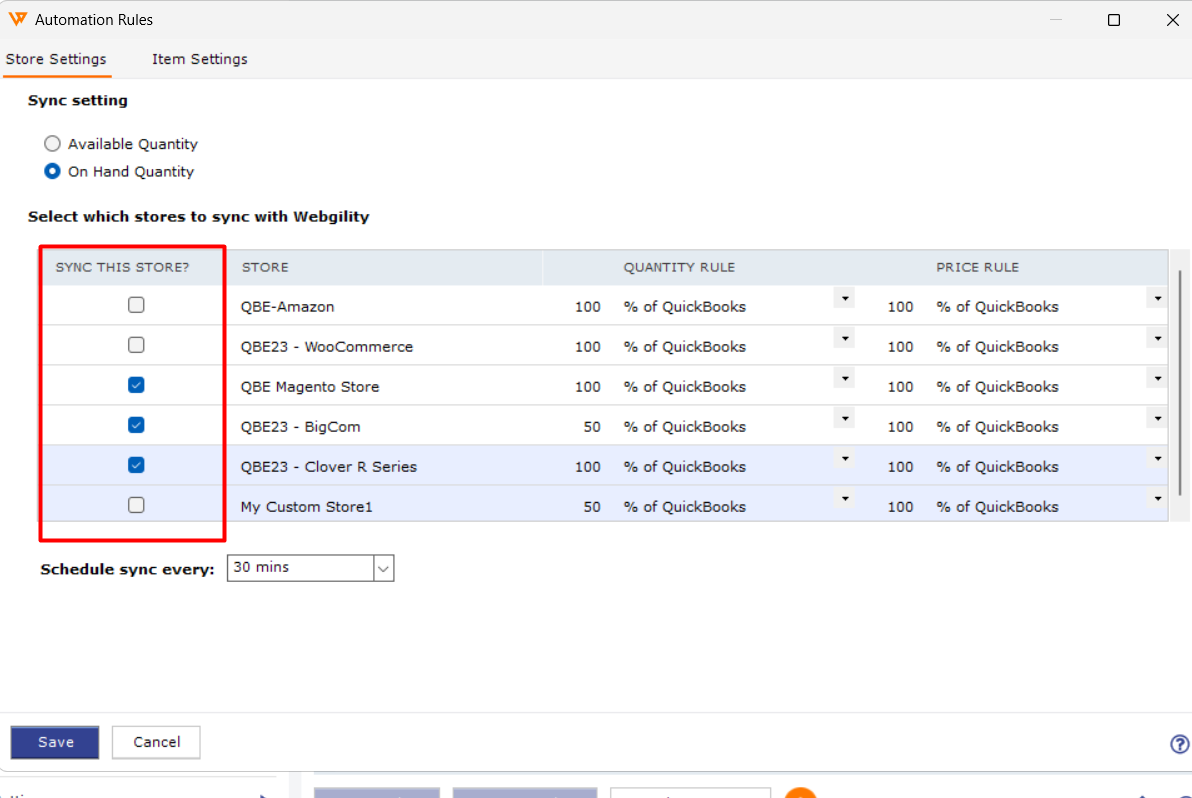
Step 4: Review the Sync setting (Available Quantity or On Hand Quantity), the QUANTITY RULE and PRICE RULE values on the master profile's row, and the Schedule sync every: interval, then click Save so the master profile's rules are committed before anything else runs.
Step 5: Go to Connection > Get latest data and click Next on the Download Data screen. Open the dropdown and select Redownload all data to start a fresh download from scratch. For the full walk-through of the Get-latest-data window see How to Download the Latest Accounting Data from Scratch, and for the items-only equivalent see Download Items from Scratch from Both QuickBooks & Sales Channel.
Step 6: Let the redownload finish, review the item count in Webgility against QuickBooks Desktop, and restart the Scheduler once the counts line up.
Key RecommendationPick one sales-channel profile as your Multi Sync master and keep it as the first ticked row in Automation Rules so the QuickBooks download always builds against the same reference. Reordering the ticked stores between runs quietly swaps the master profile and is a common way the item list drifts apart from QuickBooks in a multi-channel setup.
Additional SupportIf duplicates return after the redownload, write to support@webgility.com. Include your subscriber ID, the master profile name, a current count of items in QuickBooks Desktop and in Webgility, and one example SKU that appears twice so the team can route it to the right specialist.