
Webgility i matches the listings of your sales channels to your QuickBooks Online products on its own. When it finds more than one possible match, or a match it is not sure of, it does not guess: it holds the listing on the Needs review tab until you decide.
Note: Orders that contain a listing waiting for review can wait in Sales > Orders with the message that the product needs its match confirmed. Its Review the match link opens the Needs review tab. Once you resolve the review, the next run posts the order.
Steps:
- Go to Products > Catalog and click the Sales channel listings tab.
- Click the Needs review tab. Its count is highlighted while listings are waiting. Listings that need review also show on the All tab, with a Review button.
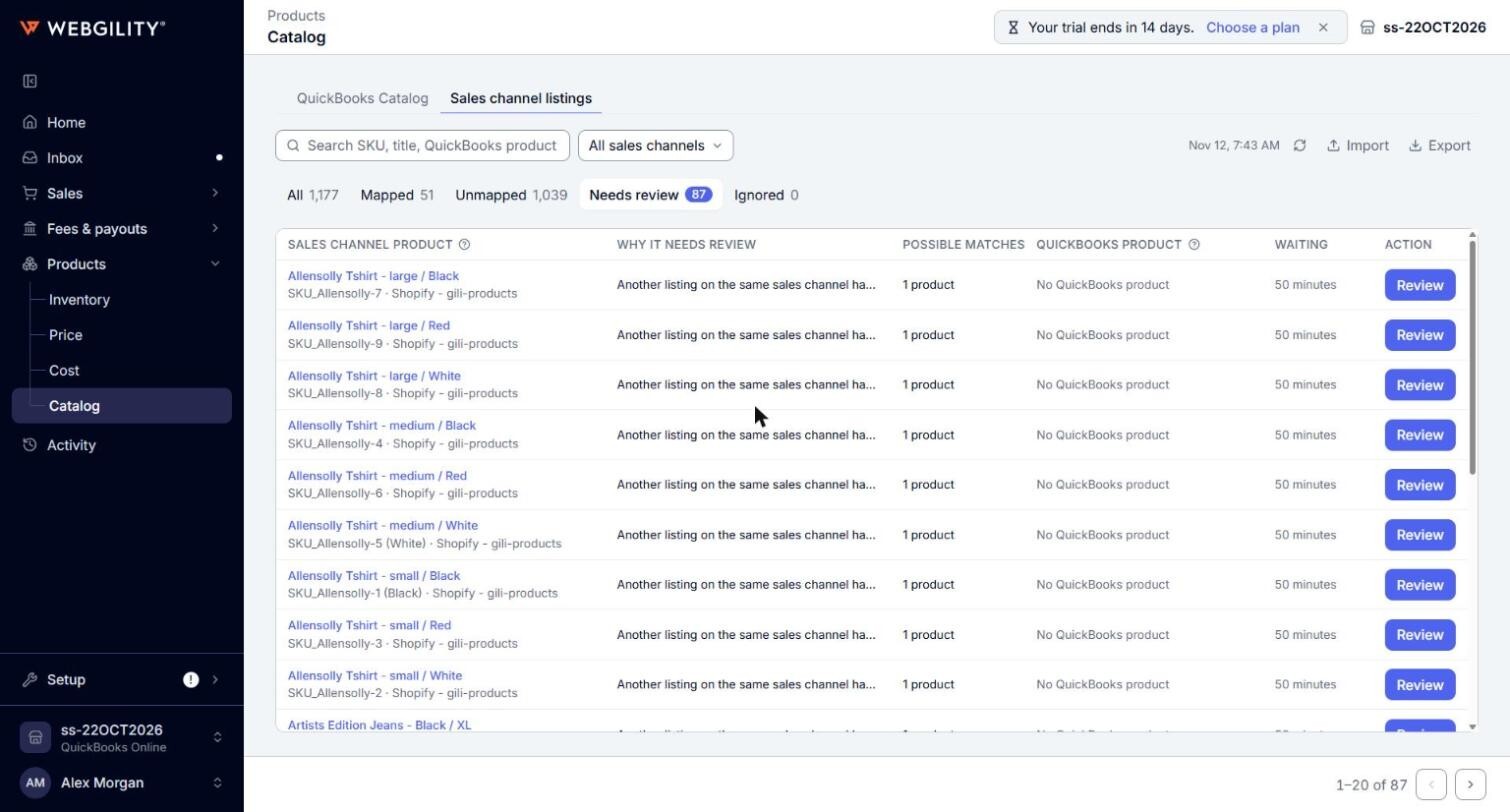
- Read the row. Each listing shows these columns:
- Sales channel product: the listing's title, with its SKU and store underneath.
- Why it needs review: the reason Webgility i is holding the listing. See Why a listing needs review below.
- Possible matches: how many products the listing may be the same as, for example 2 products. None means there is no product to offer.
- QuickBooks product: the QuickBooks product of the listing's own product, with its SKU underneath, or Created by posting when Webgility i created it for an order. No QuickBooks product means it has none.
- Waiting: how long the listing has waited, for example 5 hours or 1 day.
- Click Review, or the listing's title. A panel opens on the right. It starts with Waiting for review, which repeats the reason and how long the listing has waited, then asks a question.
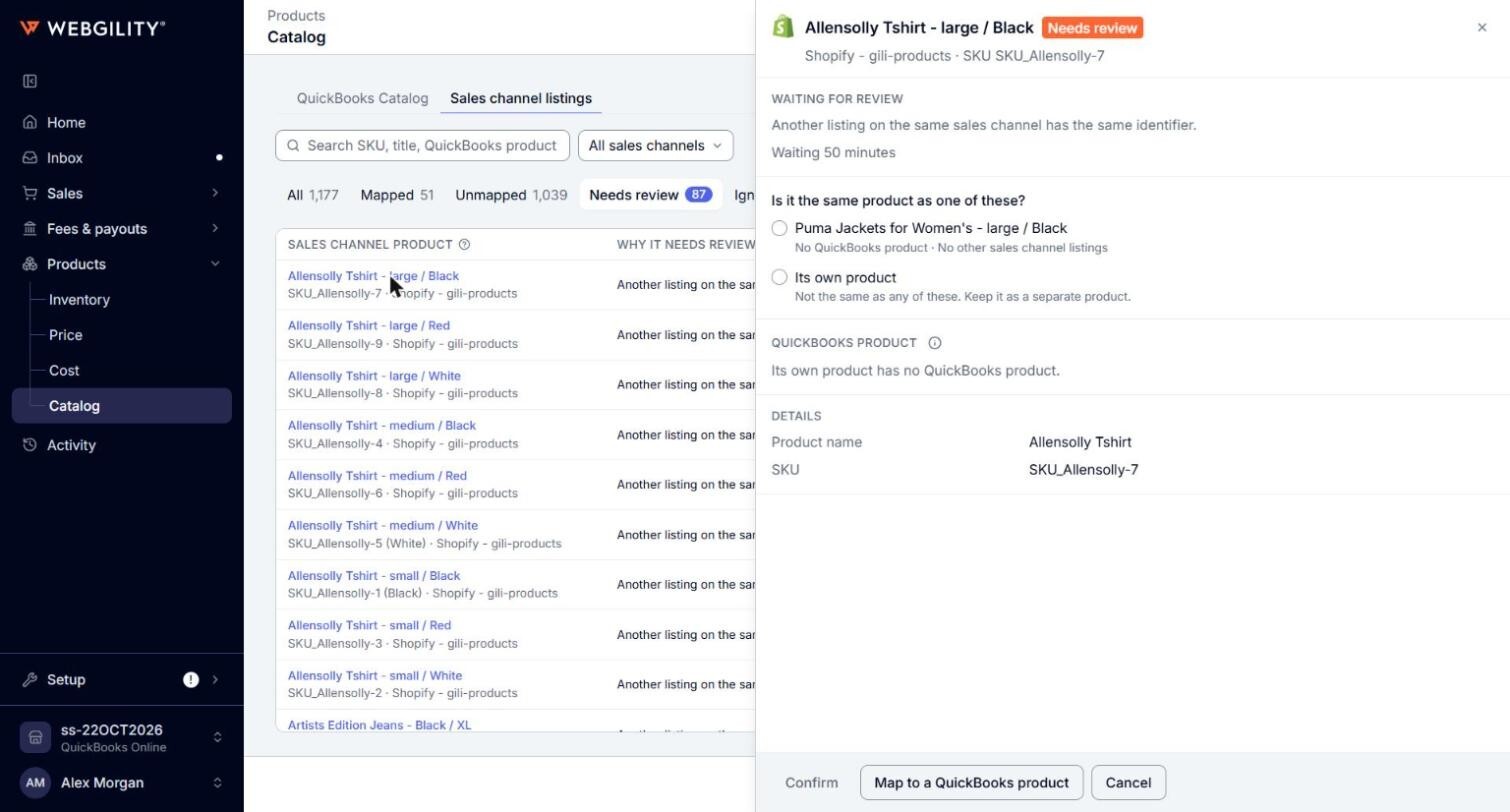
- Answer the question. See How to resolve a listing below.
- Click Confirm. Webgility i says where the listing moves, and the listing leaves the Needs review tab:
- If you chose a product that has a QuickBooks product, the listing joins it and moves to Mapped.
- If you chose a product with no QuickBooks product yet, the listing joins it and moves to Unmapped until it is mapped. See How to Map a Sales Channel Listing to a QuickBooks Product.
Why a listing needs review
The Why it needs review column shows one of these reasons:
- "It matches more than one product.": the listing's SKU or another identifier matches several products, so Webgility i cannot tell which one it is.
- "Another listing on the same sales channel has the same identifier.": two listings on one sales channel share a SKU or barcode, or share a product name that a QuickBooks product also has. Two listings on one channel are more often two different products than one, so you decide.
- "Its QuickBooks product matches another listing on this sales channel by a higher matching criterion.": the QuickBooks product this listing matched also matches another listing of the same channel by a stronger criterion, such as SKU over name. The stronger match wins, and you decide about this listing. A listing that Webgility i had already mapped can move to Needs review this way when a stronger match arrives later. A listing a person mapped is not moved.
- "The QuickBooks product it would post to waits for review: …": the listing itself is fine, but the QuickBooks product it would post to is held for review. The rest of the sentence gives that product's reason, for example "it matches a product that already has another QuickBooks product in this company."
- "Its match waits for a person to confirm it.": the listing's match is held with no further reason recorded.
How to resolve a listing
The panel asks Is it the same product as one of these? Each choice shows a possible product's title, its QuickBooks product, and the sales channels it is listed on.
- Pick one of the products: the listing is the same product. Click Same product to confirm. The listing joins that product and posts to its QuickBooks product. It moves to Mapped, or to Unmapped if that product has no QuickBooks product yet.
- Its own product: the listing is not the same as any of these. Click Keep as its own product to confirm. It keeps its own product: it moves to Mapped if that product has a QuickBooks product, or to Unmapped until you map it.
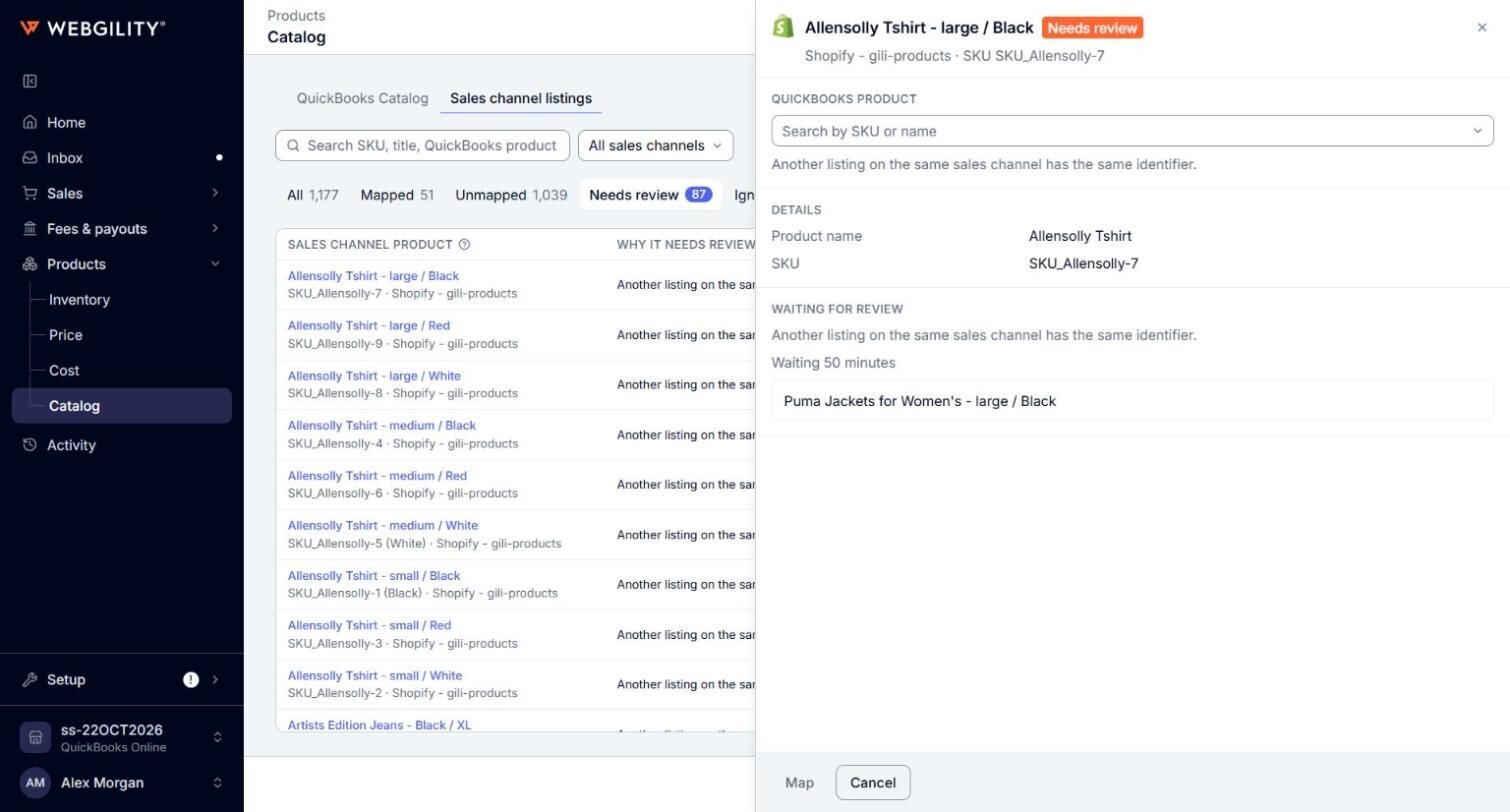
- Map to a QuickBooks product: click this button to choose the QuickBooks product yourself. A search box replaces the question. Select the product, click Map (or Save mapping when the listing already shows a QuickBooks product), then confirm. Mapping the listing closes its review. Click Cancel to go back to the question. See How to Map a Sales Channel Listing to a QuickBooks Product.
Note: Answering one of two listings that share a SKU on the same channel can resolve the other one too. If the other listing has no question left, it leaves the Needs review tab on its own.
When two QuickBooks products share a SKU
If a possible product's QuickBooks product shares its SKU with another product in QuickBooks Online, the panel asks Which QuickBooks product should it post to? instead.
- Post to …: each choice names a QuickBooks product, with its SKU, type and price underneath, so you can tell them apart. Select one and click the button to confirm. A Map confirmation opens, and the listing is mapped to that product.
- Keep unmapped: shown when the listing has no QuickBooks product of its own. Its orders follow the If a matching is not found, then setting on the Products tab of the channel's settings.
- Choose another QuickBooks product: opens the search box so you can pick a different product.
You can also give one of the two products a different SKU in QuickBooks Online. Webgility i then matches again. See How to Change a Product's SKU in QuickBooks Online.
When the panel offers only Map
- Too many possible products: if a listing matches more than 50 products, the panel says it matches too many products to choose from and offers the search box. Map the listing to the right QuickBooks product.
- The QuickBooks product is waiting for review: if the reason starts with "The QuickBooks product it would post to waits for review", the panel opens with the QuickBooks product Webgility i suggests already selected. Click Map to confirm it, or search for another QuickBooks product first. If the panel names two QuickBooks products that share a SKU, follow When two QuickBooks products share a SKU above.
Listings that resolve on their own
Webgility i checks held listings again each time it matches. A listing can leave the Needs review tab without your answer, for example when you resolve the other listing it was held with, when the stronger match that held it goes away, or when its SKU changes on the sales channel. A listing whose SKU changed is matched again, and can come back to the tab if the new SKU is also unclear.