
Scenario Overview
Recent system changes affected order visibility and status updates for open orders in the Webgility Desktop app, preventing some processed orders from displaying as 'Shipped'. This article provides step-by-step troubleshooting for managing similar issues, including guidance on version verification, system rollbacks, and communication with end users.
Problem Statement
Encountering issues that processed orders do not update correctly to 'Shipped' status after recent changes to order visibility/reporting functions. This leads to open orders appearing as unshipped, which may cause fulfillment errors or duplicate processing.
Checklist for Troubleshooting
1. Confirm the Order Issue
- In Webgility go to the New Orders Tab and verify the Shipped Order Status for your order, make sure on your Sales Channel the order is makred as Shipped.
- Double click on any order. and see the Shipped status as shown in the screenshot below.
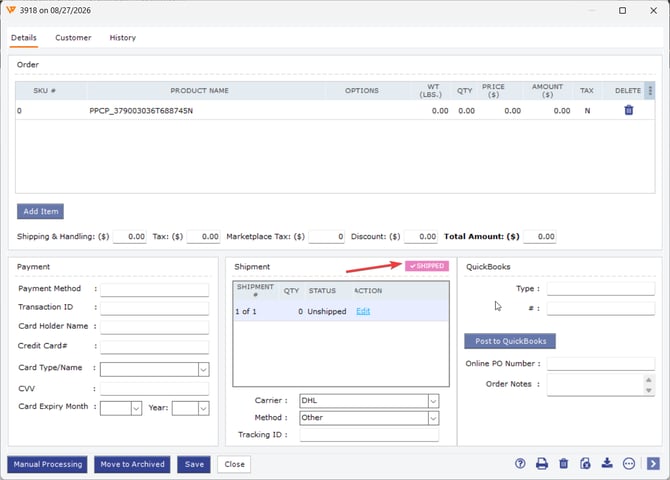
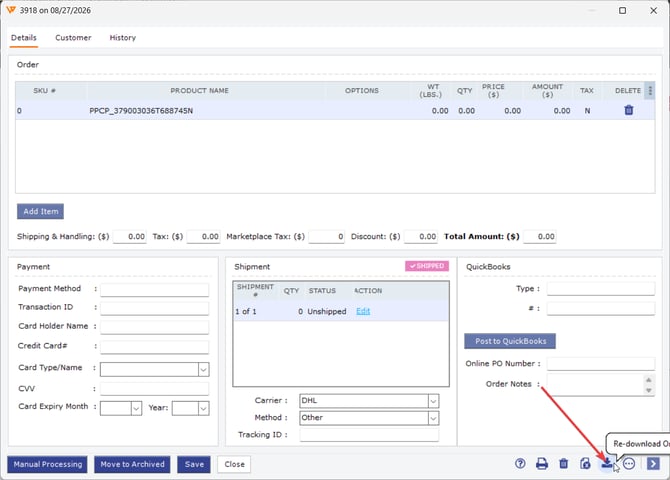
- If the order is marked as Shipped in Store but in Webgility Desktop, then re-download the order to bring in the latest order details.
1. Assess Current System Version
- In Webgility Desktop, go to Help go to Terms and Privacy to verify the current software version.

- Compare your current version to the latest available release in Webgility go to Help and click on Check for updates. If you are not running the latest version, go through an update.
2. Identify Recent System Changes
- Review any updates rolled out affecting order management, shipped status, or related modules in Sales channel or in Webgility.
- Confirm whether the change aligns with the reported issue.
3. Webgility Software Update
- Please refer to Update Webgility Desktop Using Check for Updates Option
4. Verify the Resolution
- Once Webgility Desktop is updated re-try downloading the affected orders, please refer to Order Re-download in Webgility Desktop.
- In some cases in Webgility under Connections go to Sales Channels and Settings.
- In there verify the selected order statuses for make sure, the process shipment is No, mark as shipped
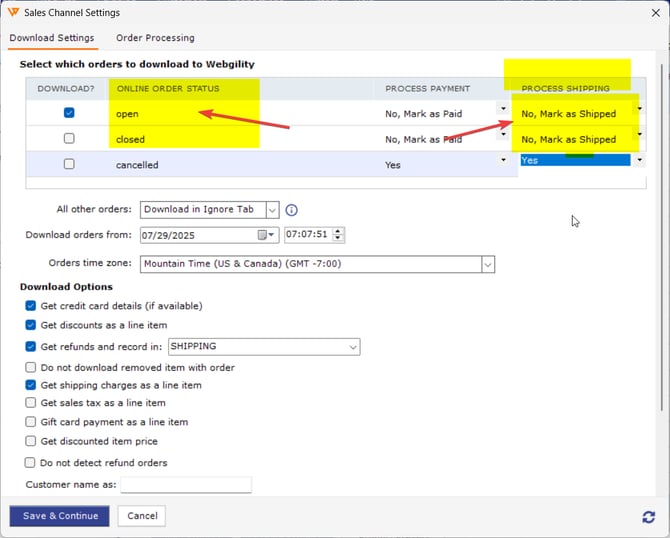
- If the Process Shipment is selected as Yes, then the user will have to manually process the shipment. Please refer to How to Process (Payment/Shipment) Orders Manually?