
Summary
This article documents a Webgility Desktop issue where orders from sales channel download successfully through Scheduler but fail during accounting posting to QuickBooks Desktop.
Problem description
Orders moved into the Errors tab during Scheduler-based posting to QuickBooks Desktop.
On checking the History section of the orders in the Error tab, The error messages may include:
- Post to QuickBooks failed due to Could not get the name of the current QuickBooks company data file
- Post to QuickBooks failed due to An internal QuickBooks error occurred while trying to access the QuickBooks company data file
- Post to QuickBooks failed due to Could not start QuickBooks
Symptoms
- Orders download into Webgility but do not complete accounting posting through Scheduler
- Orders accumulate in the Scheduled or Errors tab
- The issue appears intermittent or random from the user’s perspective
- The automator may be running, and QuickBooks may even be open, but posting still fails
- Some orders may later post successfully after subsequent attempts, which can make the issue appear inconsistent
Root cause
An intermittent QuickBooks connection problem between Webgility Desktop and the QuickBooks company file.
More specifically, identified:
- QuickBooks connection errors in the Scheduler logs
- Failure to access or identify the active QuickBooks company data file
- A certificate or authorization issue between Webgility Desktop and QuickBooks Desktop
- A need to reconnect QuickBooks with Webgility and update Webgility to the latest version
Resolution steps
Use the following steps when this issue is reproduced.
1) Confirm where the orders are stuck
- Open Webgility Desktop
- Review the Scheduled, Errors, Posted, and Archive/Repository tabs as needed
- If orders are in Errors, open the order and review its History tab for posting details
2) Review Scheduler logs
Use Scheduler logs to confirm whether the posting failure is tied to QuickBooks connectivity.
How to review logs
- On the machine where Scheduler is running, open the Webgility icon from the system tray and select Today’s Log
- Or browse to C:\Webgility\UnifyEnterprise\SchedulerLog and open the latest processing logs
- Look for QuickBooks connection failures, company file access issues, or posting interruptions
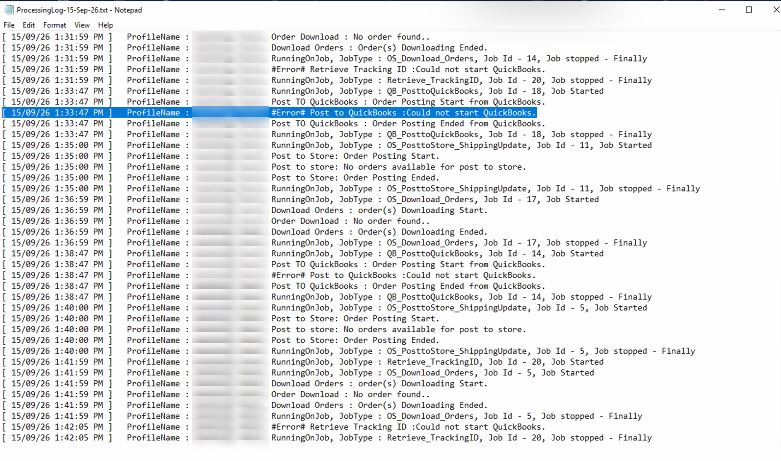
3) Test the QuickBooks connection in Webgility Desktop
- Go to Connections > Accounting/POS/ERP > Edit Connection
- Verify the current QuickBooks version and company file location
- Check the connection type, date format, and currency
- Click Test QuickBooks Connection
If an error appears:
- Make sure the QuickBooks company file is open
- Make sure there are no open dialog boxes in QuickBooks
- Log in to QuickBooks as Admin if required
4) Re-authorize or regenerate the QuickBooks certificate if needed
If the QuickBooks certificate or authorization has been removed or is no longer valid:
- Reconnect QuickBooks with Webgility
- When prompted in QuickBooks, allow access for Webgility
- Select Yes, always; allow access even if QuickBooks is not running
- Set the login user to Admin if prompted
- Save the connection once the test succeeds
5) Restart Scheduler and validate posting
- After restoring the connection, restart Scheduler
- Re-test posting for affected orders
- Confirm the affected orders move through posting successfully
6) Re-schedule or manually post orders already in Errors
Because Scheduler does not automatically repost orders from the Errors tab:
- Manually post the affected orders from Errors, or
- Select the impacted orders and re-schedule them for accounting posting
7) Refresh accounting data if connection repair alone does not resolve the issue
If mapping, item, or customer sync inconsistencies are suspected:
- Clear the QuickBooks item and customer last-download dates from Advanced Settings
- Go to Connections > Get Latest Data & Settings
- Use Re-Download All Data
- Confirm all download dates refresh successfully
Important notes
- Orders in the Errors tab do not automatically retry posting. They must be posted manually or re-scheduled.
- If manual posting works but Scheduler posting fails, start with Scheduler logs and check the scheduler settings.
- If the issue appears random or intermittent, treat it as a connection or authorization problem first, especially when the error mentions the QuickBooks company data file.
Related help articles
- View Scheduler Logs
https://helpcenter.webgility.com/en/articles/8709615-view-scheduler-logs - How to Test QuickBooks Connection in Webgility Desktop
https://helpcenter.webgility.com/en/articles/8359002-how-to-test-quickbooks-connection-in-webgility-desktop - How to Download the Latest Accounting Data from Scratch - Webgility Desktop
https://helpcenter.webgility.com/en/articles/8491568-how-to-download-the-latest-accounting-data-from-scratch-webgility-desktop