
Instead of building the condition field by field, you tell the assistant which orders the rule is for, and Webgility i shows the condition it set in plain words before you save.
Note: The assistant is in the When section of every rule, on Orders to accounting, Consolidated orders to accounting, Refunds to accounting and Consolidated refunds to accounting. A Default has no condition, so it has no assistant.
Steps:
- Go to Setup > Workflows. Click Add rule to start a new rule, or click a saved rule to change its condition.
- Under When, find the question Which orders is this rule for?. Below it are two panels: How it reads, which shows the condition, and Ask the assistant, which holds the conversation. On a narrow window, How it reads shows first.
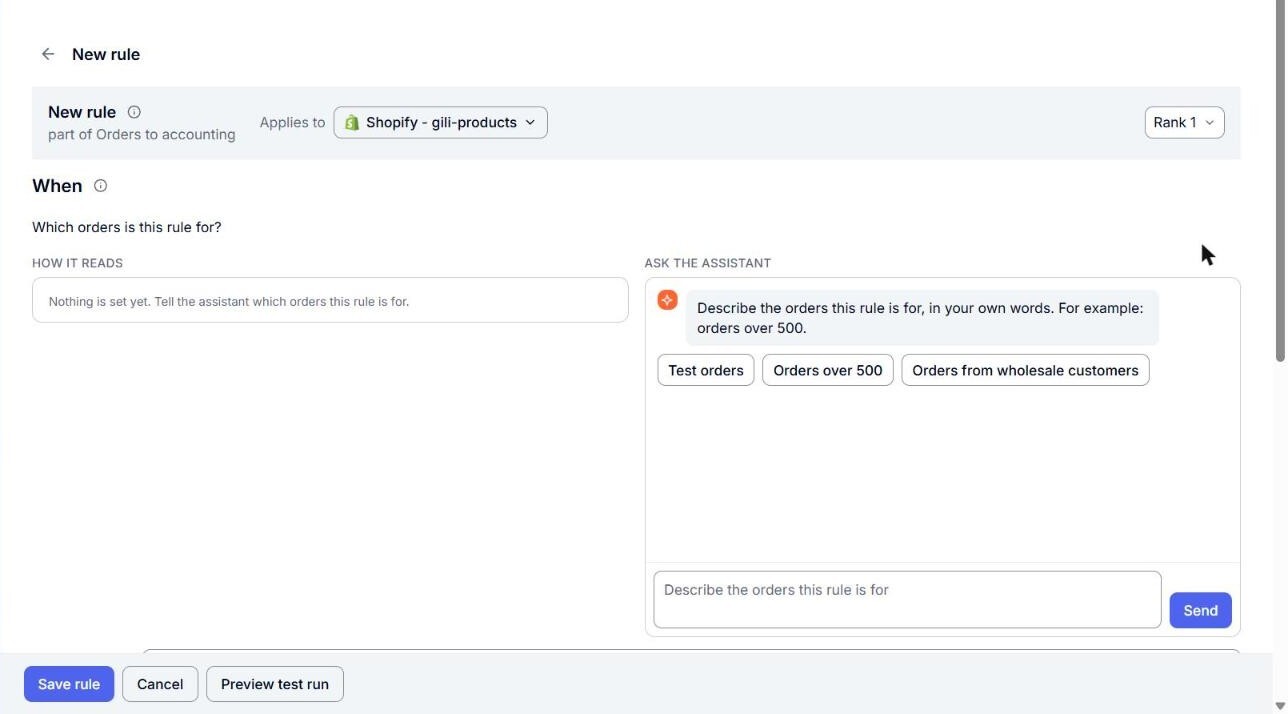
- In the box that says Describe the orders this rule is for, describe the orders in your own words, for example "Orders over 500 shipped to Canada". On a new rule you can click one of the Ideas to start from, such as Orders over 500. It fills the box without sending.
- Click Send. Your message and the assistant's reply show in the conversation. This can take a few seconds.
- Review How it reads. It shows the condition as Webgility i will check it, for example "This rule applies to orders when Order total is more than 500". Notes under it point out anything to check, such as a value that the sales channel's list does not have.
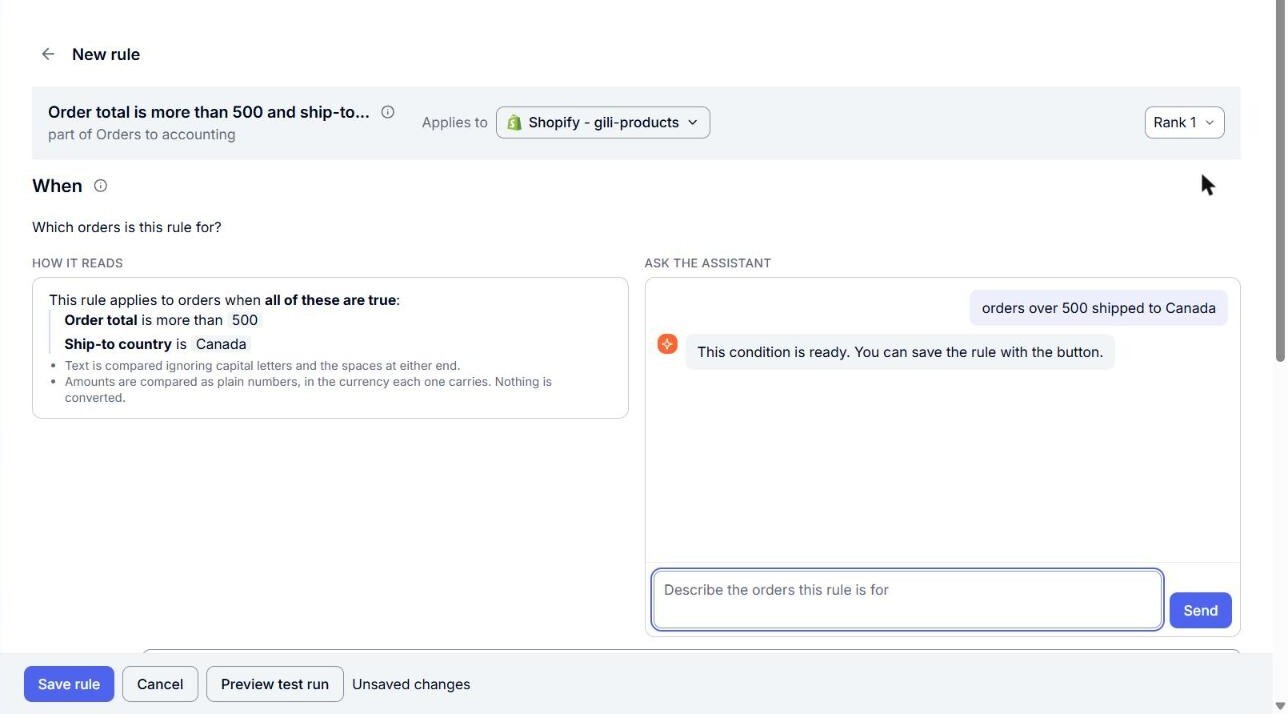
- To change the condition, send another message, for example "Only orders from wholesale customers". The assistant changes the condition and How it reads shows the new version. There are no condition fields to edit by hand.
- Complete the rest of the rule: Name in the list, the Then section and, if needed, the Rank. See Understanding the Header, When and Then Sections of a Rule.
- Click Save rule, or Save changes on a saved rule.
Note: The assistant only suggests a condition. Nothing is saved until you click Save, and Webgility i checks the condition again when you save. If you leave without saving, the condition is not kept.
Tips for describing orders
- Name what you can check on an order: for example the order total, tax, shipping or discount, the ship-to or bill-to country or state, the customer name or email, the business type, the order's tags, or the number of item lines.
- Say how to compare: for example "over", "at most", "is one of", "contains" or "ends with @example.com".
- Combine conditions in one message: for example "Orders over 500 that ship to the US or Canada".
- Read the result, not the reply: what runs is what How it reads shows.
If the assistant cannot find a field on the order that covers what you asked for, it says so and does not set a condition.
If the assistant does not answer
The conversation shows a message, nothing is changed, and your message stays in the box so you can send it again.
- "Type what you want first.": the box is empty.
- "That message is too long. Please shorten it.": shorten your message.
- "You have asked for a lot just now. Try again in …": wait for the time shown, then send again.
- "The assistant is busy. Please try again in a moment. Nothing was changed.": send again in a moment.
- "The assistant is not available right now. Nothing was changed.": try again later.
- "The assistant has reached today's limit for this account. Try again tomorrow. Nothing was changed.": the daily limit is reached.