
The direction decides which system's inventory, cost and price values are copied to the other system when products sync, manually or through automation. You set it once for each business, in Sync product data from on the Business settings page.
Note: Choosing a system only sets the direction. It does not sync any data by itself. When products next sync, the values of the system you choose overwrite the existing values in the other system.
Steps:
- Go to Setup > Business settings and check that the business you want is selected in the Business row.
- Under Product data sync direction, open Sync product data from. Point to the info icon next to it to read what the setting does.

- Choose the system to copy product data from:
- QuickBooks: QuickBooks Online is the source. Inventory, cost and price values are copied from QuickBooks Online to your sales channels.
- A sales channel, shown as its platform and store name, for example "Shopify - My Store": that sales channel is the source. Its values are copied to QuickBooks Online. Your other sales channels then sync from QuickBooks Online.
- A message asks you to confirm the change. It names the system whose values will be overwritten, for example "Switching the source will overwrite product values in QuickBooks on the next sync. Continue?". Click Continue to keep your choice, or Cancel to put the list back.
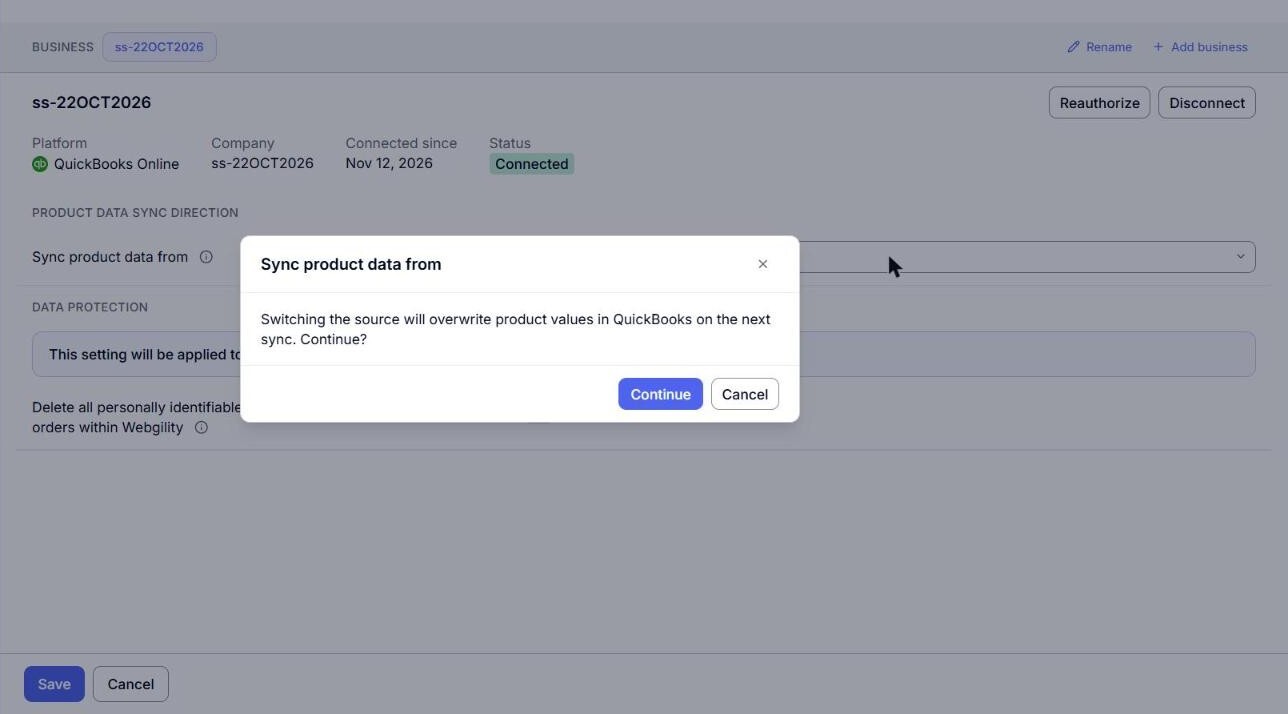
- Click Save at the bottom of the page. The page shows "Saved: product data and data protection".
What to expect after the change
- Default: QuickBooks. A new business syncs product data from QuickBooks Online until you choose a sales channel.
- One business has one source. Every sales channel of the business follows it.
- The new direction applies from the next product sync of each store of the business.
- The Automation tab of each channel's settings shows the result in Direction of sync, for example "Shopify - My Store → QuickBooks". To change it from there, click Change in Business settings.
- The change is recorded on the Activity page, for example "Set product data to sync from QuickBooks".
Note: The list shows only the sales channels of this business that support product sync. If the business has no sales channel yet, the section shows "This Business has no sales channel yet." Whether inventory, price and cost actually sync automatically is set on the Automation tab of each channel's settings. See How to Set Up Automation in Webgility i.