
Overview
This article provides steps to verify the Shopify Order download issue, performing key troubleshooting actions, and ensure a successful sync between Shopify and Webgility.
Root Cause
This issue is commonly caused by:
- A temporary API or sync disruption between Webgility and Shopify.
- Expired or invalid Shopify credentials or missing permissions.
- Use of an outdated Webgility version not compatible with the latest Shopify API updates.
Support Steps: Verifying and Resolving the Issue
Step 1: Confirm Installed Version
- In Webgility, go to Help > Check for Updates.
- If there's a Pending update, download& install it.
- You may refer to Update Webgility Desktop Using Check for Updates Option.
Step 2: Test Order Sync
- If there are no New Orders in Shopify, then create a test order.
- In Webgility, download the order.
- Go to Dashboard > Get New Orders
- Please refer to How to Download Orders in Webgility Desktop.
Step 3: If Orders Are Still Missing – Backdate Download
- Beside Get New Orders button, there's a small white arrow click on it.
- Select by Range and set a Backdate to re-download historical orders and click on Save.
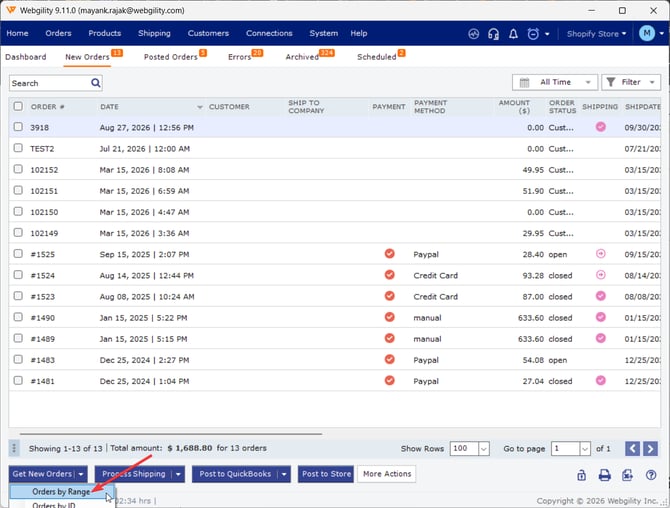
- Verify that previously missing orders now appear in the New Orders Tab.
Step 4: Store Reauthorization (If Problems Persist)
- Please refer to How to Reconnect Shopify and Amazon to Webgility Desktop and Fix Order Download Issues.
- Once the Store is reauthrized, retry downloading the orders from a Backdate.
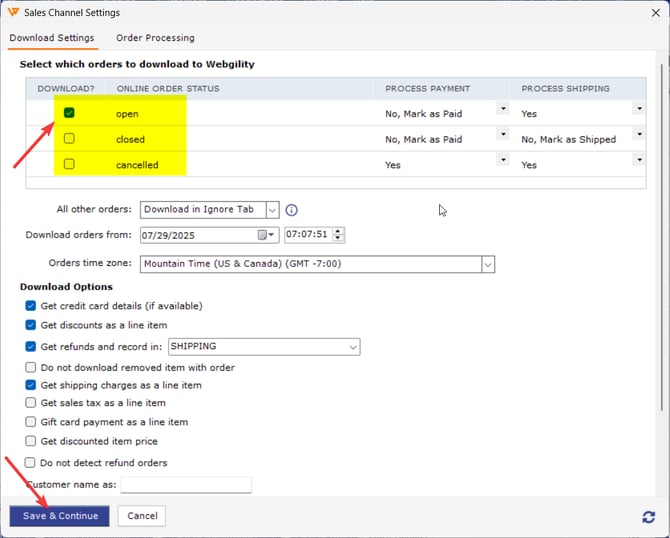
- If the order still dosen't show up then go to Connections >> Sales Channels >> Settings and make sure the correct order status is selected.
Verification
Confirm if
- Orders are syncing correctly from Shopify.
- No error messages are appearing during synchronization.
- The latest version of Webgility is installed.
- Once Everything is verifiedm retry posting the Payout Report.
Feel free to reach out to support@webgility.com.