
Overview
If a canceled order is moved to the Ignored tab, its refund may not download correctly, which can prevent the related settlement report from posting to QuickBooks Desktop.
You may also see the following error:
“Order have item which not found in QBD.”
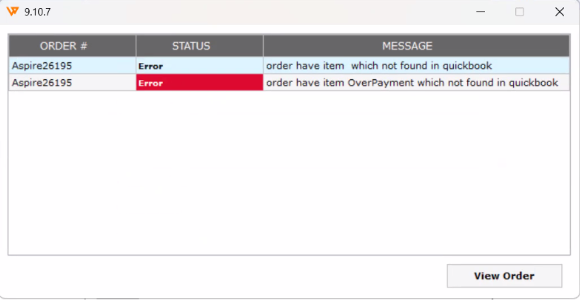
In this scenario, the affected order may need to be moved back to Orders, unsynced, and downloaded again. If the order contains an unmapped overpayment or fee item, the item must also be mapped before posting.
Follow the steps below to resolve the issue.
Steps to Resolve
1. Update Webgility Desktop
Make sure Webgility Desktop is updated to the latest available version before troubleshooting the order.
Related article: Update Webgility Desktop Using Check for Updates Option
2. Move the Canceled Order Back to Orders
If the affected order is under the Ignored tab:
- Locate the affected order.
- Select Move to Orders.
- Confirm the action.
Screenshot: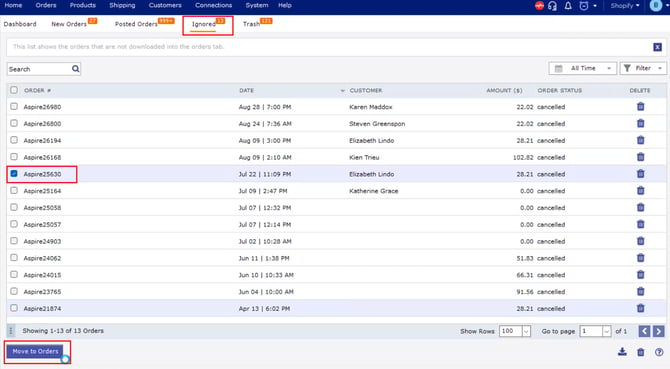
Note: If the settlement still does not post after moving the order, continue with the next step.
3. Enable Canceled Order Download
Temporarily enable the Cancelled Order Download setting so the canceled order can be downloaded again.
Screenshot: 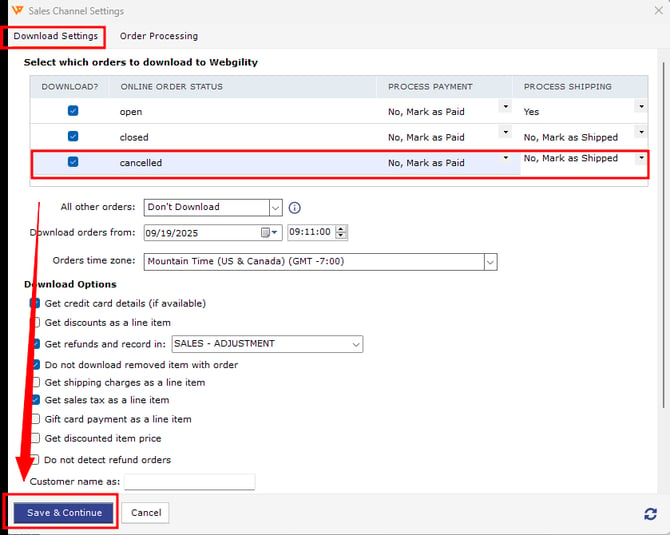
Important: Disable this setting after the affected order has been successfully processed.
4. Unsync and Re-download the Order
If the order already exists in Webgility, unsync it first and then download it again.
For instructions, see:
- How to Unpost Transactions from Webgility Desktop with Undo Sync
- Order Re-download in Webgility Desktop
5. Map the Missing Overpayment or Fee Item
If you receive:
“Order have item which not found in QBD.”
check the affected order for an overpayment, fee, discount, or other adjustment that has not been mapped to QuickBooks Desktop.
Map the missing item to the appropriate QuickBooks Desktop item or account.
Related article: How to Map Products While Posting Orders
6. Post the Order and Settlement
After the order has been re-downloaded and the required items have been mapped:
- Post the affected order to QuickBooks Desktop.
- Retry posting the settlement report.
- Confirm that the settlement posts successfully and the amounts match the source report.
Related article: Locating Downloaded Settlement Reports and Posting Them via Webgility Desktop into QuickBooks Desktop
7. Disable Canceled Order Download
After the order and settlement have been successfully processed, return to the settings and disable Cancelled Order Download.
Verify the Resolution
Confirm that:
- The affected order is posted to QuickBooks Desktop.
- The refund is included in the settlement.
- The settlement amount matches the source report.
- No item-mapping error remains.
- The settlement report posts successfully.
- The relevant QuickBooks balances are correct.
Still Need Help?
If the issue continues after completing these steps, contact Webgility Support and provide the affected order number, settlement details, exact error message, and a screenshot of the error.