Part of Understanding and Using the Inbox in Webgility i.
How to resolve an item
An item leaves the Inbox on its own once none of its transactions needs you any more. You do not close items by hand. Depending on the item:
- Orders or refunds that could not post: fix the cause, then post them again from the Errors tab. Once they post, they leave the row. You can also ignore an order you do not want in QuickBooks Online. See How to Ignore and Restore Orders.
- Orders changed after posting: on the Updated tab of the Orders page, apply each change or reject it.
- Flags: fix what the flag names. For flags you fix yourself, such as a missing setting or an inactive item, Webgility i checks the flag's orders again once a day, and again when you save a change on the Workflows page for that sales channel. To send them back sooner, open the flag and click Retry. The Inbox then shows a message such as "3 transactions go back to QuickBooks on the next run."
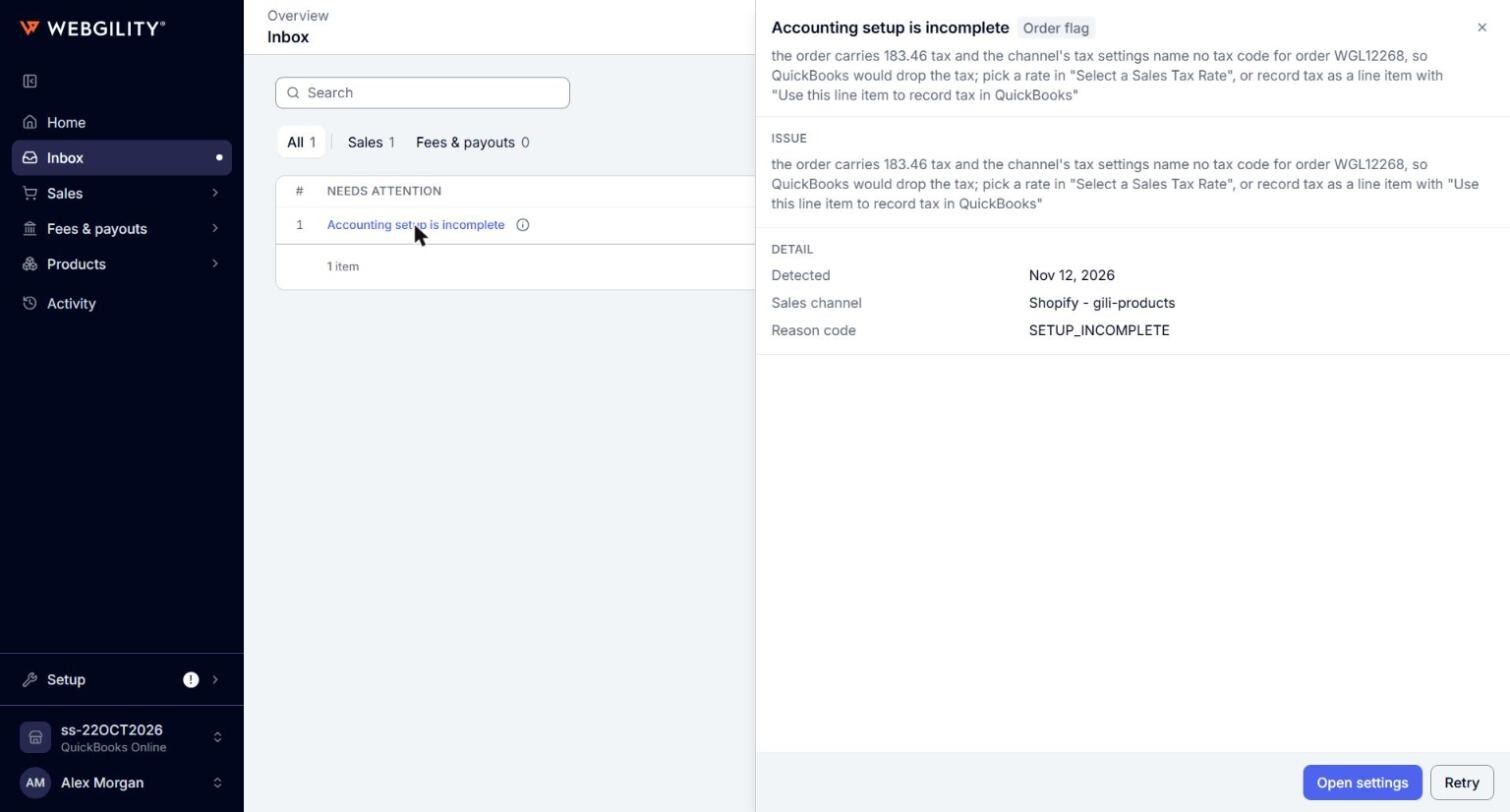
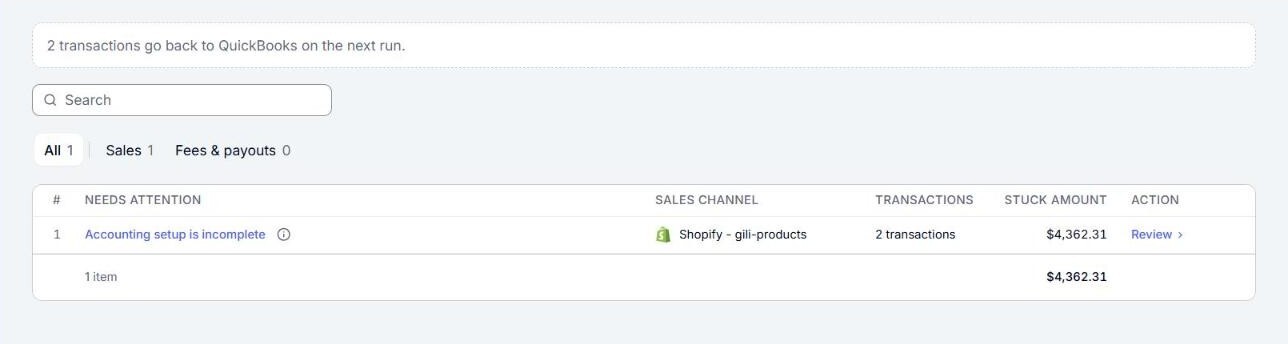
Note: Click Retry only after you have fixed the cause. If the cause is still there, the orders fail again and stay in the Inbox.
Note: Retry sends the orders back the next time Webgility i posts that sales channel's orders automatically. If automatic posting is off for the sales channel, post the orders yourself from the Errors tab instead. See How to Post Orders to QuickBooks.
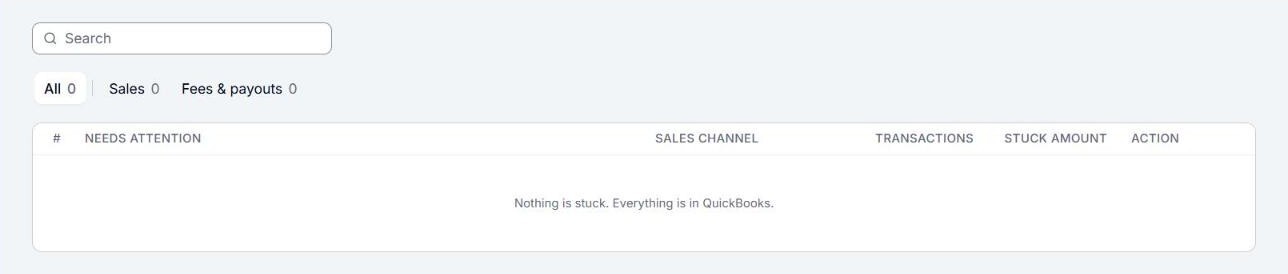
When nothing needs you, the Inbox shows "Nothing is stuck. Everything is in QuickBooks."