
A deposit line is a charge on the order for a refundable amount you hold from the customer — a security deposit on a rental, for example, that will be returned to them later. In Webgility Desktop the line shows as a normal positive charge on the order.
The fix is to change the deposit item's type in QuickBooks Desktop from Payment to Non-inventory Part (or Service), refresh Webgility's copy of the QuickBooks item list, and post the order again.
When This AppliesUse these steps if the failing order contains a deposit line, the order's total is positive in Webgility Desktop and on the store, the post to QuickBooks Desktop fails with a negative-total error, and the deposit item in the Products view shows ITEM TYPE = Payment.
Why This HappensThe Payment item type in QuickBooks Desktop is meant for recording incoming payments through the Receive Payment transaction, not for carrying a line on an invoice or sales receipt. When Webgility posts an order that has a line mapped to a Payment-type item, QuickBooks cannot place that line on the invoice or sales receipt and its internal transaction math falls out of balance — the post fails with an Order total must not be negative message even though the order total in Webgility is positive. Changing the deposit item's type to Non-inventory Part or Service makes it valid as a line item, and the order posts on the retry.
Steps to Clear the Error
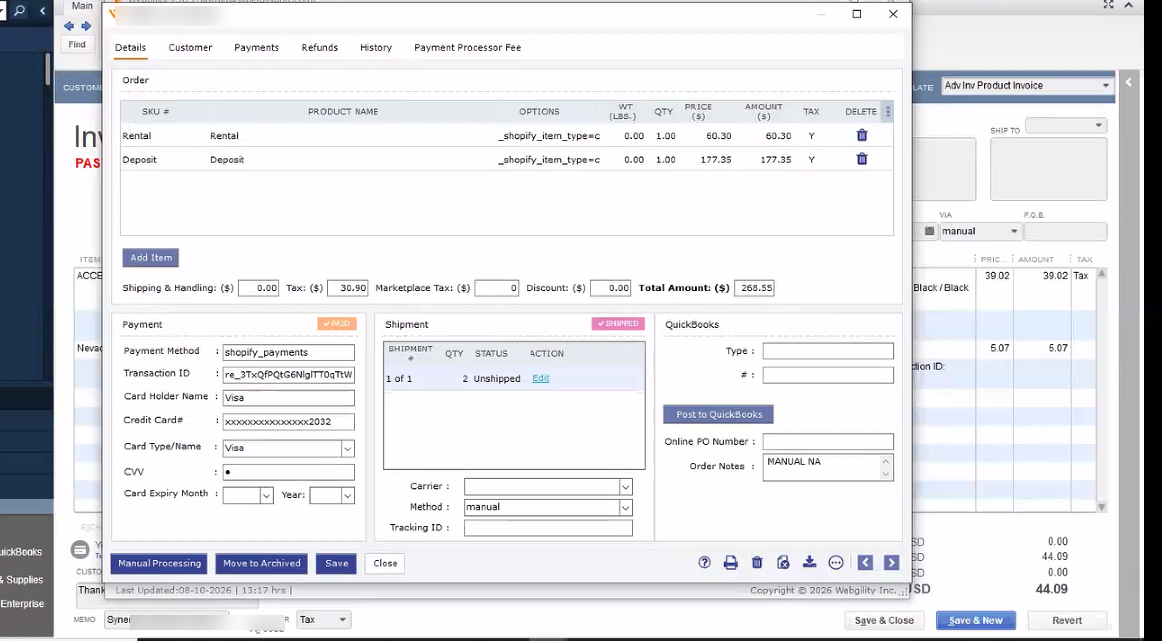
Step 1: Open the failing order in Webgility Desktop and note the deposit line item you need to correct. In the example below, the order has a Rental line and a Deposit line.
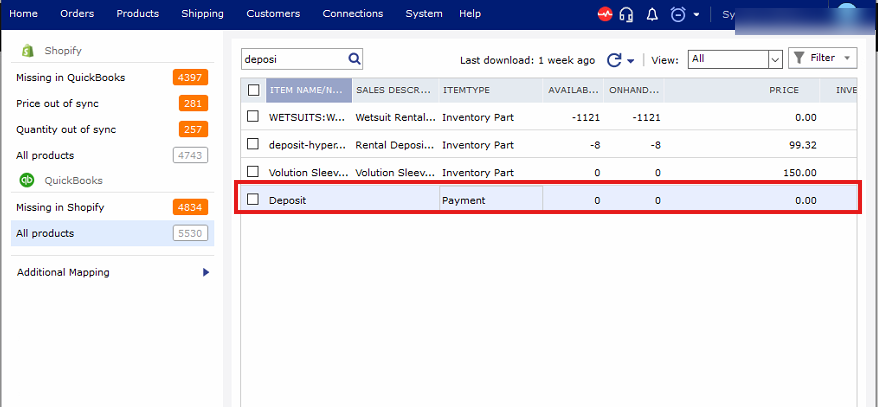
Step 2: In Webgility Desktop, click the Products tab in the top navigation. On the left panel, under the QuickBooks section, click All products. In the search box, type the deposit item name (for example, deposit) and confirm the deposit row shows ITEM TYPE = Payment — that is the setting to change.
Step 3: In QuickBooks Desktop, open the Item List, find the same Deposit item, and change its type to Non-inventory Part or Service. The general Webgility-side item-mapping walkthrough is in How to Map Products While Posting Orders and How to Map Products or Inventory in Webgility Desktop.
Step 4: Back in Webgility Desktop, open Sync Settings > Products and click Refresh so the updated item type reaches Webgility — the refresh walkthrough is in How to Download the Latest Accounting Data from Scratch in Webgility Desktop. The item row in the Products view now shows Non-inventory Part or Service instead of Payment.
Step 5: Return to the order and click Post to QuickBooks. The order now posts and the deposit line records against the corrected item.
Key RecommendationAny item that appears as a line on an invoice or sales receipt — including deposit and rental items — should be a Non-inventory Part or Service in QuickBooks, not a Payment type. Setting that up when you first create the item avoids the negative-order-total error on the next post.
Additional SupportIf the order still fails to post after Step 5, contact Webgility Support with the order number, the deposit item's current type as shown in the Products view, and a screenshot of the QuickBooks Edit Item screen so the team can look further.