
Overview
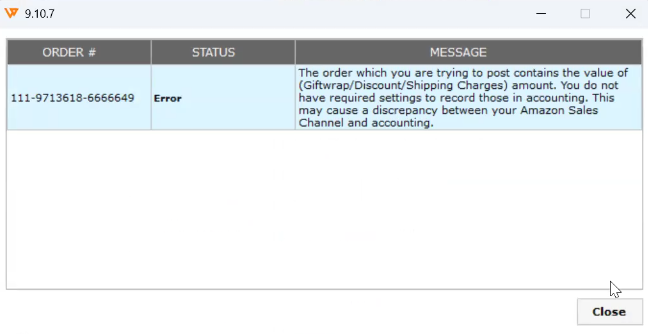
Posting an Amazon settlement can fail with the message "The order which you are trying to post contains the value of (Giftwrap/Discount/Shipping Charges) amount. You do not have required settings to record those in accounting." when the settlement includes orders carrying a Gift Wrap, Discount, or Shipping Charges amount and Webgility Desktop has no QuickBooks item mapped for that charge type (for the generic version of this error, see Warning: Please verify all of your data and settings).
When This Applies
You are posting an Amazon settlement from Webgility Desktop into QuickBooks, you see the message above, and at least one order in the settlement has a non-zero Gift Wrap, Discount, or Shipping Charges amount.
Why This Happens
Webgility Desktop posts each charge type on an order as its own QuickBooks line item. If a charge type is present on the order but no QuickBooks item is selected for it in your sales-channel Sync Settings, Webgility stops the post rather than drop the amount silently.
Steps to Map the Missing Charge Item and Post the SettlementStep 1: In Webgility Desktop, go to Connections > Accounting/POS/ERP > Sync Settings for the Amazon sales channel and open the Transaction settings tab and select the option to 'Post gift wrap charges under the item' and select an appropriate item
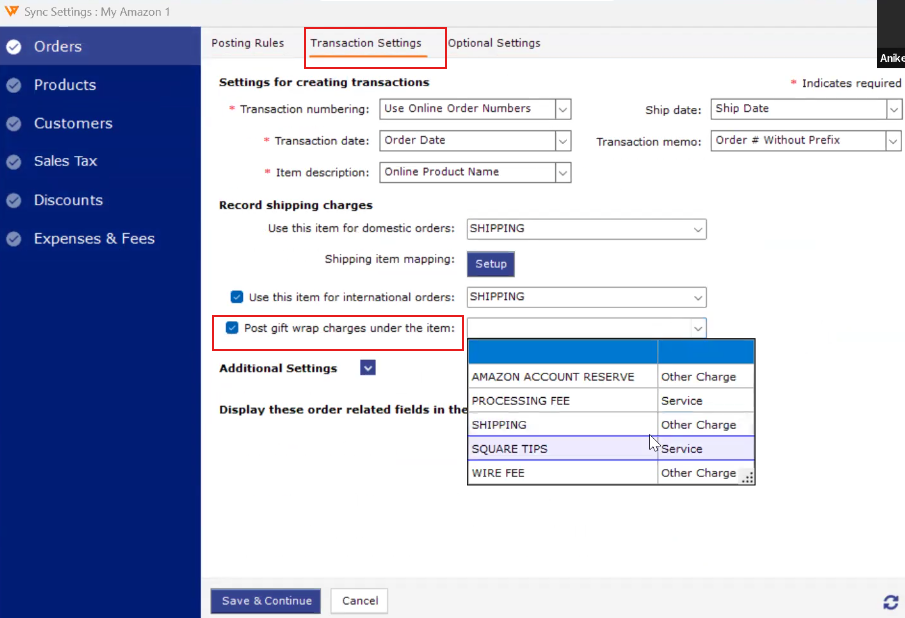
Step 2: For each of the three charge types, enable it and select the QuickBooks item that should carry the amount (for the shipping-item side, see How to Map Shipping Methods with QuickBooks; for the discount side, see Discount Posting Settings for QuickBooks Desktop).
Step 3: Save the settings. If a QuickBooks item for the charge does not yet exist, create a Service or Other Charge item in QuickBooks first, refresh Webgility's product data, and then come back to Step 2.
Step 4: Re-sync the settlement report (see Download and Post Amazon Settlement Reports with Webgility Desktop). The settlement should now post, and each order's Gift Wrap, Discount, and Shipping Charges values post against the items you just mapped.
Important Note
"Only enable and map a charge type if you actually use it. Enabling Gift Wrap when none of your orders ever carry a Gift Wrap amount does no harm but adds a mapping you then have to maintain."
Key Recommendation
Set these three mappings up when you first configure the Amazon sales channel, before your first settlement. Doing it reactively, mid-settlement, means re-running the sync and hunting for which charge triggered the stop.
Additional Support
If the mapping is in place and the settlement still shows the same error, write to support@webgility.com with the settlement report ID and the specific charge type the error names.