
Warning Message:
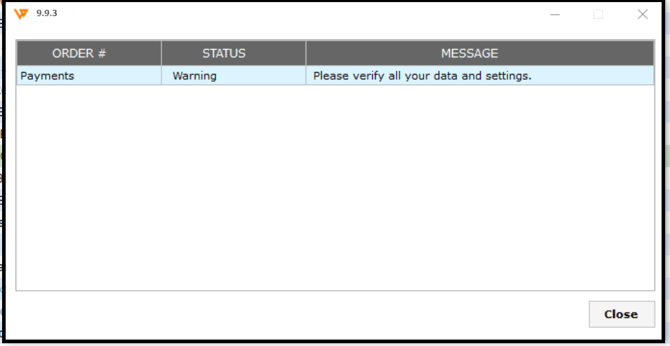
Cause:
Be sure to double-check all your data and settings, as various reasons can lead to this error.
Troubleshooting Steps:
1. Update the Webgility application to the latest version. Navigate to Help > Terms and Privacy.
2. If credit memo settings are enabled, navigate to Connections >> Sales channels >> Settings >> Download Settings >> enable “Don’t download return orders” and save the settings.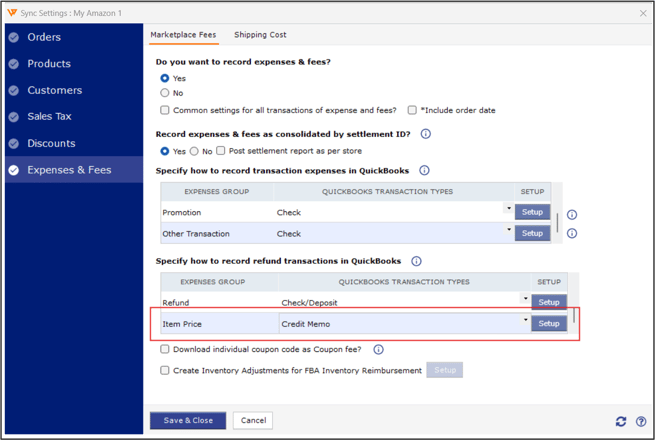
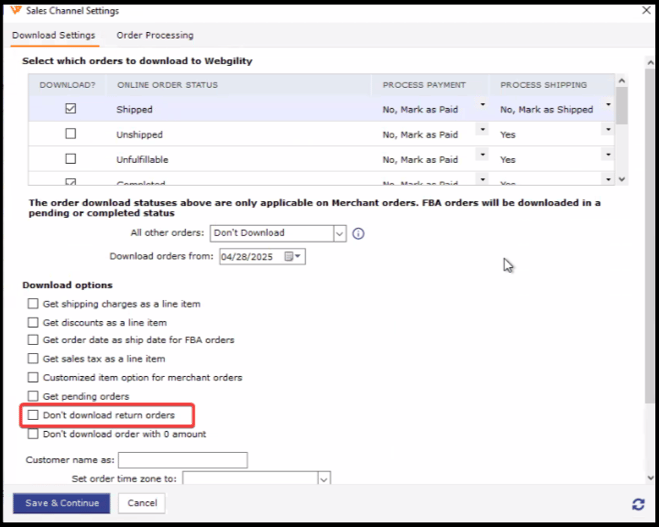
3. For refund posting (item price), ensure that the deposit is selected. If under Connections > Sales Channels > Settings, 'Do not download return' is disabled, enable it.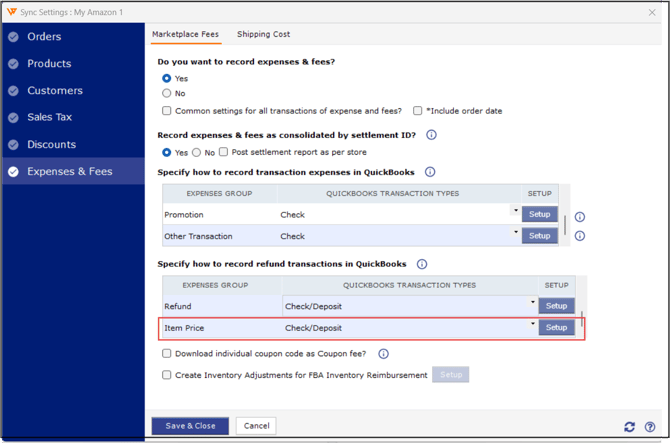
This step is crucial as return orders are downloading, but we are posting the returns as check deposits. In the case of a check deposit, a return download is not required.
4. Undo sync and redownload the settlement report. Now try to repost the settlement to QuickBooks.