
Part of How to Configure Your Channel Settings in Webgility i.
Automation tab
This tab sets what Webgility i does by itself for this channel. See How to Set Up Automation in Webgility i.
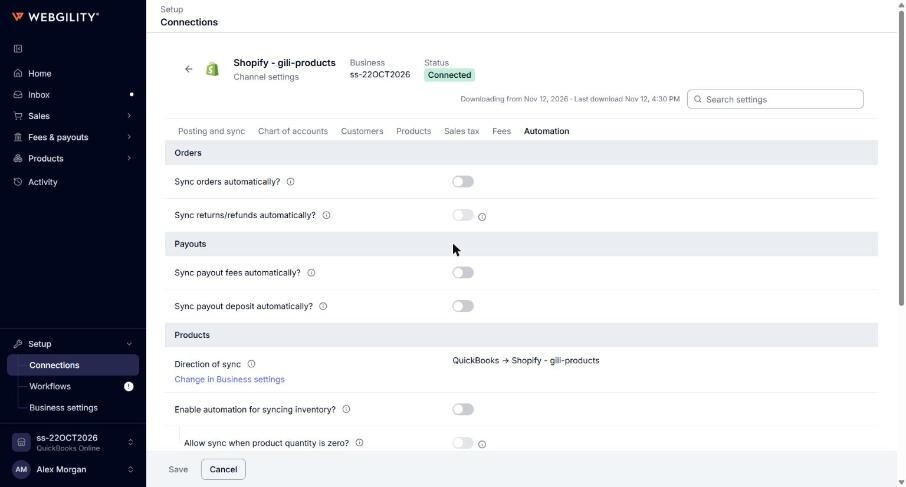
- Sync orders automatically? and Sync returns/refunds automatically? (under Orders): when on, Webgility i posts orders, and then refunds, to QuickBooks Online by itself in its runs. When off, you post them yourself from the Orders page. On a Transactional channel, Sync returns/refunds automatically? can be on only while Sync orders automatically? is on.
- Sync payout fees automatically? and Sync payout deposit automatically? (under Payouts): sales channels whose payouts post only. When on, Webgility i posts the fees and the deposit of each payout by itself.
- Direction of sync (under Products): read only. Shows which system inventory, price and cost are copied from, for example "Shopify - My Store → QuickBooks". Click Change in Business settings to change it. See How to Set the Product Sync Direction.
- Enable automation for syncing inventory?, Enable automation for syncing price? and Enable automation for syncing cost? (under Products): update inventory, price or cost automatically for products that are out of sync. Each has options under it, such as Allow sync when product quantity is zero?, Sync inventory as zero when quantity is negative, Allow sync when product price is zero?, Allow sync when product cost is zero? and Include multiple mapped products for syncing?.
- Enable automated synchronization of order updates (under Changes to posted orders): Transactional channels only. When on, Webgility i applies a change the sales channel makes to an order that already posted. When off, it holds the change and does not post it. Default: off.