
Error Message:
Let's try this again. Update the product list in the Webgility desktop application and then retry the product sync.
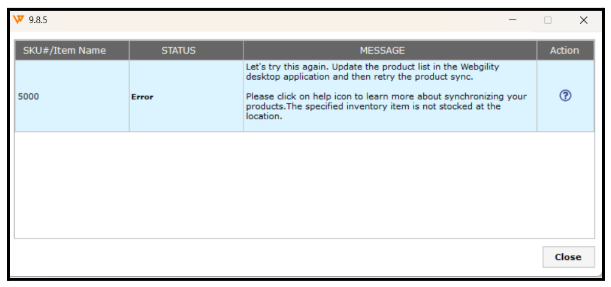
Cause of the issue:
This issue typically arises when trying to sync the products in Webgility Desktop. The error indicates that the latest product data has not been updated in Webgility Desktop Software. To resolve this, follow the steps mentioned below to refresh latest product data from both Sales Channel and QuickBooks.
Steps to fix:
-
Updating Webgility Desktop to the latest version is possible. Follow the steps in the article
-
In Webgility Desktop, navigate to the Products tab.
-
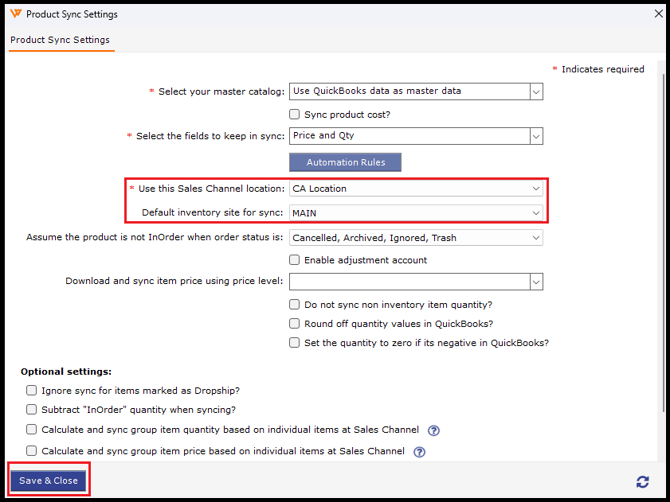
Verify your Product Sync Settings by navigating to Settings at the bottom and clicking Sync Settings. Make sure to click Save & close if changes are made.
-
Under Product Sync Settings, verify the Sales Channel Location & Default Inventory Site Location as shown in the screenshot below. If making any changes, then click Save & Close.
-
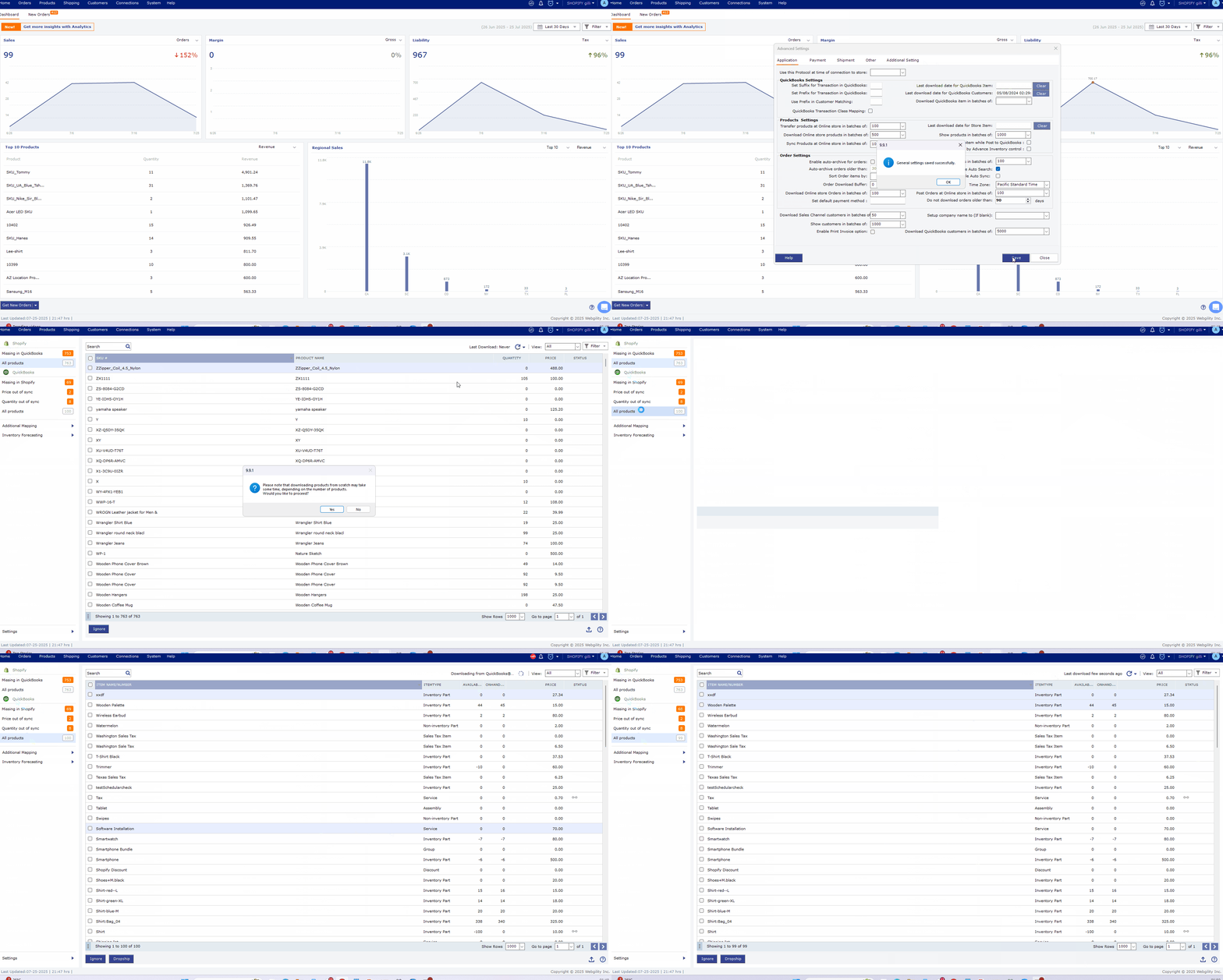
Navigate to Connections, select Sales Channel, click on Advanced Settings, go to the Application, and Clear the “Last Download Date” for both:
-
QuickBooks Items
- Store Items and click Save and Close at the bottom.
-
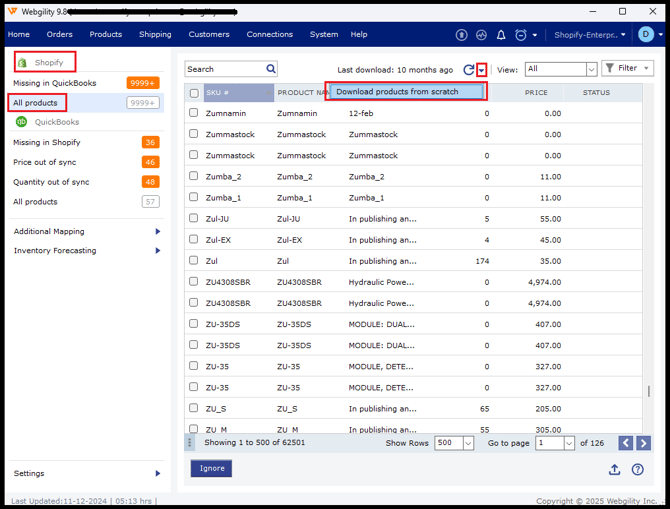
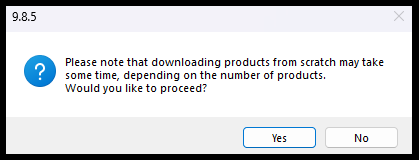
In the Products Tab On the right under the Refresh button, there is a dropdown option available, so select “Download products from Scratch” and click on Yes to start the product download process.
-
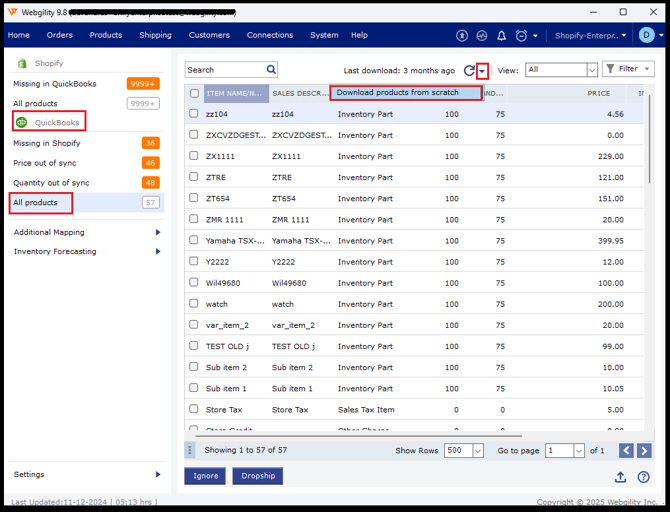
Next, click on “All products” under Quickbooks.
-
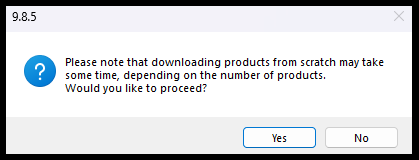
8. On the right under the Refresh button there is a dropdown option available, so select “Download products from Scratch” and click on Yes to start the product download process.
- Once downloaded, retry syncing the item in Out of Sync Tabs