
Overview
If item quantity, price, or cost updates in QuickBooks Desktop Enterprise are not reaching your Shopify POS automatically, the Webgility Scheduler is either not running or not configured to carry those three fields across. Turning the Scheduler on and ticking the right boxes fixes both.
When This Applies
You use Webgility Desktop with QuickBooks Desktop Enterprise and Shopify POS, you expect inventory updates in QuickBooks to appear in Shopify POS without manual re-entry, and either nothing is syncing or only some fields are syncing.
What You'll Need
Webgility Desktop open on the computer the Scheduler runs on, with that computer powered on and signed in during the hours you want sync to run.
Steps to Configure the Scheduler for Shopify POS Inventory Sync
Step 1: Start the Scheduler if it is not already running (see How to Start or Stop the Scheduler). The Scheduler icon turns green when it is active.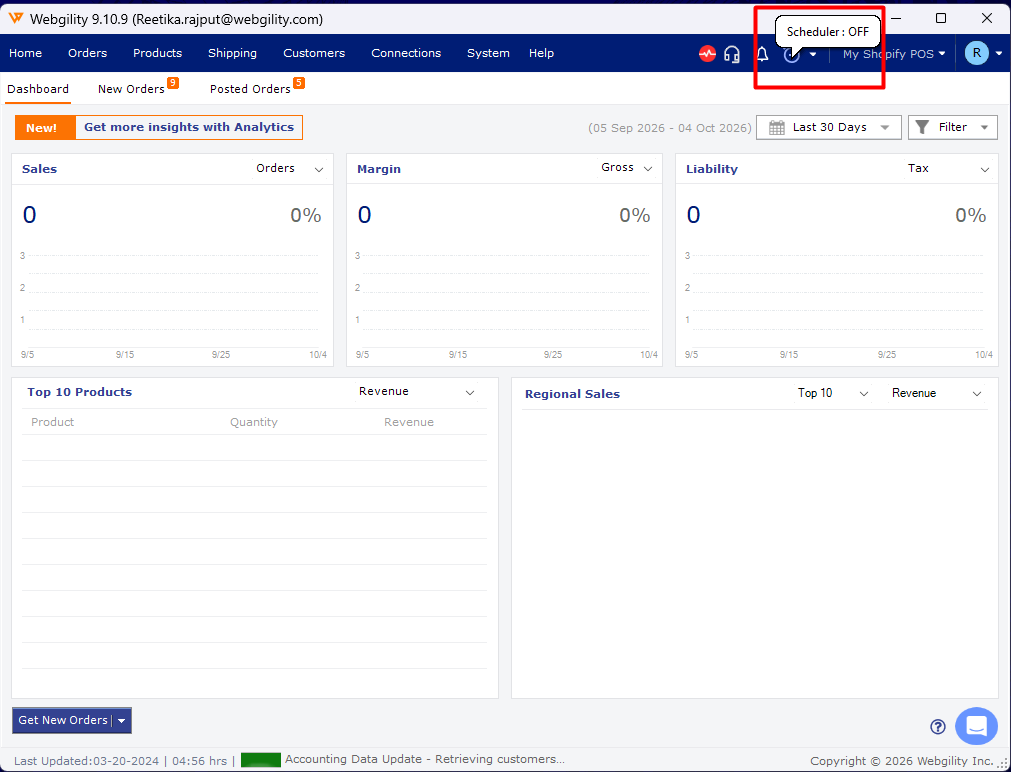
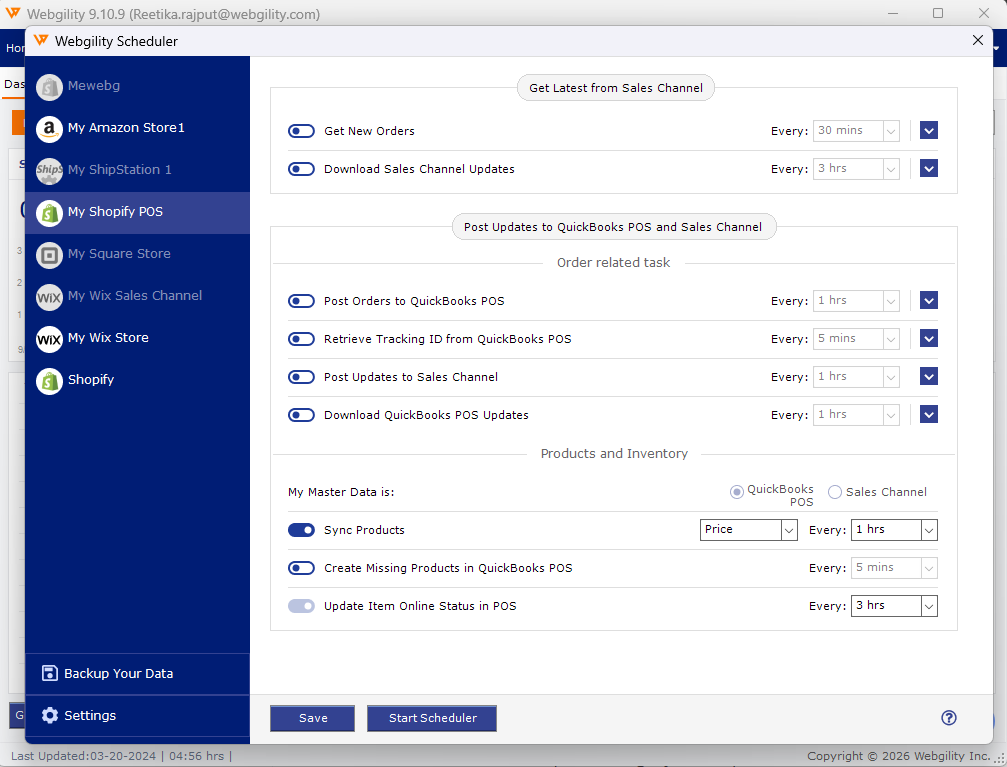
Step 2: Open the Scheduler settings and set QuickBooks as the master data source for item sync (for the full Scheduler config anatomy, see Scheduler Settings Overview). This tells the Scheduler to push QuickBooks changes outward to the store rather than the other way around.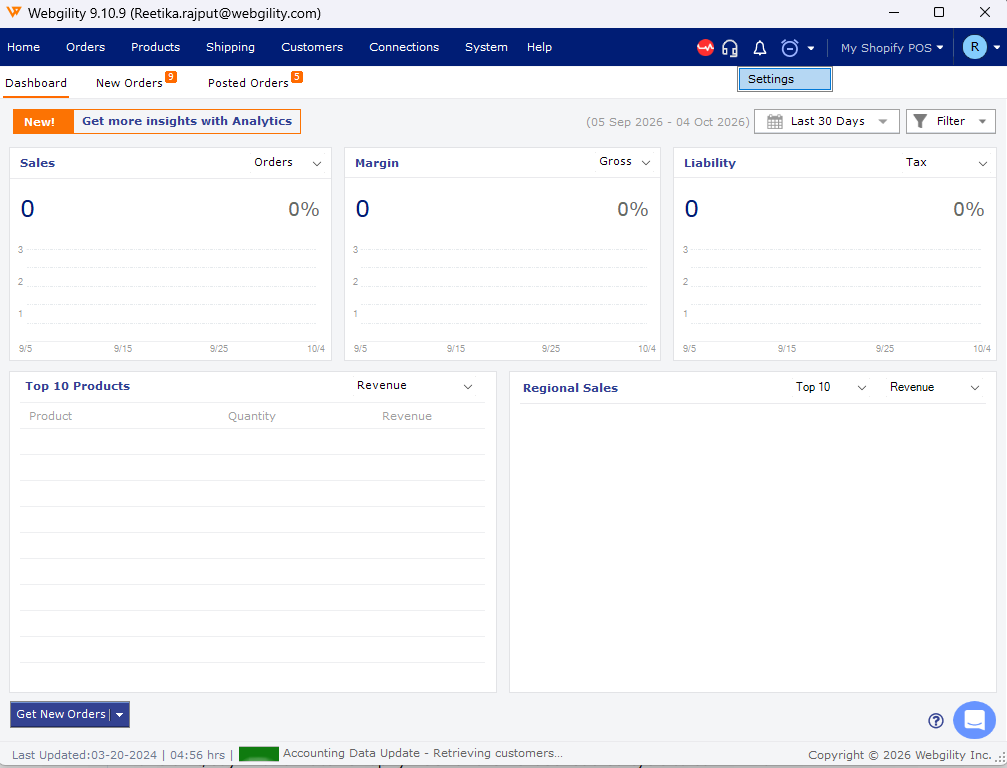
Step 3: Enable the toggles for item price, cost, and quantity sync so all three fields move with each cycle (for the product sync surface, see How to Sync Products with Webgility Desktop).
|
Step 4: Set the sync interval you want (a 5-minute interval is a good starting point for a POS store that sells throughout the day) and Save.
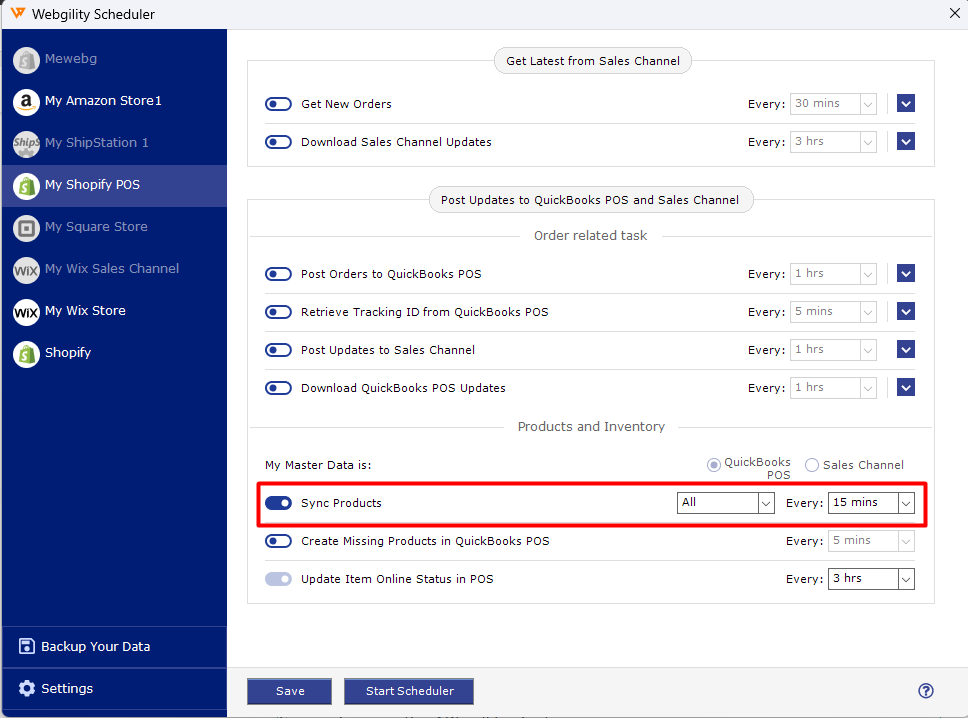
Step 5: Make a small test change on an item in QuickBooks — adjust a quantity by one unit, say — and watch Shopify POS for the next scheduled cycle to confirm it comes through.
Important Note
The Scheduler runs on the computer Webgility Desktop is installed on. That computer must stay powered on and signed in during the hours you want sync to run — closing Webgility or signing out of Windows pauses the Scheduler.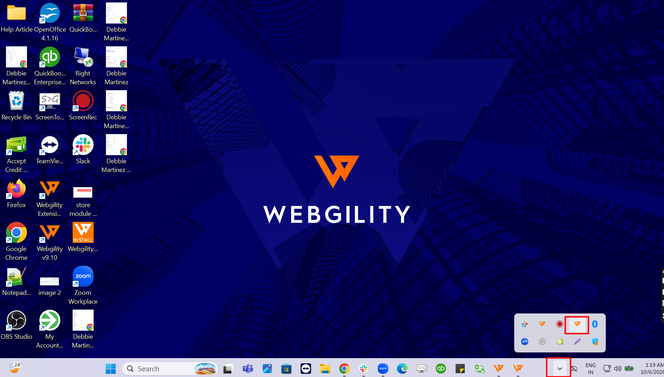
Key Recommendation
Pick an interval that matches how often you adjust inventory in QuickBooks. For a POS store that moves inventory steadily through the day, 5–15 minutes keeps the two sides close; for a store that batches adjustments once a day, a longer interval is fine and spares the API call budget.
Additional Support
If the Scheduler is running with all three toggles on and inventory is still not reaching Shopify POS, write to support@webgility.com with the item SKU you changed, the QuickBooks timestamp of the change, and a screenshot of the Scheduler config.