
Overview
Use these checks to review inventory syncing between a sales channel and QuickBooks Desktop in Webgility. Menu names may vary slightly by version.
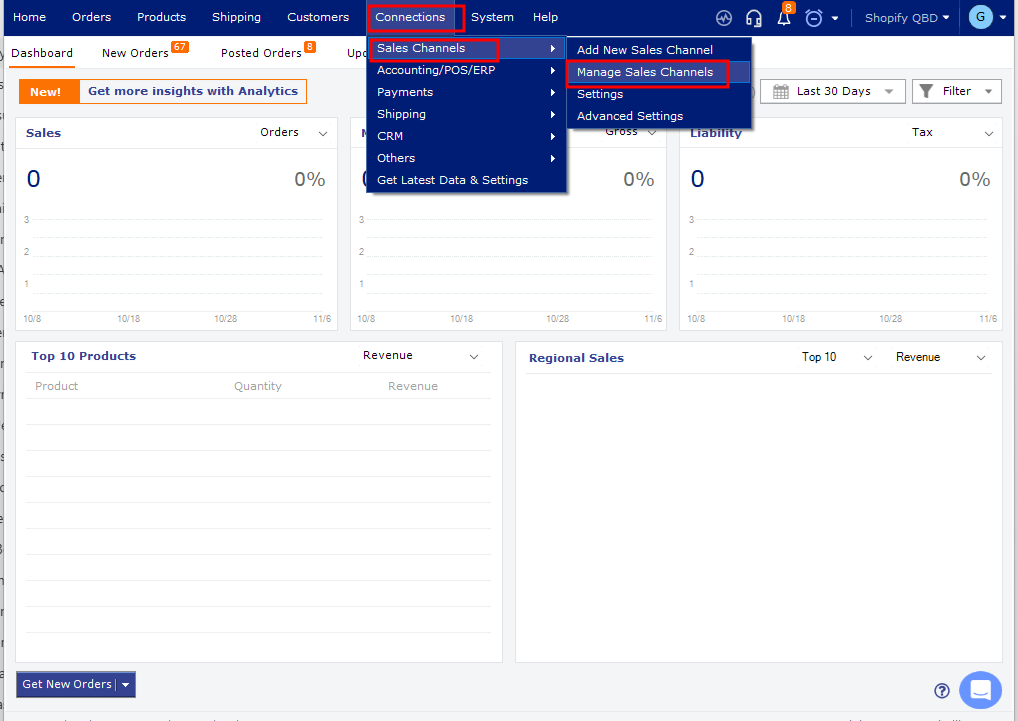
Steps- Test the sales channel connection. In Webgility, go to Connections > Sales Channels > Manage Sales Channels. Select the edit icon for the store and click Test Store Connection. For more detail, see How to Update Login Credentials and Sales Channel Information.
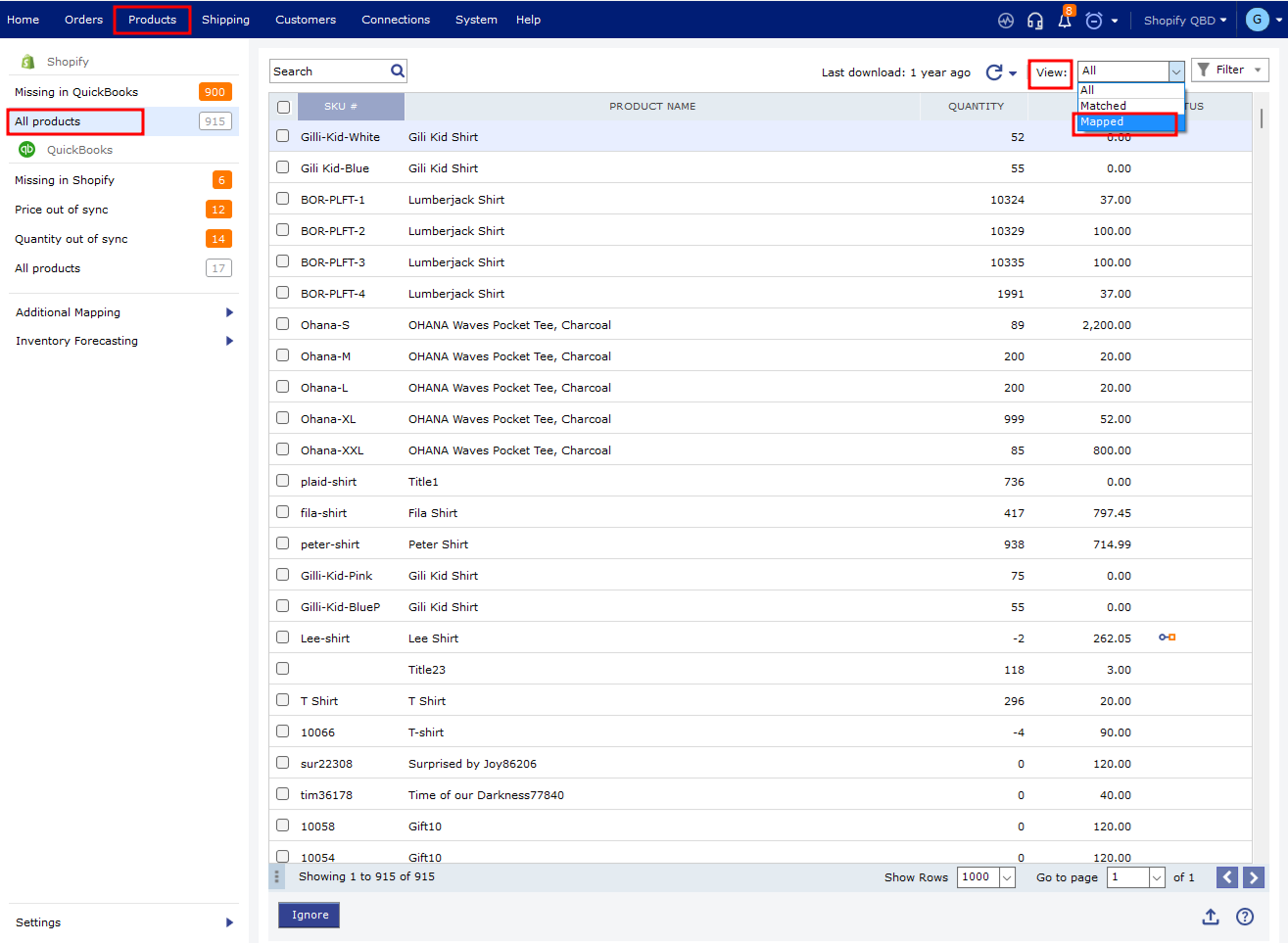
- Check product mappings and item status. Open Products and use the Mapped filter to review mapped items. Check the item’s status for In Orders, Out of Sync, or Error. See Mapping and Remapping Products for mapping details.
- Refresh data from QuickBooks. Sign in to QuickBooks Desktop in Single User Mode. In Webgility, go to Connections > Get Latest Data & Settings and download the latest data. For detailed instructions, see How to Download the Latest Accounting Data from Scratch.
If you have any questions or need more help, please contact our support team.