
Overview
When the same item sells on more than one channel at the same time, two orders can land before any of the channels know the stock is gone. The Product Sync Settings dialog in Webgility Desktop carries the specific controls that stop this from happening.
When This Applies
This applies if you sell the same SKU on Shopify, Amazon, and Square with Webgility Desktop pushing stock to each channel, and you have recently seen an order accepted on one channel after QuickBooks reached zero or went negative.
Why This Happens
Webgility Desktop reads your QuickBooks on-hand quantity on a schedule and pushes that number out to each channel. Pending orders not yet fulfilled, negative on-hand values in QuickBooks, and direct stock edits between pushes can all leave the channels showing stock that is already committed or gone.
Important Note: "Inventory adjustments made directly in QuickBooks between sync intervals are the most common source of oversells — Webgility Desktop has no way to react to a manual change until its next read."
Steps to Prevent Overselling
Step 1: Open Webgility Desktop and go to Products > Settings > Sync Settings to open the Product Sync Settings dialog (for the full field reference, see How to Sync Products with Webgility Desktop).
Step 2: Confirm Select your master catalog is set to the side you want Webgility Desktop to read stock from, then set Select the fields to keep in sync to Qty Only (or Qty and Price) so the stock number is included on every push.
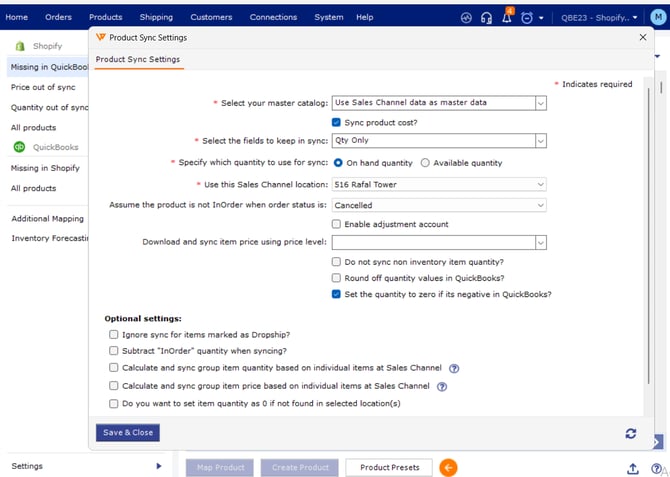
Step 3: Scroll to the Optional settings section and tick Subtract "InOrder" quantity when syncing? so pending orders are decremented from the pushed number in real time.
Step 4: Tick Set the quantity to zero if its negative in QuickBooks? so a negative on-hand value in QuickBooks pushes as zero to each channel instead of keeping the item for sale.
Step 5: Click Save & Close, then open the Scheduler and set the sync frequency to every fifteen minutes during trading hours so the push runs often enough to catch stock drops between channels (for the full Scheduler walk-through, see Scheduler Settings Overview).
Step 6: In your Shopify admin, open each product that sells out often and turn off the Continue selling when out of stock checkbox so Shopify stops accepting orders once the pushed quantity reaches zero.
Step 7: Open Products > Inventory Forecasting and raise any SKU already below zero to its correct on-hand number before the next Scheduler run (for how forecasting works, see How to Optimize Cashflow with Inventory Forecasting).
Key Recommendation
Treat QuickBooks as the one place that holds your on-hand total and let Webgility Desktop push outward to every channel, so you never have two sources of truth quietly drifting apart.
Additional Support
If a SKU still oversells after these settings are in place, email support@webgility.com with the SKU, the channel order IDs, and the QuickBooks on-hand number at the time of the sale.