
Part of How to Configure Your Channel Settings in Webgility i.
Posting and sync tab
This tab sets how the channel posts, which orders post automatically and what Webgility i downloads from the store.
Posting and sync
- How this channel posts: how much sales activity one QuickBooks Online document covers. It decides which workflows run on the channel. A change applies from the next run. Options: Transactional (one document per order), Consolidated (one document per period). Default: Transactional (one document per order). See Understanding Posting Grain and How It Affects Automation.
- Period of each consolidated document: shows when the channel posts Consolidated. Options: Day (one document per day). Default: Day (one document per day).
- Start date of consolidated posting: shows when the channel posts Consolidated. Orders dated on this day or later post in consolidated documents. Orders dated before it are left out. Orders from today post after the day ends.
Which orders post
- Filter orders by: the order value that decides whether an order posts automatically. Every workflow and rule of the channel uses it. Options: Order status, Payment method, Currency, Shopify tags (Shopify only), Payment status (some sales channels only). Default: Order status.
- Select order statuses, Select payment methods, Select currencies, Select Shopify tags or Select payment statuses: the list that matches Filter orders by. An order posts automatically only when its value is one you tick. With nothing ticked, no order posts. Default: the order statuses of a completed or paid order for your sales channel, for example Open and Archived for Shopify, or Shipped for Amazon.
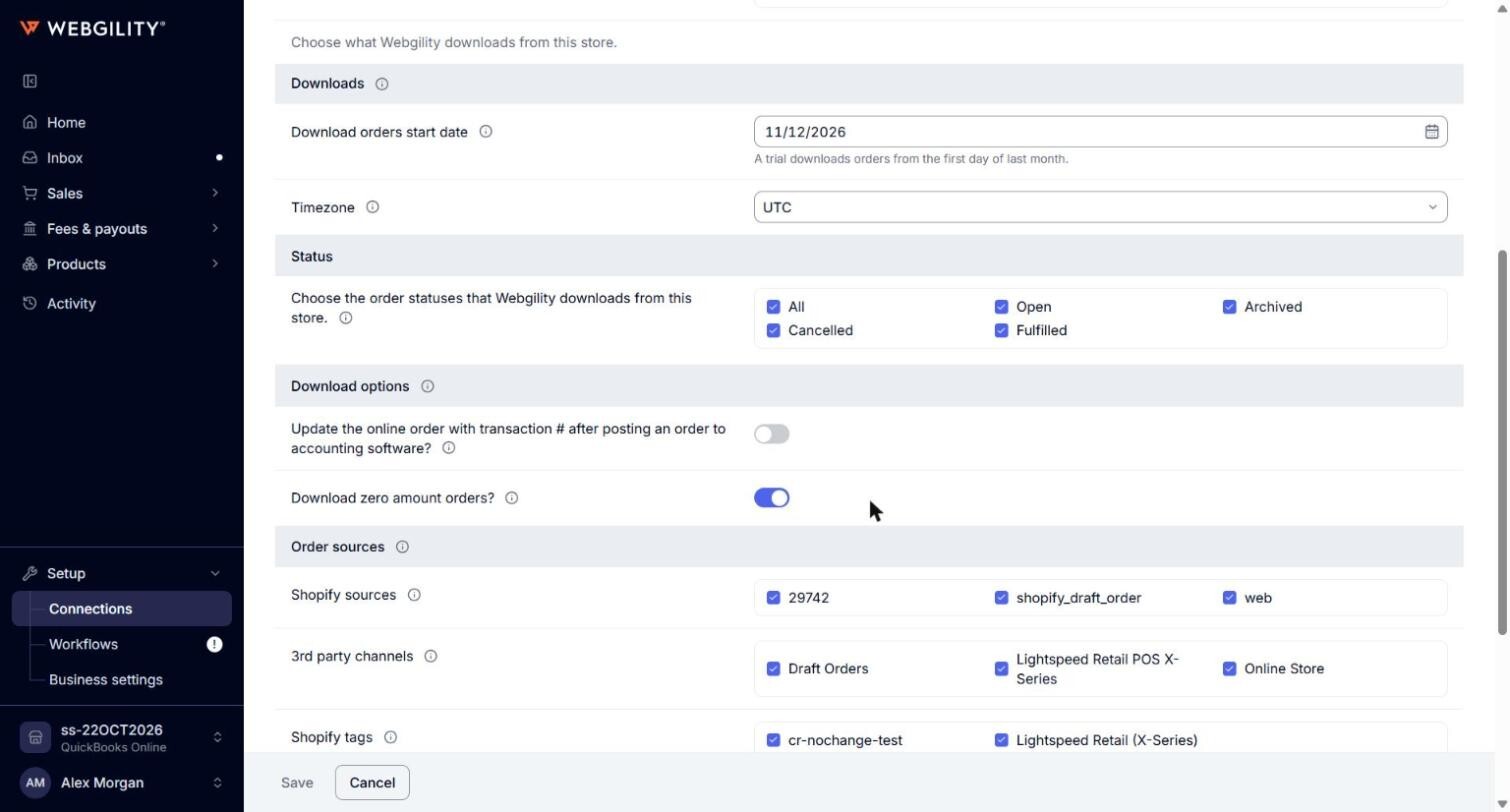
Downloads
- Download orders start date: orders created or updated after this date download into Webgility i. Required. On a trial, orders download from the first day of last month. Downloading older orders can need an add-on.
- Download orders cutoff date: some sales channels only. Webgility i skips updates to orders placed on or before this date, even when the store changes them later. Leave it empty to download every update.
- Download refund start date: some sales channels only. Refunds issued on or after this date download.
- Download payouts start date: some sales channels only. Payouts made on or after this date download.
- Report Start Date: some sales channels only. Settlement reports download from this date. It does not change posting. Leave it empty to keep the saved date.
- Timezone: the time zone Webgility i uses for the order dates of this store. When you change it and click Save, a panel titled "You are changing the time zone" explains that Webgility i updates the dates of every order of this store it holds, posted or not, but not the dates of documents already in QuickBooks Online. Click Continue to go ahead, or Go back.
Status
- Status: the order statuses Webgility i downloads from this store. Tick at least one, or tick All. A change applies to orders downloaded from now on. An unposted order of a status you untick is hidden from the Orders page and does not post.
Download options
These options show for some sales channels only.
- Update the online order with transaction # after posting an order to accounting software?: adds a note with the QuickBooks Online document number to the order in your store after it posts. Options: on or off.
- Download zero amount orders?: when off, orders with a total of zero do not download. Options: on or off.
- Record withholding tax with order/refund: Amazon only. Records the withholding tax with the order or refund. If it is on, you cannot create a deposit for a settlement report from Webgility i. Options: on or off.
- Download ship date as: Amazon only. The ship date of an order that ships in several parcels. Options: Latest ship date, Earliest ship date.
- Download item description with orders: downloads the item description with each order. Options: on or off.
- Download archived orders: downloads orders the store has archived. Options: on or off.
- Download shipping and billing address with orders: downloads the customer addresses with each order. Options: on or off.
Amazon orders (Amazon only)
- Store to get orders from: the marketplaces whose orders download. Tick at least one.
- Orders to download: Download FBA orders for orders Amazon fulfils, and Download FBM orders for orders you fulfil.
Order sources (Shopify only)
- Shopify sources: orders from a ticked source download, such as web or pos.
- 3rd party channels: orders that a ticked app sold through your store download.
- Shopify tags: an order downloads when it has a ticked tag. An order with no tag downloads too.
- POS locations to download orders from: point of sale orders download from the ticked locations. Tick All locations, or no location, to download them from every location.
When you save, Webgility i checks again each unposted order that came through a third-party app or has a tag, and hides or shows it to match. Other orders already downloaded keep their place. The change applies to the orders your store sends next. An order that a filter leaves out stays hidden and never posts.
Order source settings (BigCommerce only)
- Order sources: orders that came through a ticked source download.
- Other: when ticked, orders with no source, or from a source not in the list, download.
Download products
- Download products starting from: Date is the only choice.
- Download products start date: products created or updated on or after this date download. To download all your products again, set an earlier date.
- Select Shopify location to sync: Shopify only. The location whose quantity Webgility i uses when it syncs inventory, instead of the total quantity of the store. If your store has one location, it is chosen for you. Click Refresh locations to read the locations from your store again.