
Webgility Online's Ignored tab is the permanent exclusion list for orders you never want to post to QuickBooks, and it is the right place for pre-cutoff legacy orders that keep reappearing in the Error or Flags tab after you save your Order Download Settings.
When This AppliesYou already set an Order Download cutoff date, but orders from before that cutoff still show up in the Error or Flags tab, and every time you save your Order Download Settings a batch of hidden historical orders becomes visible again on both your stores.
How It WorksOrders on the Ignored tab are permanently excluded from Automation, so Webgility Online will not try to post them to QuickBooks on its next run, and they will not reappear on the Error or Flags tab after a settings save (background on tab filtering in How to Search and filter Orders in Webgility Online).
Steps to Move Legacy Orders to Ignored
Step 1: In Webgility Online, open Sales > Orders and switch to the Error tab (then repeat on the Flags tab if orders also appear there).
Step 2: Apply the top date filter to the pre-cutoff window — the span before your Order Download cutoff date — so only the legacy orders you want to permanently hide are visible on the list.
Step 3: Select the pre-cutoff orders in bulk, open More Actions, and choose Move to Ignored to send the whole batch to the Ignored tab (the alternative path, used only when you also want to remove the orders from Webgility entirely, is in Delete Orders from Webgility Online).
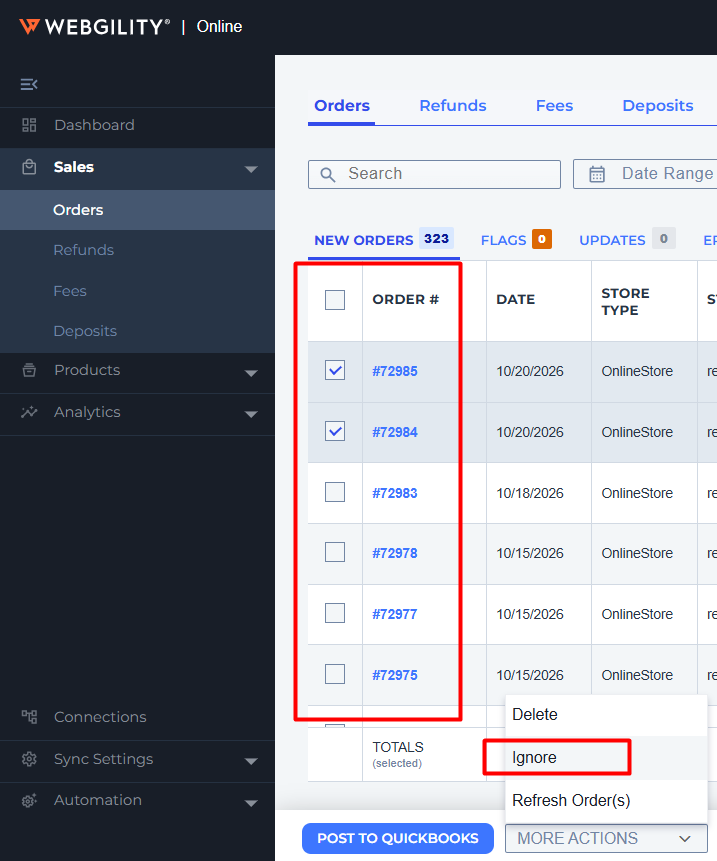
Step 4: Open the Ignored tab, confirm the moved count matches what you expected on each store, and leave the orders on this tab — a restore sends them back to Error and the cycle starts over.
Important Note: "If you save your Order Download Settings in the future and a fresh batch of pre-cutoff orders reappears on the Error or Flags tab, repeat Steps 1 through 4 for that batch — the Ignored tab holds everything you have already moved and is unaffected by the next settings save (background on the Automation surface is in Disable Automation in Webgility Online)."
Key RecommendationTreat the Ignored tab as a one-way destination for everything from before your cutoff date — if you need those orders back for historical reporting, pull them from your sales channel's reports or from QuickBooks rather than restoring them from Ignored. Restoring resets the pattern and places the orders back on the Error tab where Automation will try to post them.
Additional SupportIf orders you did not move keep appearing on the Error or Flags tab even after you clear the pre-cutoff batch, contact support@webgility.com with the store profile name, the Order Download cutoff date, and a sample Order ID from the reappearing batch so the team can investigate the save-triggered re-surface routine for your account.