
This article will guide you on how to improve performance of Webgility Desktop
Keywords: Webgility Desktop slow, application freeze, memory usage, SQL restart, C drive space, Windows update, performance optimization
Overview
At times, Webgility Desktop may become slow, unresponsive, or experience freezing. These performance issues can usually be resolved by checking system resources, managing background applications, updating Windows, and optimizing SQL services. This article outlines all the necessary troubleshooting and optimization steps.
Step 1: Check Webgility’s Internal Performance Status
- Open Webgility Desktop.
- On the upper right-hand side click on the Performance Metrics icon on the upper right-hand side.
- Review memory and process usage to identify bottlenecks.
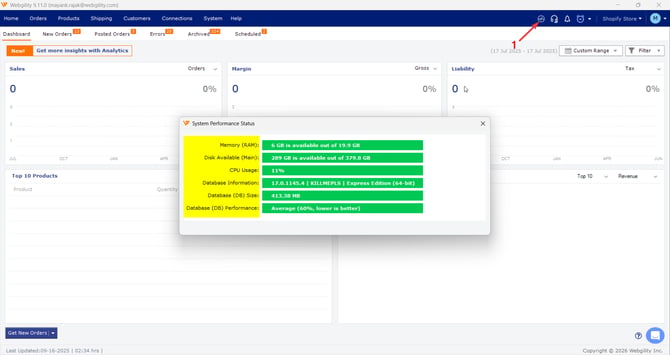
This step helps you understand whether the issue is Webgility-specific or system-wide.
Step 2: Disable Unused Notifications
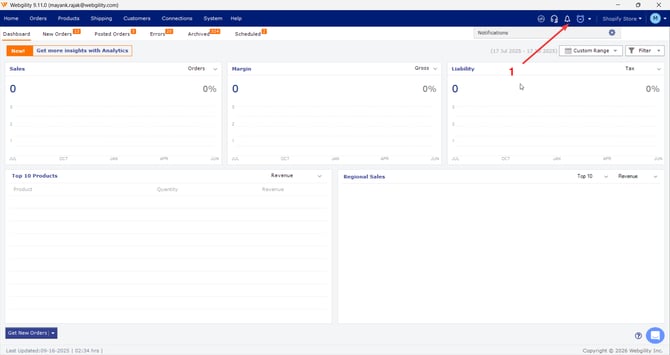
- In Webgility, click the Bell icon (Notifications)
- Click the Gear (⚙️) icon
- Turn off unnecessary alerts and notifications, this reduces background resource usage.
Step 3: Check System Memory Usage in Task Manager
- Press Ctrl + Shift + Esc to open Task Manager
- Click the Processes tab
- Click on the Memory column to sort by usage
- Identify and close any high-memory apps that are not essential
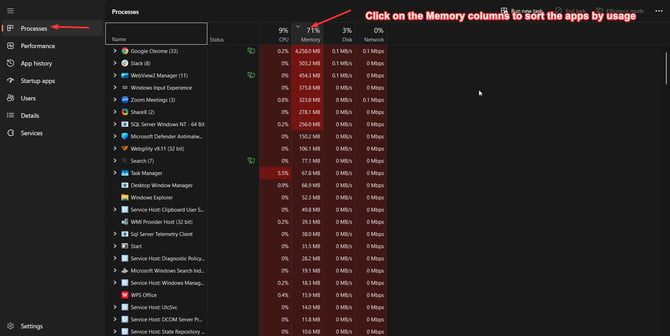
Do not end critical system processes or those related to Webgility or QuickBooks.
Step 4: Verify Free Space in C: Drive
- In Windows Search bar type Storage Settings.
- Once the Scan is complete remove Temporary Files & verify Cleanup Recommendations. Also Empty the Recylce Bin.
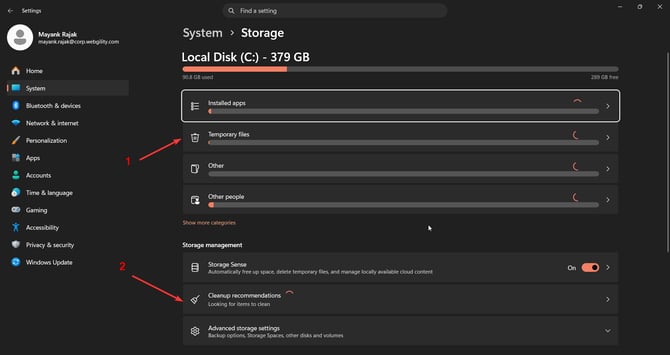
Webgility performance can be impacted if disk space is low.
Step 5: Make Sure Windows is Up to Date
- Go to Start > Settings > Windows Updates.
- Click Check for updates.
- Install any available updates.
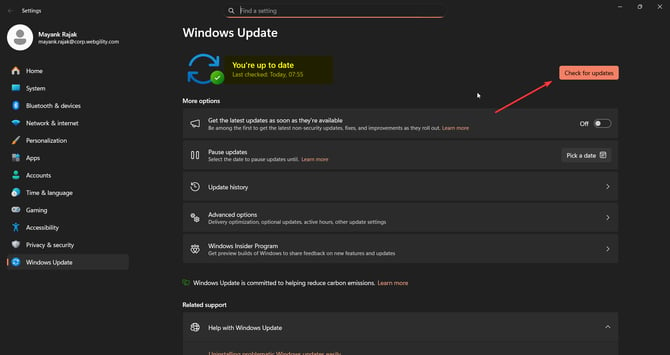
Updates improve speed, compatibility, and provide essential security patches.
Step 6: Restart SQL Services (on Primary Server Only)
Only perform this step on the main machine where the Webgility SQL database is hosted.
To restart:
- Close Webgility Desktop and Scheduler on all connected machines
- Press Windows + R, type services.msc, and press Enter
- Find SQL Server (Unify) or your specific instance name
- Right-click and select Restart
- Then restart the SQL Server Browser service in the same window
- Please refer to Restart SQL Services.
Restarting SQL services can help clear temporary slowdowns caused by database connection issues.
Optional: Run the Webgility DB Utility Tool
Running the DB Utility helps:
- Please refer to How to Run DB Upgrade & Utility
- Reindex the database
- Optimize table performance
- Clear temporary blocks or lags
Remove Any Existing Logs
-
Please refer to: How to delete error logs and shipping logs.
Feel free to reach out to support@webgility.com.