
Overview
Webgility Desktop's Advanced Settings carry an Ignore Order from these Location: dropdown that tells the current profile to skip orders tied to the locations you tick. Applying the filter on every profile keeps each profile to its own location and stops a single order from downloading through more than one profile.
When This AppliesUse these steps when you have more than one Webgility Desktop profile connected to the same multi-location sales channel (for example one Shopify store with locations in Coral Gables and Naples), and orders placed at one location are also showing up in the other location's profile and posting to QuickBooks twice.
What You Will NeedThe location names configured on your sales channel — the Advanced Settings dropdown lists the locations Webgility Desktop reads from the channel, so there is nothing to type manually. The initial connection setup is covered in How to Connect Webgility Online with Shopify.
Steps to Ignore Orders From Other Locations
Step 1: In Webgility Desktop, use the sales channel selector in the top-right corner to switch to the first profile (for example your Coral Gables profile).
Step 2: Go to Connections > Sales Channels > Advanced Settings.
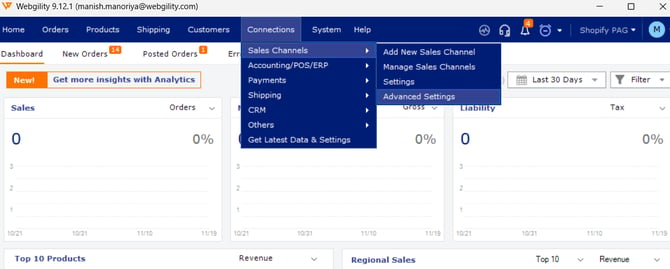
Step 3: In the Advanced Settings dialog open the Additional Setting tab, click the Ignore Order from these Location: dropdown, tick every location this profile should skip (including Ignore when no location if orders with no location attached should be excluded), and click Save.
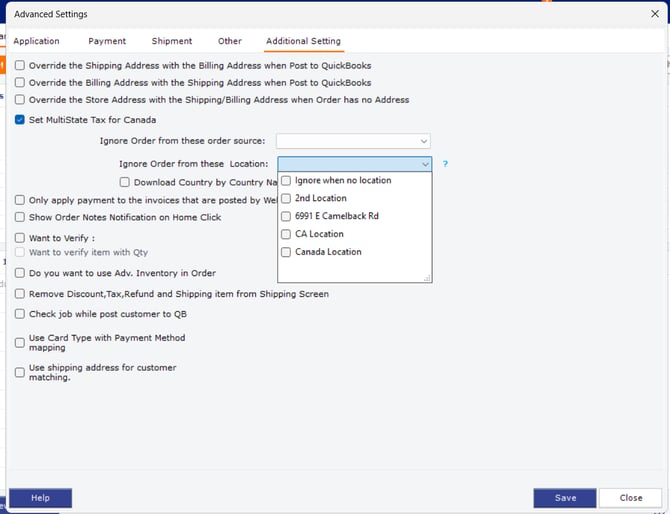
Step 4: Switch to the next profile from the top-right selector and repeat Step 2 and Step 3, this time ticking every location that does not belong to that profile.
Step 5: Repeat Step 4 on every profile connected to the same multi-location channel so each profile only downloads orders for its own location.
Important Note: Orders already downloaded into the wrong profile stay there. Undo sync on the misrouted orders in the profile that should not hold them before re-downloading.
Review the Advanced Settings filter on every profile whenever you add or rename a location on the sales channel, and use the undo-sync flow to clear out any order that landed in the wrong profile before the filter was saved (see How to Unpost Transactions from Webgility Desktop with Undo Sync).
Additional SupportIf a profile keeps pulling orders from a location it is set to ignore, email support@webgility.com with your subscriber ID, the channel name, the profile name, and one example order number so the team can confirm the Advanced Settings filter on that profile.