
Part of How to Download, Review and Post Refunds in Webgility i.
If refunds are held instead of posted
Your refund workflow decides whether refunds post. If the Default of Refunds to accounting is on Hold, refunds that no refund rule matches are not posted. A refund on hold still shows New until you post it. When you post it, the Post to accounting card says, for example, "Not posted: refunds from Shopify - my-store are set to not post (Refunds to accounting > Default is on Hold). Change the Default to Post, or add a refund rule that posts this refund, then post it again." The refund then shows Held, and its Details column reads "Set not to post by its Workflow".
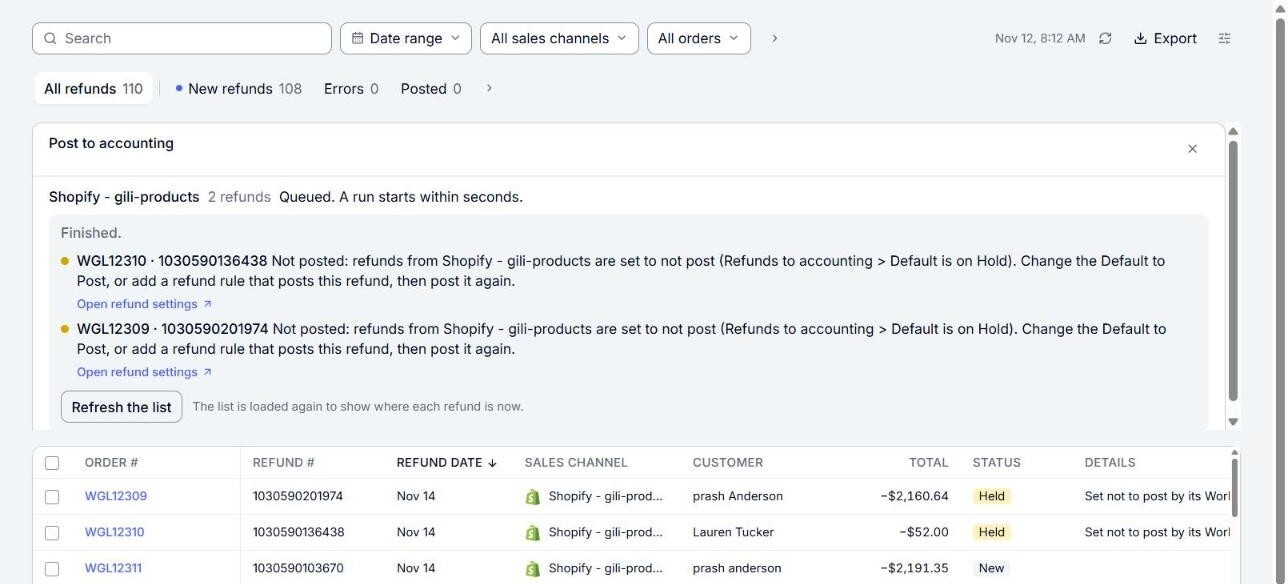
- Click Open refund settings under the refund in the card. You can also go to Setup > Workflows and click Default under Refunds to accounting for your sales channel. The Default says This Default holds refunds.
- Click Post refund or hold for review? to open the section, and choose Post.
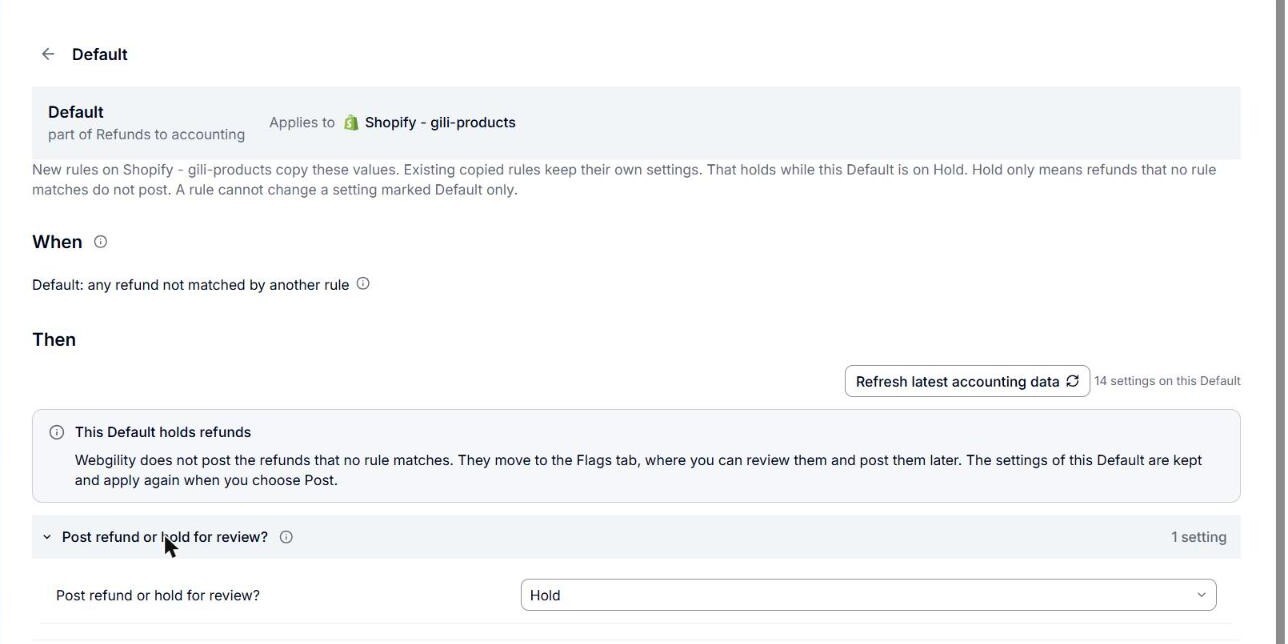
- Click Save the Default. On Workflows, the Default now reads "Posts a refund receipt for every other refund."
- Go back to Sales > Refunds, tick the held refunds and click Post to QuickBooks.
Note: To post only some refunds, keep the Default on Hold and add a refund rule that posts the refunds you want instead. See How to Add a Rule to a Workflow.