
Use it to check who posted an order, changed a setting or connected a store.
Note: The activity log covers every business on your account, not only the business shown at the bottom of the left menu. Times are in UTC.
What is recorded
Webgility i records an entry each time a person takes an action, such as:
- Signing in.
- Connecting, reauthorizing or removing a store, a payment gateway or a shipping app, and connecting or disconnecting QuickBooks Online.
- Asking to post an order, refund or payout to QuickBooks Online, or to undo a posting.
- Ignoring, restoring or deleting orders and refunds, and marking them as posted.
- Changing Channel settings, Workflows, Business settings or email notifications, and turning automatic posting or sync on or off.
Note: Automatic runs, such as the nightly automation, do not add entries. The log shows what people do.
Steps:
- In the left menu, click Activity. The page lists the entries, newest first, under a heading for each day: Today, Yesterday, or the date.
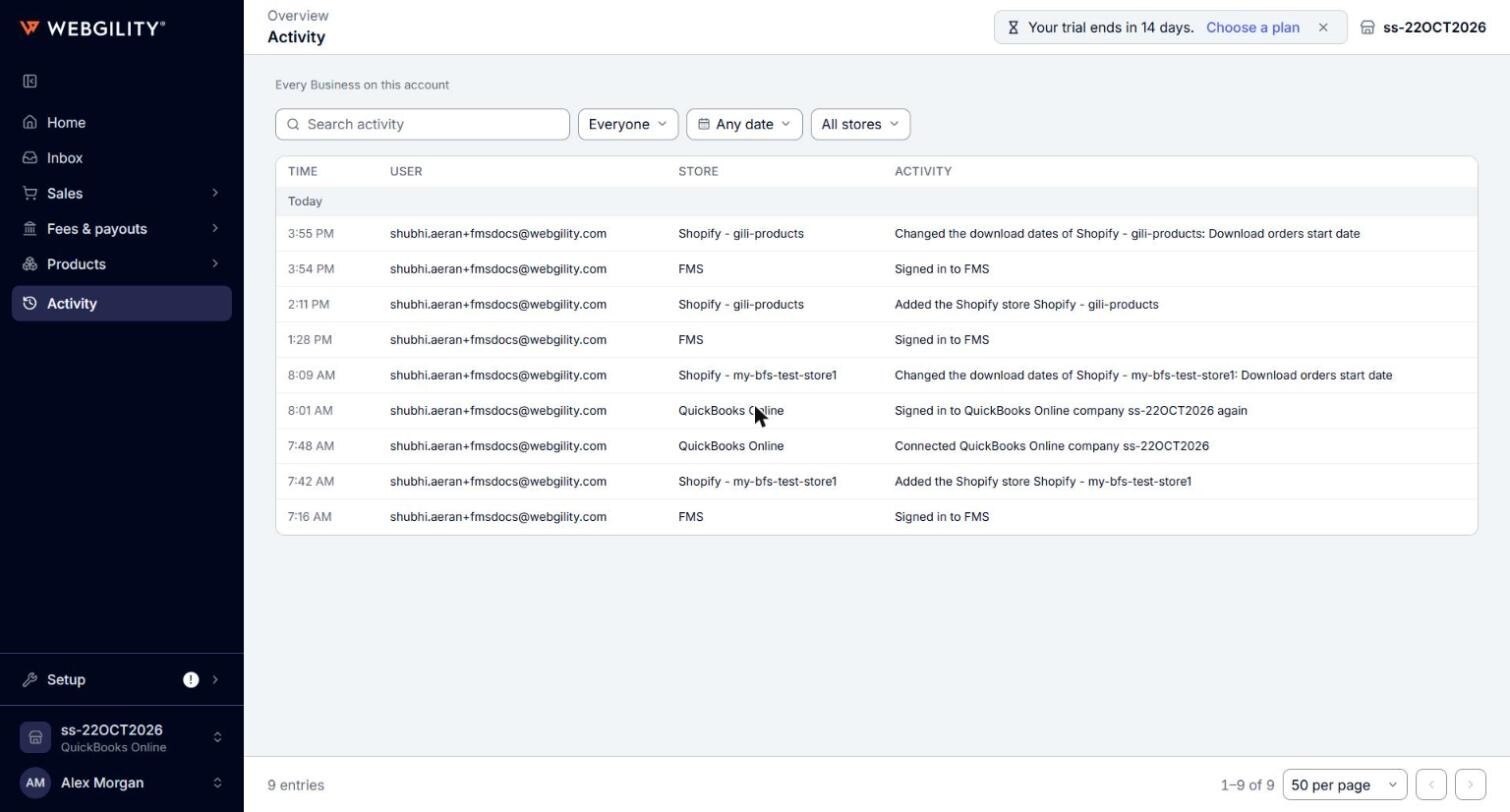
- To find an entry, type in Search activity and press Enter. The search looks in the activity text and in the name of the person who did it.
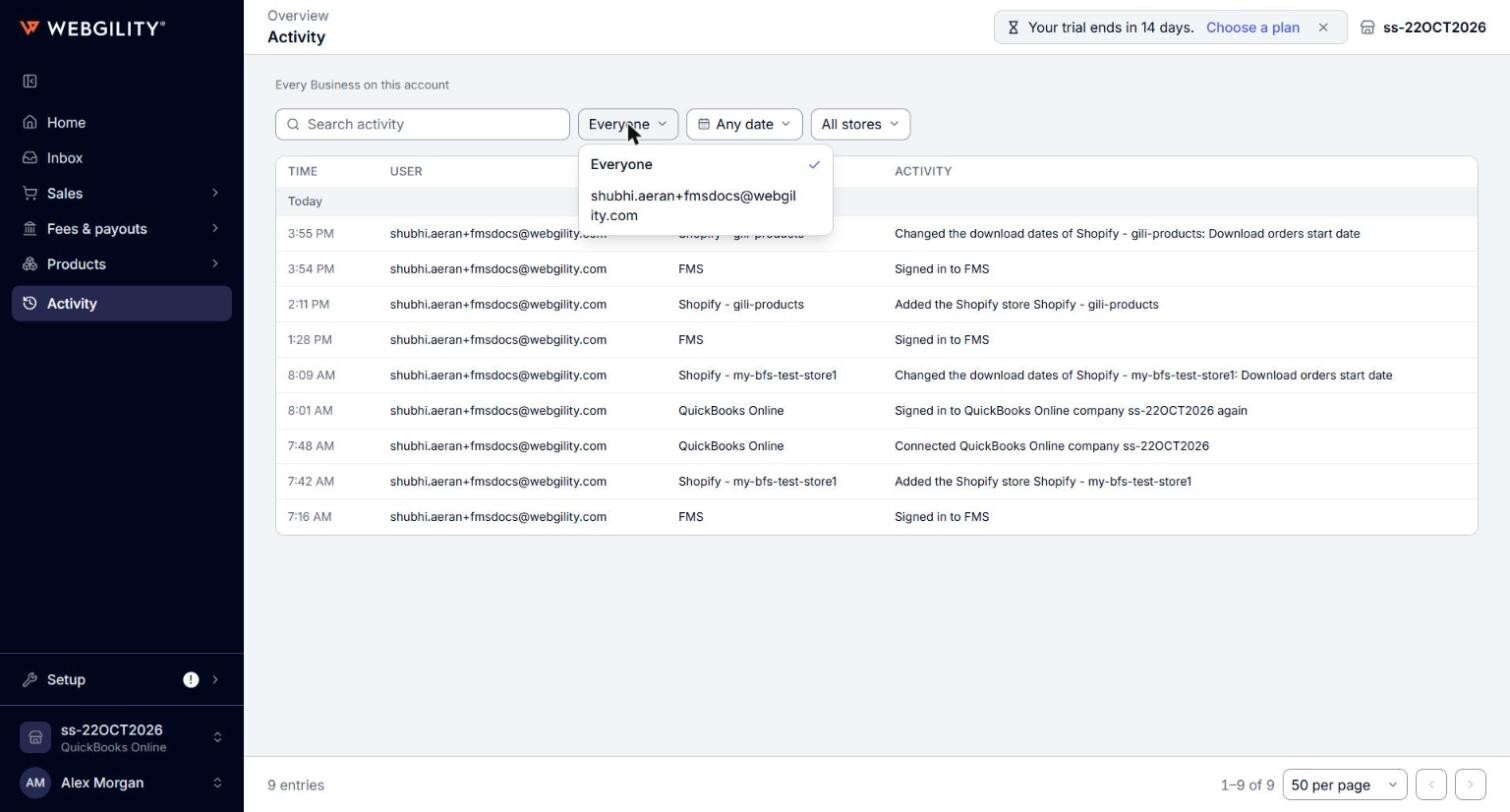
- To see one person's entries, click Everyone and pick the person. Click Everyone again in the list to see all people.
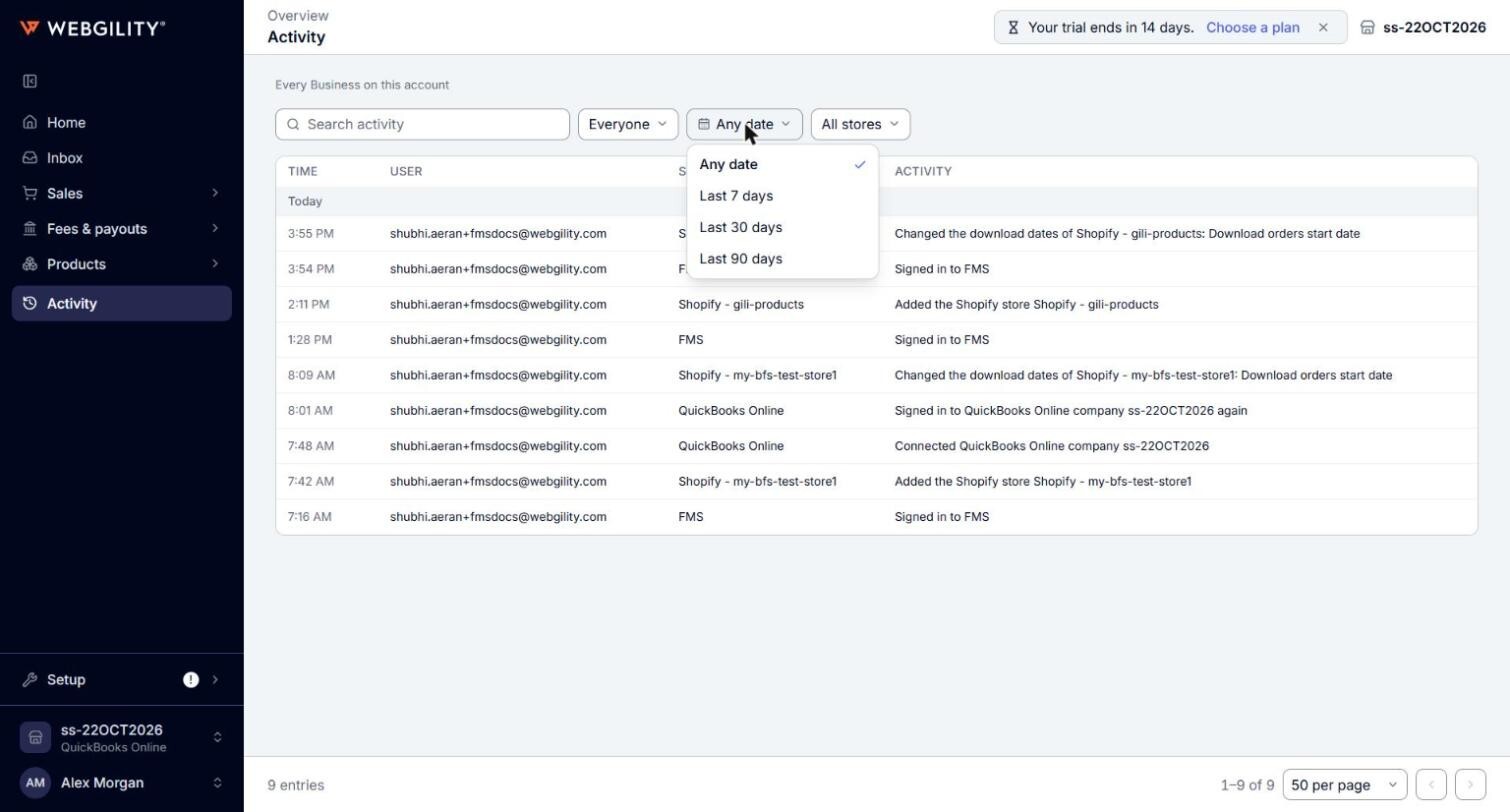
- To see recent entries only, click Any date and pick Last 7 days, Last 30 days or Last 90 days.
- To see one store's entries, click All stores and pick the store. This filter shows only when the log names more than one store.
- Use the arrows at the bottom of the page to move between pages. To show more entries on each page, pick a number in the page size list. Options: 20, 50, 100, 150 or 300 per page. Default: 50 per page.
Read an entry
- Time: the time of the action, in UTC. Point to it to see the full date and time.
- User: the person who did it.
- Store: the store the entry is about, by the name it had then. Entries about your QuickBooks Online company show QuickBooks Online here.
- Activity: what was done, for example "Added the Shopify store Shopify - your-store".
The bottom of the page shows how many entries the current view holds.
Note: The activity log is read-only. To undo a posting, use the Orders, Refunds or Payouts page.