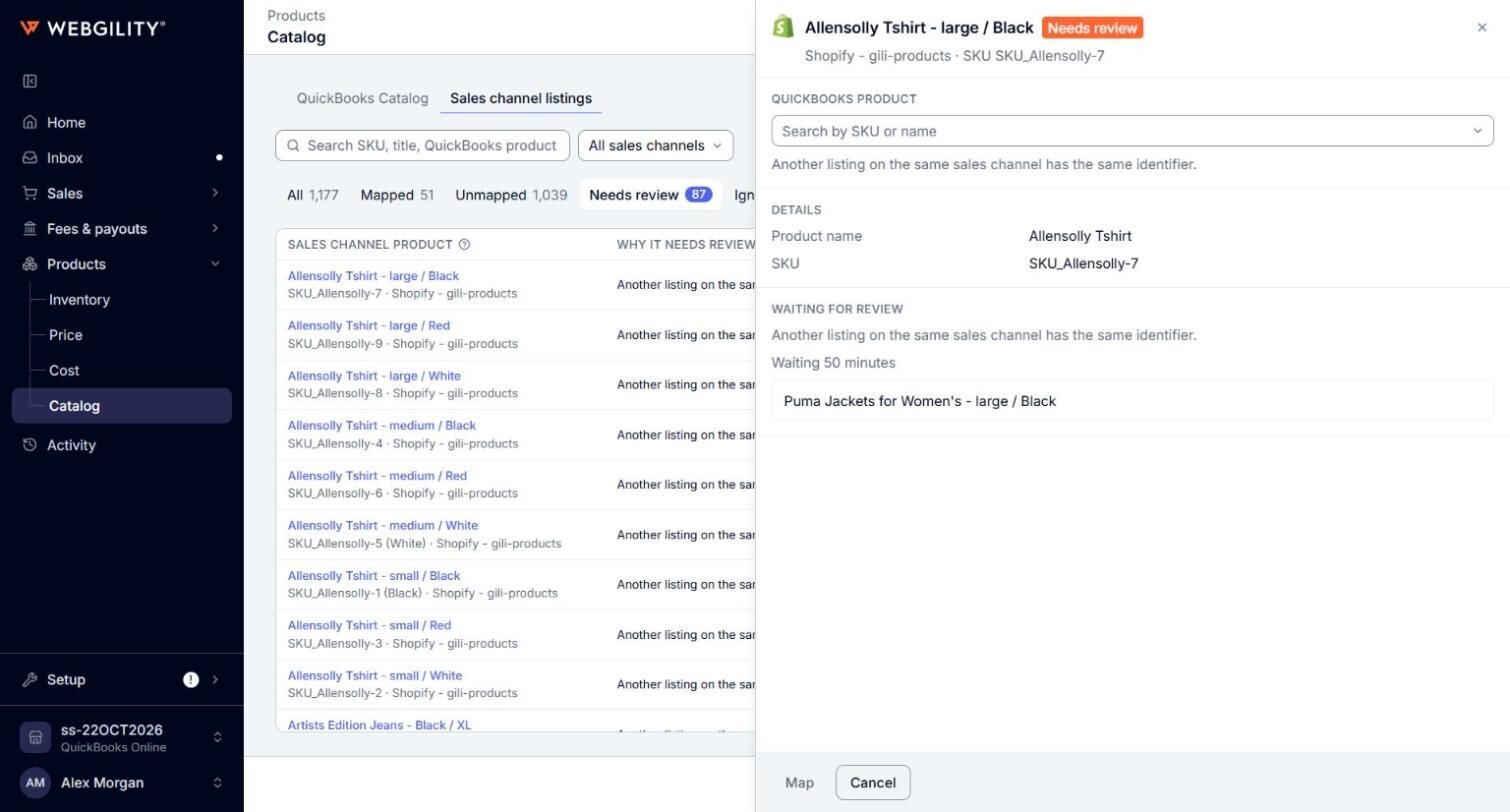
Part of How to Use the Needs Review Tab in Sales Channel Listings in Webgility i.
How to resolve a listing
The panel asks Is it the same product as one of these? Each choice shows a possible product's title, its QuickBooks product, and the sales channels it is listed on.
- Pick one of the products: the listing is the same product. Click Same product to confirm. The listing joins that product and posts to its QuickBooks product. It moves to Mapped, or to Unmapped if that product has no QuickBooks product yet.
- Its own product: the listing is not the same as any of these. Click Keep as its own product to confirm. It keeps its own product: it moves to Mapped if that product has a QuickBooks product, or to Unmapped until you map it.
- Map to a QuickBooks product: click this button to choose the QuickBooks product yourself. A search box replaces the question. Select the product, click Map (or Save mapping when the listing already shows a QuickBooks product), then confirm. Mapping the listing closes its review. Click Cancel to go back to the question. See How to Map a Sales Channel Listing to a QuickBooks Product.
Note: Answering one of two listings that share a SKU on the same channel can resolve the other one too. If the other listing has no question left, it leaves the Needs review tab on its own.