
Overview:
When tracking information is added to an eBay order, Webgility Desktop may continue to show the order as unshipped and the tracking ID may not appear in QuickBooks. This can occur when the order update setting for shipment and order details is not enabled or when the order has not been re-downloaded again after the tracking information was added.
Resolve tracking ID sync issues:
- Open Webgility Desktop enable the order update feature for Shipment and Order Details. In Webgility Software navigate to Connections>Sales channel > Settings> Order Processing> Then under Check for order updates after download> check the online store for any order updates after downloading to Webgility, select “Yes” click on “Options” select the Shipment Details condition to detect the updates on the order, select Save and then Save and Continue. Please refer to this article on How To Configure this feature.
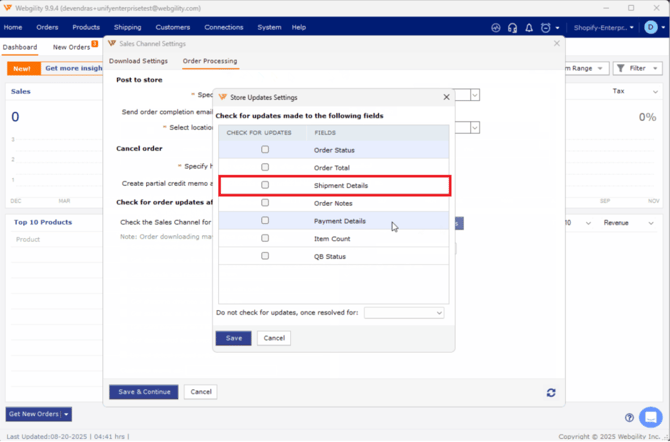
- Once configured, save the settings & turn on the scheduler.
- Confirm that Webgility Desktop changes the order status to Shipped and downloads the tracking ID, after accepting the order updates.
- Verify that the tracking ID is visible in Webgility Desktop under Order Details and QuickBooks.
- Monitor the next order to confirm that tracking information continues to sync correctly.
- Manual Option: Re-downloading the order usually brings in any missing information related to the orders.
After the order is re-downloaded, Webgility Desktop should update the order status and retrieve the tracking ID. If the tracking ID is available in Webgility Desktop but is not visible in QuickBooks, then refer to How to Fix Tracking ID Not Posting to eBay via Scheduler in Webgility Desktop.