
Overview
This article outlines the process for resolving scenarios where unpaid and/or shipped orders do not appear during order downloads in Webgility Desktop.
Issue Description
Certain orders—specifically those marked as unpaid or shipped—may not be downloaded in Webgility Desktop due to default Sales Channel settings or outdated versions of Webgility Desktop.
Resolution Steps
1. Update Webgility Application
-
- Please refer to Update Webgility Desktop Using Check for Updates Option.
2. Adjust Order Download Settings
- Open the Webgility Desktop application.
- Navigate to Connections go to Sales channels and Settings, and check the Select Which Orders to download to Webgility.
- Under Process Payment select, No Mark as paid to download the orders as Paid for the selected order status.
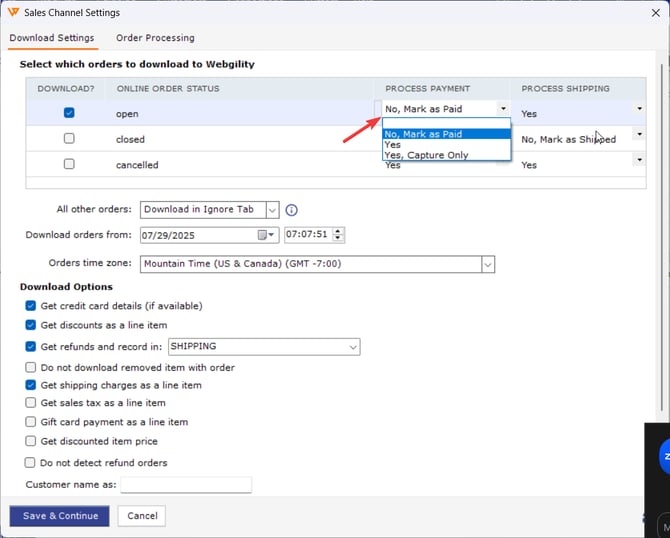
- For Shipped Orders, check Process Shipping and select No, mark as shipped to download the selected order statuses as Shipped Orders, click on Save & continue, then close the settings to apply the changes.
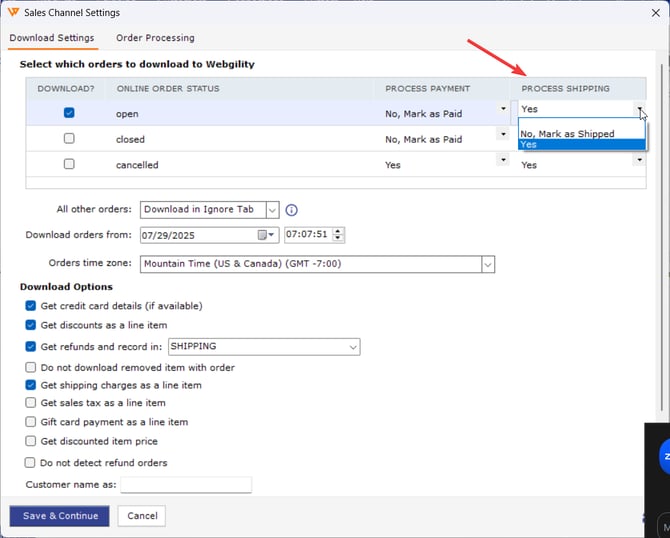
3. Re-Download Orders
- In Webgility Desktop, click Get New Orders.
- Re-download the affected orders; you may refer to Order Re-download in Webgility Desktop.
Feel free to reach out to us at support@webgility.com.