
Solution Steps:
Step 1: In QuickBooks, open the Bill for the affected item and note the value in the Inventory Site column on the item line.
Step 2: Change the Inventory Site on the Bill line to the correct site — the one your store's on-hand quantity should reflect — and save the Bill. If you are new to QuickBooks Advanced Inventory sites, see How to Enable Advanced Inventory in QuickBooks Enterprise.
Step 3: In Webgility Desktop, refresh the product data so Webgility picks up the corrected on-hand total from QuickBooks. For the full refresh flow, see Download Items from Scratch from Both QuickBooks & Sales Channel.
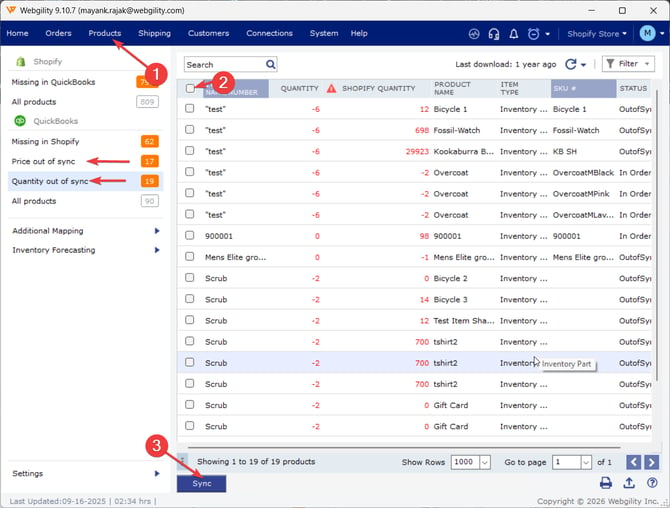
Step 4: Trigger the inventory sync for the affected item. By navigating to the Products Tab, go to Quantity/Price Out of Sync. Once the items are synced the store now receives the correct on-hand quantity from the corrected Inventory Site.
Important Note
"Verify the item mapping and the mapped Inventory Site match your actual stocking location. Reviewing mappings without also fixing the Bill's Inventory Site will not correct the on-hand total."
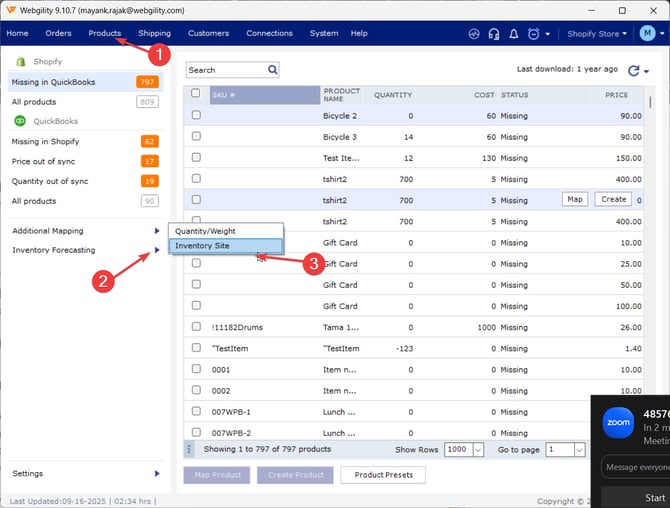
In Webgility go to the Products Tab, then Additonal Mapping and Inventory Sites.
Key Recommendation
When a mapped, matched item still syncs an incorrect quantity, open the most recent Bill for that item in QuickBooks and confirm the Inventory Site. A wrong site on a Bill is a common, easily corrected cause that is quicker to check than re-verifying mappings and automation rules.
Additional Support
If the on-hand quantity still does not match after correcting the Bill's Inventory Site and refreshing data, email support@webgility.com with the affected item's SKU, the site name, the quantity QuickBooks shows, and the quantity your store shows.