
Overview
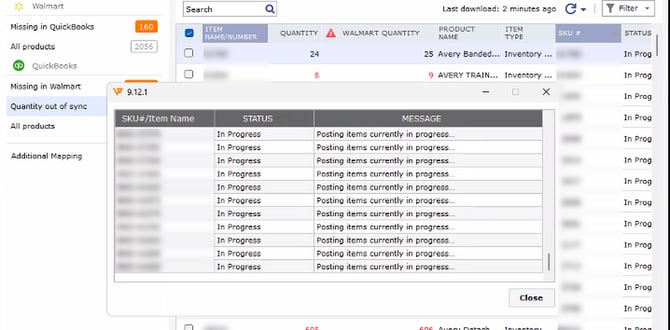
When Webgility Desktop tries to sync items to Walmart but the Sync Products window keeps showing every item as In Progress, the sync never completes and the Walmart listings stay out of date. The fix is to refresh the connection, pull fresh product data from both sides, and then push the stuck items through the Out of Sync tab.
When This Applies
You are seeing every Walmart item display an In Progress status in the Products module in Webgility Desktop, and a manual Sync Products run returns the same message without any items moving to Success. The problem starts after a period of normal syncing and does not clear on its own.
Why This Happens
Webgility Desktop is holding a stale snapshot of either the Walmart catalog or the QuickBooks item list, so the sync job cannot match the items it is trying to push and leaves them queued. Refreshing the connection and re-downloading both sides lets Webgility rebuild the match and complete the sync.
Important Note
These steps apply to any sales channel showing the same stuck "In Progress" behavior, not Walmart alone. Run them against the channel where you see the symptom.
Steps to Clear the Stuck Product Sync
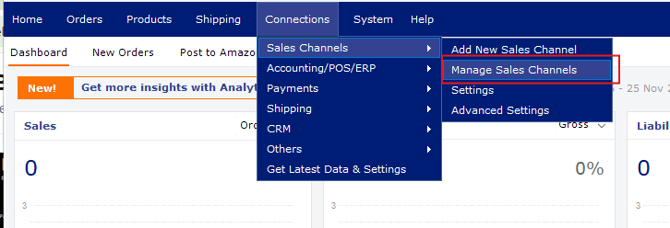
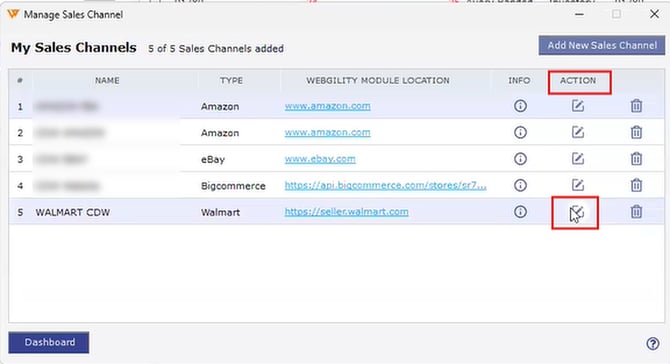
Step 1: Reconnect the Walmart store from Connections > Sales Channel > Manage Sales Channel, then click the pencil icon in the Action column for Walmart to open the Sales Channel Settings dialog, and click Connect to Walmart to re-authorize
Step 2: Re-download all data for both the Store section and the QuickBooks section so Webgility rebuilds its cached copy from scratch (full guidance in How to Download the Latest Accounting Data from Scratch). (for a full walk-through of re-downloading channel data, see How to Download the Latest Sales Channel Data & Products in Webgility Desktop).
Step 3: Open Products, switch to the Out of Sync tab, select the stuck items, and click Refresh so Webgility re-evaluates each item against the newly downloaded data (see How to Sync Products with Webgility Desktop for the sync-trigger details).
Step 4: Run the manual sync again and confirm items move from In Progress to Success.
Key Recommendation
If a product sync ever stalls for more than one scheduler cycle, treat it as a stale-cache symptom first — a re-download from scratch and a refresh in the Out of Sync tab clears the vast majority of these cases without a Support ticket.
Additional Support
If items remain stuck after the refresh, contact Webgility Support with the affected SKUs and the time of the last successful sync so the team can inspect the sync logs.